Printer Management
Key Concepts
Printer management is how you configure your physical printers so they can participate in Printago's automatic job matching and production system. Each printer needs three things to receive jobs: assigned materials (so the queue knows what filament is loaded), slicer profiles (so the cloud slicer can generate G-code for that machine), and printer-specific settings like bed type and AMS configuration. Once configured, a printer enters the queue's matching pool and can receive jobs automatically based on material compatibility and tag filters. Day-to-day operations center on marking printers as "clear and ready" after removing a completed print, swapping materials when needed, and monitoring status. The goal is to make each printer a self-sufficient worker in your production system—load filament, clear the bed, and let Printago handle job routing and slicing.
Required Configuration
For jobs to match with printers from the queue, each printer must be properly configured:
1. Material Assignment
- At least one material must be loaded and assigned to the Printer.
- Materials are assigned through the Material Assignment window
2. Slicer Profiles
- Machine Profile: Slicer setting from Bambu Studio or Orca (default or sync'd User Profile)
- Process Profile: Used as a fallback whenever a part does not specify a process profile.
3. Printer-Specific Settings
For Bambu Lab printers:
- Bed Type: Smooth PEI, Textured, etc.
- Use AMS: Controls whether the printer uses the AMS system. The Printers list only shows the active material source (AMS slots or external spool)
- Bed Leveling & Flow Calibration: Standard Bambu "start print" options
For dual-nozzle Bambu Lab printers (H2D, H2D Pro, H2C, X2D), the Use AMS checkbox is replaced by one setting per nozzle, plus two more, all described under Dual-nozzle printers:
- Left/Right (or Main/Aux) nozzle feeds from: where each nozzle takes its filament (AMS, external spool, or off)
- Single-material prints use: which nozzle prints a job whose material is loaded on both sides
- Nozzle offset calibration: whether the printer aligns its nozzles before a print
Slicer Configuration Dialog
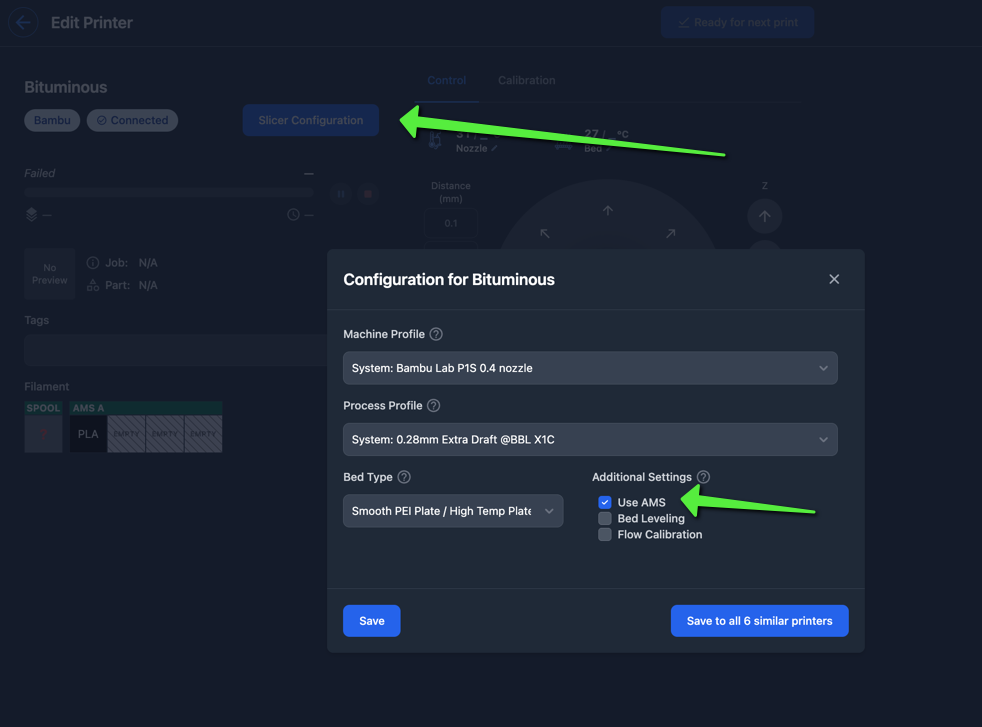
The slicer configuration dialog (titled Configuration for [printer name]) is where you set the printer's Machine Profile, Process Profile, Bed Type, and Additional Settings such as Use AMS, Bed Leveling, Flow Calibration, and Enable Timelapse. Profile dropdowns are prefixed with System: or User: so you can tell built-in profiles from your own synced ones.
- Printer page: Click the "Slicer Configuration" button
- Dashboard: Click gear icon ⚙️ on any printer
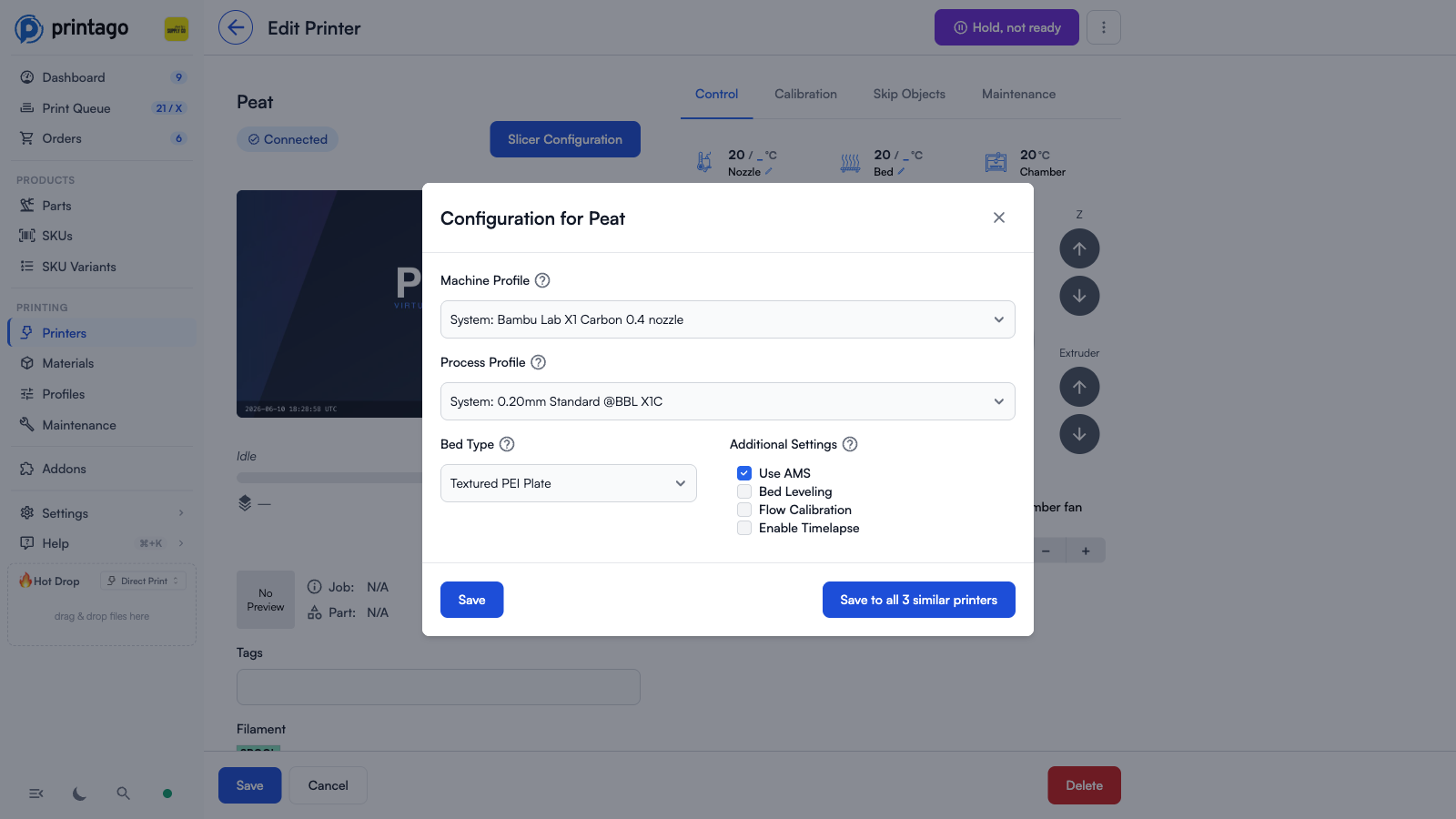
For multiple printers with identical model and nozzle configuration, click Save to all N similar printers in the configuration dialog.
Quick Select: In the Printers List, select one printer and press G to automatically select all printers with matching model and nozzle size.
Dual-nozzle printers
A Bambu Lab H2D, H2D Pro, H2C or X2D has two toolheads, and each AMS unit and each external spool holder feeds exactly one of them. Printago reads that plumbing from the printer: in the Printer Materials dialog every AMS unit and spool holder carries the name of the nozzle it feeds (L and R, or Main and Aux on an X2D), and the configuration dialog lists what the printer reports installed on each nozzle (size, Standard or High Flow, and material).
Instead of the single Use AMS checkbox, the configuration dialog has one feeds from setting per nozzle: AMS, External spool, or Off. Leave it on Auto and Printago follows what is plugged in, using the AMS when a unit feeds that nozzle and the external spool when none does. Off keeps that nozzle out of matching entirely, for a single-nozzle workflow on a dual-nozzle machine. The two nozzles are independent, so one side can print from its AMS while the other prints from its spool, in the same job.
Jobs use that information like this:
- Matching. A job can only take a slot whose material it needs, and the nozzle that slot feeds is the nozzle the job prints from. Each nozzle offers the slots of its own filament source, so a three-material job can take two materials from one side's AMS and the third from the other side's spool. A material loaded on one side only always prints from that side.
- One nozzle when possible. When a single nozzle holds every material the job needs, the whole job prints from that nozzle, even if the other side also holds some of them. That skips the nozzle-offset calibration and prints exactly like a single-nozzle machine. Only a job no single nozzle can cover is split across both.
- Single-material prints use chooses the nozzle for a material that is loaded on both sides. The default is the printer's own default nozzle (the right one on an H2D and H2C, the main one on an X2D).
- Slicing. Every print is sliced for the nozzle its material comes from, and for the nozzle sizes and flow types the printer reports. A job whose materials sit on different sides is sliced as a two-nozzle print.
- Slicer version. These prints are sliced on a Bambu Studio version that knows the printer, even when the part or store is set to OrcaSlicer or an older Bambu Studio, because those can't say which nozzle prints which material or don't ship the printer's profile. Single-nozzle printers keep the slicer you picked.
Nozzle offset calibration controls the alignment the printer runs before a print. Auto matches Bambu Studio: the printer calibrates before a print that uses both nozzles and skips it for a single-nozzle print. Before every print and Off force it either way; turn it off if a print keeps stopping on "Nozzle offset calibration failed" (HMS 0300-4010).
While a job prints, the print queue shows every nozzle's temperature under the printer's own nozzle names, and the control panel sets each nozzle separately.
Pre-sliced files are matched on the nozzle pair they were sliced for. A printer with a 0.6 mm nozzle on the left and a 0.4 mm one on the right takes files sliced for that combination, not files sliced for two 0.4 mm nozzles.
Printers List
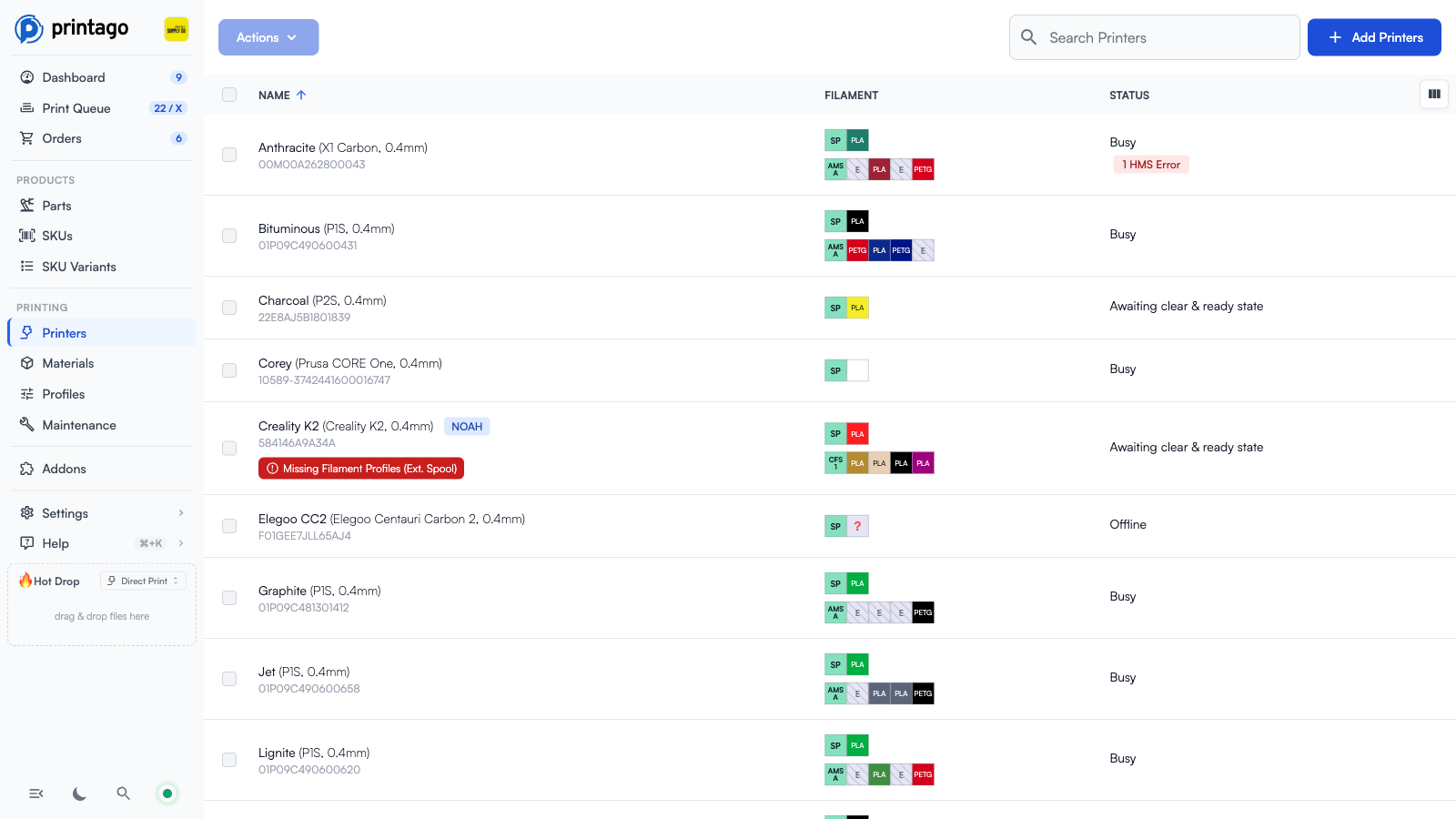
Navigate to Printing → Printers to view all printers with their current status and loaded materials. Click on any printer to go to its Printer page
Display Information
- Name: Shows the printer's name, model, nozzle diameter, and serial number.
- Filament: Shows the external spool (SP) plus AMS/CFS slot chips when a multi-material unit is in use
- State:
Printing,Paused,Ready,Waiting(for you to clear the bed),Offline,Disabled, orNeeds setup. Click the header to sort, with printers that need attention first. - Job and Left: The current job's name and progress, and the time remaining.
- Model and Problems: The printer model, and its errors, warnings, unknown materials, missing filament profiles and overdue maintenance.
- Material Assignment: Click any filament slot to open the Printer Materials dialog
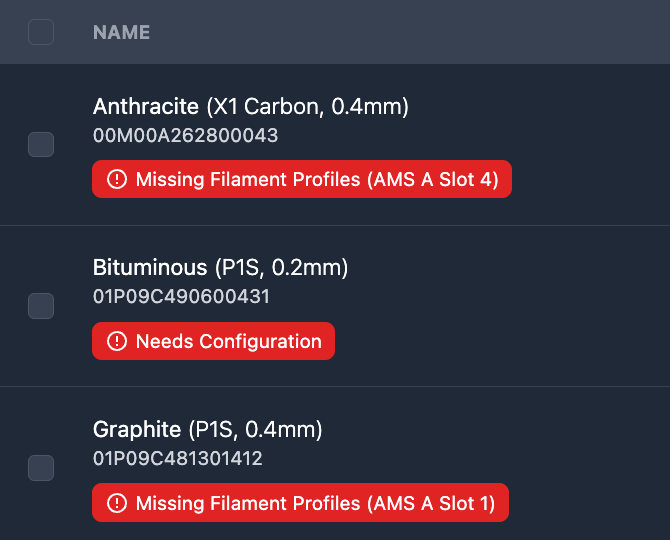
- Configuration Warnings: Alerts about issues that prevent the printer from accepting jobs (e.g.,
Missing Filament Profiles)
Use the Add Printers button to connect new printers and the column picker at the top right to choose which columns are shown.
Views, filters and search
The chips above the list show how many printers are in each view: Needs attention (errors, waiting for a bed clear, offline while enabled, needs configuration, unknown materials, missing filament profiles, or maintenance overdue), All, Printing, Ready, Waiting, Offline, Maintenance and Disabled. Filters narrows by state, problem, maintenance due, model, nozzle, loaded material or color, and tag. The view and filters are kept in the page address, so you can bookmark or share them.
Search matches a printer's name, tags, model, vendor, serial number, current job, and the material and color names loaded in its slots. A search looks through every printer, not only the current view.
On a phone, printers show as cards. Tap Add for Add Printers, or Select and tap printers to act on several: the bottom bar has Clear & ready and Control, and ⋯ opens the rest of the actions.
Multi-Printer Actions
Select multiple printers using checkboxes to access bulk operations via the Actions menu.
Keyboard Shortcuts:
A- Toggle select all printers (press again to deselect all)G- Select all printers matching the first selected (same model/nozzle)R- Mark selected printers as ready (skips printers that are currently printing)
Available Actions:
- Availability: Mark ready (
R) or not-ready (U) - FabMatic: Enable/disable continuous printing
- Control Panel: Multi-printer control (
P) - Configure: Bulk slicer configuration (
C) - Materials: Bulk material assignment (
M) - Tags: Bulk tag editing (
T) - Temperature: Quick bed/nozzle temperature presets
Printer Page
Each printer has its own page, laid out as an operator console: an identity bar at the top, a row of quick actions under it, and four tabs for everything else. It reflows for the screen you are on, so the same page works from a phone at the printer as it does from a desk: on a narrow screen the quick actions tile into thumb-sized rows while the Control tab keeps the same layout as on a larger screen.
Identity bar
Across the top you get the printer's name (rename it from the Settings tab) and a Connected or Offline pill beside it, which is the one place the console says whether the printer can be reached. Under the name, a line reads the printer's model, what it is doing, and how far through a print it is. An unreachable printer says so in the pill and leaves that line to the model, so the same fact is never in two places to disagree with itself. On the right, Slicer Config opens the slicer configuration dialog, and the ⋮ menu holds maintenance mode, Run Macro, Force refresh state, and Delete printer. A printer that cannot slice yet says Needs Configuration in place of Slicer Config, and its Settings tab shows a red ! until slicing is set up.
Force refresh state re-checks whether the printer is online and available for jobs against what it is reporting right now, instead of waiting for the check Printago runs every few minutes. Use it when a printer that is clearly idle is not picking up jobs. It only ever marks a printer online or available, never the other way, and it leaves printers that are mid-print, disabled or in maintenance alone. If nothing recent has been heard from the printer, it says so, which usually points at the printer's connection or Fuse.
Quick actions
The actions you reach for most often sit in one row, available from every tab:
- Pause and Stop, live only while a print is running, each asking you to confirm first
- Light, which switches the printer's work light
- Home, which homes every axis (disabled mid-print)
- Confirm clear & ready, on the right, which puts the printer back in the matching pool (see Ready State Management)
Light and Home only appear on a printer that reports one, so a machine with no work light does not offer a switch for it. Nozzle and bed targets are set on the Control tab.
Tabs
- Monitor: the camera, showing how old the last frame is, and marked LIVE only while a stream is actually playing rather than a picture refreshing (see Live Streaming for pausing and closing a stream); nozzle and bed temperatures, and chamber on a printer that has one; the running job with its order, parts, stage, layer, time left and the clock time it should finish, the loaded filament, fan speeds, and any issues the printer reports, with Bambu Lab HMS codes linked to the relevant Bambu Lab Wiki article.
- Control: the movement pad, temperatures and fans described in Printer Control Panel, plus Skip Objects while a print is running or Calibration while the printer is idle.
- History: every finished print attempt on this printer. See Print history.
- Settings: name, tags, slicer configuration, materials, the Hardware card, maintenance, custom fields, and Save, Cancel and Delete printer.
The tab you are on is kept in the address bar, so a link to a printer can point straight at its History or Settings.
Print history
The History tab lists attempts rather than jobs, so a print that failed and was retried shows both the failure and the retry, each with when it ended, how long it ran, the filament it used, its order number, and whether it succeeded, failed or was cancelled. A summary at the top gives the success rate across the attempts shown.
Failed and cancelled attempts offer Reprint, which puts that same job back in the queue. Finished prints offer Print again, which opens the usual print dialog on the part so you can set quantity, materials and parameters before it builds — a brand new job rather than re-running a print that is already done. An attempt whose part has since been deleted has nothing to open, so it offers no Print again at all.
Ready State Management
The Confirm clear & ready for next print button is critical for queue processing. Click after:
- Print completion
- Printer recovery from unknown state
- Printer comes online
- Manual bed clearing
Once a printer is confirmed ready, the same button shows Hold, not ready so you can take the printer back out of the matching pool without disconnecting it.
Alternatives:
- Multi-action from Printers page
- FabMatic mode for continuous operation
Hardware Card
The Hardware card at the bottom of the printer page describes the machine Printago believes it is talking to: its nozzles, bed, chamber, axes, fans, lights, sensors, filament sources and cameras, the capabilities it supports (start, pause, skip objects, and so on), the adapter Printago drives it with, and its firmware version. Expand any row with a chevron to see the individual components and their component refs.
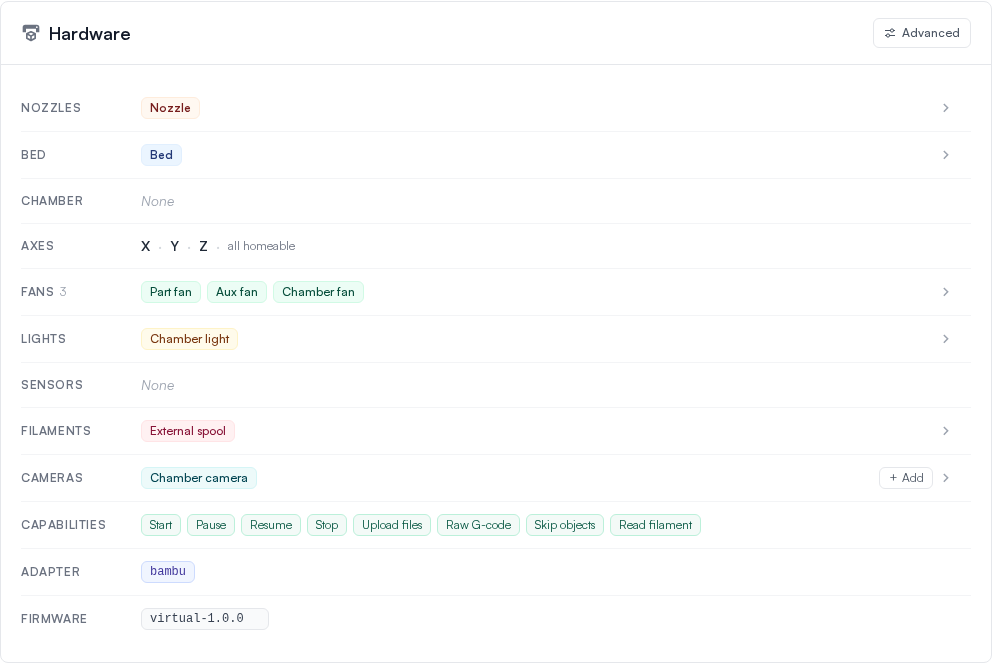
Use Advanced in the card header to inspect or override the resolved capabilities. Editing those requires printer configuration permission.
Firmware
The Firmware row shows the version string the printer itself reported, so you can quote it in a support thread or check it against a vendor release note. Click it to copy it to the clipboard.
Each vendor reports its own format and Printago shows it verbatim: a Bambu Lab
machine reports something like 01.08.02.00, Klipper reports
v0.12.0-345-g8a4a1c2, PrusaLink reports 6.1.3, and an Elegoo Centauri
Carbon reports V1.2.3. Printago never parses, compares or normalizes the
string, and it does not tell you whether an update is available. Updating
firmware stays in the vendor's own app or on the printer's screen.
Where the version comes from depends on the printer:
| Printer | Version shown |
|---|---|
| Bambu Lab | The ota module's version, the same one the printer's screen shows |
| Klipper / Moonraker | The Klipper software version |
| Elegoo (Centauri Carbon, CC2) | The printer's OTA firmware version |
| Anycubic | The firmware version reported when Printago connects |
| Prusa | The printer firmware version, or the PrusaLink version on older builds that do not report one |
| OctoPrint | The OctoPrint server version, because OctoPrint fronts arbitrary hardware and does not expose the printer's own firmware |
The row is hidden entirely when there is no version to show, and never for any other reason. That happens when the printer has not connected since Printago last started, when the printer did answer but reported no version or refused the request (Printago asks once on connect, and connects anyway when the answer does not come), or when it is a Bambu Lab printer connected through Bambu's cloud rather than through Fuse, which is a path where Printago cannot ask for the version. A printer that has just come online may take a few seconds to report it.
Taking a printer offline does not hide the row: firmware is a property of the machine rather than a live reading, and it is most often wanted when the printer is down, so the row keeps showing the version that printer last reported.
The version is read once per connection, so a printer that is updated while connected keeps showing the old version until it reconnects.
Material Assignment
Click any AMS slot or external spool to open the Printer Materials dialog (titled Printer Materials for [printer name]).
The same slot-based assignment applies beyond Bambu AMS. Multi-toolhead machines (Snapmaker U1, Prusa XL) show each toolhead as its own slot, and printers with auto-detected filament systems (Creality CFS, Elegoo's multi-color canvas) grow their slot count as units are attached.
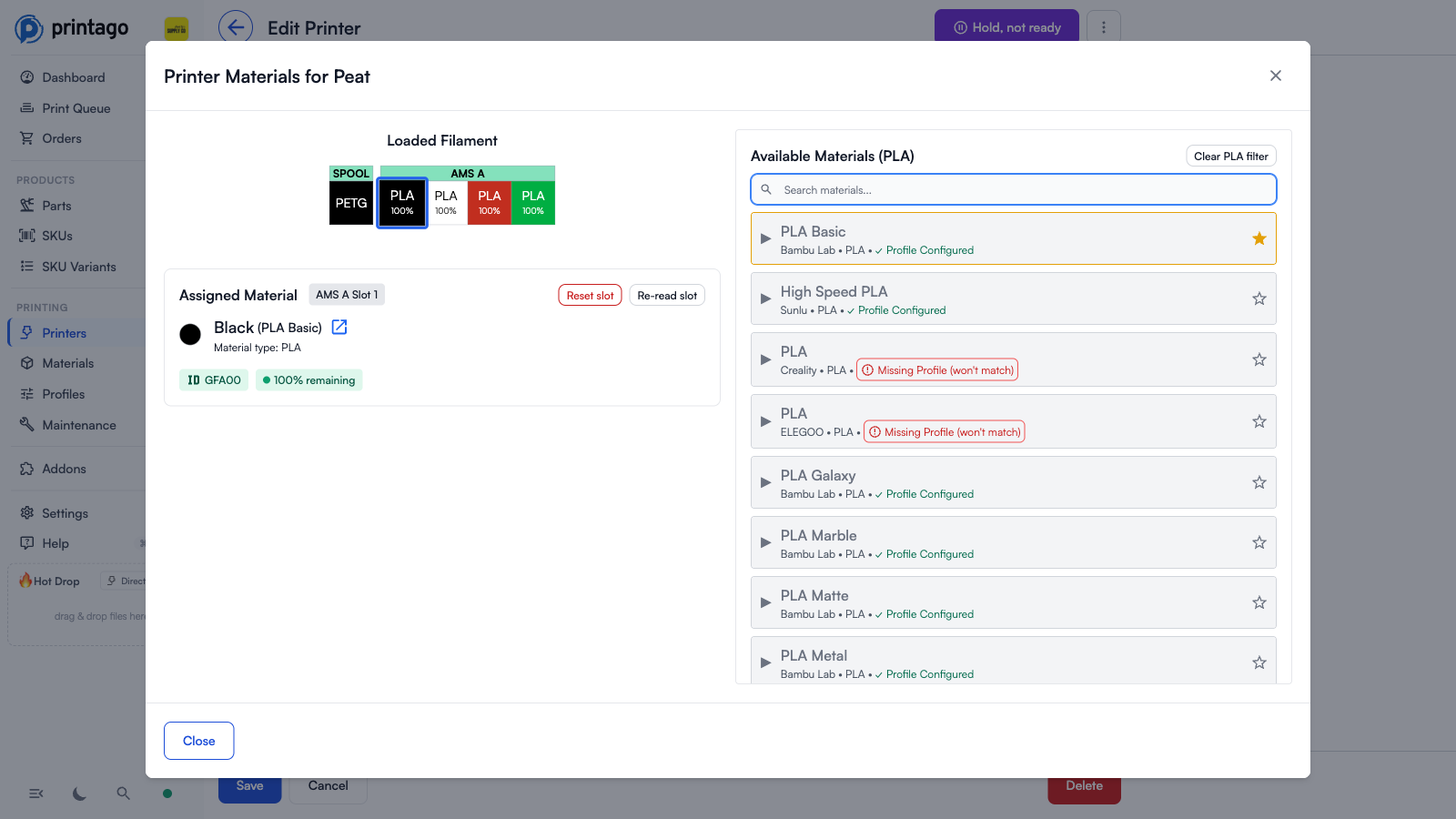
The dialog has three areas:
- Loaded Filament: A slot picker showing the external spool plus each AMS slot. Click a slot to view or change its assignment.
- Assigned Material: The material currently assigned to the selected slot, with Reset slot and Re-read slot buttons for clearing the assignment or re-reading the loaded filament.
- Available Materials: A searchable list of your material library, grouped by base material with expandable color variants. Materials with profiles set up for this printer show a
✓ Profile Configuredbadge; starred materials sort to the top.
How Material Assignment Works
The standard material assignment process:
- Click any slot: Select an AMS slot or external spool
- Choose material: Select from the Available Materials list and assign it to the slot
- Assignment options:
- Specific material (e.g., "Bambu Basic PLA - Black") - uses configured profiles (recommended)
- Generic type (e.g., "Any PLA") - prompts for inline slicing profile selection
While you can set a generic filament profile directly on the printer (bypassing Printago's material system), this isn't recommended. Here's why:
- Limited matching: Only parts set to
Any {Material-Type}will match (e.g. "Any PLA") - More specific Part settings won't match: If a part requires "Bambu TPU for AMS" specifically, it won't match a generic "Any TPU-AMS" assigned printer.
- Reduced flexibility: You lose the benefits of Printago's material management system
Bambu Lab RFID Enhancement
When using Bambu Lab RFID-tagged filament, the process is enhanced with automatic detection:
Automatic Material Detection
- Auto-reads: Printago automatically detects the material and color from the RFID tag
- Instant assignment: Material is assigned without manual selection
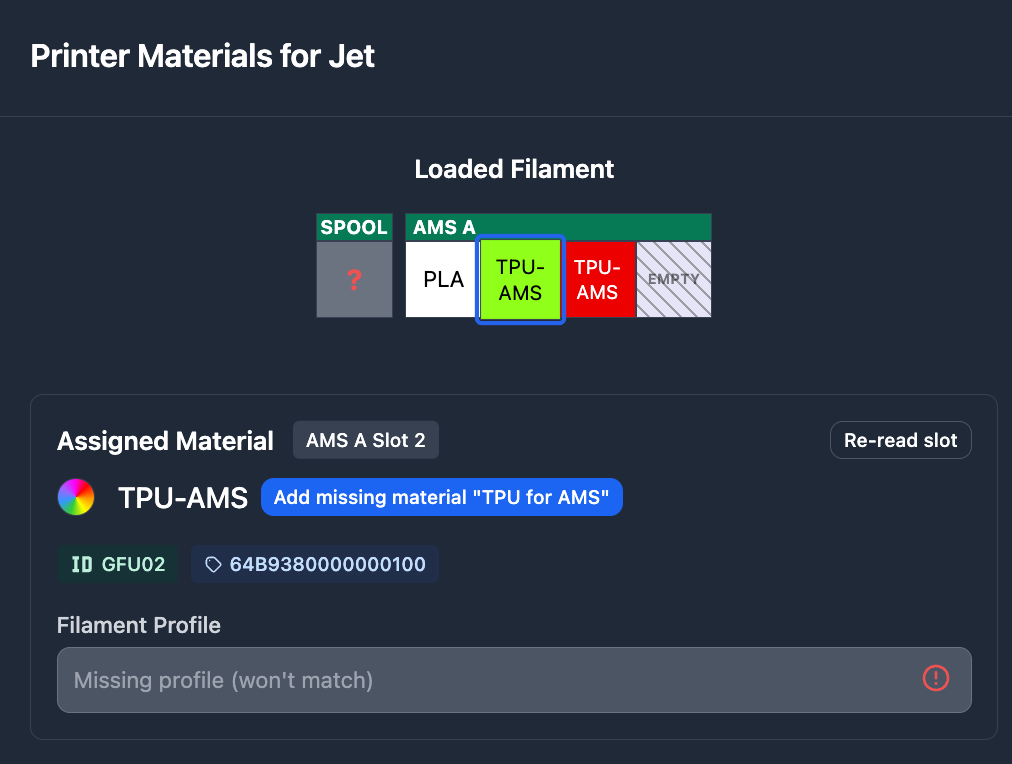
- Missing material workflow: Quick-add buttons appear for materials not in your library
Missing Material Quick-Add
When RFID-tagged filament isn't in your library:
Step 1: Add Base Material
Click Add missing material for [Bambu] { MATERIAL-TYPE } to add the base material (e.g., "TPU for AMS").
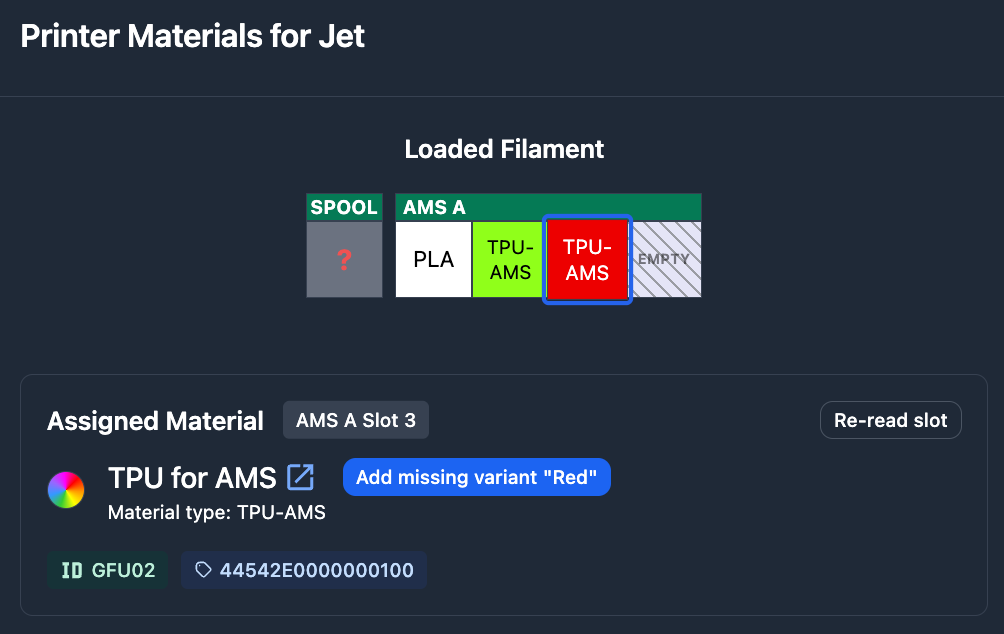
Step 2: Add Color Variant
Click Add missing variant "{ COLOR }". This opens a compact in-place form so you can confirm or rename the variant before it's created, so no more silent web-color guesses (like "Crimson") get baked into your library. The new variant is automatically assigned to the slot you were looking at.
Step 3: Configure Profiles Save the Printer, and go to the Materials page to set up slicing profiles for the Material.
RFID Override
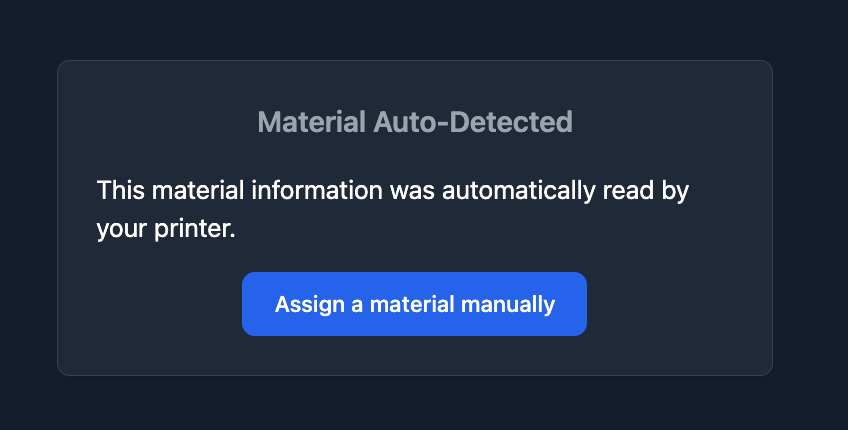
To assign a different material than the RFID tag, click "Assign a material manually" to enable normal selection from your Material library.
- External spool material can be assigned without physical material loaded
- AMS slots require physical material to be loaded before assignment
- All Bambu Lab materials and variants are built into Printago for easy addition
Material Slicer Configuration Warning
When selecting materials for a printer, it's possible to assign a material which doesn't have a slicing profile assigned to it for the model of printer in question.
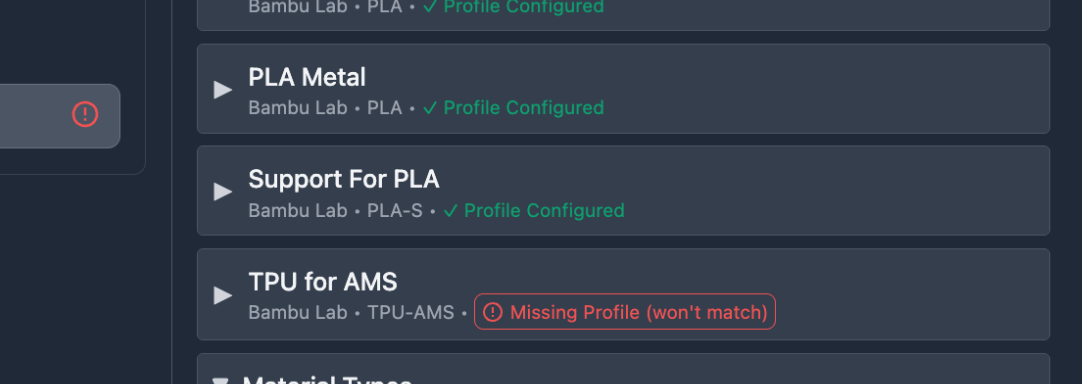
Materials tagged with Missing Profile (won't match) is letting you know that jobs will not be able to be assigned to this material in the printer until it's resolved. This commonly happens when switching nozzle sizes (e.g., from 0.4mm to 0.2mm) or adding new printer models without matching material profiles.
Resolution: Go to Materials page → Open material → Configure slicing profiles for each printer model + nozzle diameter combination
For detailed material management and profile configuration, see the Materials documentation.
AMS Configuration
On a single-nozzle printer, the Use AMS checkbox in slicer configuration controls the following. (Dual-nozzle printers have one filament-source setting per nozzle instead; see Dual-nozzle printers.)
When Enabled:
- AMS slots visible in UI
- AMS information shown on printer lists
- Multi-slot material management
When Disabled:
- Only external spool holder available
- AMS hidden from interface
- Single material assignment
Related Documentation
- Printer Tags: Dynamic printer grouping and job routing
- Printer Control Panel: Manual printer operation and calibration
- Materials: Material library management and profiles
- Cloud Slicer: Understanding slicer profiles and settings
- FabMatic: Continuous printing automation
Need help with printer setup? Join our Discord community for support and latest updates!