Account Settings
Manage your account settings and preferences from the Settings page in Printago. The Account page is the hub for how you sign in, how your organization appears, and the defaults Printago uses for your workspace. It is organized into sections such as Account & Access (Profile, Multi-factor authentication, Passkeys) and Organization & Preferences (Organization, General, Notifications), each with a Configure or Manage button.
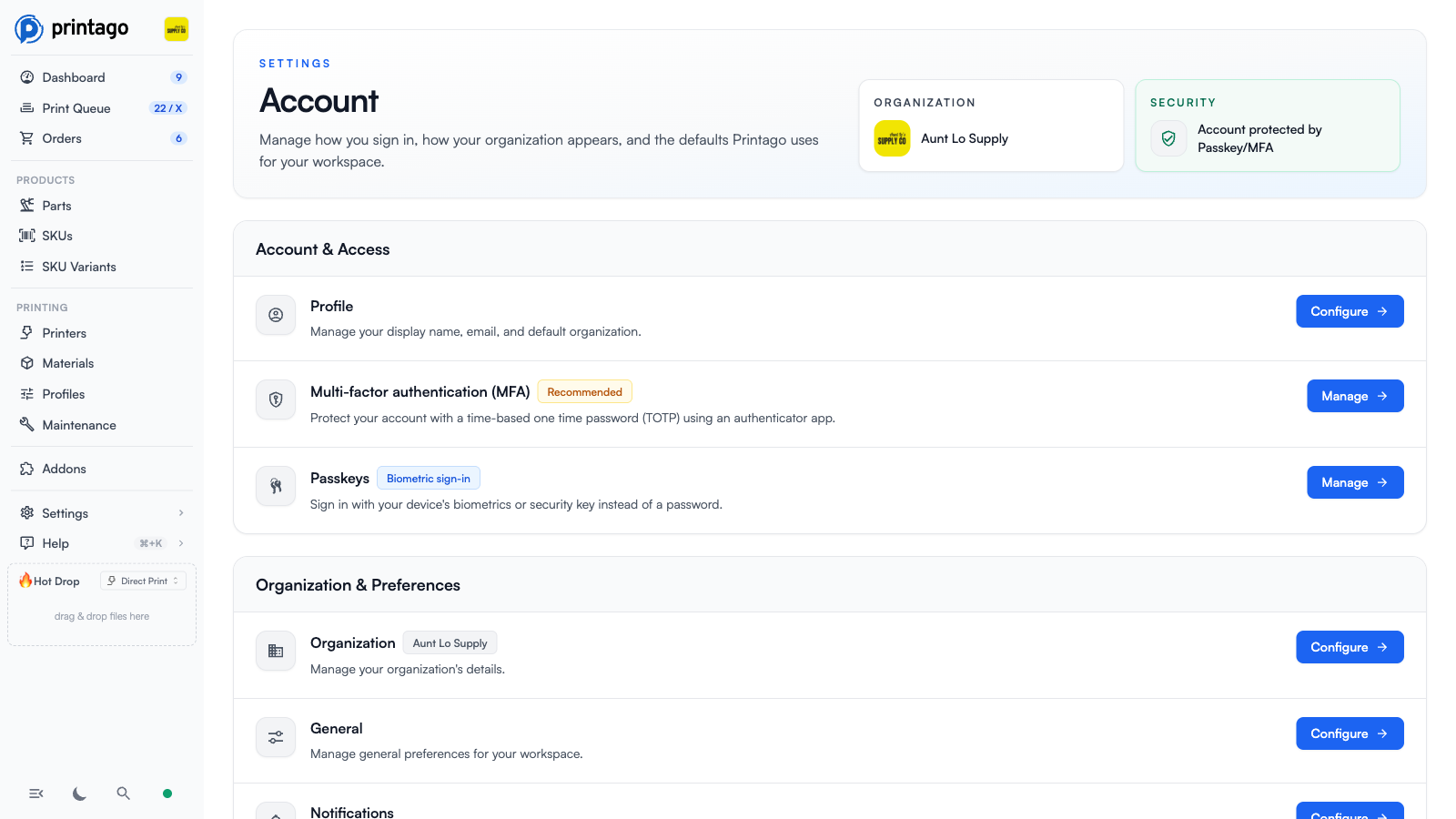
Account Security
Passkeys (Recommended)
Passkeys are the strongest way to secure your Printago account. A passkey lets you sign in using your device's built-in authentication — such as a fingerprint sensor, face recognition, or device PIN — instead of typing a password. Passkeys are phishing-resistant and cannot be reused across sites, making them significantly more secure than traditional passwords.
We recommend all users set up at least one passkey for the best account security.
Setting up a Passkey
- In Printago, go to
Settings>Account - Click
Manageon the "Passkeys" row and add a passkey - Follow your browser or device prompt to create a passkey (this may use your fingerprint, face, device PIN, or a hardware security key)
- Give the passkey a name so you can identify it later (e.g., "MacBook", "iPhone", "YubiKey")
You can register multiple passkeys — for example, one on your laptop, one on your phone, and a hardware security key as a backup.
Passkeys and MFA
When you sign in with a passkey, multi-factor authentication (MFA) is not required. Passkeys are inherently a stronger form of authentication than a password combined with a one-time code, so the additional MFA step is skipped.
Multi-factor Authentication (MFA)
MFA is available for users who sign in with a password. It adds an extra layer of security by requiring a time-based one-time password (TOTP) from an authenticator app each time you log in. This helps protect your account even if your password is compromised.
If you sign in using a passkey, MFA is not prompted — passkeys already provide stronger security than password + TOTP.
Setting up MFA
- In Printago, go to
Settings>Account - Click
Manageon the "Multi-factor authentication (MFA)" row and enable MFA - Download an authenticator app on your phone (such as Google Authenticator, Authy, or 1Password)
- Scan the QR code with your authenticator app
- Enter the 6-digit code from your authenticator app to confirm setup
- Save your backup codes in a secure location
Using MFA
Once enabled, you'll need to enter a 6-digit code from your authenticator app each time you log in to Printago with your password.
Notifications
Deliver printer and print job notifications to Discord, Slack, Pushover, Telegram, or a custom webhook. Each channel has its own tab on the Notifications page (Settings > Account > Notifications) with setup instructions, for example pasting a Discord webhook URL and clicking Enable.
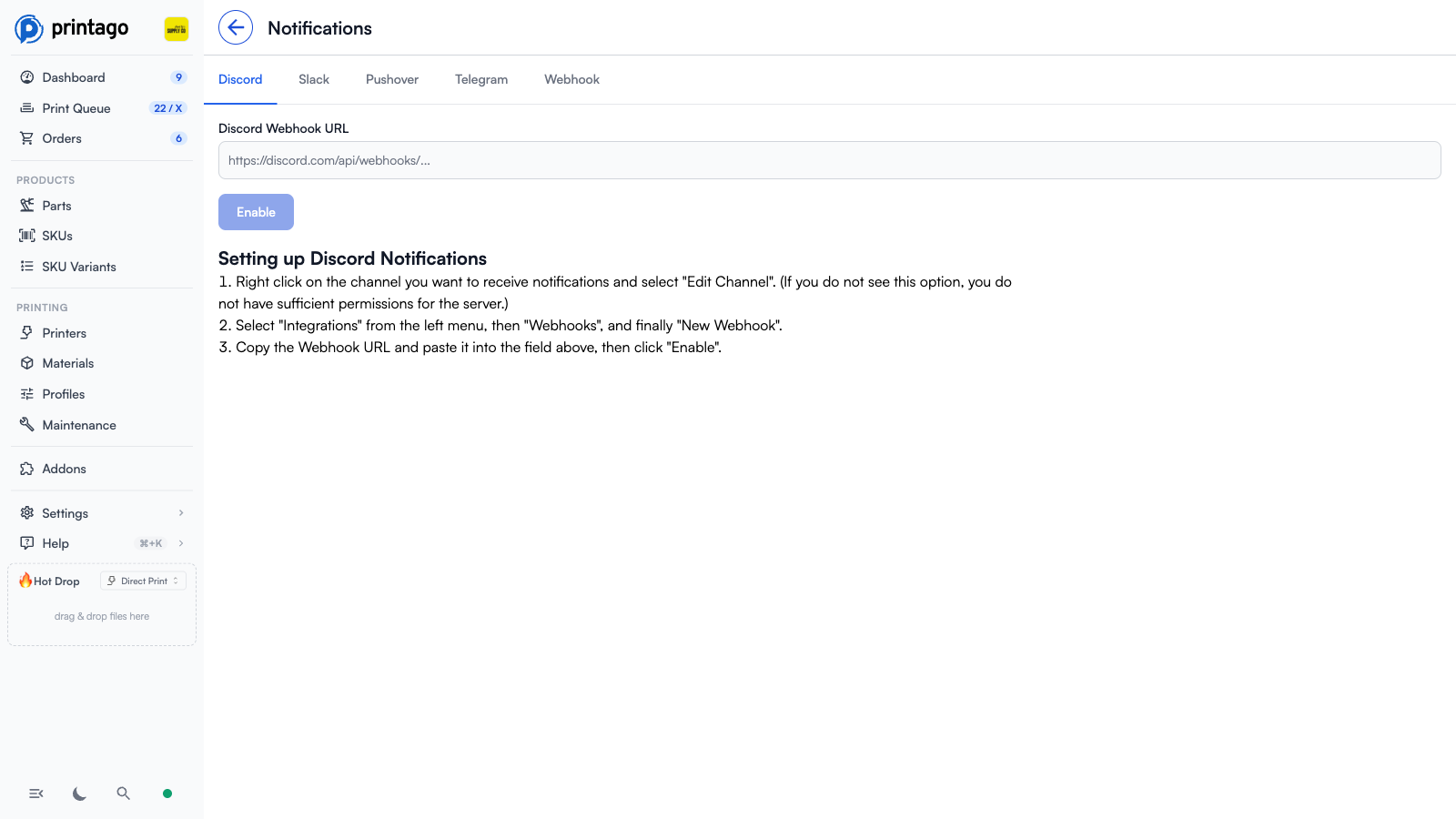
Printago can send real-time notifications about your print farm operations, including job completions, printer errors, and other important events.
Learn more about setting up Notifications
General Settings
Workspace-wide preferences live under Settings > Account > General: the Getting Started guide, material auto-matching and AMS slot selection, camera snapshots and timelapses, thumbnail style, print telemetry, macro confirmations, FabMatic ignored error codes, and plate merging.
See the full General Settings reference
Slicer Settings
Configure your preferred slicer for Printago's cloud-slicer. We support production releases of OrcaSlicer and Bambu Studio, with additional slicers coming soon. You're not bound to this setting - it's just your default.
Preferred Slicer Options
Choose your default slicer to be used throughout Printago:
- Printago Default (currently OrcaSlicer 2.3.0) - Our recommended default
- Latest OrcaSlicer - Always use the newest OrcaSlicer version
- Latest Bambu Studio - Always use the newest Bambu Studio version
- Specific Version - Choose from our slicer library including:
- OrcaSlicer versions (2.3.0, 2.2.0)
- Bambu Studio versions (2.1.1, 2.0.1, 1.10.2, 1.10.1)
- PrusaSlicer (coming soon)
- SuperSlicer (coming soon)
Available Slicers
- OrcaSlicer (Community-driven) - Open-source slicing software with advanced optimization features
- Bambu Studio (Official Bambu) - Optimized specifically for Bambu Lab printers
- PrusaSlicer (Official Prusa) - Coming Soon - Official slicing software developed by Prusa Research
- SuperSlicer (Community-driven) - Coming Soon - Feature-rich fork of PrusaSlicer with additional advanced settings
Learn more about Printago's Cloud Slicer
Affiliate Program
Our affiliate program offers you commission for referring paying customers.
Earn money by referring new users to Printago! When someone signs up using your referral link and becomes a paying customer, you'll receive a commission.
How it Works
- Join the affiliate program through your account settings
- Share your unique referral link with potential customers
- Earn commission when referred commercial users subscribe to Printago
- Track your referrals and earnings through the affiliate portal
- No purchase nessessary - you don't need to be a commercial user of our software to participate - or any type of user! (Though we'd prefer if you do!)
Become an affiliate to access the full affiliate portal and start earning.