Bambu Lab Integration
Printago connects to Bambu Lab printers in two ways: through Bambu's cloud infrastructure, or locally over your network with the Printago Fuse client. This guide covers both connection methods, how to find your printer's access code, and how to manage your Bambu Lab printers with Printago.
Connection Options
There are two ways to connect a Bambu Lab printer to Printago. You can use either method, and you can mix both across your fleet.
Switching between the two is fully reversible. As long as the printer supports a cloud connection (it's on or can be downgraded to a supported firmware version and has Cloud Mode available), you can move it from Fuse (LAN) to Bambu Cloud and back at any time. Choosing one method now doesn't lock you out of the other later.
Bambu Cloud
Printago connects to your printers through Bambu Lab's cloud using your Bambu account. This is the quickest way to get started and doesn't require any local software, but it has firmware constraints.
- No local client to install; connect by signing in with your Bambu account.
- Requires specific firmware versions that don't have the Bambu authorization lockout (see Firmware Requirements).
- Printers must have Cloud Mode enabled.
Printago Fuse (LAN)
Printago Fuse is a lightweight client that runs on your local network and talks to your printers directly. This is the recommended option for newer firmware and for keeping printer traffic on your own network.
- Supports current Bambu Lab firmware and models using Developer LAN Mode, with no firmware downgrade required.
- Connects to each printer using its local IP address and access code (see Finding Your Access Code and IP Address).
- Requires LAN Mode and Developer Mode to be enabled on the printer.
- Models that use USB flash drives for storage (X2D, P2S, H2 series) must have a USB drive inserted to receive print jobs over LAN (see Fuse prerequisites).
If your printer is on newer firmware, or you'd rather keep printer communication local, use Fuse. If you want the fastest cloud-based setup and your printer is on (or can be downgraded to) a supported firmware version, use Bambu Cloud. This decision is reversible — as long as the printer supports cloud, you can switch between Fuse (LAN) and Bambu Cloud whenever you like.
Finding Your Access Code and IP Address
When connecting over your local network (including with Printago Fuse), each Bambu Lab printer has an access code and an IP address that Printago uses to reach it. Both are shown on the printer itself.
First, enable LAN access on the printer:
- On the printer's touchscreen, open Settings (the gear icon).
- Enable LAN Mode (sometimes shown as "LAN Only Mode") and, on newer firmware, Developer Mode. These options live in the network or general settings depending on your model and firmware.
Then find the access code and IP address:
- X1, X1 Carbon, X1E: Tap the Settings (gear) icon, then open the network/WLAN screen. The IP Address and Access Code are listed there.
- P1P, P1S, P2S: Tap the Settings (gear) icon and open the WLAN screen. The IP Address and Access Code are displayed under your connected network.
- A1, A1 mini: Tap the Settings (gear) icon and open the network/WLAN screen to view the IP Address and Access Code.
The access code is typically an 8-digit code. If you don't see one, make sure LAN Mode is enabled first. You can regenerate the access code from the same screen if needed; doing so requires updating it anywhere it's already configured.
The exact menu wording varies slightly between models and firmware versions. If you can't find the access code, look for the network or WLAN section of the printer's settings, where the IP address is also shown.
Bambu Cloud Setup
The rest of this guide covers connecting over Bambu Cloud. To connect over your local network instead, see the Printago Fuse guide, and use the access code and IP address above when adding each printer.
First-Time Setup
For detailed instructions on connecting your Bambu Lab printers to Printago over the cloud for the first time, please refer to our Quick Start Guide. The guide covers:
- Prerequisites for printer connectivity
- Step-by-step connection process
- Initial printer configuration
Your Bambu Lab account stays safe - we only store encrypted printer access tokens, never passwords. Want to learn more about our security? Chat with our development team on Discord or email support@printago.io.
Authentication Expiry
For security reasons, Printago does not store your Bambu Lab credentials. Instead, we only store encrypted printer access tokens that expire every 90 days.
Re-authentication Required: You'll need to re-authenticate your Bambu Lab account every 90 days to maintain printer connectivity.
14 days before your credentials expire, you'll see a red banner in the app reminding you to re-authenticate:

To re-authenticate, simply run the Bambu Integration Flow again through Admin → Connections → Bambu Cloud Connection → Configure, and finally click the Reauthenticate button. Or follow the link in the warning banner.
Managing Connected Printers
The Bambu Integration Flow can be run at any time and may be accessed through either:
- Admin → Connections → Click
Configureon the Bambu Cloud Connection card - Printing → Printers → Click the
Configure Bambu Printersbutton in the upper right
The flow guides you through connecting your Bambu Lab account, syncing cloud profiles, and configuring printer settings.
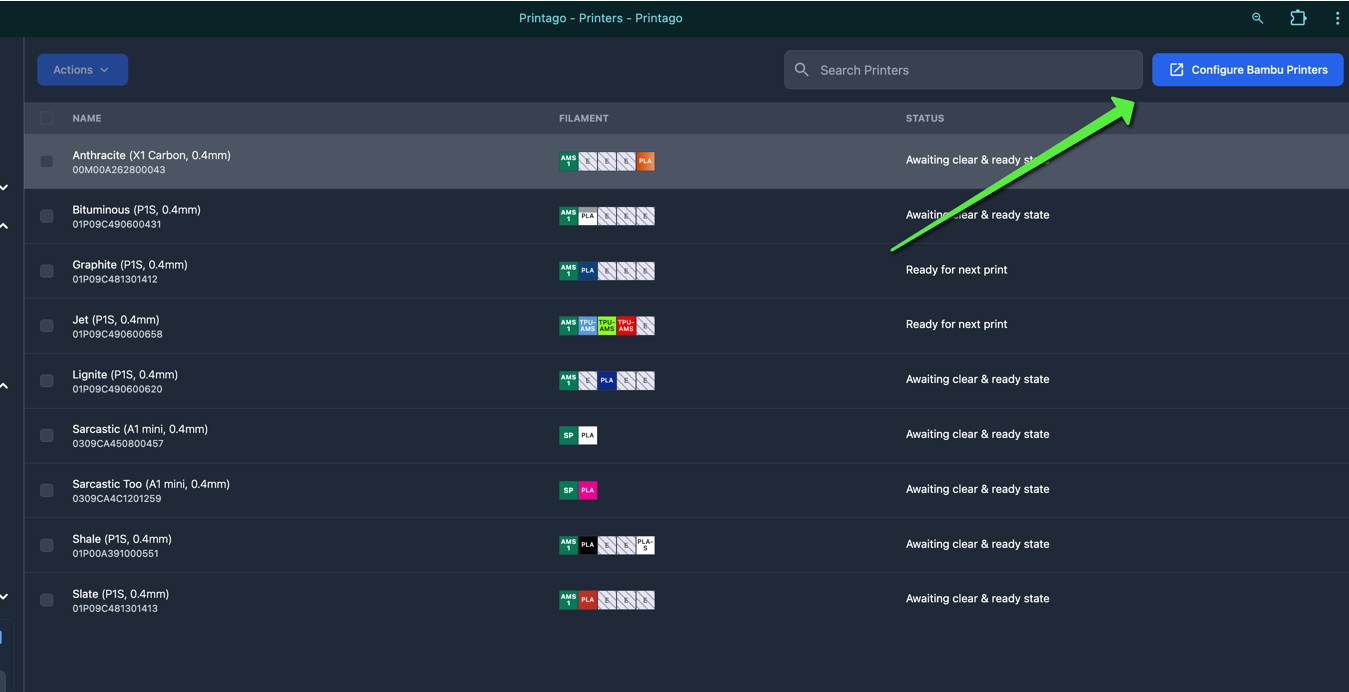
The Bambu Integration flow is currently the only mechanism to refresh your cloud-synced slicing profiles
Disabling Printers
- Run the Bambu Integration Flow
- Uncheck the boxes next to printers you want to disconnect
- Complete the flow - Printago will stop all communication with unchecked printers.
- To reconnect a printer later, run the flow again and check its box
Disconnecting a printer will stop any active monitoring and prevent new print jobs from being sent to the printer. Current print jobs will continue until completion.
How Printago Connects to Your Printers
Printago integrates with Bambu Lab's cloud infrastructure to manage your printers securely:
The diagram below covers Bambu Cloud connections. For the equivalent flow over your local network, see How Fuse Connects to Your Printers.
Firmware Requirements
These firmware requirements apply only to Bambu Cloud connections. If you connect with Printago Fuse over your local network, current firmware is supported and no downgrade is needed.
For Bambu Cloud connections, Printago requires specific firmware versions that do not have the Bambu authorization lockout:
- A1 Mini: 1.04
- A1: 1.04
- P1S: 1.08.01
- X1C: 1.08.02
Downgrading Firmware
If your printer has newer firmware, you can downgrade using either:
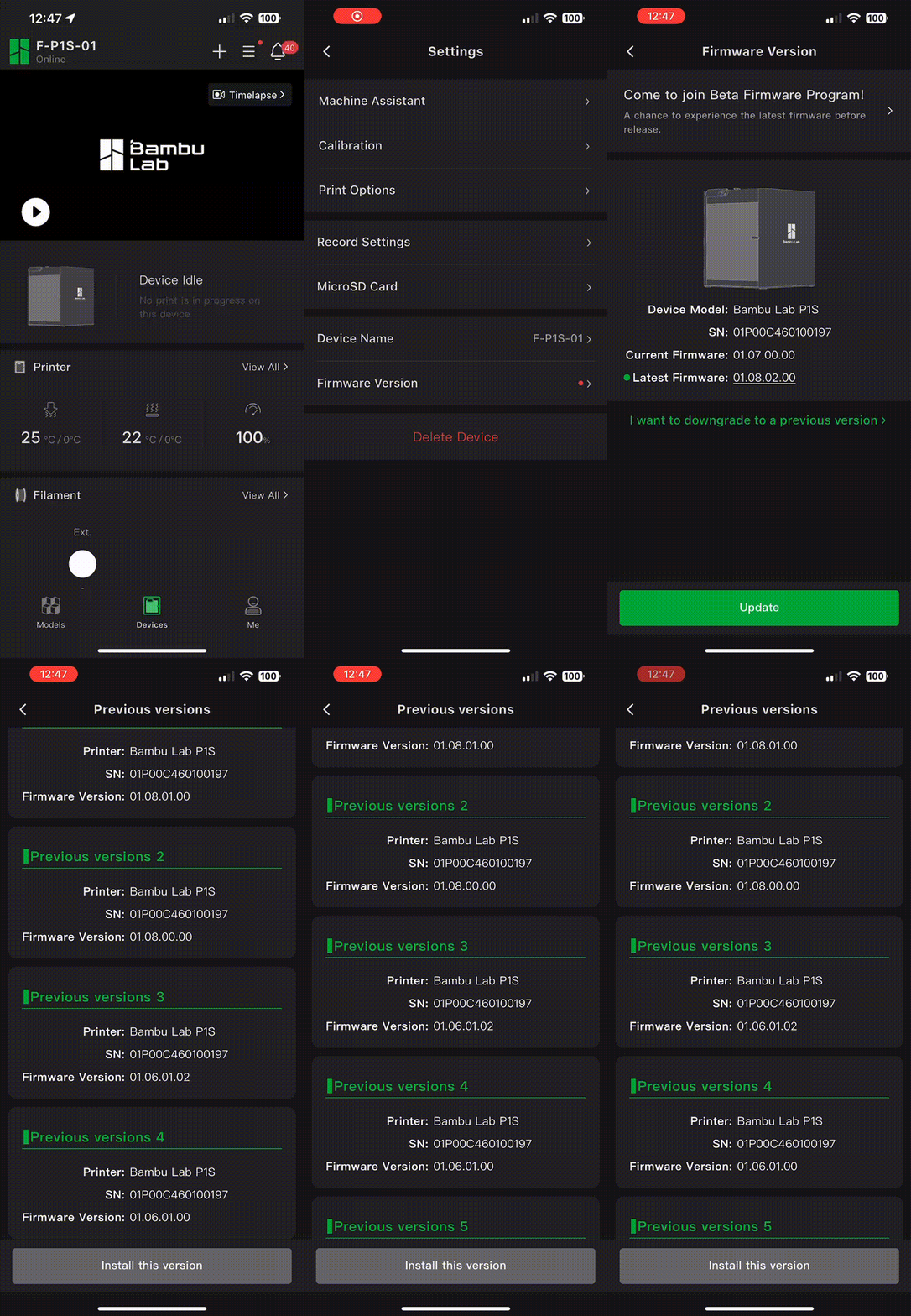
Option 1: Bambu Handy Mobile App (Recommended)
The easiest method is using Bambu Lab's mobile app "Handy" to upgrade or downgrade to a specific firmware version:
Option 2: SD Card Method
For manual firmware installation via SD card, follow the official Bambu Lab guides:
Troubleshooting
Bambu Cloud connections:
- Verify your printer's internet connection
- Ensure Cloud Mode is enabled on your printer
- Confirm your printer is on a supported firmware version
- Try disconnecting and reconnecting the printer in Printago
Fuse (LAN) connections:
- Confirm LAN Mode and Developer Mode are enabled on the printer
- Verify the printer's IP address and access code are correct (the IP can change if your network assigns it dynamically)
- Make sure the printer is reachable on the same network as your Fuse client
- See the Printago Fuse troubleshooting guide for connection and port details
If problems persist, contact Printago on Discord or support@printago.io