Orders
Key Concepts
An order in Printago represents a customer request containing one or more SKUs with quantities, customer details, and a target fulfillment date. Orders bridge the gap between receiving a customer request and producing the physical parts—they translate "what the customer wants" into actionable print jobs in your queue. When you create an order (either manually or through an e-commerce integration like Shopify or Etsy), Printago calculates all the individual print jobs needed across every SKU and part, then lets you send them all to the queue at once. Orders also track production progress so you can see at a glance which customer requests are complete and which still have jobs in progress. This is especially useful for businesses fulfilling custom or made-to-order products, where each order may involve multiple parts with different materials and parameters.
Overview
Manual orders allow you to:
- Organize multiple SKUs into a single customer order
- Track order progress from creation to completion
- Configure OpenSCAD parameters for customized SKUs
- Automatically reconcile print jobs when order contents change
- Maintain order history and notes for customer reference
Creating Manual Orders
Starting a New Order
- Navigate to Orders from the Sidebar menu
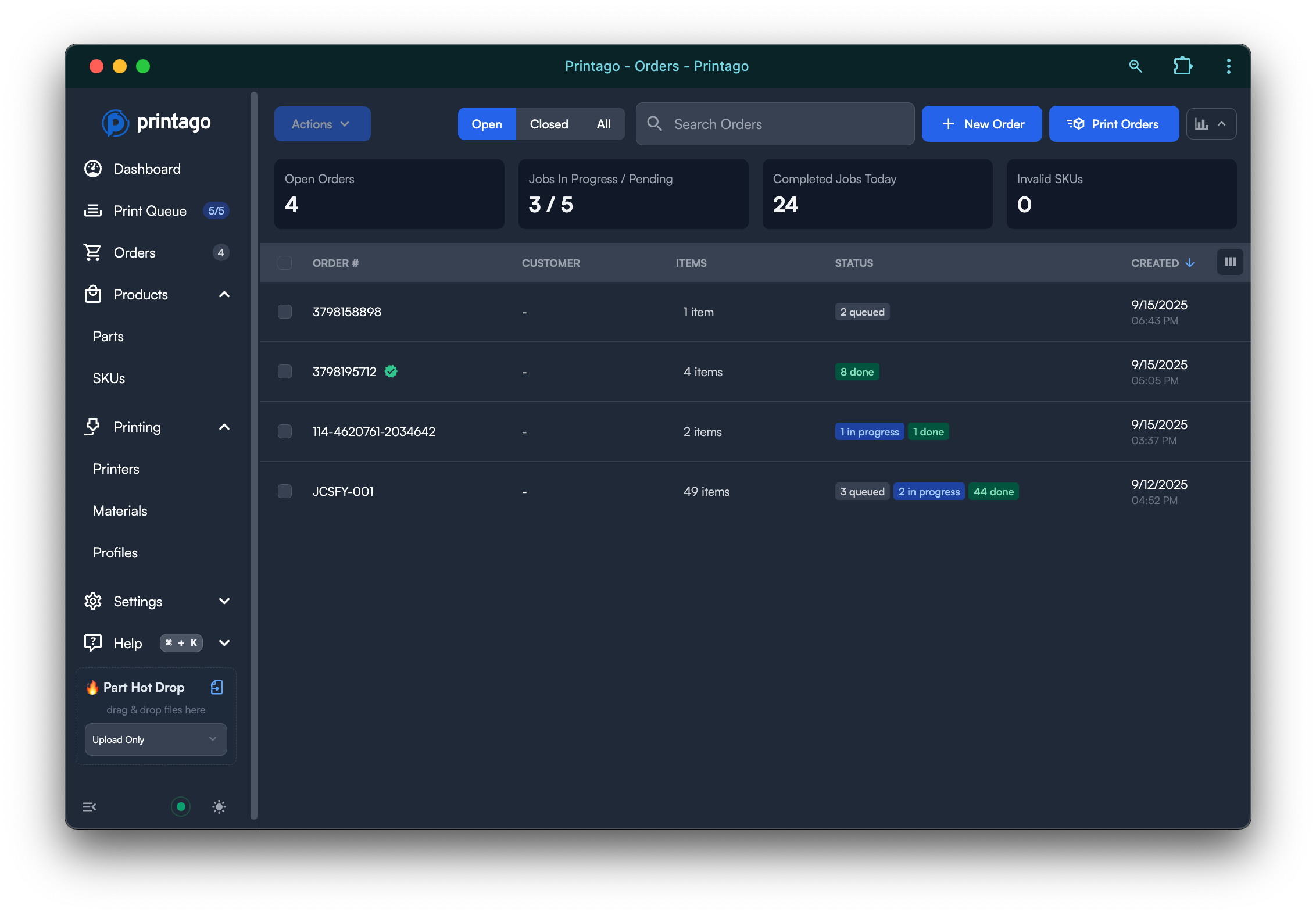
- Click + Create Order
- Fill in the order details:
- Order Number: Custom identifier for tracking
- Customer Name (disabled currently): Optional for order identification
- Customer Email (disabled currently): Optional information for the order
- Fulfillment Date: Target completion date (optional)
- Notes: Any special instructions or details
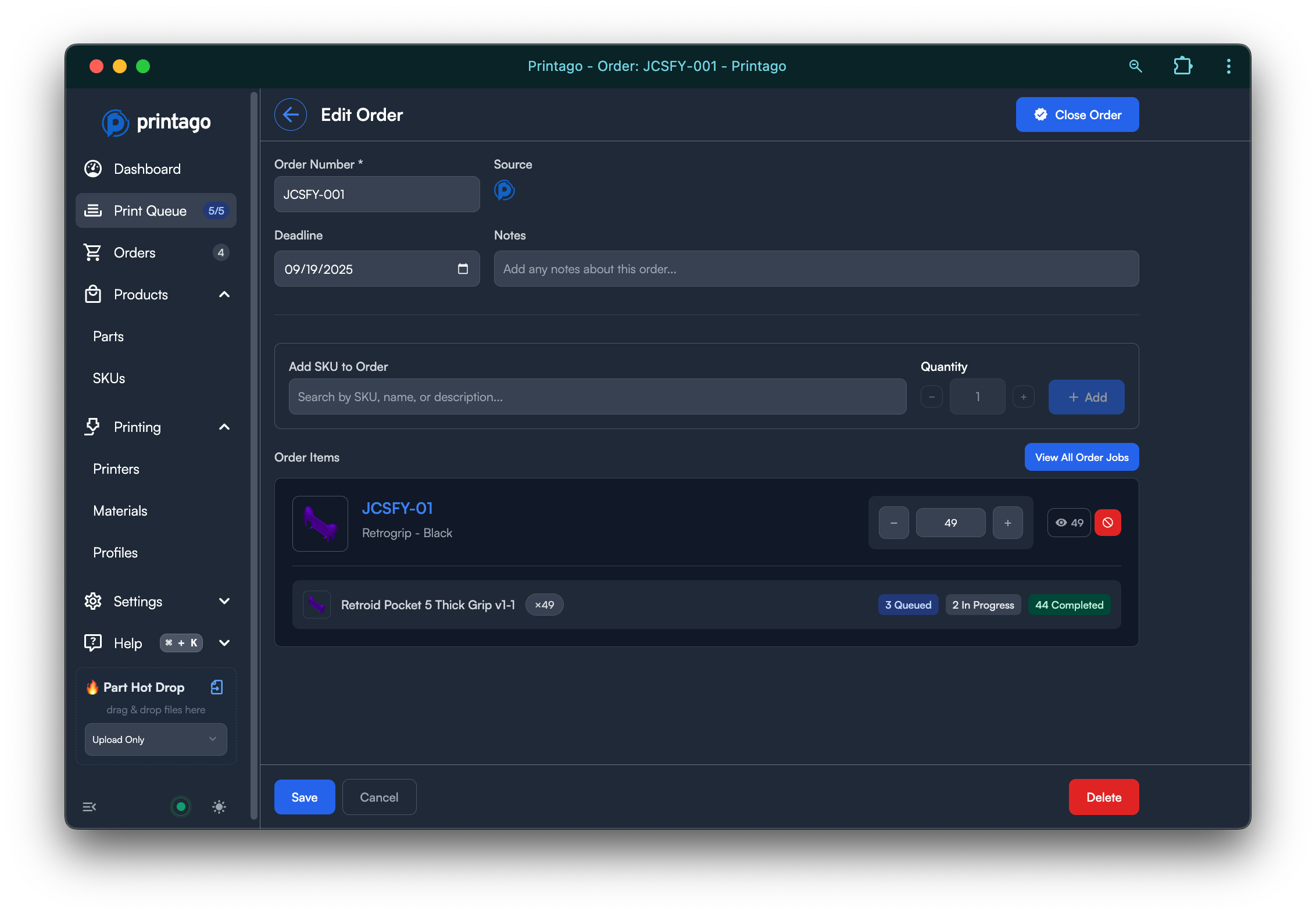
Adding SKUs to Orders
Add SKUs:
- Search and select SKUs from your product library
- Set quantities for each SKU line item
- Configure any customization parameters for OpenSCAD parts
- SKUs with exposed parameters will show configuration options
SKU Configuration:
- For OpenSCAD SKUs, customize any parameters marked as
SKU PARAM - Each SKU line item can have different parameter values
- Preview shows total parts that will be created across all SKUs
Save Order: Click save to create the order with all configured line items
Creating SKUs On-the-Fly
Missing SKUs: If you need a SKU that doesn't exist yet:
- Type the SKU name when adding line items
- Printago will prompt you to create the new SKU
- Configure the SKU with parts, quantities, and parameters
- The SKU is automatically added to your order after creation
Order to Print Queue Workflow
Understanding Print Job Creation
Each order tracks how many individual print jobs it will generate:
- Job Counter: Shows total print jobs from all SKUs in the order
- SKU Breakdown: Each SKU contributes based on its part count and quantities
- Dynamic Updates: Job count automatically adjusts when you modify the order
Queueing Print Jobs
You can send an order to the print queue from two places:
- From the Orders list: check one or more orders and click Print Orders. With nothing checked, the button reconciles every open order in the store.
- From a single order's page: open the order and click Print Order in the page header. This reconciles just that order and leaves every other order untouched.
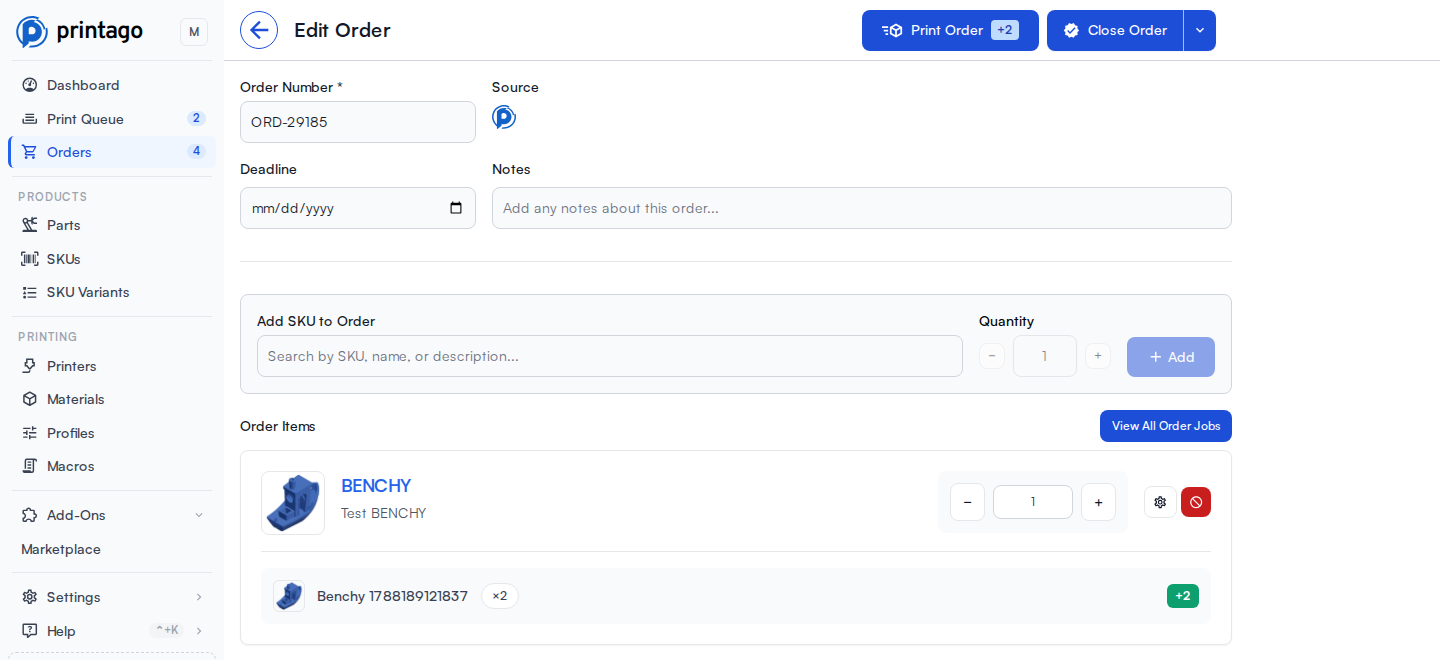
Either button opens the same print dialog, where you:
- Choose the printers to use (Next Available, Specific Printer, or Tagged Printers)
- Review what will change: jobs to add, jobs to cancel, and any SKUs that still need to be linked
- Set the priority and queue position, then confirm
The badges on the button preview the outcome before you open the dialog: a red count for SKUs that are missing or empty, and a +N / -M count for jobs that will be added or cancelled.
On an order's page, Print Order:
- Is not shown while you are creating a new order. Save the order first.
- Is disabled while the order has unsaved item changes, because printing works from the saved order. Save or cancel the changes to continue.
- Is only available to members whose role includes the
order.printpermission. - Stays visible on closed orders, matching the list. A closed order's items are skipped, so the dialog reports nothing to process.
Queue Integration: Jobs from orders appear in the print queue with:
- Order number displayed for easy identification
- Clickable links back to the source order
- Ability to filter and sort by order number
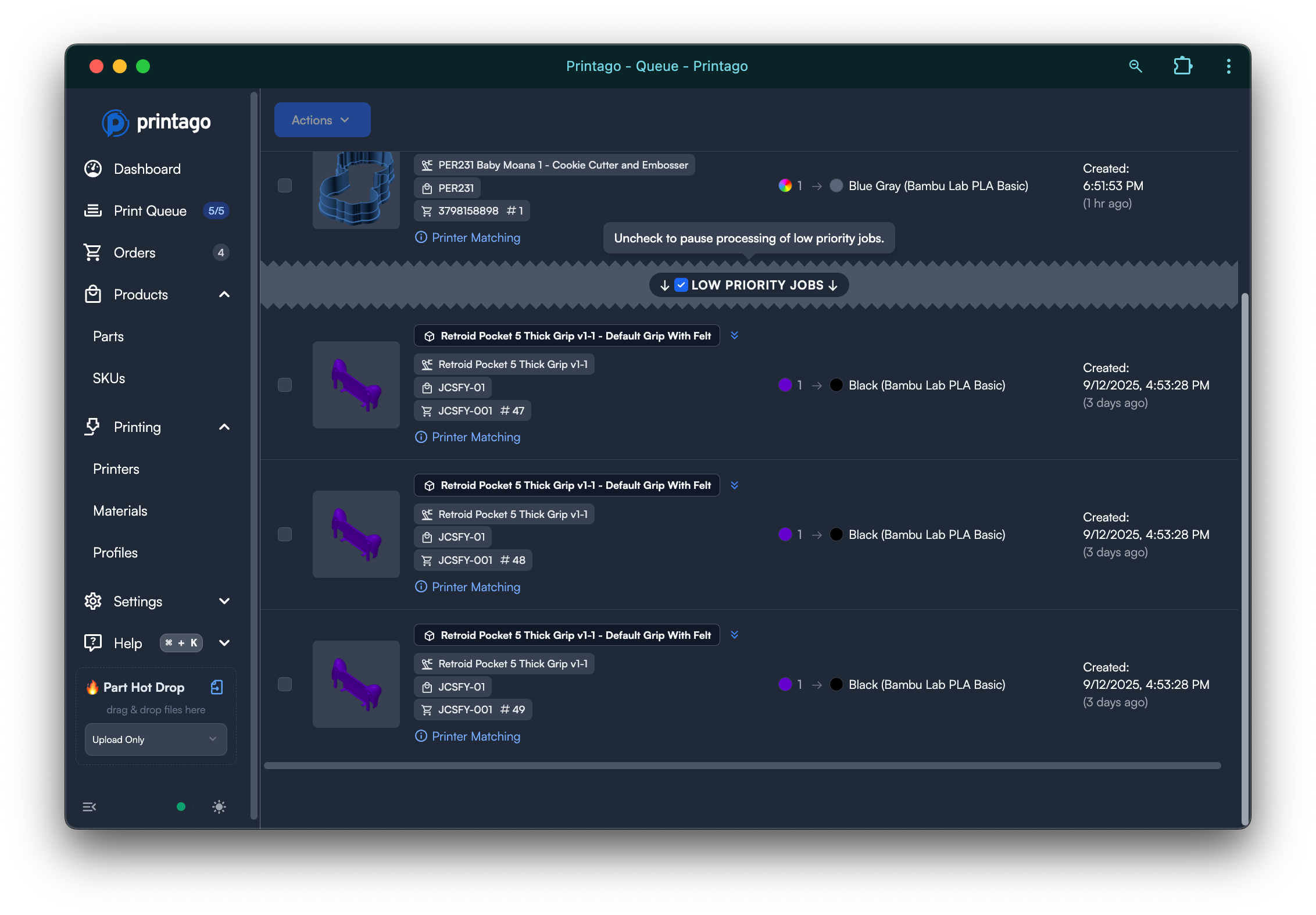
Print queue showing jobs with order numbers (like JCSFY-001) and clickable order links
Order Management
Modifying Active Orders
Adding More Items:
- Add additional SKUs to existing orders
- Hit "Print Jobs" again to queue only the new items
- System automatically reconciles and adds new jobs without duplicating existing ones
Removing Items:
- Delete line items from orders
- Click "Print Jobs" to reconcile the queue
- Automatically removes cancelled line items from the print queue
- Doesn't affect jobs already in printing status
Order Status and Job Tracking
Job Status Awareness:
- Queued Jobs: Cancelling orders removes jobs from queue
- In-Progress Jobs: Cancelling orders leaves active prints undisturbed
- Completed Jobs: Order completion tracking based on job outcomes
Order Navigation:
- Click order numbers in the print queue to view full order details
- View all jobs associated with a specific order
- Track completion progress across all order line items
Closing Completed Orders
Order Completion Status:
- When all jobs for an order are completed, a green check appears next to the order in the orders list
- This visual indicator shows the order is ready to be closed
Closing Orders:
- Bulk Close: Check-select multiple completed orders and use the Actions menu to close them
- Individual Close: Click into a specific order and click the "Close" button
Order Tracking Features
Order Organization
Order History:
- All created orders remain accessible for reference
- Search and filter orders by customer, date, or order number
- Once you have connected more than one shop, a filter above the list narrows orders to a single sales channel (every Etsy shop, every Shopify store, and so on) or to one shop within it
- Turn on the optional Source and Shop columns to see which channel and which shop each order came in from
- Notes field maintains context and special instructions
Customer Management:
- Basic customer information (name and email)
- Order history per customer for repeat business
- Simple contact tracking for order follow-up
Production Planning
Fulfillment Dates:
- Set target completion dates for planning
- Visual indicators for order priority and timing
- Helps coordinate production scheduling across multiple orders
Material Planning:
- Preview material requirements before queueing jobs
- Aggregate material needs across entire orders
- Plan material loading for efficient production runs
Integration with Print Queue
Smart Assignment
Manual order jobs use all the same printer assignment features:
- Material Matching: Jobs only go to printers with correct materials
- Printer Tags: Route order jobs to specific printer groups
- FabMatic Support: Continuous printing works with order-based jobs
Order Tracking in Queue
Queue Visibility:
- Order numbers appear in job listings
- Click-through navigation from queue to order details
- Filter queue by specific orders for focused monitoring
Progress Monitoring:
- Track completion status of all jobs within an order
- Visual progress indicators for multi-SKU orders
- Completion notifications when entire orders finish
Common Use Cases
Custom Product Orders
- Customer requests multiple personalized items
- Configure OpenSCAD parameters for each line item
- Track entire order completion as a unit
Maker Space Projects
- Student or member requests for project components
- Organize all parts for a single project under one order
- Track material usage and completion for billing
Prototype Batches
- Engineering teams requesting test versions
- Multiple variations of the same design
- Coordinated completion for design review meetings
Event Production
- Conference giveaways or promotional items
- Multiple SKUs for complete event package
- Deadline-driven fulfillment date tracking
Need help with manual orders? Join our Discord community for support and tips from other users!