Global Search
Instantly find and navigate to any content in your Printago workspace with keyboard-driven global search. Access parts, SKUs, printers, materials, orders, users, and pages in seconds, without leaving your keyboard.
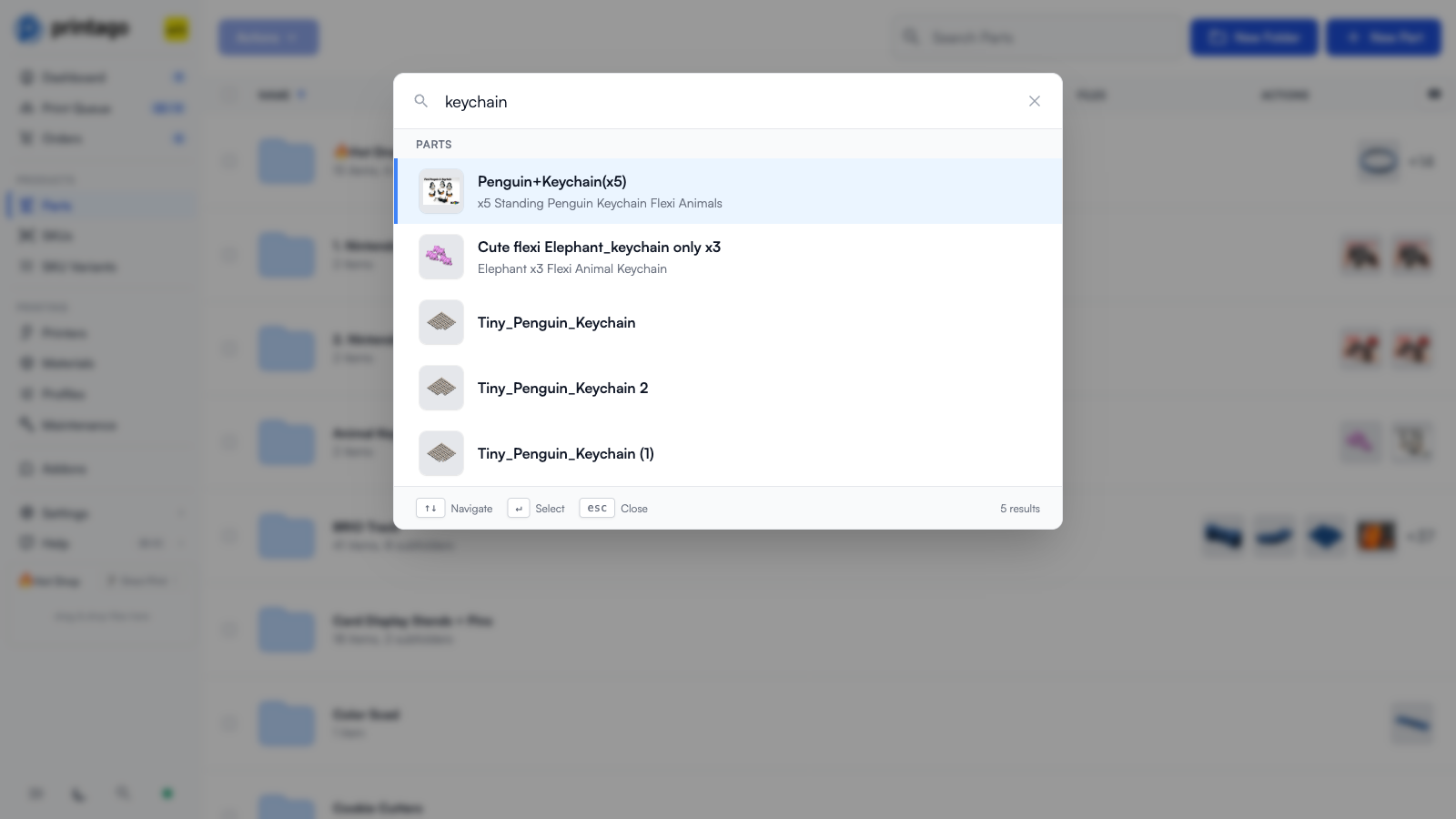
Opening Global Search
There are two ways to open global search:
- Keyboard shortcut: Press
/from anywhere in Printago - Search icon: Click the magnifying glass icon at the bottom of the sidebar (next to the dark mode toggle)
The search input will automatically focus, ready for you to start typing.
You can press / from any page except when you're already typing in a text field. This makes search instantly accessible no matter where you are in the application.
Searching Your Workspace
Start typing to filter results across all your content ("Search parts, SKUs, printers, materials, orders, users, and pages..."):
- Parts - Your 3D models and design files
- SKUs - Product assemblies and configurations
- Printers - Your printer fleet
- Materials - Material profiles and settings
- Orders - Customer orders
- Users - Members of your organization
- Pages - Key application pages like "Print Queue"
Results appear instantly as you type, grouped by category. Use the arrow keys to navigate, Enter to select, and Esc to close.
Documentation Search (⌘K)
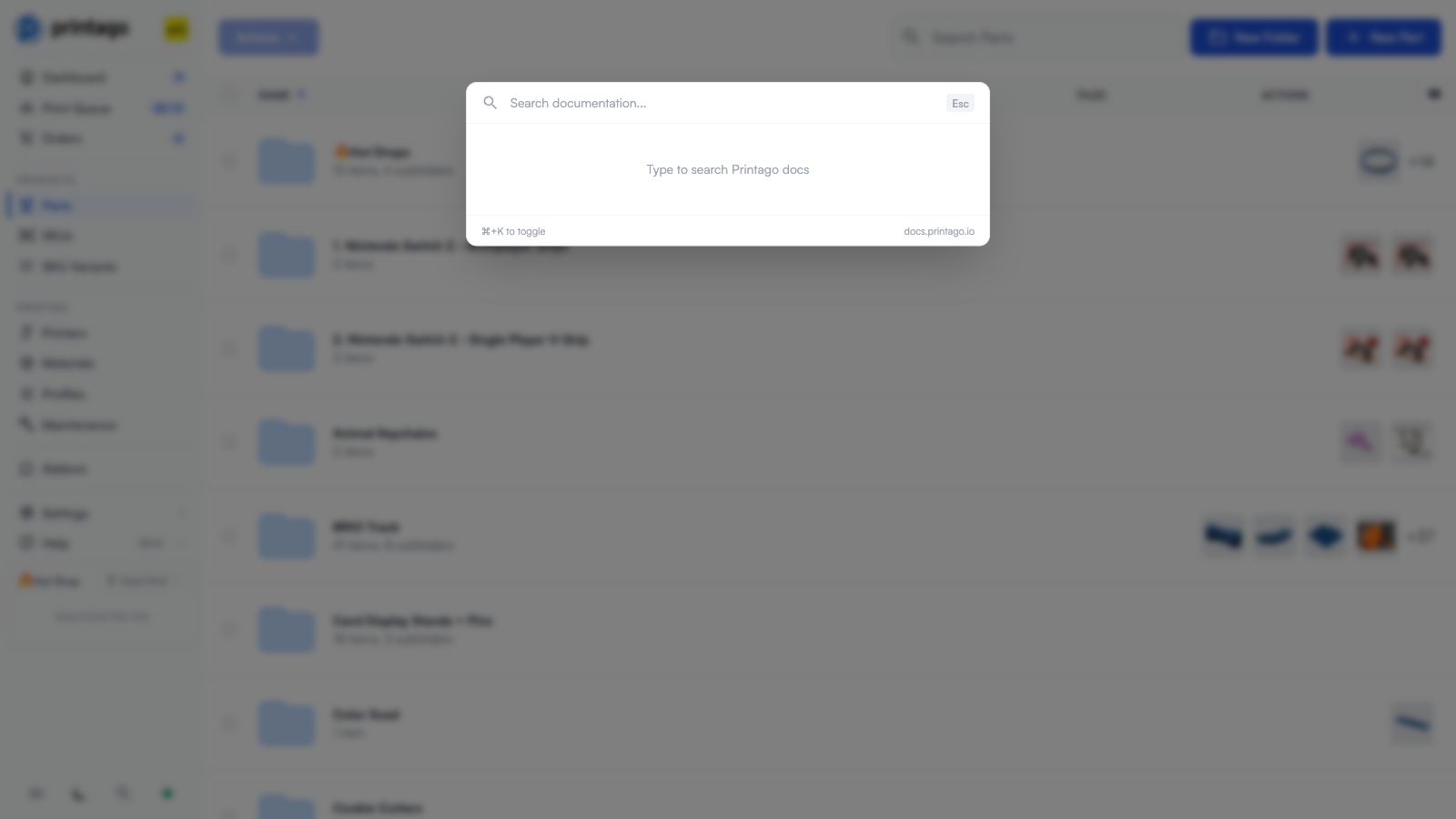
Global search finds things in your store. To search this documentation site instead, press Cmd+K (or Ctrl+K on Windows/Linux). This opens a "Search documentation..." dialog that searches docs.printago.io, so you can pull up help articles without leaving the app. Press ⌘K again to toggle it, or Esc to close. The shortcut is also shown next to Help in the sidebar.
Global search transforms how you navigate Printago, making your workflow faster and keeping you in the flow of production.