Folder Watching
Key Concepts
Folder Watching turns a local folder on the machine running Printago Fuse into a live mirror of a folder in your Printago Parts library. Drop an STL into the folder and a few seconds later it appears as a Part in the cloud. Edit it, rename it, move it into a subfolder, or delete it — Fuse keeps the cloud copy in sync.
This is the right tool when your design workflow lives outside Printago (Fusion 360, OpenSCAD scripts in a Git repo, a network share that engineers drop revisions into) and you want the cloud library to follow along without anyone clicking Upload.
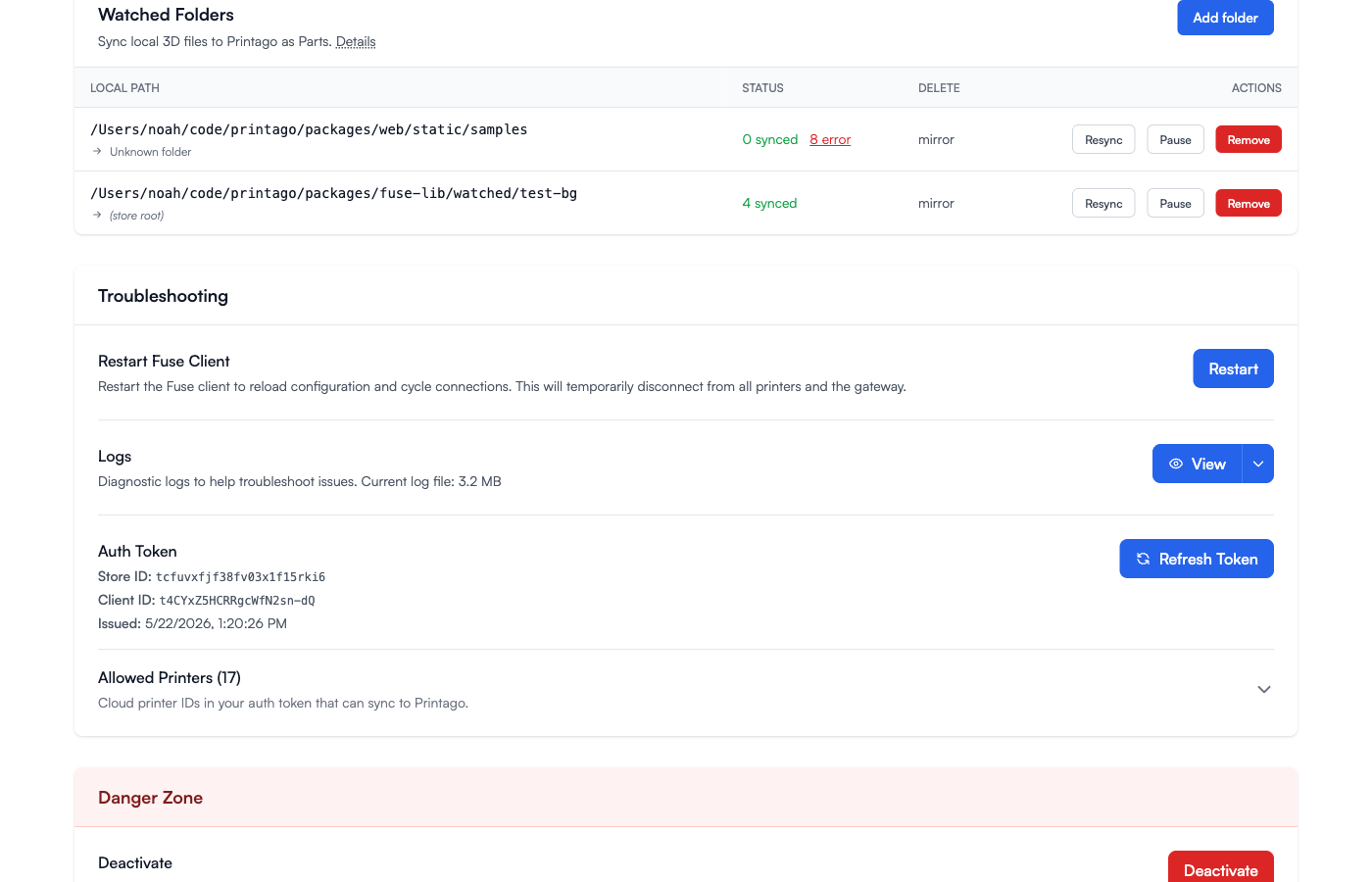
How It Works
Each watched folder is a one-way sync from your local disk to Printago:
- Fuse watches the folder for file system events using filesystem notifications natively, or polling when running in Docker.
- When a supported file appears, changes, or disappears, Fuse uploads, replaces, or deletes the corresponding cloud Part.
- A reconciler walks the folder every 10 minutes as a safety net, catching anything missed while Fuse was offline.
Cloud-to-local sync is not supported: editing a Part in the web UI does not push changes back to your disk.
Setting Up a Watched Folder
Open the Fuse web interface (default http://localhost:8888), go to Settings, find the Watched Folders card, and click Add folder.
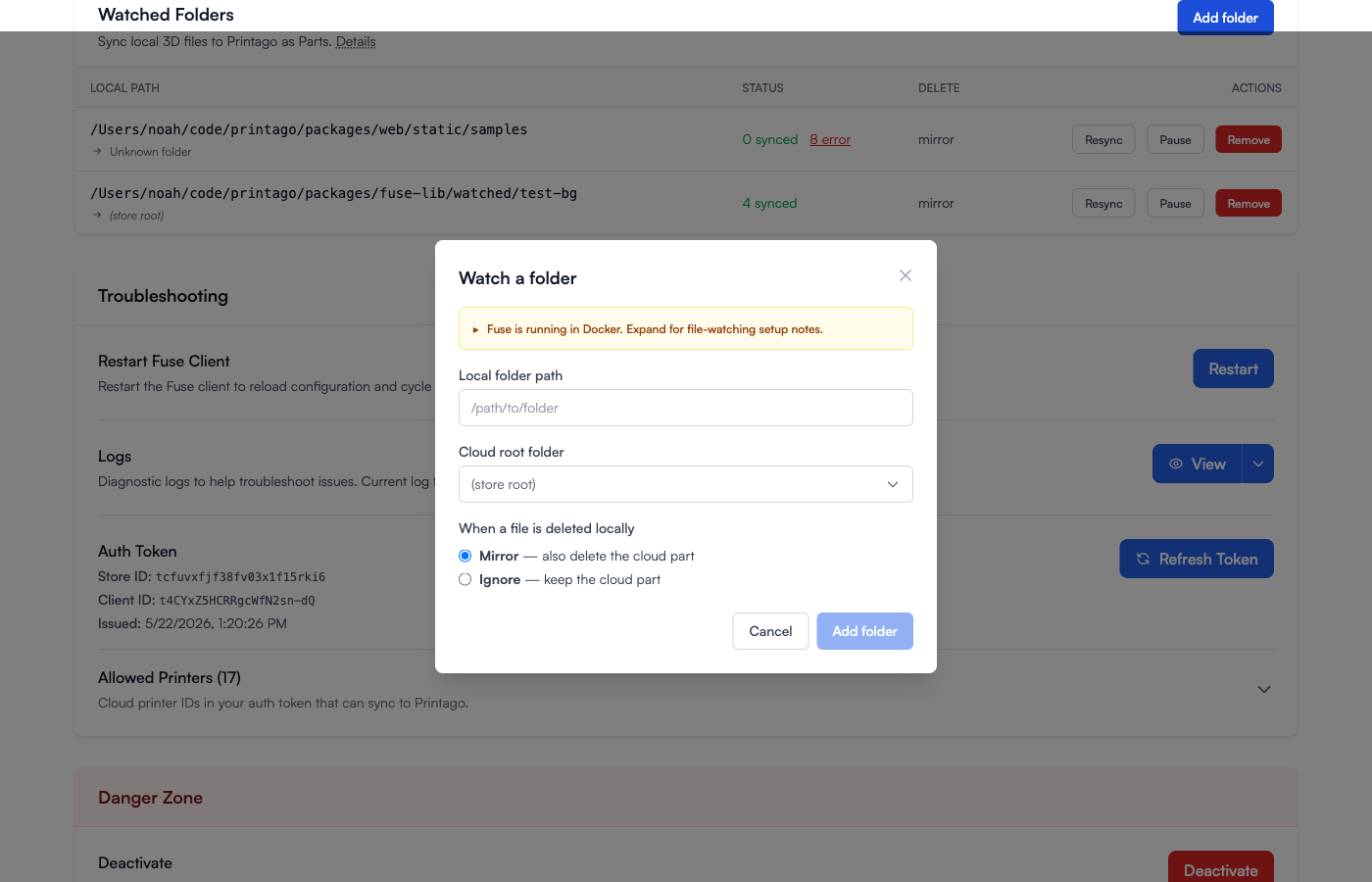
Fill in:
- Local folder path — Absolute path to the folder on the machine where Fuse is running. If Fuse runs in Docker, this must be a path inside the container; the dialog shows a Docker hint with mounting instructions.
- Cloud root folder — The Printago Parts folder that becomes the root of the mirror. Leave as (store root) to sync into your library's top level, or pick an existing Parts folder. Subfolders found on disk are created on demand under this root.
- When a file is deleted locally:
- Mirror — also delete the cloud Part (default; matches what most people mean by "sync")
- Ignore — keep the cloud Part. Useful when local disks come and go (e.g. removable drives) and a missing file should not destroy the cloud copy.
Click Add folder. Fuse immediately starts watching and runs an initial reconciliation: any existing supported files in the folder are uploaded, and any Parts already in the chosen cloud folder are adopted by content hash so you don't get duplicates.
Supported File Types
Files are picked up by extension and, for a couple of types, a small content check:
| Extension | Treated as | Notes |
|---|---|---|
.stl | STL part | |
.3mf | 3MF project or G-code 3MF | Auto-detected: 3MFs containing Metadata/plate_*.gcode are uploaded as G-code 3MFs |
.step / .stp | STEP part | |
.gcode | G-code | |
.scad | OpenSCAD part | |
.py | CadQuery or build123d part | Only if the file imports cadquery or build123d near the top |
Plain Python files without one of those imports are ignored — Fuse looks at the first 8 KiB of the file for an import cadquery / from cadquery … (or build123d) line.
Always Ignored
These never produce Parts:
- macOS metadata:
.DS_Store,__MACOSX/ - Windows artifacts:
Thumbs.db, Office lock files like~$report.docx - Temporary files: anything ending in
.tmp - Source-control and dependency directories:
.git/,node_modules/,.venv/
Behavior in Detail
The table below captures how each file system action maps to cloud state — useful when you're trying to predict what Fuse will do next.
| Local action | Result in Printago |
|---|---|
| Add a new supported file | Uploads and creates a new Part. A .3mf Part keeps the process profile saved in the file, if it has one |
| Modify an existing file | Re-uploads the file; the same Part is updated in place |
| Rename a file (within ~5s) | Cloud Part is renamed via PATCH — no re-upload |
| Move a file into a subfolder | Cloud Part is moved into the matching cloud subfolder — no re-upload |
| Delete a file (Mirror policy) | Cloud Part is deleted; row is tombstoned locally |
| Delete a file (Ignore policy) | Cloud Part is kept; row is tombstoned locally |
| Delete then re-add identical content (after ~5s) | Treated as a fresh file — a new Part is created. The old Part is not re-adopted because hash-based adoption only runs on the first scan of a folder. |
| Delete a folder | Each contained file is processed individually under the delete policy |
| Add file in a new subfolder | Cloud subfolder is created automatically; Part is filed under it |
Add an unsupported file (.txt, etc.) | Ignored |
Drop a .DS_Store / ~$lock / .tmp | Ignored |
| Modify a file while Fuse is paused | Picked up on resume by the reconciliation pass |
| Modify a file while Fuse is offline | Picked up by the next reconciliation (10-minute cadence, or click Resync) |
The 5-Second Rename Window
Renames and moves are detected by matching the content hash of an added file against the content hash of a recently-deleted file in the same watched folder. The match window is 5 seconds — long enough to absorb a normal mv or drag-and-drop, but short enough that a delete followed minutes later by an unrelated upload of the same content won't be confused for a rename.
If you rename and modify a file in the same operation, the hash won't match and Fuse will treat it as a delete + create.
Multi-File Designs: OpenSCAD and Python
Folder watching uploads only the file that changed. It does not parse include <…> / use <…> in .scad files, nor import statements in CadQuery / build123d scripts. If your design depends on local helper files, those helpers will not be uploaded alongside it, and the cloud render will fail or fall back to library versions.
For multi-file SCAD or Python projects, you have a few options:
- Inline the dependencies. Paste helper code into one self-contained
.scador.pyfile. - Use bundled libraries. OpenSCAD library functions shipped with Printago and CadQuery / build123d work fine from a watched folder because they don't need any local sidecar files.
- Upload through the web UI. The standard OpenSCAD part upload flow prompts you for each
use/includefile and attaches them all to the same Part.
Fuse keeps track of the main file and replaces the Part each time it changes; the web UI flow is the right tool when you need to attach sidecars.
Managing Watched Folders
Each row in the Watched Folders table shows the local path, the linked cloud folder, current sync status, the delete policy, and per-folder actions:
- Resync — Force a full reconciliation pass: walk the disk, queue anything that changed, tombstone anything that vanished. Useful after editing files while Fuse was offline.
- Pause — Stop watching the folder without removing it. The cloud copy is left alone. Useful when you're about to do bulk operations on disk (a big checkout, a
find -delete, restoring from backup) and don't want every intermediate file flickering up to the cloud. Click Resume to re-attach; reconciliation runs automatically and catches any drift. - Remove — Stop watching and forget the folder. Existing cloud Parts are not deleted.
Sync Status
Each folder displays a count of files in each state:
- Synced — File on disk matches the cloud Part.
- Pending — Currently uploading or queued.
- Error — Last sync attempt failed. Click the count to open the error drawer.
- Tombstoned — File was deleted on disk; cloud was updated per the folder's delete policy.
The Error Drawer
Click the N error count on any folder to see exactly which files failed and why.
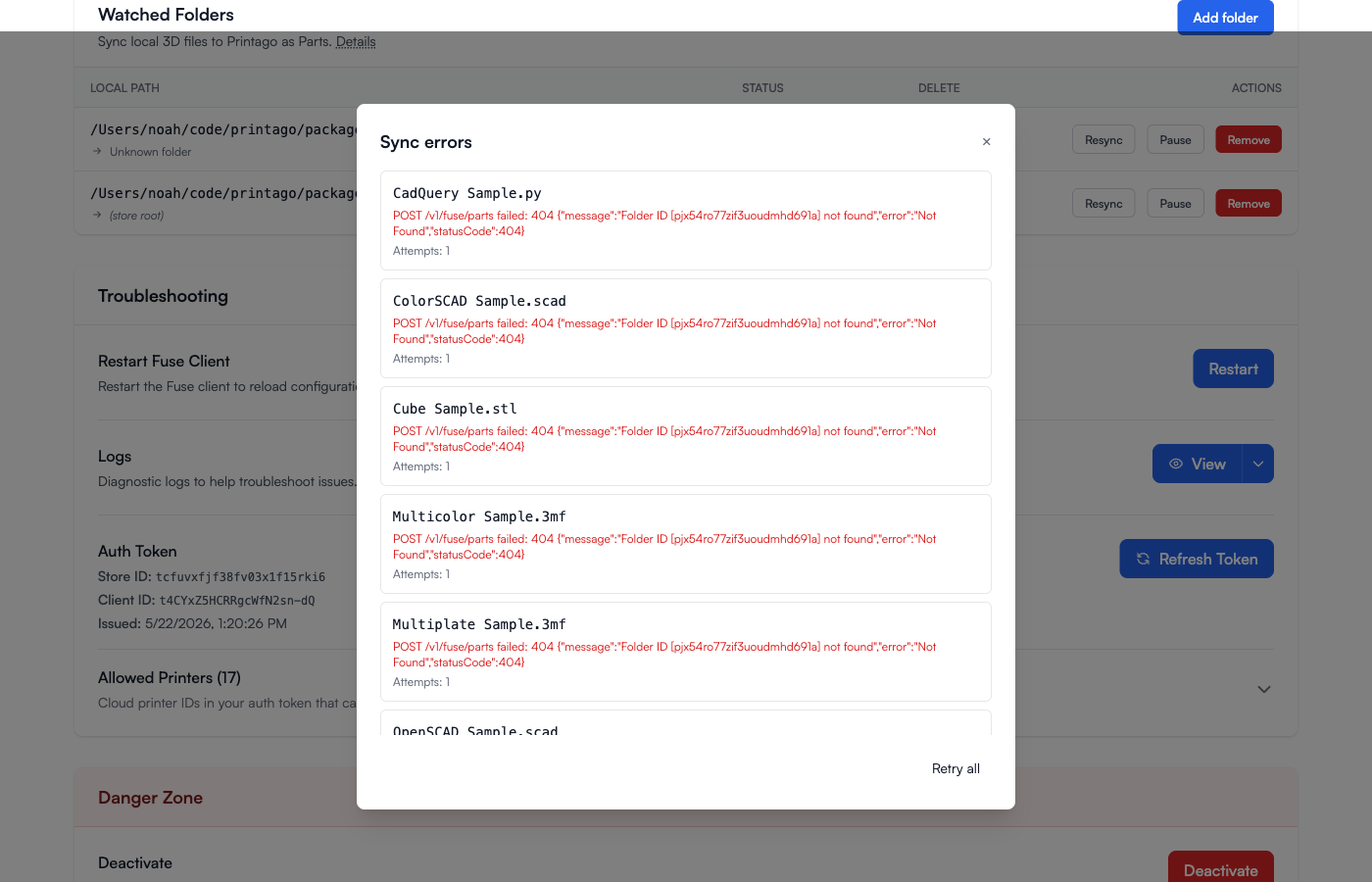
Common causes:
Folder ID [...] not found— The cloud folder this watched folder was linked to has been deleted. Remove the watched folder and re-add it pointing at a folder that still exists (or (store root)).Unsupported file type— A file's extension matched, but the content check failed (e.g. a.pyfile that doesn't importcadqueryorbuild123d). Fuse marks the row tombstoned and stops trying.- Network / upload errors — Transient. Fuse retries up to 5 times with backoff; Retry all at the bottom of the drawer resets the attempt counter.
Running Fuse in Docker
When Fuse runs in a container, file paths in the Local folder path dialog refer to paths inside the container. Mount the host folder you want to watch as a volume, for example:
services:
  fuse:
    image: ghcr.io/printago/fuse:latest
    volumes:
      - fuse_config:/app/config
      - fuse_data:/app/data
      - /Users/me/3d-designs:/watched
Then enter /watched (not /Users/me/3d-designs) in the Add Folder dialog. The dialog includes a banner with these instructions whenever Fuse detects it's running in Docker.
Bind-mounted filesystems do not always propagate native inotify events reliably — this is especially true on macOS hosts. To handle that, Fuse automatically switches to polling mode (every 60 seconds) when it detects it's running inside a container. The 10-minute reconciler still runs as a safety net. You can override this with the FUSE_WATCHER_POLLING environment variable: set it to 0 or false to force native events, or any other value to force polling.
Tips and Gotchas
- One folder, one cloud root. Fuse doesn't currently support watching the same local folder under two cloud roots, or two local folders into the same cloud folder. If you need that, create separate cloud folders.
- Hash-based adoption is per-folder, once. When you first add a watched folder, Fuse hashes every file and matches it against Parts already in the chosen cloud folder so you don't end up with duplicates. After that initial scan, identical content added later is treated as a new file. Keep that in mind if you delete a Part and then try to "recover" it by dropping the same file back in — it'll be a fresh Part with a new ID.
- Cloud-side changes are not detected. If someone deletes the Part in the web UI but the local file hasn't changed, Fuse won't notice until the next local modification triggers a sync (at which point a fallback re-creates the Part). Re-uploading from disk is the recommended way to recover.
- Watch big trees with care. The polling fallback walks the entire folder every 60 seconds. For folders with tens of thousands of files, native events (non-Docker) are dramatically more efficient.