Bulk Actions
Bulk Actions provide powerful controls for managing multiple items simultaneously across Printago. Manage multiple printers, print jobs, parts, or SKUs simultaneously.
Understanding the Interface
The Bulk Actions control appears in the top-left corner (top on mobile) of screens that support multi-selection:
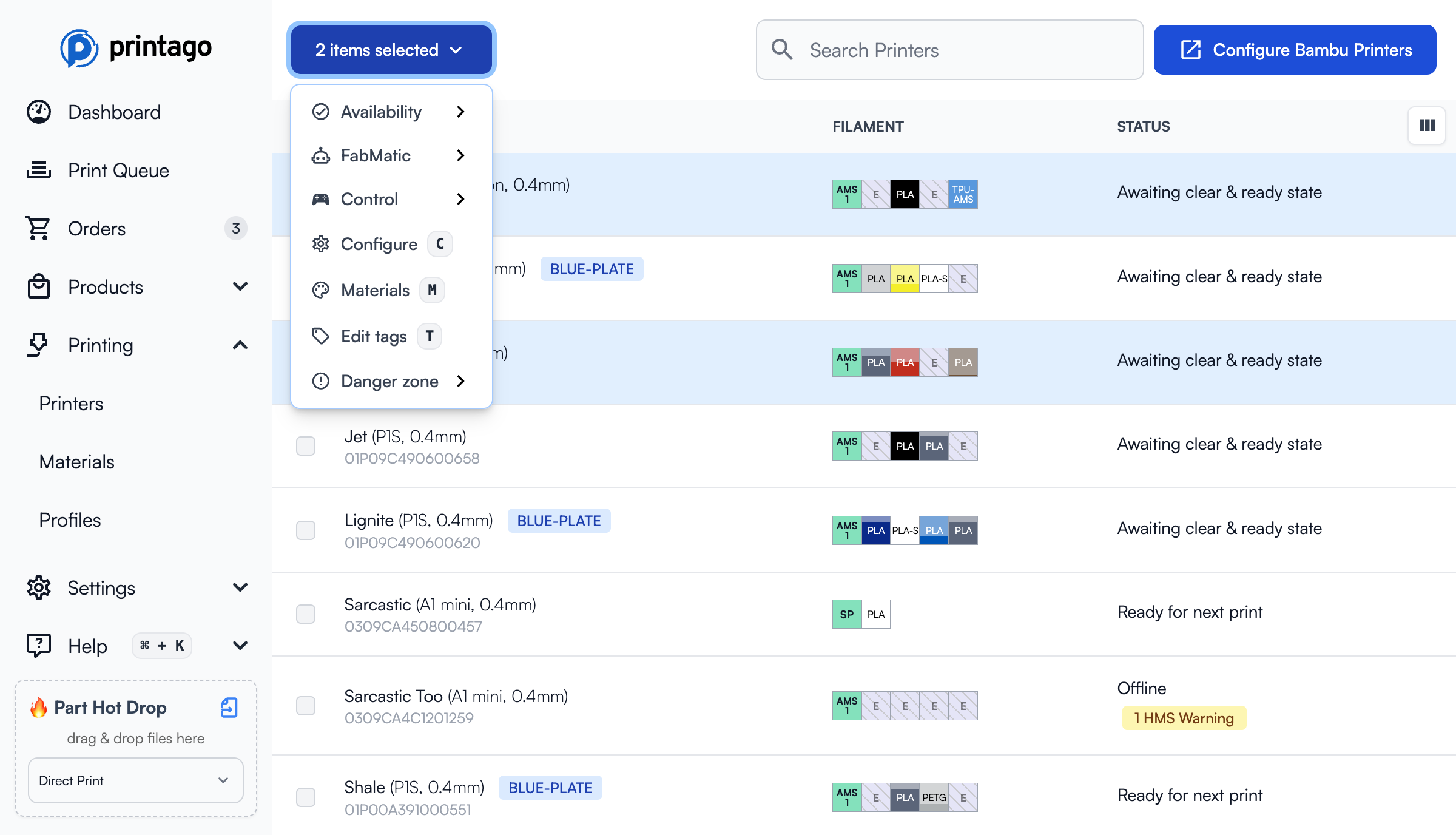
- Initially shows as a disabled
Actionsdropdown button. - When you select items, the button enables and updates its text.
- Clicking reveals a context-aware menu of actions available for your selected items
Different screens offer different bulk operations - for example, selecting multiple printers gives you printer-specific actions, while selecting print jobs provides queue management options.
Selection Patterns
Printago supports several ways to select items:
- Individual Selection: Click checkboxes next to items you want to affect
- Range Selection: Select an item, hold
Shift, then select another item to select everything between - Select All: Use the checkbox in the table header to select all items matching your current filters, or press
Ato toggle select all
Use Shift + Click for range selection across most list views in Printago.
Bulk Actions by Context
Print Queue Management
The Print Queue offers bulk operations focused on job control and organization. Available actions depend on the state of selected print jobs:
-
In Progress Jobs
- Pause: Temporarily stop active print jobs
- Resume: Continue paused print jobs
-
Queue Management
- Cancel: Stop selected print jobs (requires confirmation)
- Clear: Remove jobs in
Completed,Cancelled, orErroredstates - Retry: Return
CancelledorErroredjobs to queue for another attempt
Printer Management
Control multiple printers simultaneously through the following Bulk Actions:
Availability Control
- Set as Clear & Ready: Makes selected printers available in the print queue
- Set as Hold/Not Ready: Temporarily removes printers from the available queue
FabMatic Configuration
- Enable FabMatic: Activates continuous printing mode for selected printers
- For setup details, see FabMatic Continuous Printing
- Disable FabMatic: Turns off continuous printing mode
Organization
- Edit Tags: Modify printer tags in bulk to manage printer groups and categories
Part & SKU Management
- Delete: Delete Parts or SKUs from Printago.
Complete Bulk Actions Reference
Print Queue
| Action | Description | Requirements/Notes |
|---|---|---|
| Cancel | Stop selected print jobs | Requires confirmation |
| Move to Top | Prioritize selected jobs in queue | Alternative to drag/drop (Queued jobs only) |
| Move to Bottom | Let every other job of the same priority print first | Keeps their priority; a job in a group moves its whole group (Queued jobs only) |
| Pause | Temporarily stop active print jobs | In-Progress jobs only |
| Resume | Continue paused print jobs | Paused jobs only |
| Clear | Remove jobs from queue | Completed/Cancelled/Errored jobs only |
| Retry | Return jobs to queue for another attempt | Cancelled/Errored jobs only |
Printers
The Printers list page has one additional keyboard shortcut: G to select all matching Printers (same model/nozzle)
| Action | Description | Requirements/Notes | Shortcut |
|---|---|---|---|
| Set as Clear & Ready | Makes selected printers available in print queue | Skips currently printing printers | R |
| Set as Hold/Not Ready | Removes printers from available queue | Temporarily disables job assignment | U |
| Enable FabMatic | Activates continuous printing mode | See FabMatic documentation | - |
| Disable FabMatic | Turns off continuous printing mode | - | - |
| Edit Tags | Modify printer tags in bulk | For printer grouping and organization | T |
| Control Panel | Multi-printer control interface | Manual printer operation and calibration | P |
| Configure | Bulk slicer configuration | Set machine/process profiles for multiple printers | C |
| Materials | Bulk material assignment | Assign materials to multiple printers | M |
| Temperature | Quick bed/nozzle temperature presets | Set temperatures across multiple printers | - |
Parts & SKUs
| Action | Description | Requirements/Notes |
|---|---|---|
| Delete | Remove parts or SKUs from Printago | Permanent deletion |
| Move to Folder | Organize items into folders | Bulk organization tool |
Materials & Slicer Profiles
Both Materials and Slicer Profiles pages currently support only Delete bulk actions for removing items from your library.
Find out more about Printago Keyboard Shortcuts