Text
Studio can put 3D text on a model or on the plate: a name on a tag, a serial on a part, a label engraved into a lid. You can change it at any time, and any text can become a text placeholder, so each print carries its own value.
Text is saved in the project the way Bambu Studio saves its own, so the project still opens in Bambu Studio with the text editable there too.
Adding text
- On a model: click Text in the tool bar on the left (or press T). A ring shows where the text will go as you move over a model. Click a surface to put the text there, facing out from it.
- On the plate: with the Text tool on, click the bed, or choose + → Text. The text becomes an object of its own, lying on the bed.
You can also ask the assistant, for example "put the name Emma on the front, engraved" or "make the serial on the lid a Printago parameter that shrinks to fit".
The new text is selected and ready to type into. Press Escape, or pick another tool, to turn the Text tool off. With a text selected, clicking somewhere else on the same model moves it there.
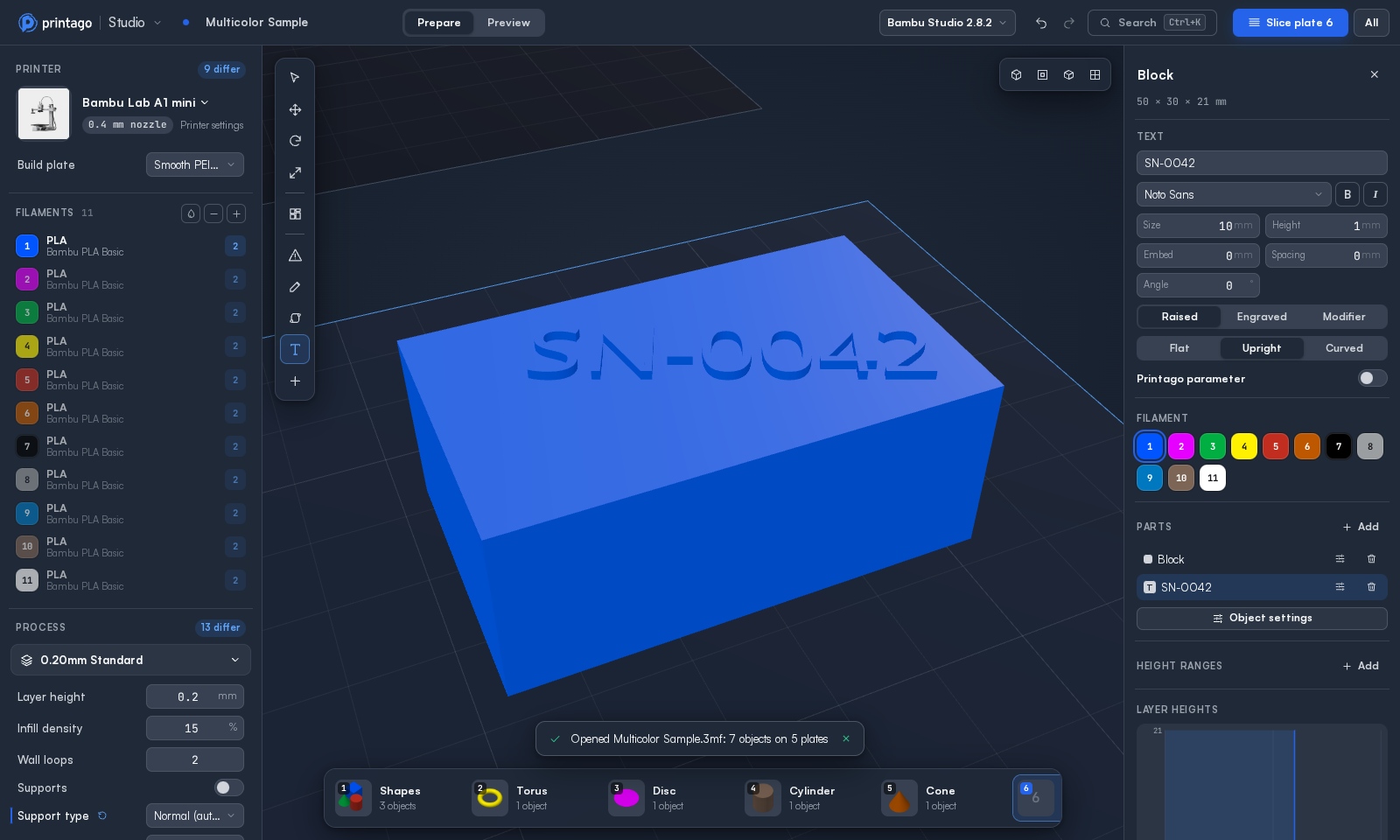
Changing text
Select the text, or click it with the Text tool on. Its settings are at the top of the object panel, and the model updates as you type.
- Font: Noto Sans, Noto Serif, Liberation Sans, Liberation Serif or Liberation Mono, each with B (bold) and I (italic).
- Size: the font size, in mm.
- Height (raised text) or Depth (engraved text): how far the text stands out of the surface or cuts into it.
- Embed: how far raised text sinks into the surface, so it joins a slightly uneven face.
- Spacing: extra space between letters, in mm. It can be negative.
- Angle: turns the text on the surface.
- Raised · Engraved · Modifier: raised text is printed on top of the model, engraved text is cut into it, and a modifier changes print settings inside the letters (use Settings on the part to choose which).
- Flat · Upright · Curved: how text sits on a curved surface. Flat is a flat plate of text. Upright stands each letter on the surface where it falls, so the line follows the curve. Curved bends the letters onto the surface.
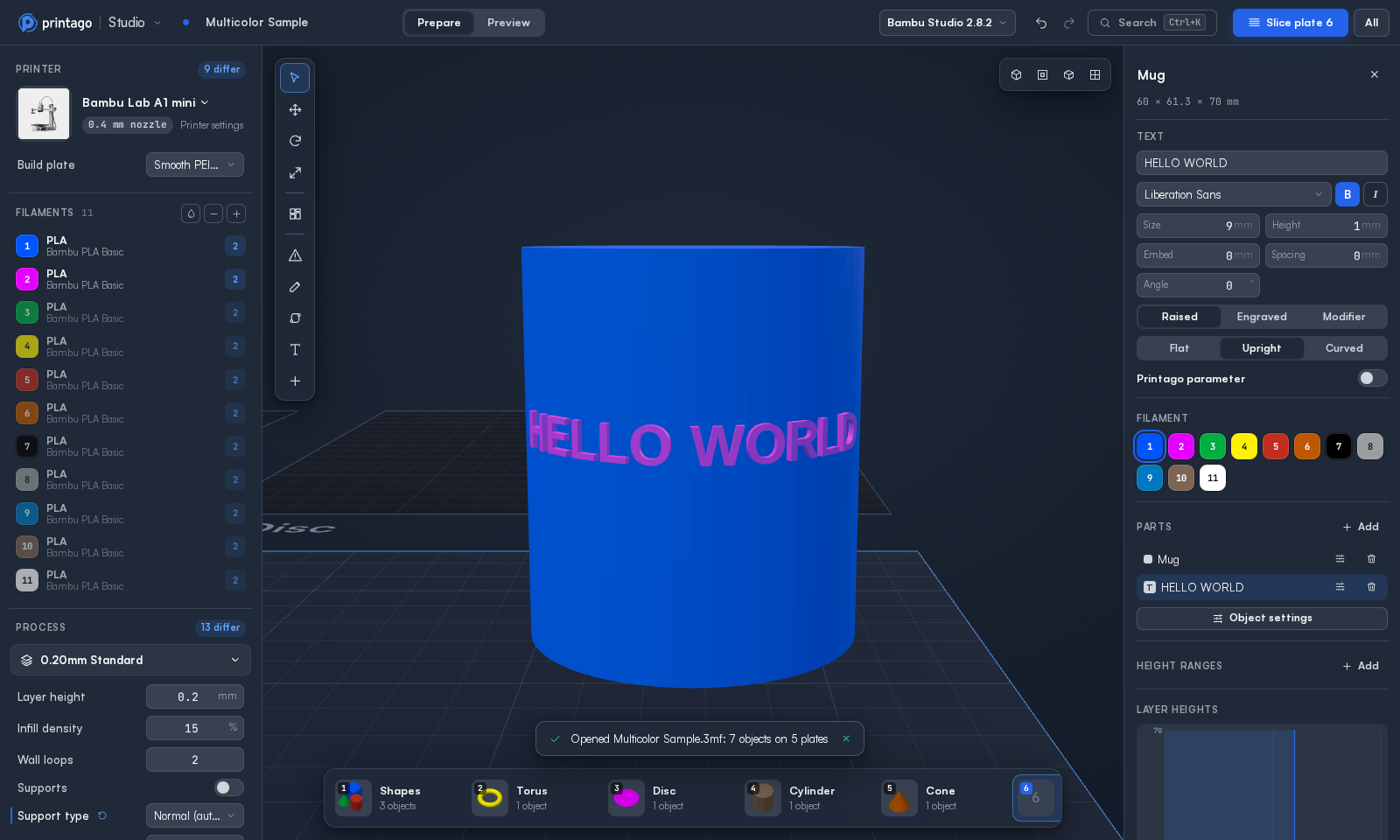
Text is one line. Each change is one undo step, and quick changes in a row, like typing a word, undo together.
Cutting, splitting, combining, repairing, simplifying or mirroring a text turns it into ordinary geometry. Its shape stays, but it's no longer text you can edit.
Making it a text placeholder
Turn on Printago parameter to make the text a text placeholder. You don't need to rename anything: Studio names the text for Printago.
- Label: the parameter's name in Printago, such as Name or Serial. Labels already used in the project are suggested. Two texts with the same label take the same value, for a serial on both sides of a part.
- Fit · Stretch · Unconstrained: the replacement sizing for a value that is longer or shorter than the text you typed.
- Try a value: type a value to see it drawn in place of your text, the way Printago will draw it under the sizing you chose. The space your text takes is outlined. Nothing about the project changes while you try.
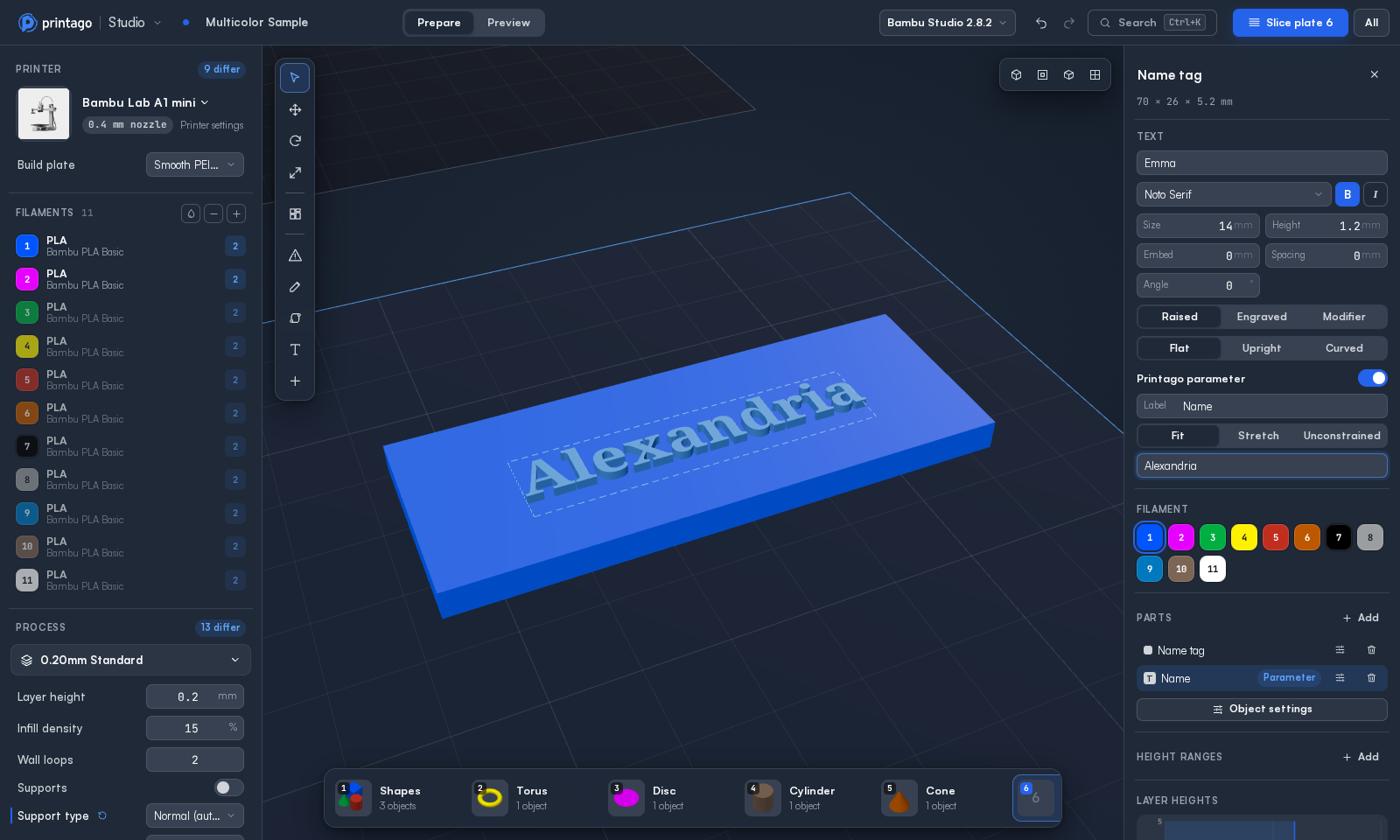
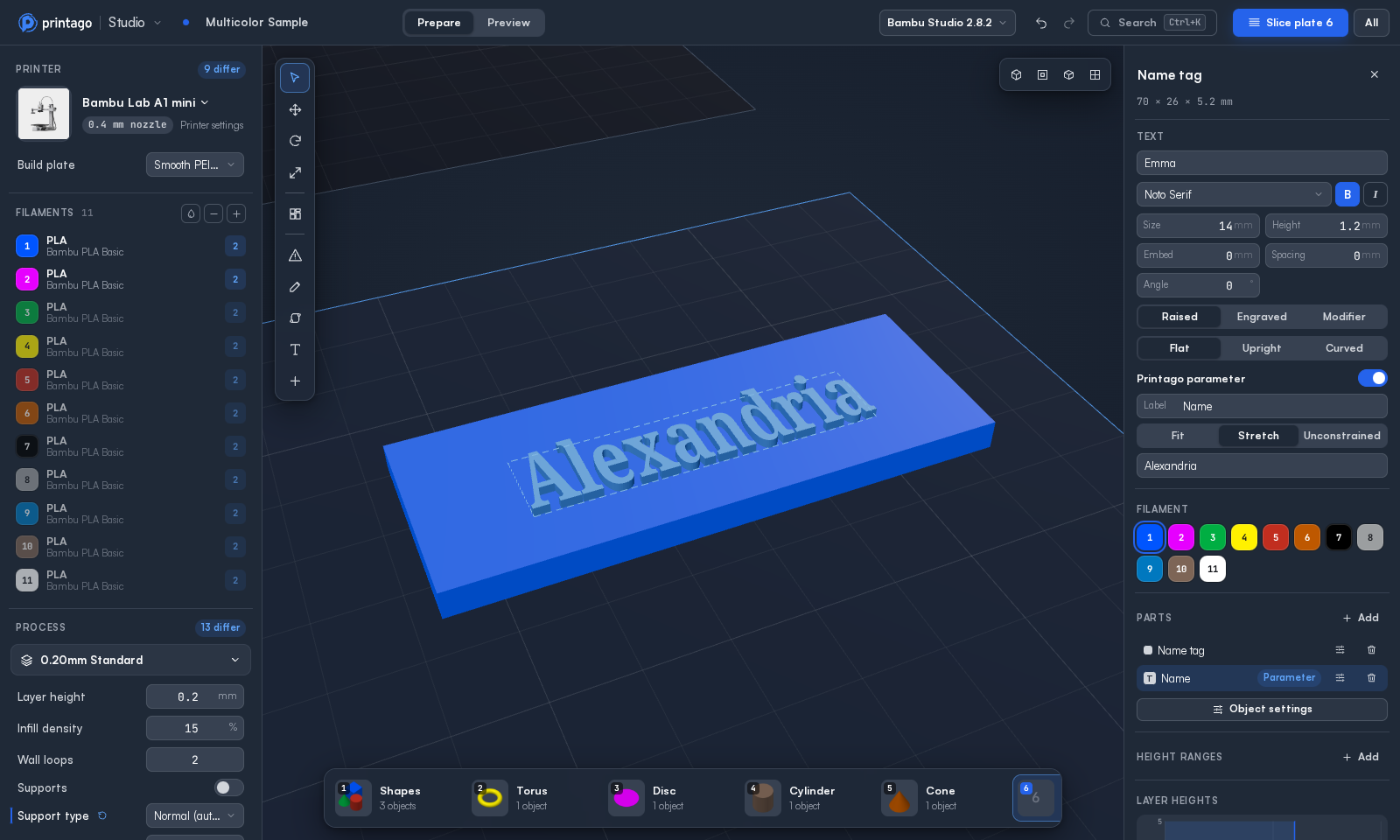
The sizing you choose is set on the part when you save the project to Printago, as a new part or back to the part you opened. Opening a part from Printago shows the sizing it has there. A 3MF you download doesn't carry the sizing, as with any 3MF: set it on the part's page after uploading.
Values are typed when you print, bound to a SKU option, carried in on an order, or numbered by a sequence, as for any text placeholder.
Text from other slicers
- Bambu Studio: text keeps working as text. Studio shows it, edits it, and saves it back unchanged until you edit it. A font Studio doesn't have is shown in a font with the same letter widths (Helvetica and Arial as Liberation Sans, Times as Liberation Serif, Courier as Liberation Mono), named in the font list. Editing it saves the font Studio drew it with.
- OrcaSlicer: text is shown and kept exactly as it is, but can only be edited in OrcaSlicer.