Viewing Sliced Files
A G-code file is what a printer actually runs, but you can't tell from the file name what's in it. Printago Studio opens sliced files so you can check them before they print: the toolpaths layer by layer, the print time, and the filament each color uses, as the file states them.
You can open G-code and gcode.3mf parts from Printago with Open in Studio or File > Open from Printago…, or open the files from your computer.
gcode.3mf files
A gcode.3mf holds each plate's G-code. It opens straight into Preview with the G-code from the file, and the summary shows the print time and filament the file states.
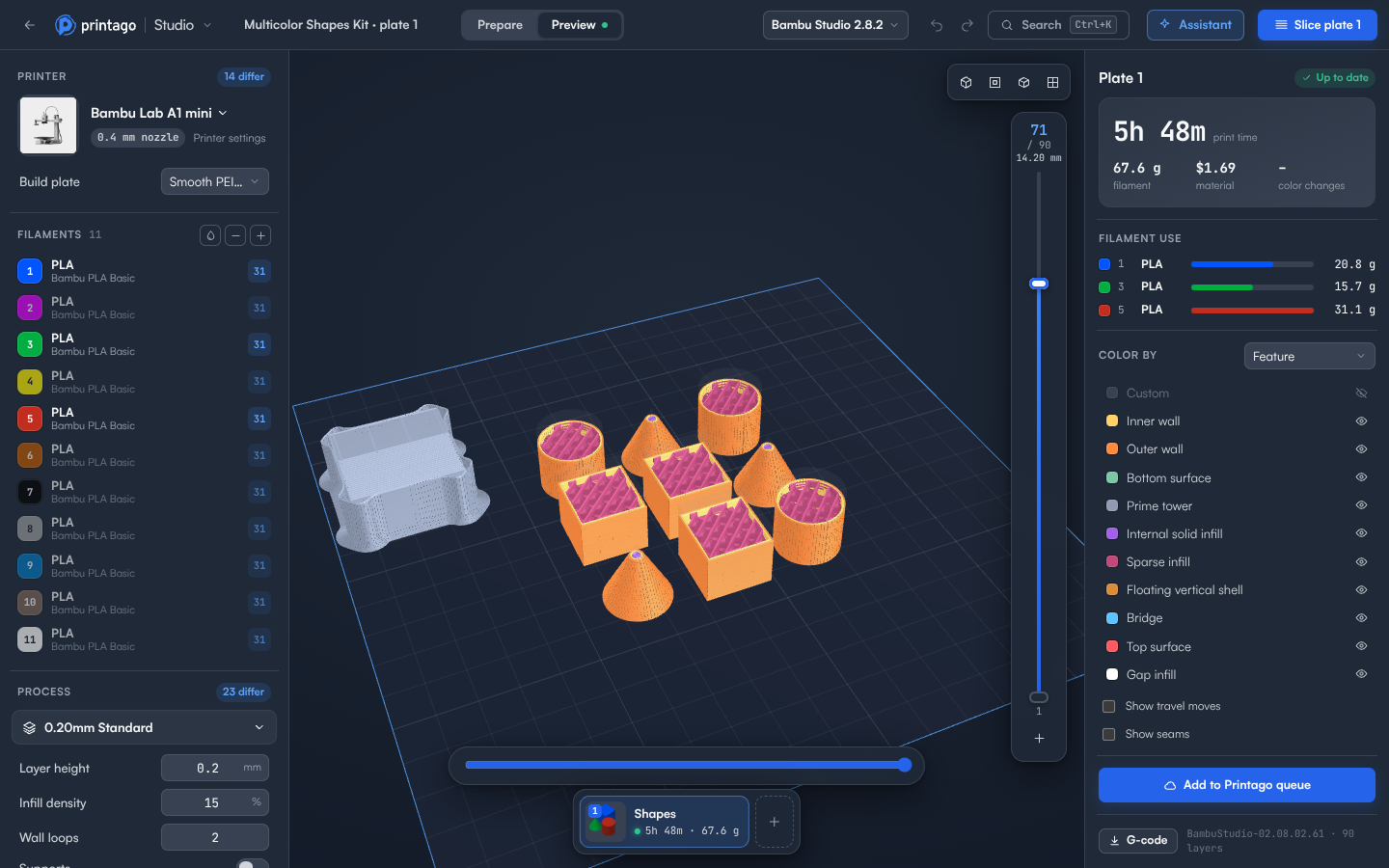
The file's G-code counts as up to date until you change the plate. If the file also includes its models, you can switch to Prepare, change something and slice again; the plate shows Changed until you do. If it doesn't, the plate works like a G-code file.
A gcode.3mf part from Printago can be added to the queue as it is, without slicing it again. See Adding to the queue.
G-code files
A plain .gcode file has only toolpaths, no models. It opens as a single plate in Preview:
- The printer is the one the file was sliced for, when Studio knows it. Otherwise the plate is sized from the file.
- Filament colors and types come from the file.
- The time and filament figures are the ones the slicer wrote into the file.
Because there's nothing to arrange or slice again:
- Prepare is greyed out, and the plate has no Up to date mark: the file is what prints.
- Pauses, filament changes and G-code at a layer can't be added. Add them in the slicer that made the file.
- File > Download G-code (or Ctrl+S) downloads the file. A G-code file can't be saved as a project.
A G-code part from Printago can be added to the queue as it is. A G-code file from your computer can only be viewed and downloaded; add it to Printago as a part to print it.
Binary G-code (.bgcode) isn't supported.