Keyboard Shortcuts and Search
Search
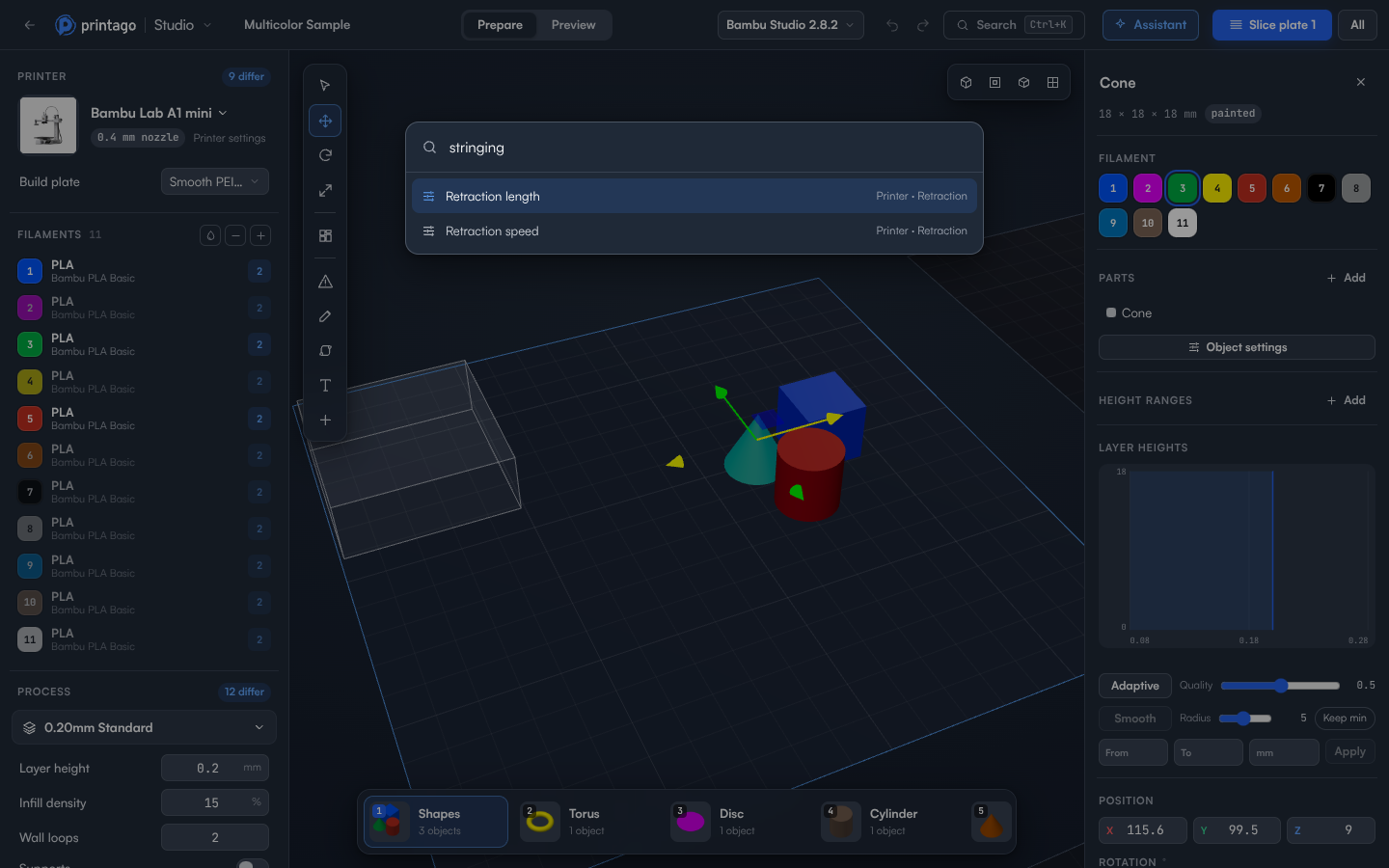
Search in the top bar, or Ctrl+K (⌘K on a Mac), finds settings, actions and objects from anywhere:
- Settings: type a setting's name, or what you want to change: "stringing" finds the retraction settings. Choosing one opens it, highlighted.
- Actions: slice, arrange, fill the plate with copies of the selected object, add a plate, change the printer or process, add a filament, switch theme, open from Printago, save, download.
- Objects: type an object's name to select it, on whichever plate it's on.
Use ↑ and ↓ to move through the results, Enter to choose, and Esc to close.
Keyboard shortcuts
Studio uses the keyboard shortcuts of Bambu Studio and OrcaSlicer, so the keys you know from either work here, whichever engine you choose. Press ? to see them all.
On a Mac, use ⌘ where these tables say Ctrl.
Anywhere
| Keys | Does |
|---|---|
| Ctrl+R | Slice the active plate |
| Ctrl+O | Open a file, or a part from Printago |
| Ctrl+I | Add an STL to the project |
| Ctrl+S | Save to Printago, or download when there's no part to save to |
| Ctrl+Shift+S | Download the project |
| Ctrl+G | Download the plate's G-code |
| Ctrl+Shift+G | Add the plate to the Printago queue |
| Ctrl+K | Search |
| Esc | Close the open dialog or panel, or deselect |
When you're not typing in a field
| Keys | Does |
|---|---|
| Ctrl+Z | Undo |
| Ctrl+Y or Ctrl+Shift+Z | Redo |
| Delete or Backspace | Delete the selected object |
| Ctrl+Shift+D | Delete every object |
| Tab | Switch between Prepare and Preview |
| [ and ] | Previous and next plate |
| Ctrl+0 | Default view |
| Ctrl+1 to Ctrl+6 | Top, bottom, front, rear, left and right view |
| Ctrl+7 | Isometric view |
| Z | Zoom to the selection, or to everything |
| I and O | Zoom in and out |
| ? | Show these shortcuts |
Most browsers keep Ctrl+1 to Ctrl+7 for switching browser tabs, so the camera buttons in the 3D view are the way to change views there.
In Prepare
| Keys | Does |
|---|---|
| M, R, S | Move, rotate and scale tools |
| F | Lay the selected object flat |
| A | Arrange every plate |
| Shift+A | Arrange the active plate |
| Shift+R or Q | Orient the selected object, or every object |
| Shift+Q | Orient every object on the active plate |
| ↑ ↓ ← → | Move the selected object 10 mm (1 mm with Shift) |
| 1 to 9 | Set the selected object's filament |
| L | Paint supports (again to stop) |
| P | Paint seams (again to stop) |
| T | Text tool: click a model or the bed to add text (again to stop) |
| Ctrl+L | Show overhangs |
In Preview
| Keys | Does |
|---|---|
| ↑ and ↓ | Move the layer slider one layer (5 with Shift or Ctrl) |
| ← and → | Step through the moves of the top layer (5 with Shift or Ctrl) |
| Home and End | First and last move of the top layer |
| L | Show only the top layer |
In the 3D view
| Mouse | Touch | Does |
|---|---|---|
| Left-drag | One finger | Rotate the view |
| Right-drag | Two fingers | Pan |
| Scroll | Pinch | Zoom |
| Click | Tap | Select an object, or click empty space to deselect |
| Double-click a plate | Zoom to that plate |
Light and dark
Choose Dark or Light under Appearance in the File menu. Studio remembers your choice in this browser.