OpenSCAD Parts in Printago Studio
An OpenSCAD part makes a different model for every set of options: a name on a keychain, the width of a bracket, whether a hole is there. In Printago Studio you change the options and see the model change, slice it, and check it before it prints.
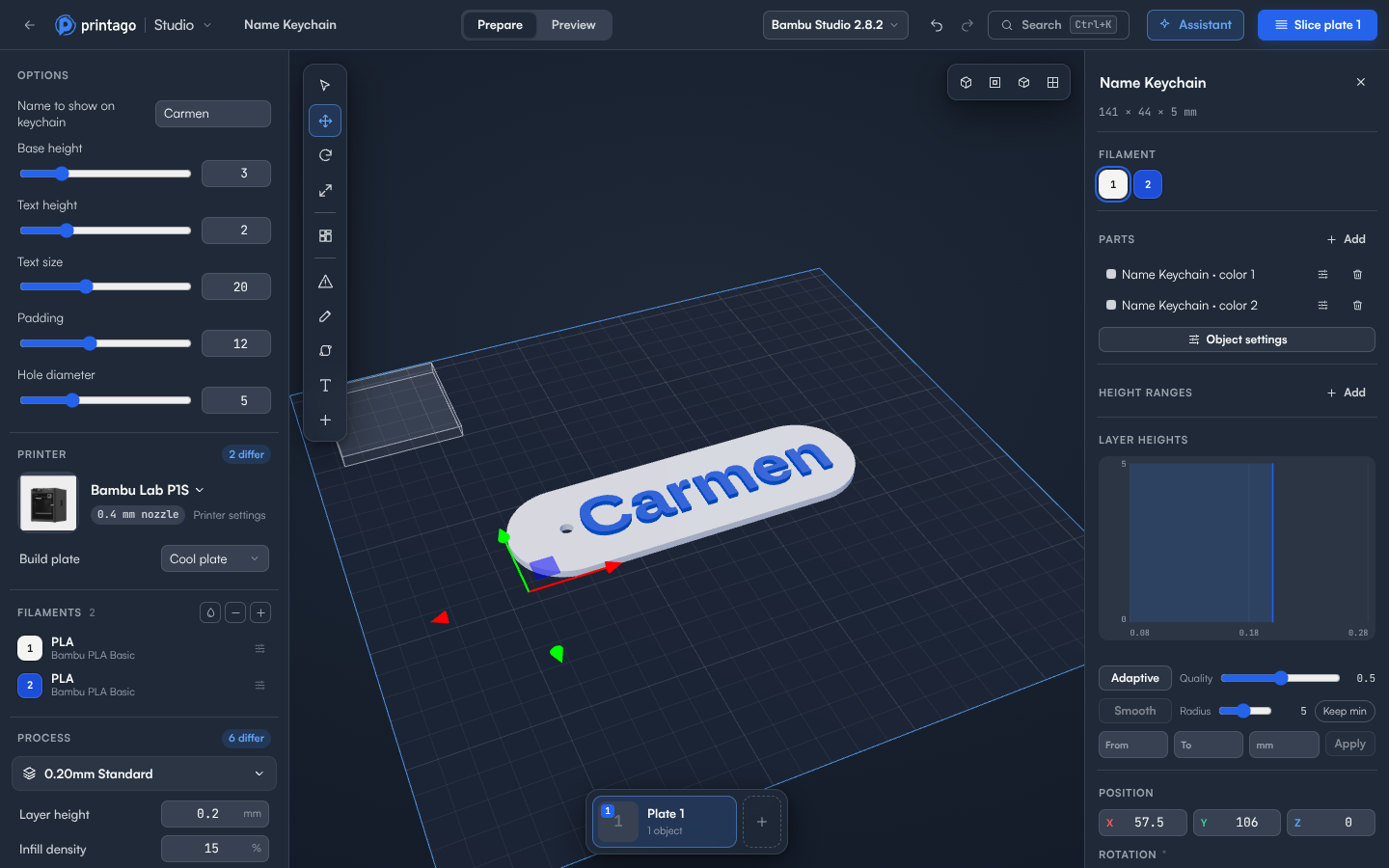
Changing the options
When you open an OpenSCAD part, Options appears at the top of the Setup panel with the part's options and their current values. Each option gets a control that fits it:
- Text for words and names.
- A slider and a number box for a number with a range. Values outside the range are brought back into it.
- A number box for a number without a range.
- A switch for yes and no options.
- A list for options with set choices.
The name of an option comes from the part. Hover it to see its description, if it has one.
Change an option and the model updates a moment later, rendered by Printago with the same OpenSCAD and libraries it uses when it prints the part. A spinner next to Options shows it's working. The model stays where you placed it on the plate.
Each change can be undone, like any other change.
Colors
A part that colors its shapes with color() opens with one filament slot per color, already set to those colors. Each color becomes its own part of the object, printed in its own filament. See ColorSCAD for how to write a multicolor part.
When a render doesn't work
If the options make a model OpenSCAD can't build, Options shows what went wrong, and OpenSCAD log under it has OpenSCAD's own messages. The last model that worked stays on the plate until you fix the option.
If Printago is busy or the connection drops, Try again renders it again. A very complex model can take a few minutes to render; one that takes longer than about four minutes is stopped.
Options that take a file can't be set in Studio yet.
Keeping the options
- Save keeps the options you chose on the Printago part, so its next prints use them. The part stays an OpenSCAD part with its script unchanged. See Saving back to Printago.
- Add to Printago queue prints exactly the model you sliced, without changing the part. See Adding to the queue.
- With anything else on the plate (another object, a model the assistant made), Save isn't offered for the part's options, because they can't keep the rest. Download the project or save it as a new file instead.
Models the assistant makes
Ask the assistant for something that isn't on the plate yet, such as "an M8 nut", "a phone stand at 60 degrees with a slot for the cable" or "make me a bunny". It writes an OpenSCAD script, renders it with Printago's OpenSCAD and libraries, looks at the model from four sides, and fixes what's wrong. The model appears on the plate after the first render and updates as the assistant works on it, usually within a minute.
The model keeps its script, so its sizes become options. Select it and they appear under Options, like an OpenSCAD part's. You can also ask for changes: "make the nut 10 mm thick" changes an option, and "give the bunny a keyring loop" rewrites the script and keeps the options you set.
Each render the assistant puts on the plate is its own undo step. Undoing or changing the model while the assistant works on it stops the assistant, so your change is kept.
Cutting, splitting, joining or repairing the model, or adding, moving or deleting one of its parts, turns it into a plain model without options.
Models are made from shapes, so animals and figures come out stylized rather than lifelike. You need to be signed in to Printago to make models.