Printago Studio
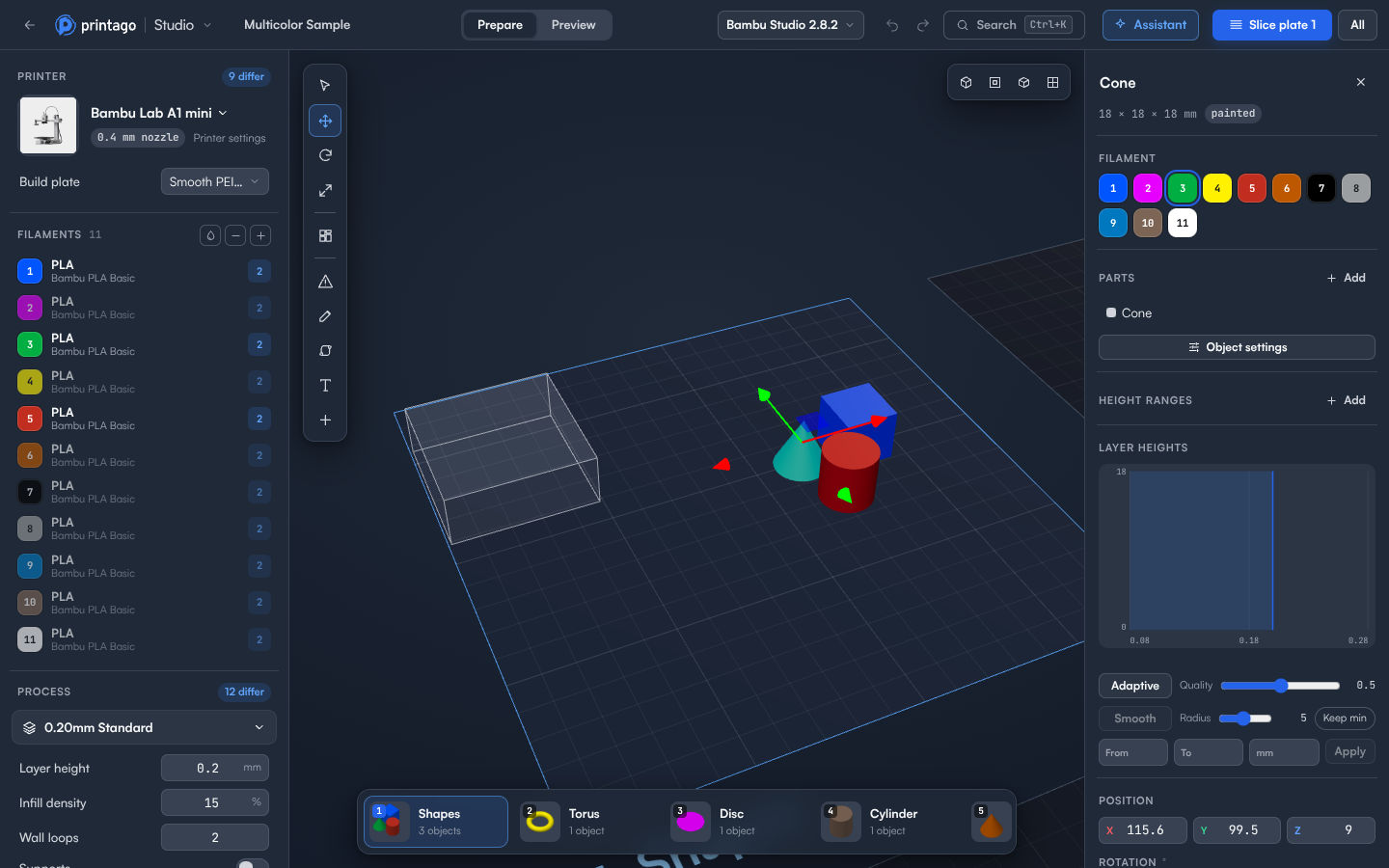
Printago Studio is a full slicer in your browser, built into Printago. Open a part and work on it the way you would in a desktop slicer, without downloading the file and uploading it again:
- Arrange objects across plates, and add, duplicate or remove them.
- Switch printers, filaments and process profiles, and change any setting for the whole plate, a single object or a band of its height, give an object variable layer heights, and set how much is purged between filaments.
- Add modifiers, negative parts and support blockers or enforcers.
- Add 3D text to a model or the plate, raised, engraved or following a curve, and make it a text placeholder with one switch, so every print carries its own name or serial. See Text.
- Change the options of an OpenSCAD part, like the name on a keychain, and see the model update.
- Slice, check every layer, and add pauses, filament changes or G-code at a layer.
- Ask the assistant to make a change for you, find out why a print failed, or make a new model.
- Open G-code and sliced 3MF files to check their toolpaths.
When it's right, save your changes back to the part so every future print uses them, or send the plate you sliced straight to your print queue. There's nothing to install, and it works on a phone.
The cloud slicer still slices every queued job automatically. Use Studio when you want to change a part, or see exactly what will print.
Who can use it
Every organization has Studio. Anyone whose role can view parts can use it, students included. What you can do in it follows your role; see What your role allows.
Opening a part
- Go to Parts and open the part.
- Next to the part file, click Open in Studio.
Studio opens in place of Printago and signs you in with your Printago account, so there's nothing to log in to. The part opens in the organization it belongs to. The address shows the organization and the part, so you can bookmark it and come straight back to it.
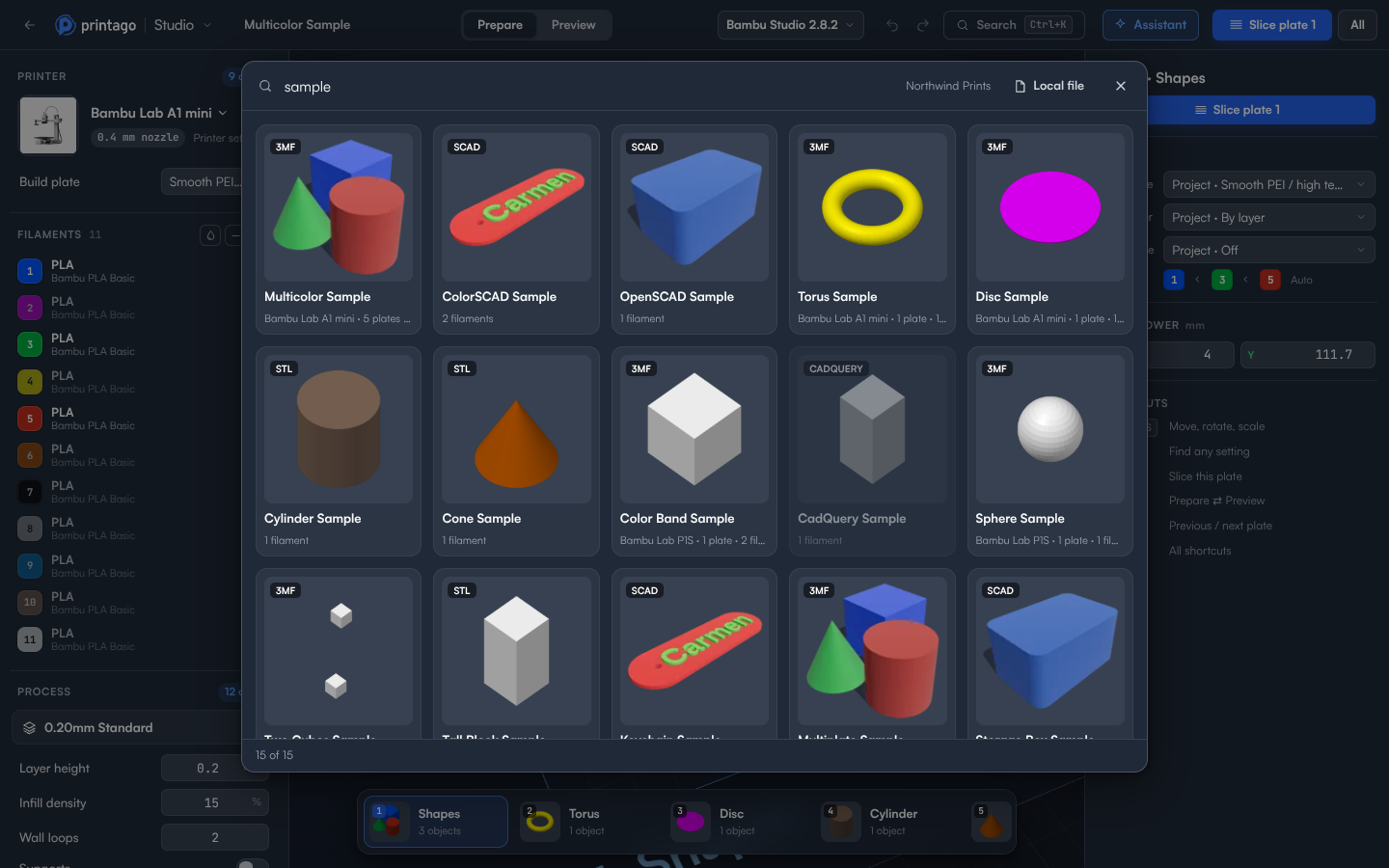
To open Studio without a part, for example to slice a file from your computer, click Studio in the sidebar. With nothing open, it offers Open from Printago, Open a local file, New project (an empty plate to add shapes or models to), the parts you opened recently in this organization (under Recently opened), and three samples to try: Multicolor, OpenSCAD and ColorSCAD.
You can open these part types:
| Part type | Opens as |
|---|---|
| 3MF | A project with its plates, objects, colors and settings |
| STL | A one-plate project with the model on the bed |
| OpenSCAD | The model, rendered with the part's options, which you can change. See OpenSCAD parts |
| gcode.3mf | Its plates, already sliced, straight into the preview. See Viewing sliced files |
| G-code | Its toolpaths, ready to inspect. See Viewing sliced files |
STEP, CadQuery and build123d parts can't be opened in Studio yet.
Opening another part
Once you're in, open more parts without going back to Printago: choose File > Open from Printago…. Search by name, then click a part to open it. Parts Studio can't open are greyed out.
Opening files from your computer
Choose File > Open…, or drag files onto the 3D view. Studio opens .3mf, .stl and .gcode files, including sliced .gcode.3mf files.
- A 3MF or G-code file replaces the open project.
- An STL is added to the current plate, so you can combine models.
To use an OpenSCAD file of your own, add it to Printago as a part and open the part. Binary G-code (.bgcode) isn't supported.
Finding your way around
The screen has five areas:
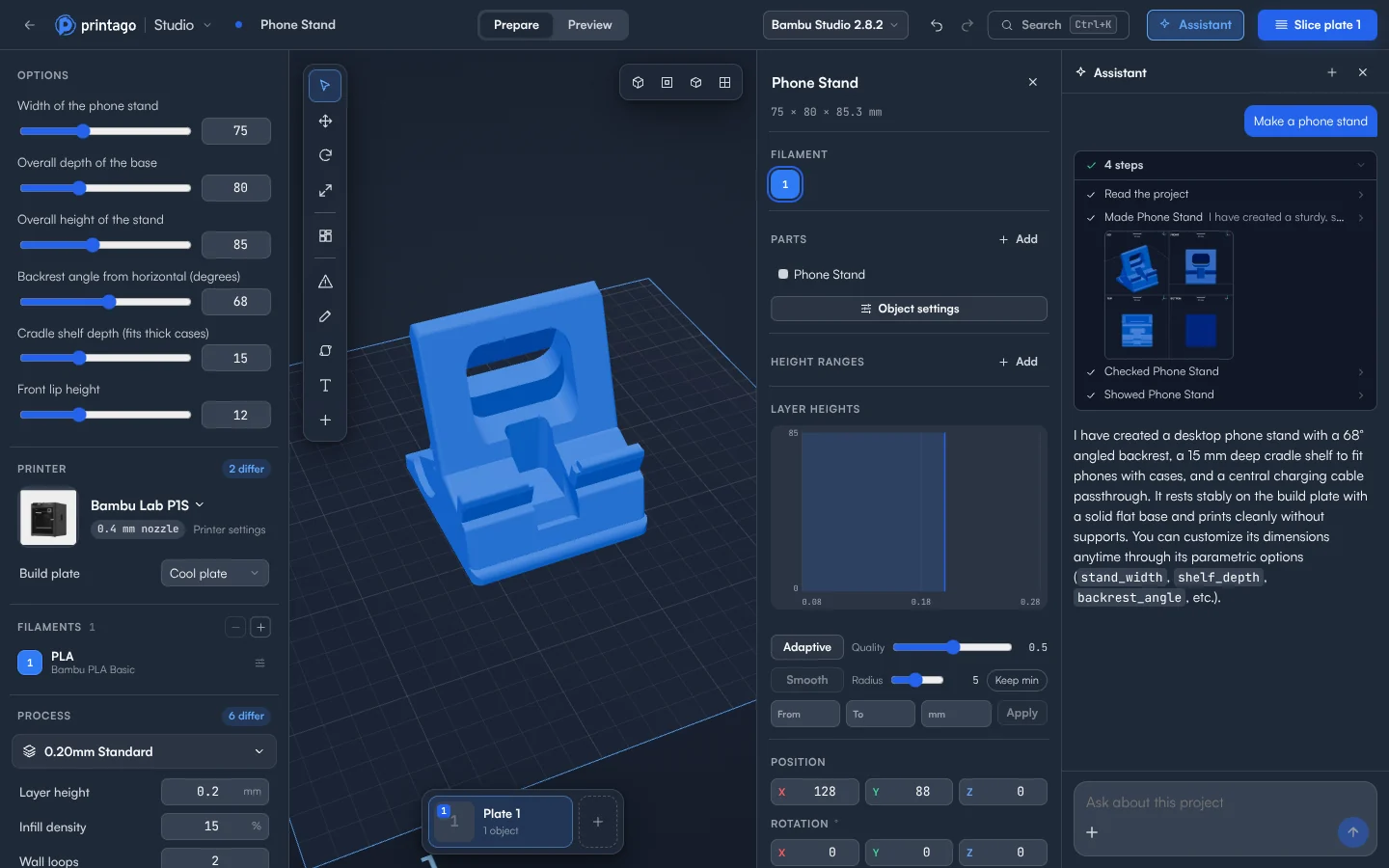
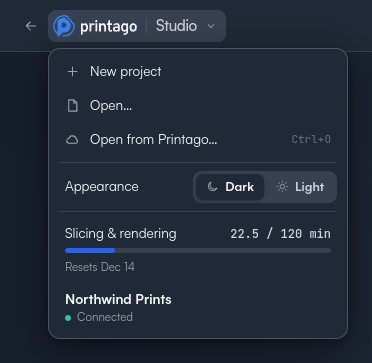
- Top bar. The File menu, the project name, the Prepare and Preview tabs, the slicing engine, Undo and Redo, Search, Assistant, and Slice plate. The File menu (the Printago Studio logo) also has Appearance (light or dark), this month's slicing and rendering time, and, at the bottom, the store you're connected to. Assistant opens and closes the assistant beside the 3D view.
- Setup panel on the left. The printer, filaments and process settings for the project, plus options for OpenSCAD parts.
- 3D view in the middle. Your plates and models, or the sliced toolpaths in Preview.
- Plate strip at the bottom. One card per plate, with its slicing status.
- Right panel. The selected object in Prepare, or the plate's print time, filament use and preview controls in Preview.
Prepare is where you arrange and set up a plate. Preview shows the sliced result layer by layer. Press Tab to switch between them.
A dot next to the project name means you have changes that aren't saved. If you close the tab, open something else or choose File > Close project, Studio asks before discarding them. Close project takes you back to the start screen. Saving is covered in Adding to the queue and saving.
Going back to Printago
Click the back arrow in the top-left corner, next to the Printago logo, to go back to the page you came from. If you opened a different part since, it goes to that part instead, in its organization. Your browser's Back button then goes on from there.
Assistant
Click Assistant in the top bar and tell it what you want. It looks at the model, makes the change on the plate, slices, and checks the result, and every step can be undone. An empty chat suggests what fits the plate.
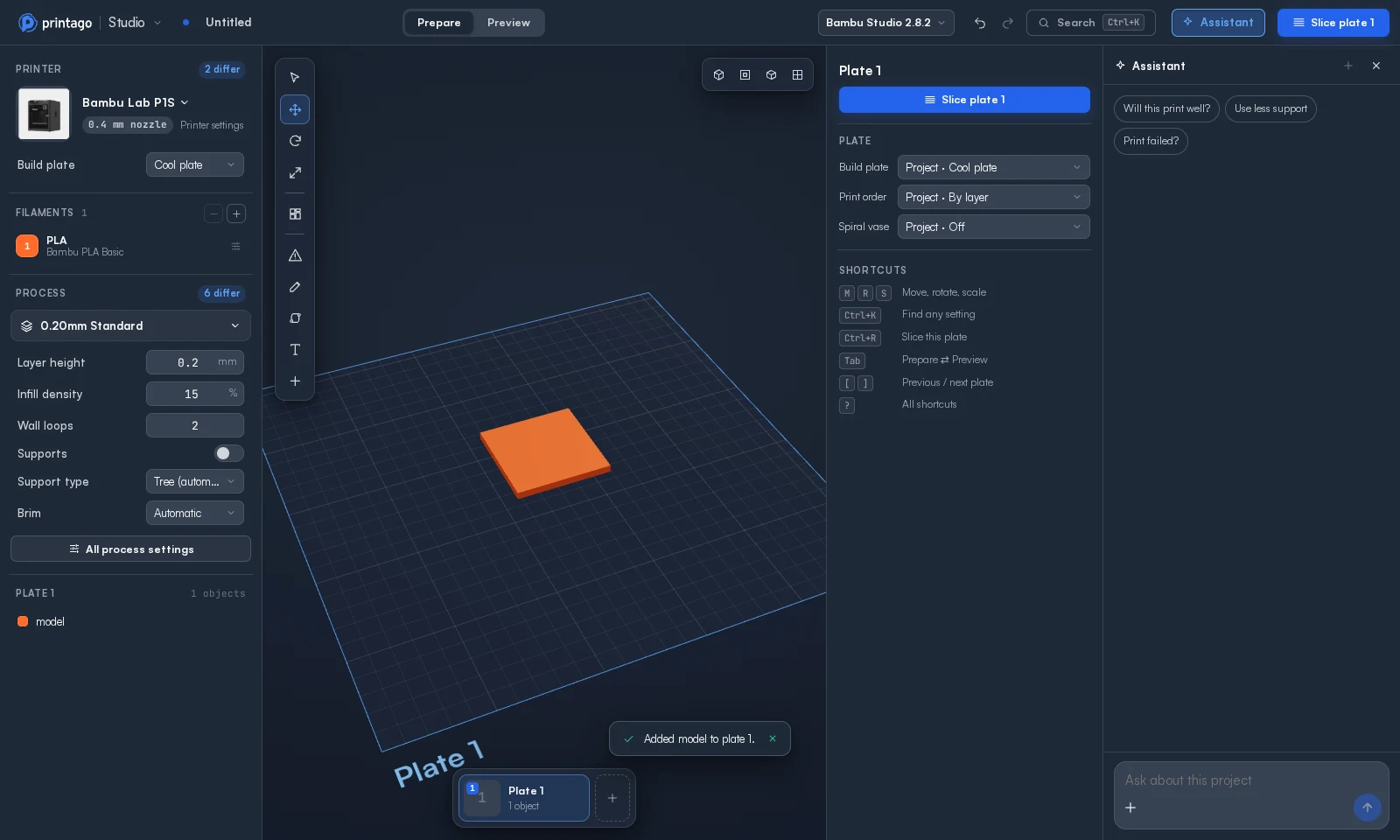
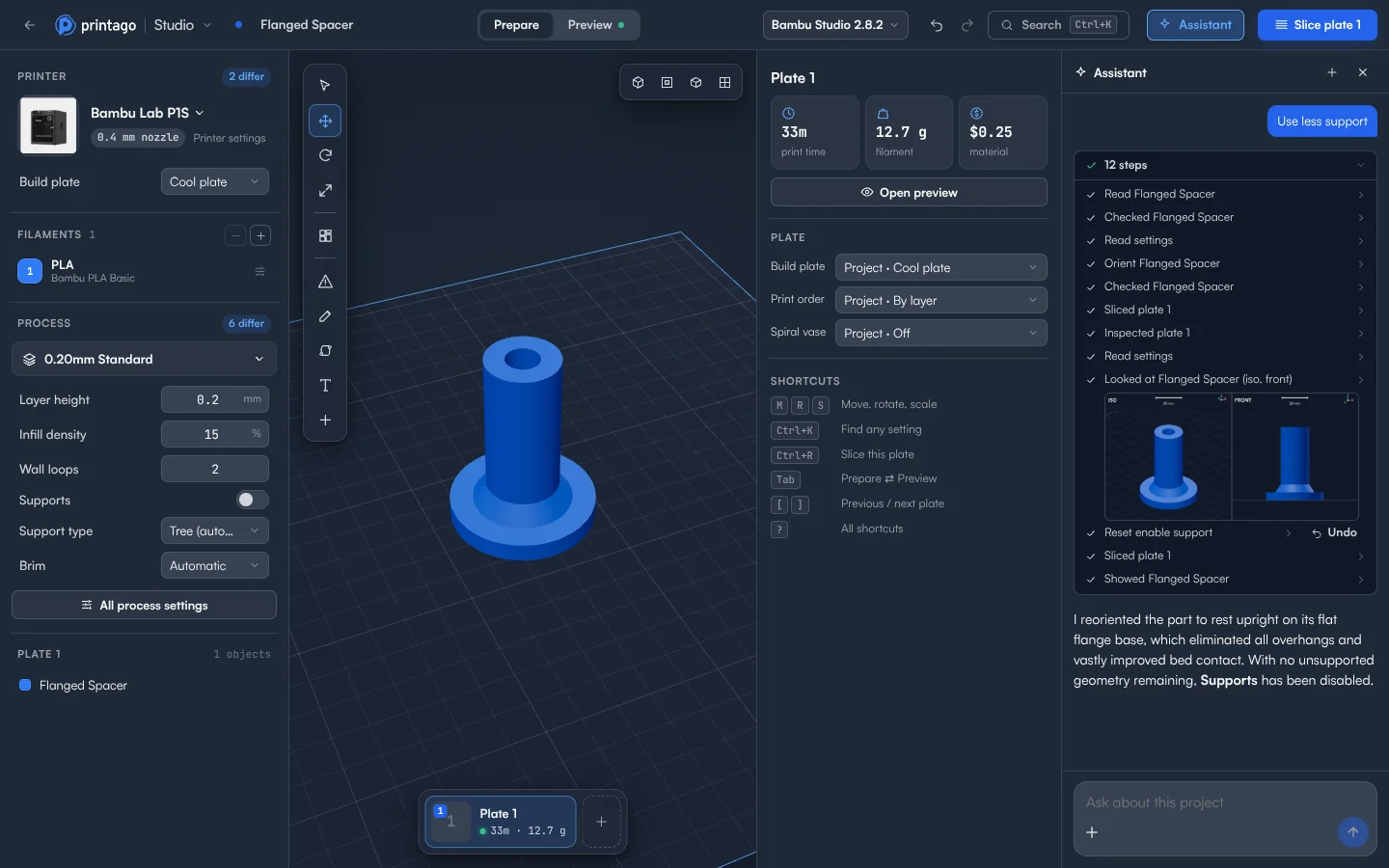
Ask it to use less support, and it turns the part and shows you each step.
Describe a part you don't have, and it makes the model, with options you can change.
See Assistant for everything it can do.
What your role allows
Studio offers what your role in the organization allows, and leaves the rest out:
| To do this | Your role needs |
|---|---|
| Open files from your computer, slice, preview, download G-code | Permission to view parts |
| Open an OpenSCAD part, change its options and slice it | Permission to view parts |
| Open any other part | Permission to download part files |
| Add an OpenSCAD part to the queue with your options | Permission to create builds |
| Add any other sliced plate to the queue | Permission to create builds and to create parts |
| Save changes back to a part | Permission to edit parts |
| Save as a new part | Permission to create parts |
Parts you can't open are greyed out in Open from Printago.
The Student role can view parts and create builds, but can't download part files or create parts. So a student can work with OpenSCAD parts, like a name tag a teacher set up for the class, and with files from their own computer. See Classwork.
Slicing and rendering time
Studio slices plates and renders OpenSCAD parts on Printago's servers. Each organization gets a monthly allowance of that time, slices and renders together:
| Your organization | Time a month |
|---|---|
| No paid slots | 60 minutes |
| Core subscription | 60 minutes per slot (3 slots: 180 minutes) |
| Studio Unlimited | No limit |
The time starts again each month on your billing date. Without a subscription, it starts again on the day of the month your organization was created.
To see where you are, open the File menu. Above your store, Slicing & rendering shows the minutes your organization has used, its allowance, and when it resets. The bar turns amber at 80%.
What counts is how long the engine or OpenSCAD runs:
- Slicing a plate again with nothing changed shows the earlier result and costs nothing.
- Rendering options a part has already rendered with costs nothing.
- Dragging an option's slider renders once, when you let go.
- Every slice or render that runs costs at least 5 seconds.
- A slice or script that fails on its own, such as a project the engine refuses or one that times out, counts for the time it ran.
- If the engine or OpenSCAD crashes, a quarter of the time it ran counts.
- If the renderer is unavailable, or the run never starts, it doesn't count.
A slice or render that has started always finishes, so you can go slightly over your allowance. Once it's used up, Slice plate and OpenSCAD options say so, with the date it resets. Plates you already sliced stay sliced: you can still preview them, add them to the queue and download their G-code. Queued jobs are sliced by the cloud slicer as usual and don't count.
To move to Studio Unlimited, contact Printago support.
Your sign-in
Studio stays signed in in this browser, in every tab:
- Each tab works in one organization: the one the part belongs to. To work in another organization, open a part from that organization. Your other tabs keep theirs.
- A new tab starts signed in, in the organization you signed in to last.
- A sign-in lasts up to 12 hours. Signing out of Printago everywhere also ends it. When it ends, Studio shows Your Printago sign-in ended. Click Sign in to continue; your project stays open.
To sign out yourself, open the File menu, click your store at the bottom, then click Sign out. That signs out every Studio tab in this browser.
On a phone
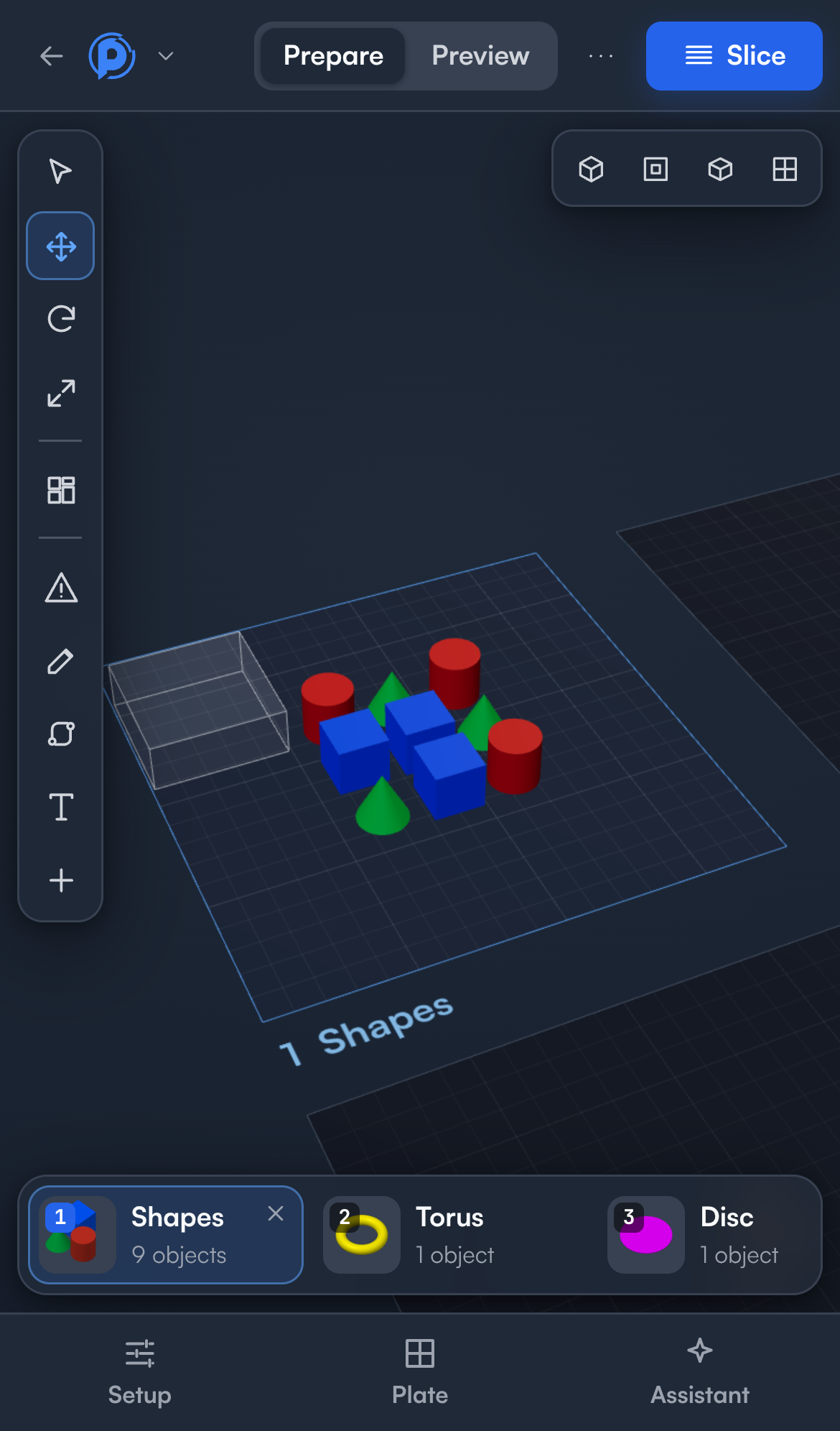
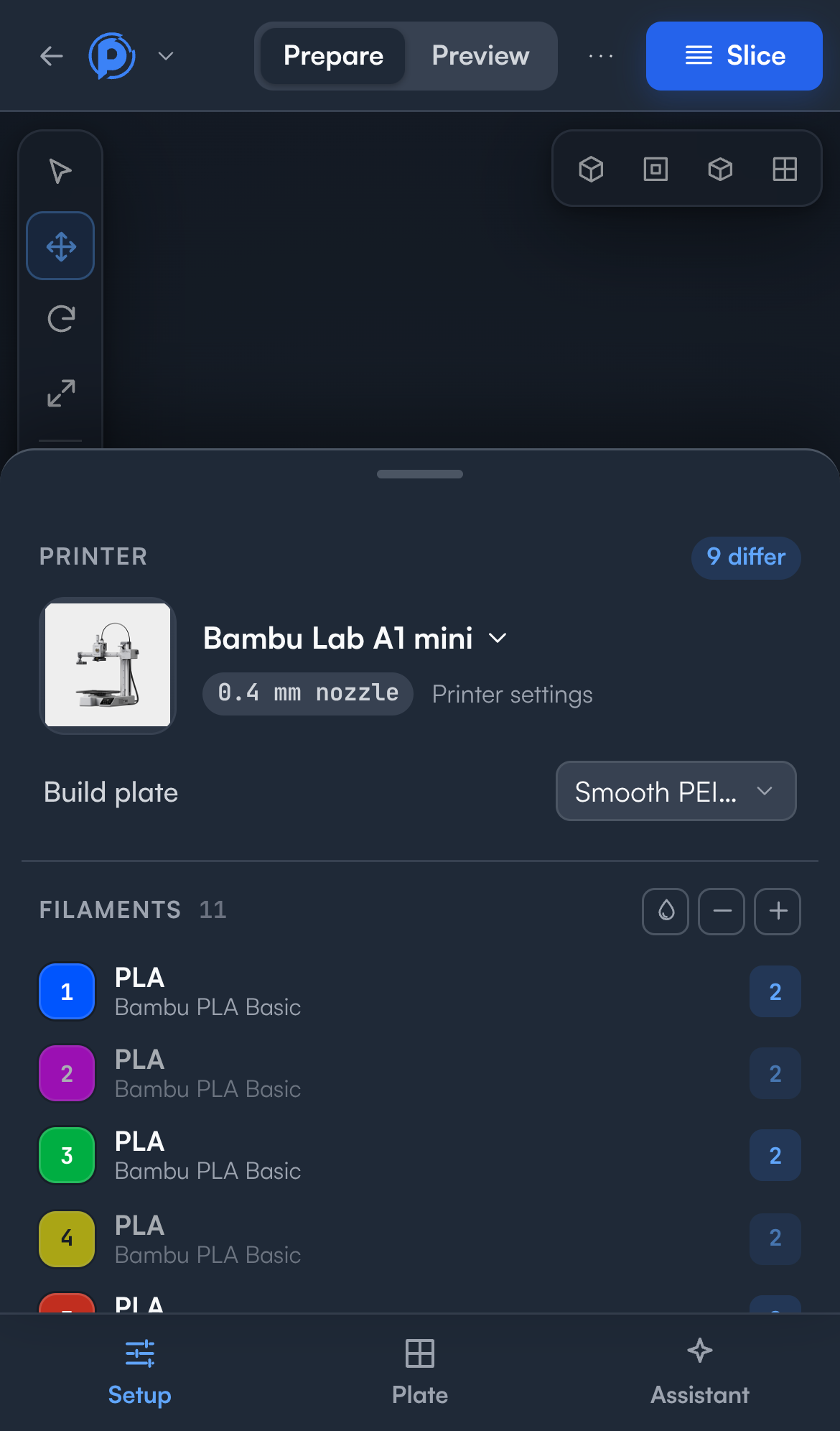
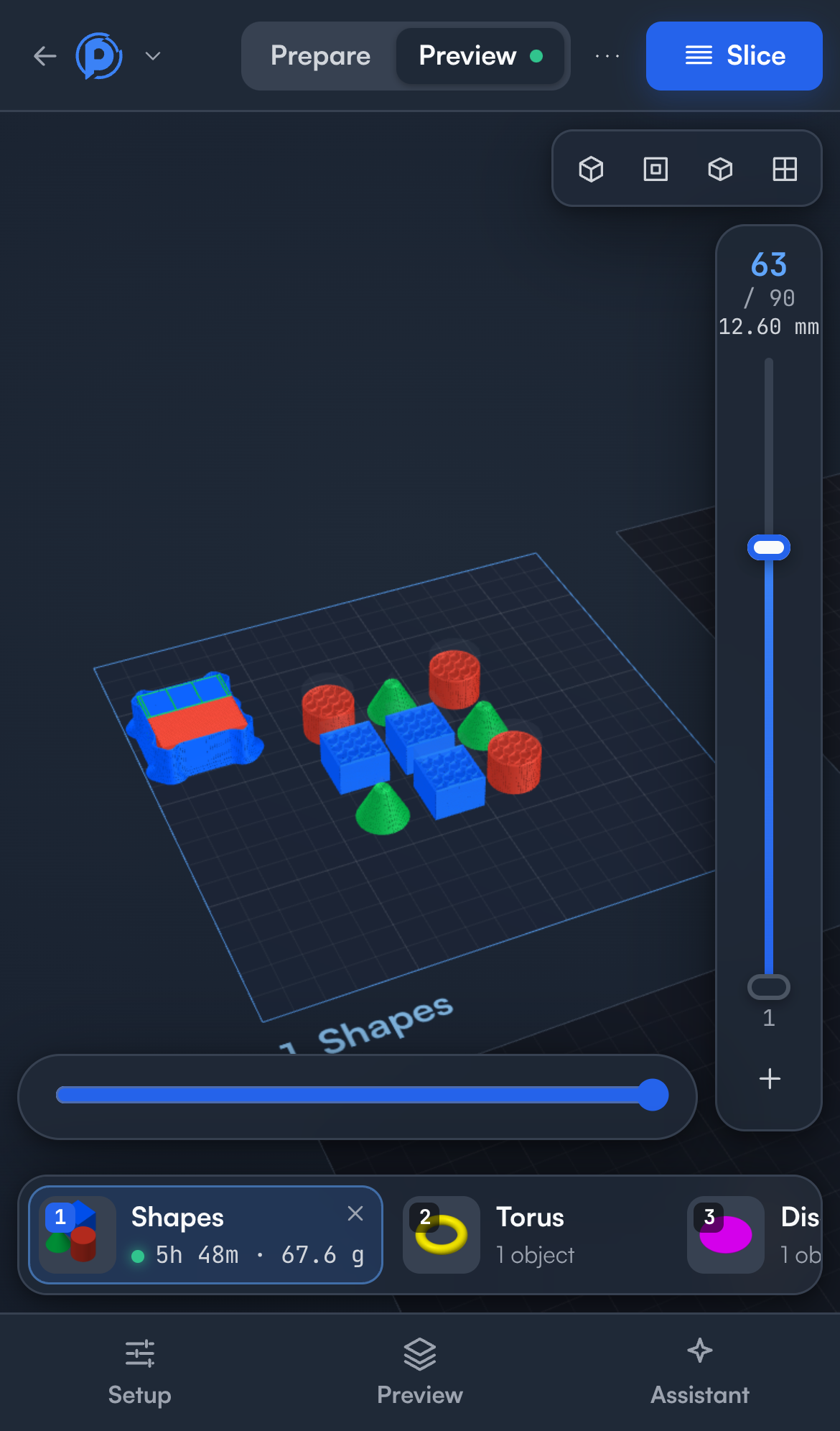
Studio works on phones and tablets. The 3D view takes the whole screen and the panels open as sheets from the bottom:
- Setup opens the printer, filament, process and OpenSCAD options.
- The second tab changes with what you're doing: Plate, Object when one is selected, or Preview after slicing.
- Assistant opens the assistant.
- Tools that don't fit in the top bar, like Search and Undo, are under ⋯. Saving is in the File menu.
Drag a sheet down, or tap outside it, to close it.
Next steps
- Preparing a plate: printer, filaments, settings, objects and plates
- Text: add and change 3D text, and make it a text placeholder
- Slicing and preview: slice, check every layer, add pauses, filament changes and G-code
- OpenSCAD parts: change a part's options and see the result
- Viewing sliced files: G-code and gcode.3mf files
- Adding to the queue and saving: print what you checked, keep your changes
- Keyboard shortcuts and search