Staggered Start
Key Concepts
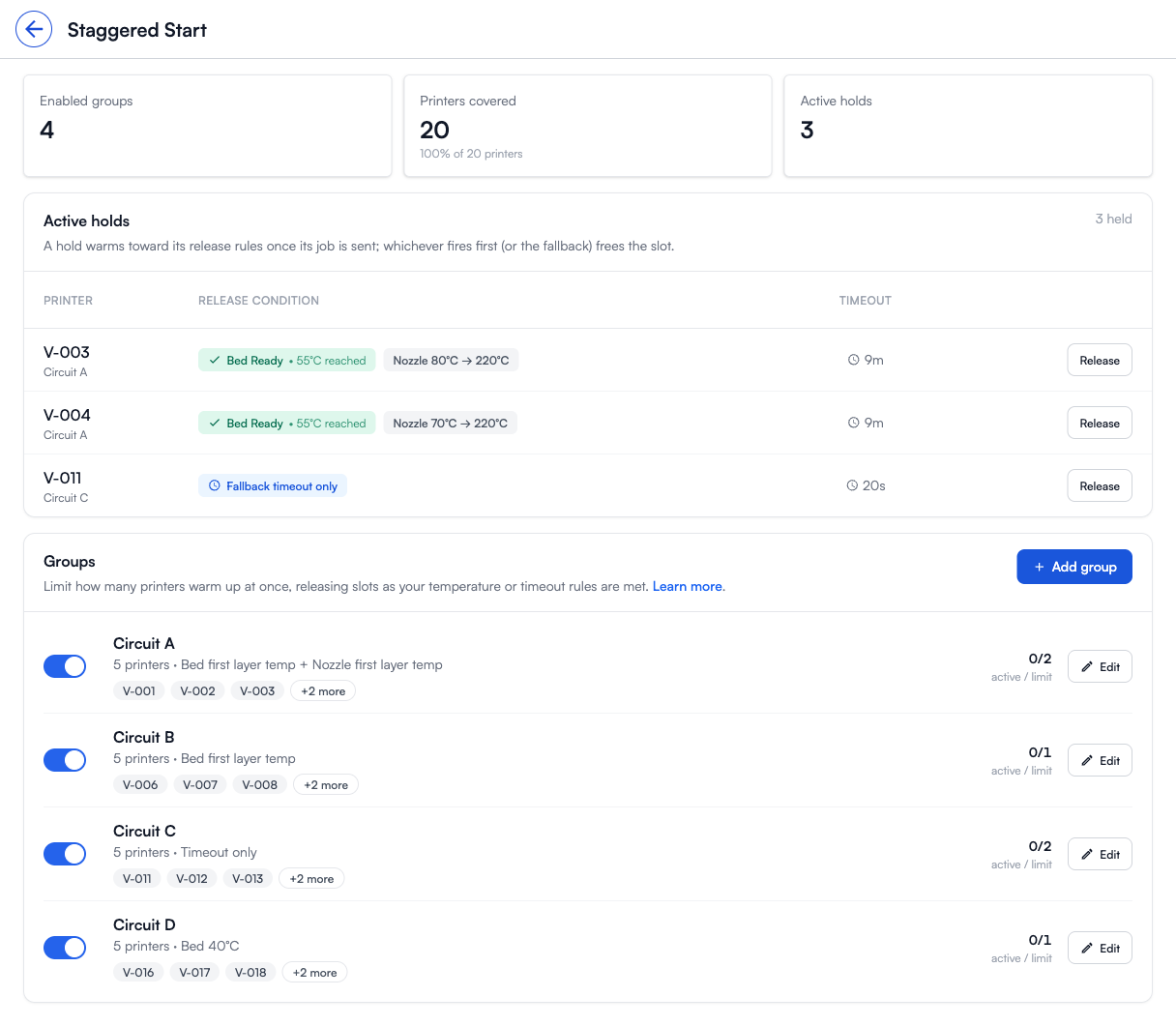
Staggered Start caps how many printers begin warming up at the same time. When a group of printers shares a power circuit, a rack, or a PDU, sending five cold machines to full bed and nozzle temperature at once can trip a breaker or brown out the rack. Staggered Start solves this by letting only a set number of printers in a group enter the warmup phase concurrently. The rest wait their turn and start automatically as slots free up.
The feature works at the queue matching layer, not by pausing hardware. A job only matches a printer if that printer's group has a free warmup slot. Jobs that would exceed the group's limit simply stay Pending in the queue until capacity opens, so nothing is ever parked in a half-started state.
How It Works
- Reserve at match. When the queue matches a job to a printer, Printago reserves a warmup slot in that printer's group. The reservation counts against the group's limit immediately, even before the file is sent.
- Warm at send. Once the job is actually sent to the printer, the release clock starts. The printer heats toward its target while it holds the slot.
- Release when the rules are met. As soon as the group's release rules are satisfied (or the fallback timeout is reached), the slot is freed and the next waiting printer in the group starts.
Releasing a slot only affects queue capacity. It never stops or pauses the print that is already running.
How quickly a slot frees once the release rules are met depends on how the printer reports temperatures:
- Cloud printers, and Fuse agents older than 1.4.0, are checked on a 20-second polling interval. Once the release condition is met, the hold clears on the next poll, so it may take up to 20 seconds to free the slot.
- Fuse 1.4.0 or later releases holds immediately the moment the conditions are met, with no polling delay.
Upgrade your Fuse agents to 1.4.0 or later for the fastest slot turnover.
A slot is consumed the moment a job is matched, even while the file is still slicing or uploading. That is intentional: it keeps the group from over-committing before a printer has actually started heating.
Setting Up a Group
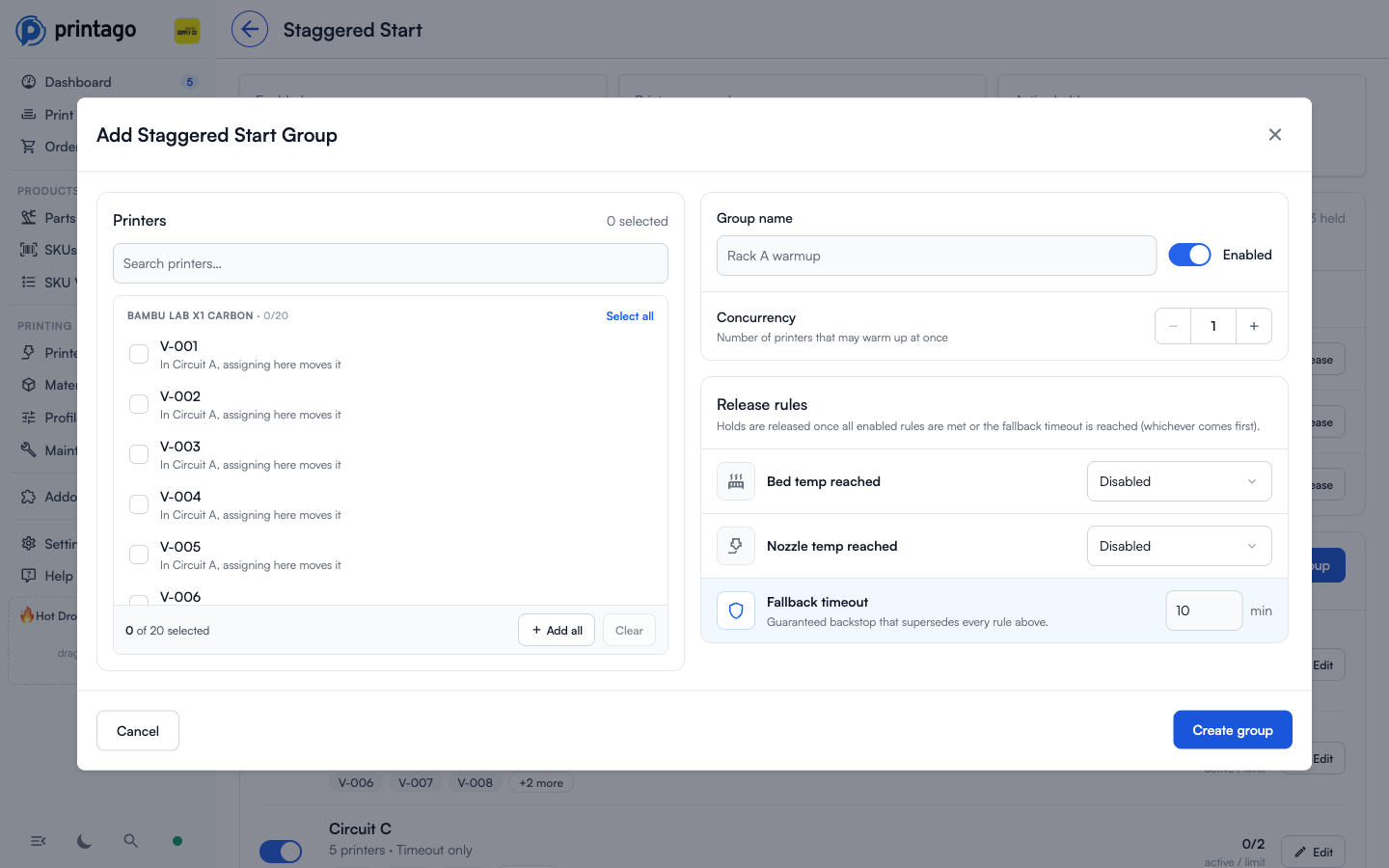
Open Settings → Queue tab → Staggered start and choose Add group. Group membership is explicit, so bulk printer-tag edits never change staggered-start behavior. A printer can belong to at most one group.
1. Printers
Search for and select the printers that share the constraint (the same circuit, rack, or PDU). Use Add all / Remove all to bulk-select whatever the search filter is currently showing. If a printer already belongs to another group, assigning it here moves it.
2. Concurrency
Set how many printers in the group may warm up at once. A value of 1 means the printers start strictly one after another; 2 allows two simultaneous warmups, and so on. Extra printers queue and start automatically as slots free up.
3. Release rules
Release rules decide when a warming printer frees its slot for the next one. A hold is released once all enabled rules are met, or the fallback timeout is reached, whichever comes first.
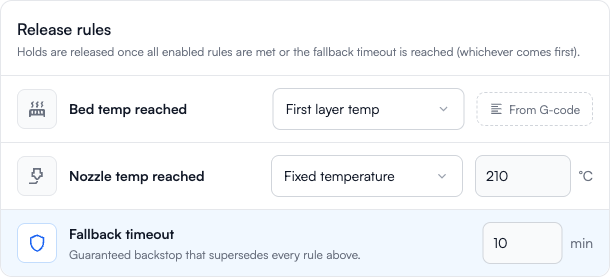
Each of Bed temp reached and Nozzle temp reached can be set to one of:
| Mode | What it means |
|---|---|
| Disabled | This component is not a release condition. |
| Fixed temperature | Release once the component reaches the exact temperature you enter (for example, 55 °C). |
| First layer temp | Release once the component reaches the first-layer temperature detected from the sliced job's G-code. If that temperature cannot be read from the G-code, the fallback timeout releases the slot instead. |
A rule fires as soon as the component reaches its target temperature. If both the bed and nozzle rules are enabled, both must be met before the slot is released.
Fallback timeout is a guaranteed backstop, set in minutes. If the temperature rules never fire (for example, a heater is misbehaving), the slot is released when the timeout elapses so a stuck warmup cannot hold the group forever.
Monitoring Active Holds
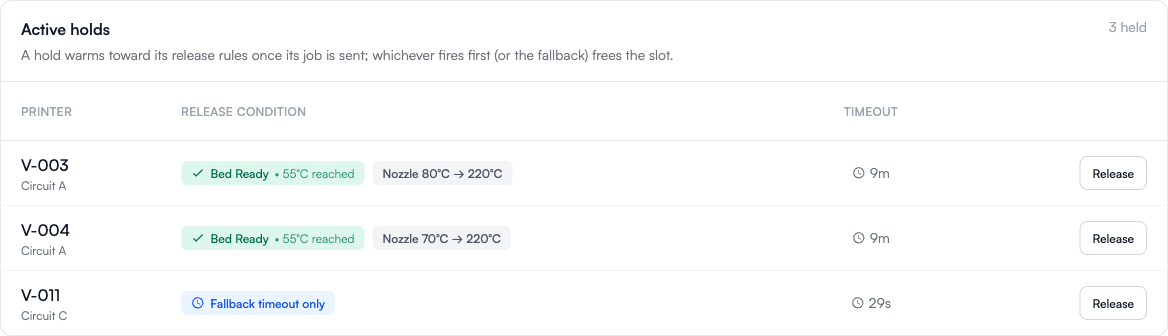
The Active holds section lists every warmup slot currently in use:
- Reserved means a job has been matched but the file has not been sent yet.
- Warming shows a live progress bar toward the release rules, plus an estimate of when the fallback timeout would release the slot.
You can Release a hold manually if you need to free a slot immediately. This requires the printer control permission and asks for confirmation first. Releasing frees the slot for the next queued printer; it does not stop a print that is already running.
Multi-Nozzle Printers
For machines with more than one hotend (such as the Bambu Lab H2D or the Snapmaker U1 toolchanger), the nozzle rule tracks the currently active nozzle only, and the bed rule tracks the single build plate. Staggered Start does not wait for every tool to reach temperature. Because the goal is to limit the startup power surge (dominated by the bed and the first active hotend), this is sufficient for the feature's purpose, but it is not a full "all hotends ready" gate.
How It Interacts With the Queue
Capacity-blocked jobs stay Pending rather than being assigned and held. When a slot frees, the queue re-runs and the next eligible job matches normally. Dispatching a job to a printer manually is still subject to Staggered Start: if the printer's group is at capacity, the dispatch is rejected until a slot frees.
Permissions
- Creating, editing, enabling, or deleting groups requires the printer edit permission.
- Releasing an active hold requires the printer control permission.