Routing Rules
Key Concepts
Some jobs must not land on some printers. A part made for an automatic-ejection plate should only go to the printers that have one. A printer kept clean for food-safe filament should not take anything else. Without a rule, keeping those apart means watching the queue and moving jobs by hand.
A routing rule is one sentence about a job and a printer: when the job looks like this, the printer must look like that. Printago checks every rule every time a job could reach a printer, so a job never runs on a printer a rule excludes.
- Rules only add restrictions. The checks Printago already makes (printer tags, bed size, materials, profiles) stay as they are. A rule can keep a job off a printer; it can never put one on a printer that fails another check.
- Every rule must pass. If you have five rules, a job runs only on printers that satisfy all five. The order of the list decides which rule is named first when several hold a job.
- Rules belong to your organization, not to a part or a printer. A rule reaches parts and printers through their tags and custom fields. Tag ten printers
farmloopand one rule covers all ten.
Every organization has routing rules, with nothing to turn on. Open them from Settings > Queue tab > Routing rules. Until one rule is Active, jobs are matched exactly as they would be without routing rules.
The page opens with Control and restrict which jobs are routed to which printers. Each rule in the list shows its name and the rule itself: the job's conditions in blue, an arrow, then the printer's conditions in green.
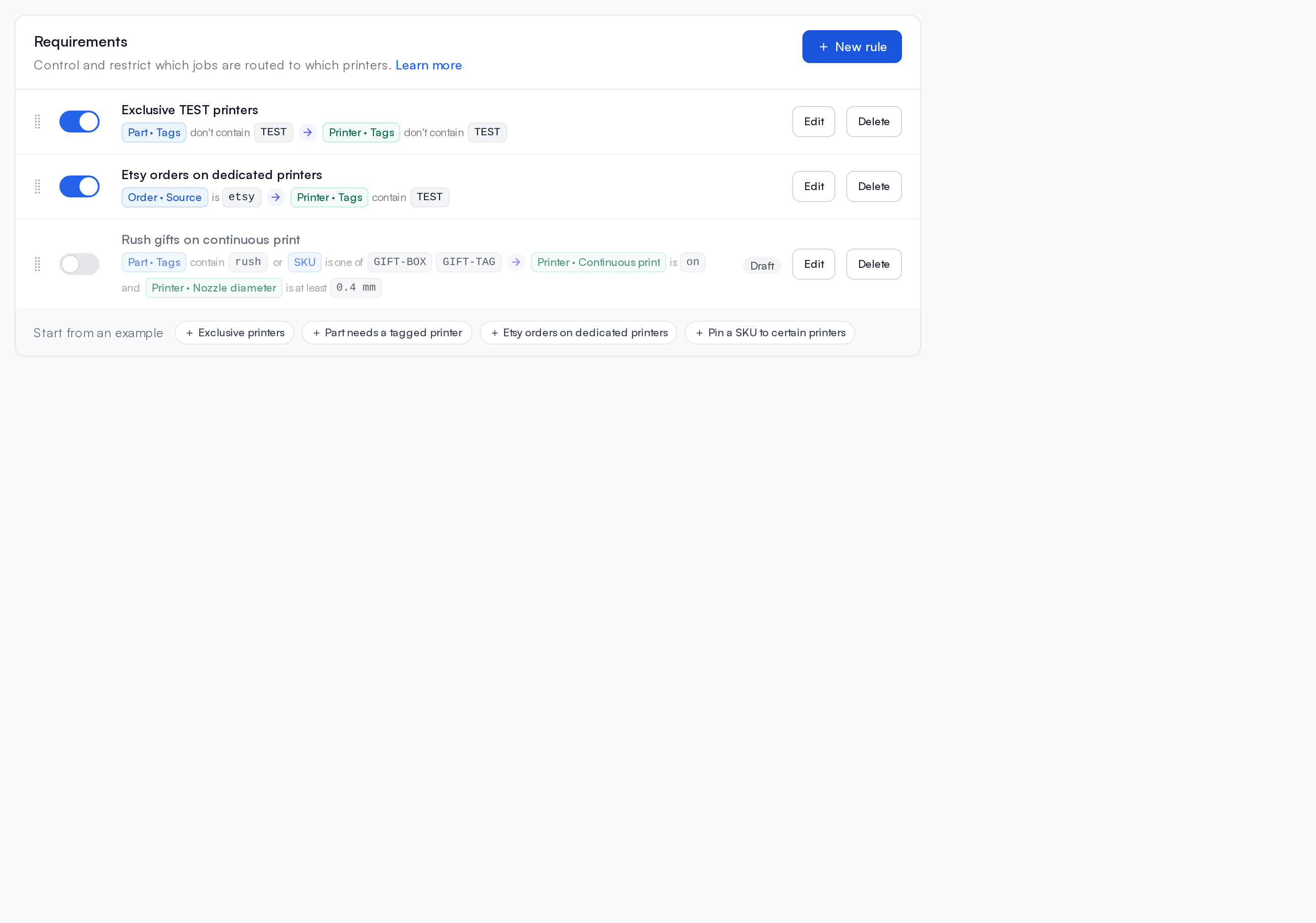
Writing a rule
Open Settings > Queue tab > Routing rules and choose New rule, or start from an example.
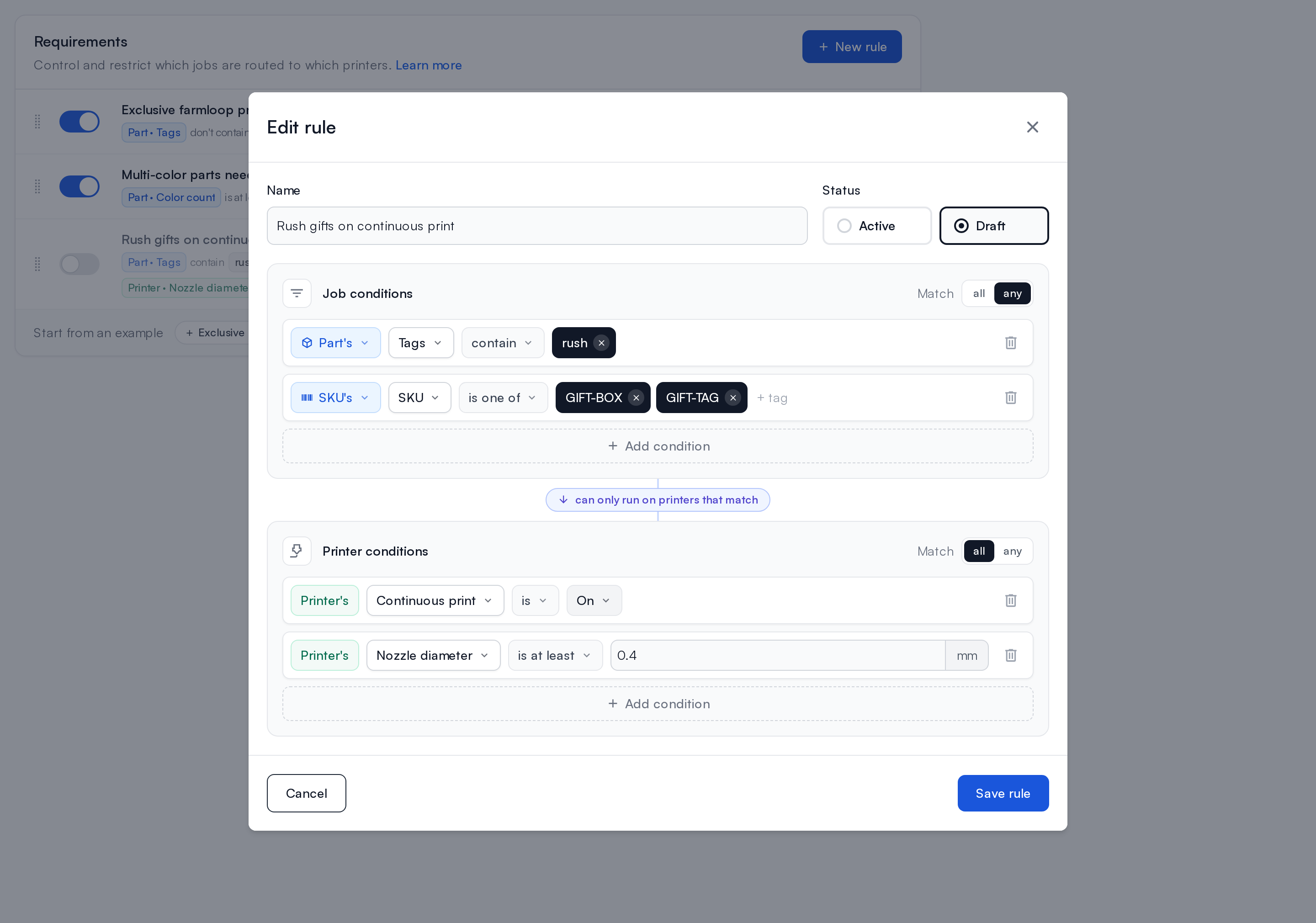
Give the rule a name and pick its status:
- Active: jobs follow it as soon as you save. New rules start as Active.
- Draft: the rule is saved, but jobs ignore it until you make it Active.
A rule then has two steps, joined by can only run on printers that match:
- Job conditions say which jobs the rule is about. They read the job's part, SKU, order and order item. With no job conditions, the rule applies to every job.
- Printer conditions say what a printer needs for one of those jobs to run on it. They read the printer, so every rule needs at least one printer condition.
Each condition reads as a sentence, such as Part's Tags don't contain farmloop. Click any part of it to change it: the field menu can be searched, shows what kind of value each field holds, marks your custom fields, and in job conditions reaches the other parts of the job under Also from. Tags are added as chips: type one and press Enter. Add more conditions with Add condition, remove one with its trash icon, and when a step has more than one condition choose all or any to say how they combine. A printer setting such as Continuous print is On or Off.
To see why a queued job is or isn't going to a printer once a rule is saved, open the job's Printer Matching dialog (see In the queue).
Examples
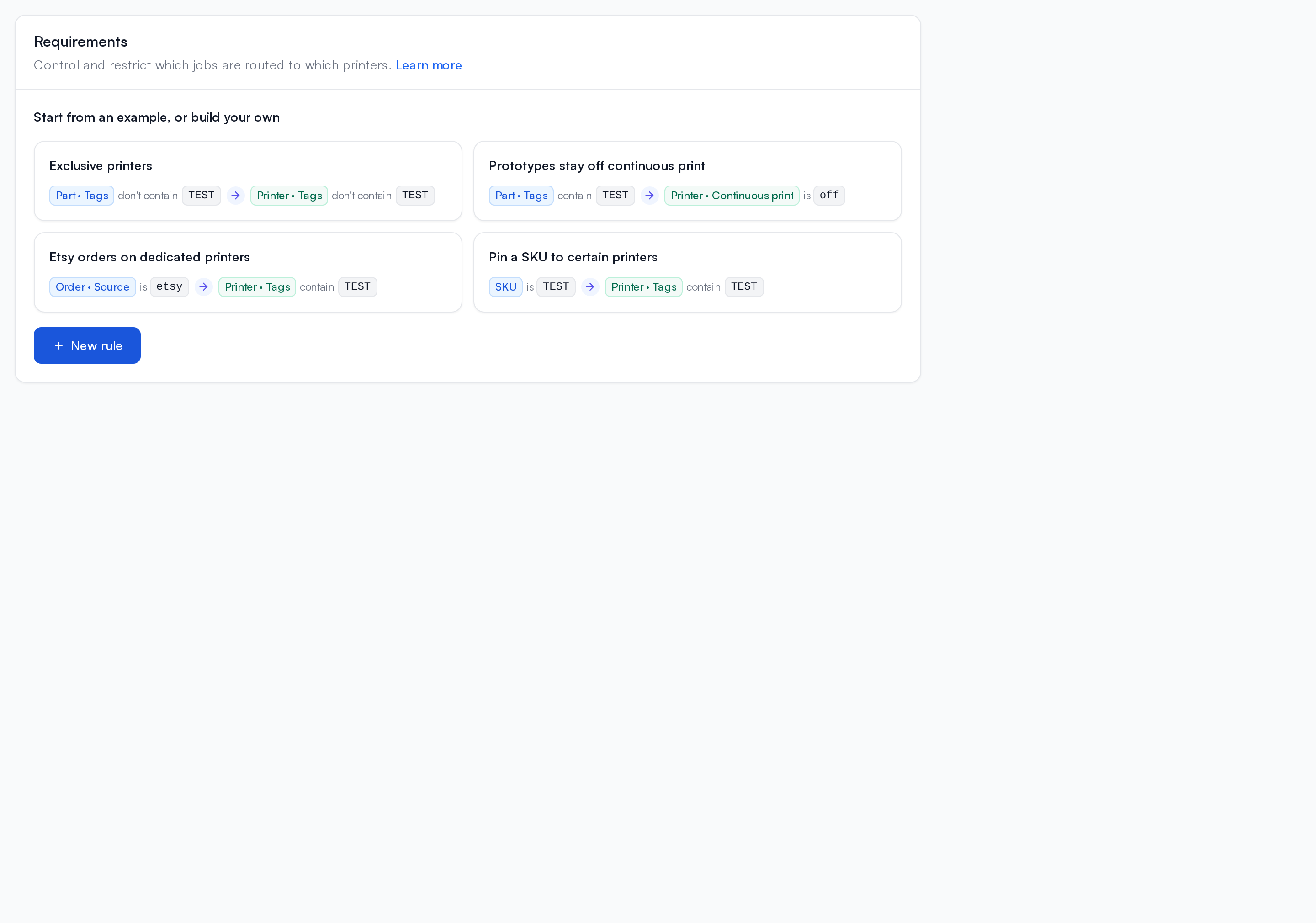
With no rules yet, the page offers four examples, each drawn as the rule it makes. Once you have rules, the same four sit under the list as Start from an example. Choosing one opens New rule already filled in; nothing is saved until you choose Save rule, so change the name, tags or values first.
Each example uses TEST as its tag or SKU. Change it to your own before you save.
- Exclusive printers. When part tags don't contain
TEST, printer tags must not containTEST. Printers taggedTESTtake onlyTESTparts. - Prototypes stay off continuous print. When part tags contain
TEST, the printer's continuous print must be off, so a test print waits for someone to check it. - Etsy orders on dedicated printers. When the order's source is Etsy, printer tags must contain
TEST. - Pin a SKU to certain printers. When the SKU is
TEST, printer tags must containTEST.
What a rule can read
| On | Fields |
|---|---|
| Part | Name, type, tags, weight (g), color count, custom fields |
| SKU | SKU, title, custom fields |
| Order | Source, deadline, custom fields |
| Order item | Custom fields |
| Printer | Name, model, vendor, nozzle diameter, continuous print, tags, custom fields |
Custom fields need a type (text, number, yes / no, a list, or date / time) before a rule can read them.
Dates you type without a time zone are read in your organization's time zone.
Three things to know
A missing value never matches. A comparison against a field that has no value is false. If a rule says the printer's Food safe field must be yes, a printer where that field was never filled in fails the rule, exactly like a printer where it says no.
A merged plate passes only if every part on it passes. When jobs are merged onto one plate, each part is checked against the printer. If one fails, the whole plate is kept off that printer, and the Printer Matching dialog names the part.
A rule that stops being valid blocks, it does not disappear. Printago refuses to delete or retype a custom field that a rule reads, and lists the rules to change first. If a rule ever does end up reading something that is gone, it holds the jobs it covers until you fix it or make it a Draft, and the rule list marks it.
Where rules show up
In the queue
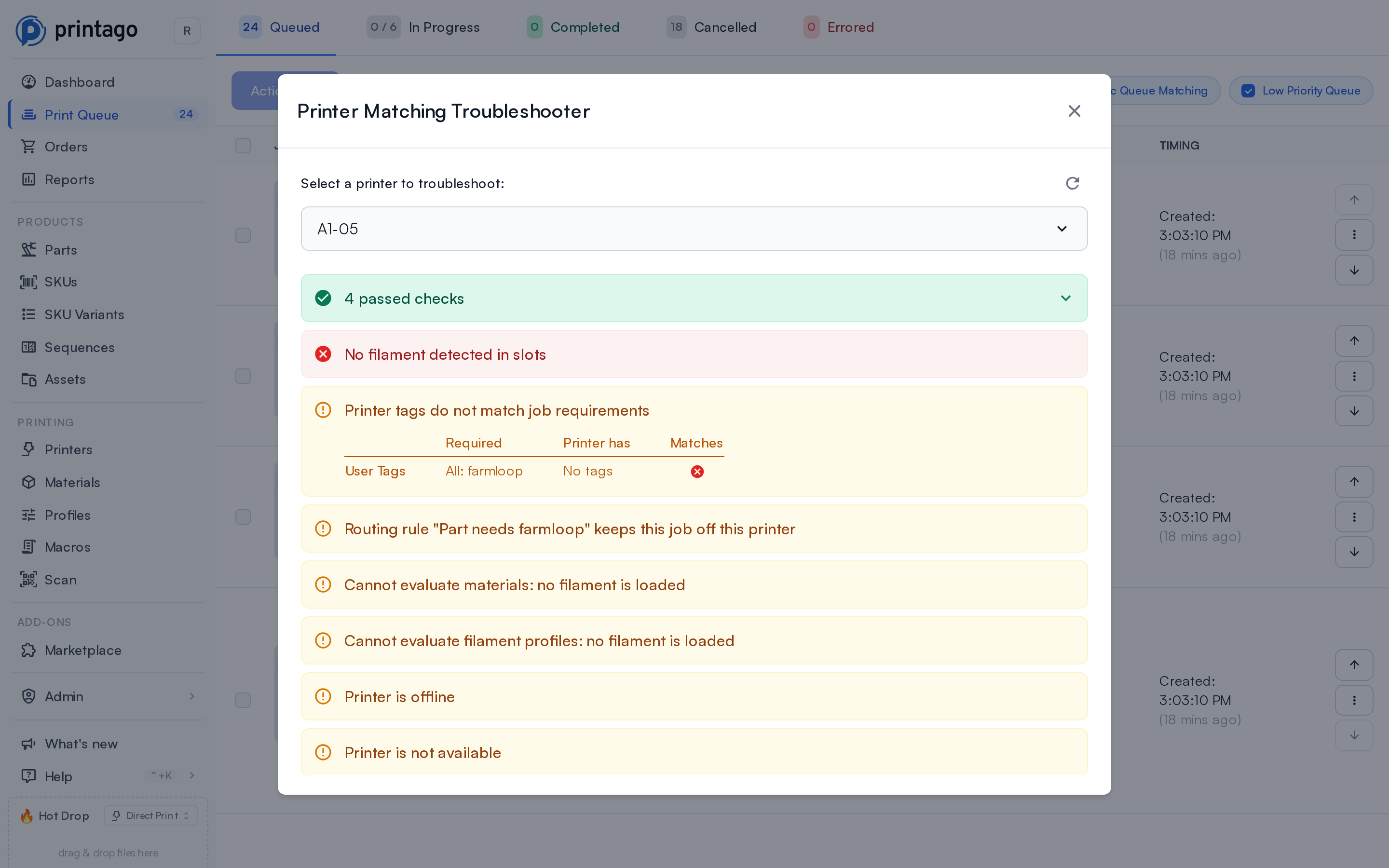
The Printer Matching dialog on a queued job has a Routing rules row for each printer. When a rule holds the job, the row names the rule and View Rule opens it.
Sending a job straight to a printer follows the rules too. A send that a rule excludes is refused with the rule's name, including through the API with force.
Active and Draft rules
Each rule in the list has a switch: on is Active, off is Draft. A Draft is kept but not applied, and the list marks it Draft. You can also change the status in the editor.
To stop routing for a while, make your rules Drafts. They are kept, and apply again as soon as you make them Active.
Permissions
| Permission | Lets you |
|---|---|
routingRules.view | See the rules. Admins, Operators, Viewers and Part Managers have it by default. |
routingRules.manage | Create, edit, reorder, make Active or Draft, and delete rules. Admins and Store Owners have it by default. |
See Permissions.
API
Rules are available under /v1/routing-rules: list, create, update, delete and reorder them, validate a rule without saving it, read the fields a rule can use, preview what a draft would change, and ask which printers a part can run on or which queued jobs a printer accepts. See the developer docs.
A rule is stored as two expressions, whenExpr and expr. For example, "when part tags contain farmloop, printer tags must contain farmloop":
{
  "name": "Part needs farmloop",
  "whenExpr": { "cmp": "contains", "left": { "ref": "part", "path": "userTags" }, "right": { "const": "farmloop" } },
  "expr": { "cmp": "contains", "left": { "ref": "printer", "path": "tags" }, "right": { "const": "farmloop" } }
}
Conditions combine with { "all": [...] }, { "any": [...] } and { "not": ... }. A custom field is read as custom.<key>. whenExpr reads only the job, and expr must check at least one printer field. A rule the editor can't draw, such as one with nested groups or one that compares two fields, opens in the editor as JSON. GET /v1/routing-rules/catalog lists every field and the comparisons each one takes.
Limits
An organization can have up to 100 rules. One rule can hold up to 100 conditions.