AI Failure Detection
Printago can watch your prints for spaghetti and similar failures with an AI detector. You choose which one: Printago's hosted detection, or a detector you run on your own network. Fuse sends a camera frame to the detector every few seconds while a printer is printing, scores the answers over time, and raises an alert when the evidence is sustained. An alert reaches your notification channels, can pause or stop the printer, and shows up on the printer and print job pages with the camera frames that triggered it, so you can confirm or dismiss it.
Detections reported by a printer's own built-in detector (for example Bambu Lab's onboard spaghetti detection) appear in the same alert list on the printer and print job pages, with the same feedback controls. Their notifications keep using the Printer HMS error setting.
- Printers paired through Fuse, with cameras enabled (see Camera Streaming).
- A detector, one of:
- Hosted detection, with nothing to run yourself. Hosted detection is in closed beta.
- Your own detector: the Obico ML API container (
ml_api) on your LAN. Fuse and the detector must be able to reach each other over your network, because the detector fetches each frame from Fuse by URL on your LAN address.
Choosing a detector
Hosted detection
With hosted detection there is nothing to install or keep running: Fuse sends camera frames to the hosted detector and gets the verdict back.
Hosted detection is in closed beta. It appears as a choice under Detector in Fuse once it is turned on for your store. To join, contact support@printago.io.
Your own detector: Obico ML API
The detector is the ml_api service from the open source obico-server project. You need Docker on the machine that will run it (Docker Desktop on Windows and macOS, Docker Engine on Linux) and about 6 GB of disk for the image and the model. A GPU is not required.
Quick setup
One command fetches the project from its own repository, builds the detector, publishes it on port 3333 with a random token, and prints the URL and token to paste into Fuse. Nothing is downloaded from Printago except the script itself.
Linux or macOS:
curl -fsSL https://docs.printago.io/scripts/setup-obico-detector.sh | bash
Windows (PowerShell):
irm https://docs.printago.io/scripts/setup-obico-detector.ps1 | iex
Set DETECTOR_PORT or DETECTOR_TOKEN in the environment first to choose your own. Run the same command again to update the detector; run docker compose --project-directory ~/printago-detector down to stop it.
Manual setup
The stock docker-compose.yml keeps the service internal and unauthenticated, so two changes are needed: publish its port and set a token.
-
Clone the repository and create a
docker-compose.override.ymlnext to itsdocker-compose.yml:services:ml_api:ports:- "3333:3333"environment:ML_API_TOKEN: "choose-a-long-random-token" -
Start only the detector:
docker compose up -d ml_api -
Confirm it answers from another machine on your LAN:
curl http://<detector-ip>:3333/hc/should printok.
The first start downloads the model weights, which can take a while. A GPU is not required, but detection on CPU takes longer per frame; Fuse simply skips a cycle if the previous one has not come back yet.
Only the ml_api container is used. You do not need the rest of the Obico server. Fuse never talks to Obico's hosted service; see Licensing and running your own detector for what addresses are accepted and why.
Licensing and running your own detector
This section applies to a detector you run yourself. Printago does not bundle the Obico detector or host it, and with your own detector Fuse sends your camera frames to no one but the detector you configure.
The Obico detector is published under the AGPL-3.0 licence. Running it on your own hardware and pointing Fuse at it is how that licence expects it to be used: Fuse only sends requests to it over HTTP, the same way a browser would, and Printago ships none of its code. Nothing about the licence restricts what you do with the results, so the frames and scores Fuse stores for an alert are yours.
Obico's hosted cloud service is a different thing. It has its own terms of use, so Fuse refuses any address on obico.io or thespaghettidetective.com, and there is no way to override that.
Because "run it yourself" is the whole basis for the above, Fuse checks the address you enter:
- Private network addresses are accepted as they are:
192.168.x.x,10.x.x.x,172.16.x.xthrough172.31.x.x,localhost, and.localnames. - Any other address (a VPN address such as Tailscale, a domain name you own, or a server you rent) works too, but you must tick This is a detector I run myself under the detector URL first. The setting is remembered, and it is your confirmation that the address is not a hosted detection service.
Turning it on in Fuse
AI failure detection is an add-on. The section below appears in Fuse, and alerts appear in Printago, once the add-on is enabled for your store.
Open Fuse, go to Settings, and find AI Failure Detection directly under Cameras.
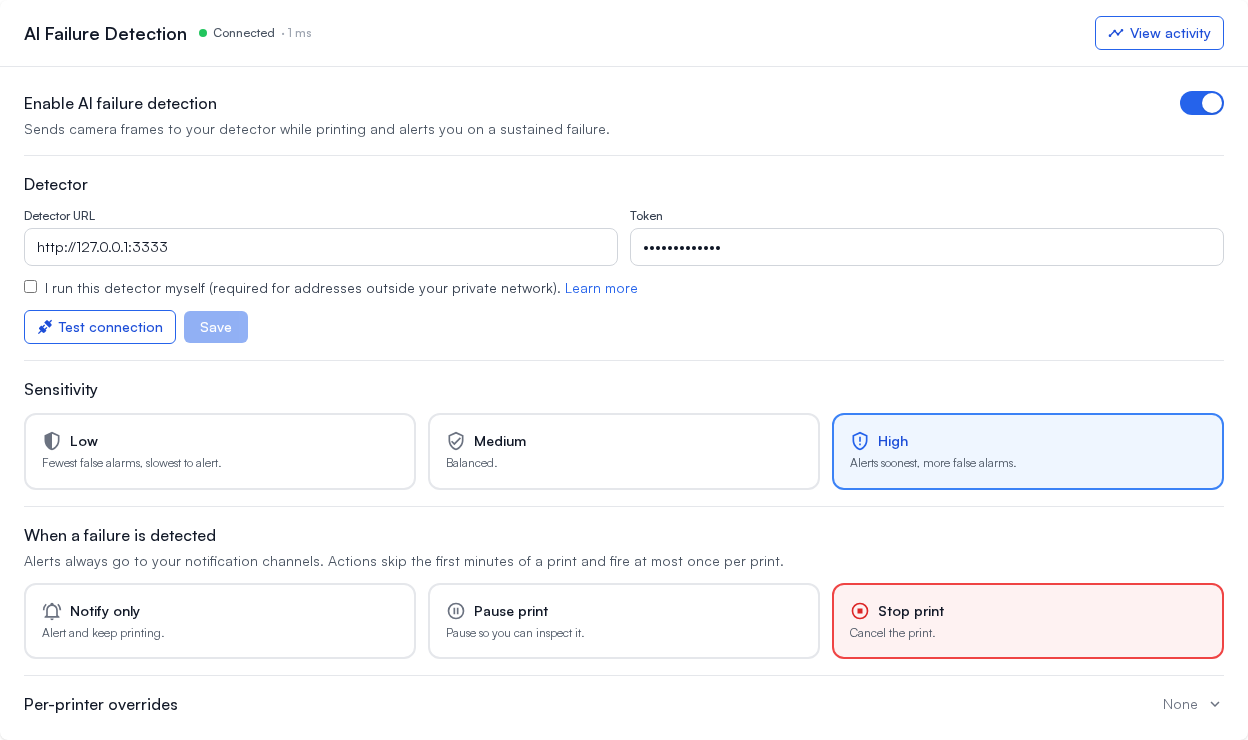
- If hosted detection is turned on for your store, choose it or Your own detector under Detector. Otherwise Fuse uses your own detector: enter the Detector URL (for example
http://192.168.1.50:3333) and the Token you set in the override file, then click Save. - Click Test connection. For your own detector, Fuse checks the detector's health endpoint, then runs a real detection on a test frame served from Fuse. A pass means the token is accepted and the detector can reach Fuse over your LAN. If the health check passes but the detection step fails, the detector cannot fetch frames from Fuse: check that the detector host can reach the address shown in the error.
- Turn on Enable AI failure detection.
With your own detector, Fuse keeps probing it once a minute. If your detector stops responding for several probes in a row, a banner appears at the top of every Fuse page and in the settings section until it recovers. One missed probe does not raise the banner.
Sensitivity
Sensitivity sets how much sustained evidence is needed before an alert:
- Low: fewest false alarms, needs the failure to persist for roughly twice as long as Medium before alerting.
- Medium (default): alerts after a sustained rise across several frames.
- High: alerts sooner, at the cost of more false alarms.
At every level, a single suspicious frame never raises an alert on its own. Scores are smoothed over many frames and compared against what the camera normally sees, and Fuse learns that baseline per printer across prints.
What happens on a failure
Every alert is sent to your notification channels (below). You can also have Fuse act on the printer:
- Notify only (default): the print keeps running.
- Pause print: the printer pauses so you can inspect it. Resume from the printer, Printago, or Fuse to continue.
- Stop print: the print is cancelled. It cannot be resumed.
Fuse sends the pause or stop through its own connection to the printer, so it works even if your internet is down. Fuse then watches for the printer to report that it actually paused. If the printer is still printing a minute later, the alert is marked as an action that failed, and resuming or ending that print is not treated as feedback on the alert. Guardrails apply to all actions:
- Nothing fires during the first five minutes of a print, when first layers and bed adhesion look abnormal to detectors.
- At most one alert and one action per print.
- After acting, Fuse leaves that printer alone for ten minutes, even across a restarted print.
Per-printer overrides
Expand Per-printer overrides to turn detection off for individual printers (a printer without a usable camera, for example) or give a printer its own action, such as pausing an expensive machine while only notifying for the rest. Printers without an override follow the settings above.
Activity
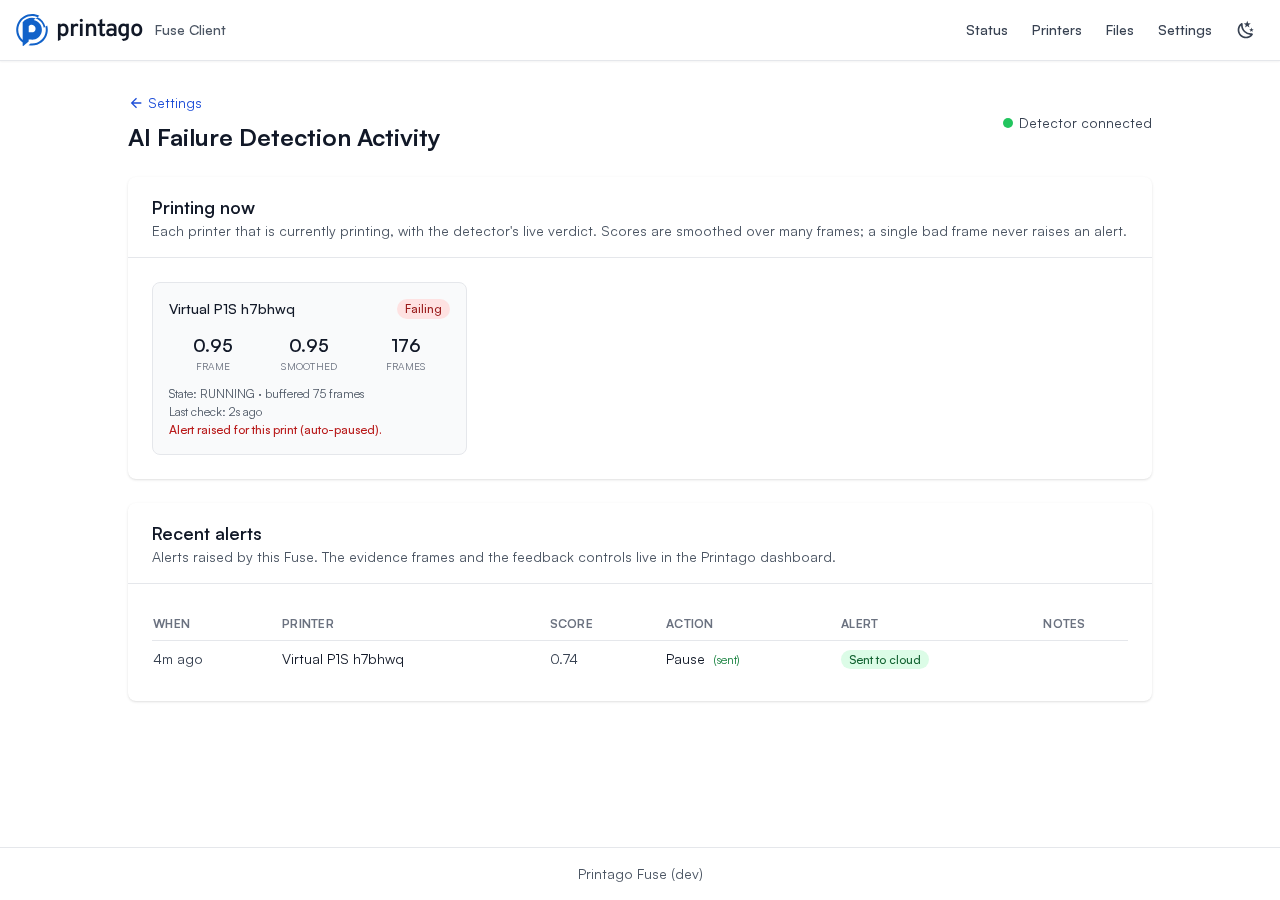
View activity opens a live page that lists every printer currently printing with the detector's verdict for it (warming up, looks good, suspicious, failing), the latest scores, how many frames are buffered, and when alerts become possible for that print. Below it is a log of the alerts this Fuse has raised, whether the action was sent, and whether the alert reached Printago.
Notifications
Alerts use the AI failure detected setting in Settings → Notifications tab, available on every channel (Discord, Slack, Pushover, Telegram, webhooks). Turn it on for each channel that should receive them. Alerts raised by a printer's own built-in detector keep using the Printer HMS error setting, as they always have. The message names the printer and the print job, the score, and what action was taken.
Spaghetti detections reported by the printer itself use this same setting instead of the general printer error setting, so you get one alert, not two.
Reviewing alerts and giving feedback
Each alert appears as a card on the printer's page and on the print job's page, with the frame that tripped the detector and, when available, the frames from about one and ten minutes earlier. Alerts raised by the printer's own detector appear without frames. The section is always there, so a printer or print with no alerts says so.
On the print job's page the alert is also part of the print's history: the attempt selector shows an AI alert badge for any attempt that raised one, and the alert sits in the event list next to the telemetry chart at the moment it happened. Hover over that event to see the frame that tripped the detector, the score, and what Fuse did.
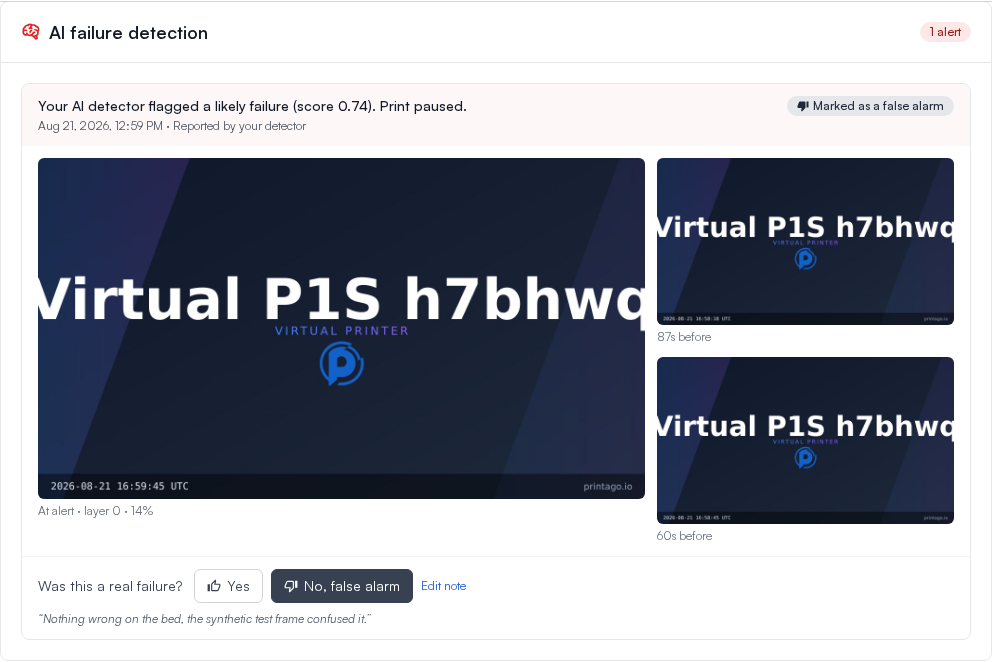
Answer Was this a real failure? with Yes or No, false alarm, optionally add a note about what actually happened, and save. You can change your answer later. If Fuse auto-paused the print and you resumed it, the card also notes that, since resuming is a strong signal the alert was a false alarm.
This feedback is how detection gets tuned for your farm. After you have labelled a few alerts, Printago marks your store as eligible for its training data program and the card shows an eligibility notice from then on, for everyone in the store; details of that program appear there when it opens.
Viewing alerts and submitting feedback need the printer.view permission.
Limits and retention
- Detection only runs while a printer is actively printing (not while paused or preparing), and only for printers paired through Fuse with a camera frame available. Turning off the Enable Cameras master switch in Fuse also stops AI detection until cameras are enabled again.
- The frames attached to an alert are part of that print's history, like its timelapse and camera thumbnail: they stay with the print and are deleted with your account. They are only ever shown to your own team. Your feedback is kept with them.
- The frames Fuse buffers locally during a print (to supply the lookback images) are deleted when the print ends, and Fuse stops buffering if the disk is nearly full. An alert that is still being sent when the print ends keeps its frames, and a print that starts in the meantime is watched on its own, with its own first-minutes window.
- For your own detector, Fuse accepts an address outside your private network only after you confirm that you run the detector yourself, and never accepts Obico's hosted service.
- If Fuse is connected to an older Printago version that does not accept alerts yet, the alert still appears in Fuse's activity log, marked as not delivered.