Filament Inventory
Filament stock, spool tracking, the Pricing and Activity tabs, QR tags and labels, and the Usage by user report are part of the Filament Inventory add-on, free while in preview. Turn it on under Add-Ons > Marketplace > Filament Inventory, or click Receive on the Materials page. Spool tracking can be turned on with it, or later from a material's Spools tab.
Every Fuse client in use must be on Fuse 1.4.11 or later first. Older clients don't send roll IDs, so a tagged roll they read could be tracked twice. The Marketplace page names any client that still needs the update.
Getting started
Filament Inventory keeps your stock by color: how much of each filament you have, what it is worth, and every gram that came in or went out. Every finished print takes what it used off that color's stock, so the numbers keep themselves once you have told Printago what is on the shelf.
The spool-tracking add-on sits on top of it and gives each roll its own record. Stores that run Bambu Lab printers get most of that for free: every tagged roll a printer reads becomes a spool on its own, weighed from the printer's reading, and comes out of that color's bulk when bulk holds it.
There are two ways to run it. Pick the one that matches how your shop works; you can start with the first and add spool tracking later without redoing anything.
Stock by weight only
For a shop that buys by the box and never labels a roll. Filament Inventory alone is enough.
- On each color, use Adjust bulk weight to enter what is on the shelf. Weigh it, or count the rolls.
- When a delivery arrives, record it with Receive filament, or just adjust the weight again.
- Let prints draw it down. The Activity tab names the print behind every drop.
- Every so often, compare the shelf with what Printago says and correct it. Every correction is recorded with your name and reason.
A roll your printer reads by its tag still gets a page of its own with the prints that came off it, but it is not counted as stock on its own: its prints come out of its color's bulk like any other.
Tracking spools
For a shop that wants to know what is left on each roll and which prints it went into. Turn spool tracking on with the add-on, or later from any material's Spools tab, which shows the bulk and offers Turn on until it is.
- Enter what is on the shelf as bulk, as above. Unopened rolls stay bulk until they are loaded.
- Leave Spools your printers read (under Settings > Materials tab > Spools) on Add them, taken from bulk first, the default. The moment a tagged roll goes into a printer, Printago adds a spool for it at the printer's reading and takes that weight out of the color's bulk, so a roll you received as bulk is not counted twice. A roll already part used when it is first read comes in at what is left on it; whatever it was counted at before stays in bulk until you correct it.
- When a delivery of tagged rolls arrives, record it with Receive filament and leave Track as spools unticked, so the rolls land in bulk and become spools when they are loaded. Receiving a tagged roll as a spool and then loading it without scanning its label would add it a second time, because the tag matches no spool.
- For filament without a tag, tick Track as spools when you receive it, print the labels, and scan a label to load the roll into a slot (see Loading a tracked spool). Or register a roll with a blank QR tag from the Printago app.
- When a roll is empty, mark it used up. Rolls below a weight you pick can be finished together.
Spool tracking changes nothing about prints already recorded. From the day it is on, a print on a slot holding a spool draws that spool, and a print on any other slot draws bulk as before.
The Materials list with stock
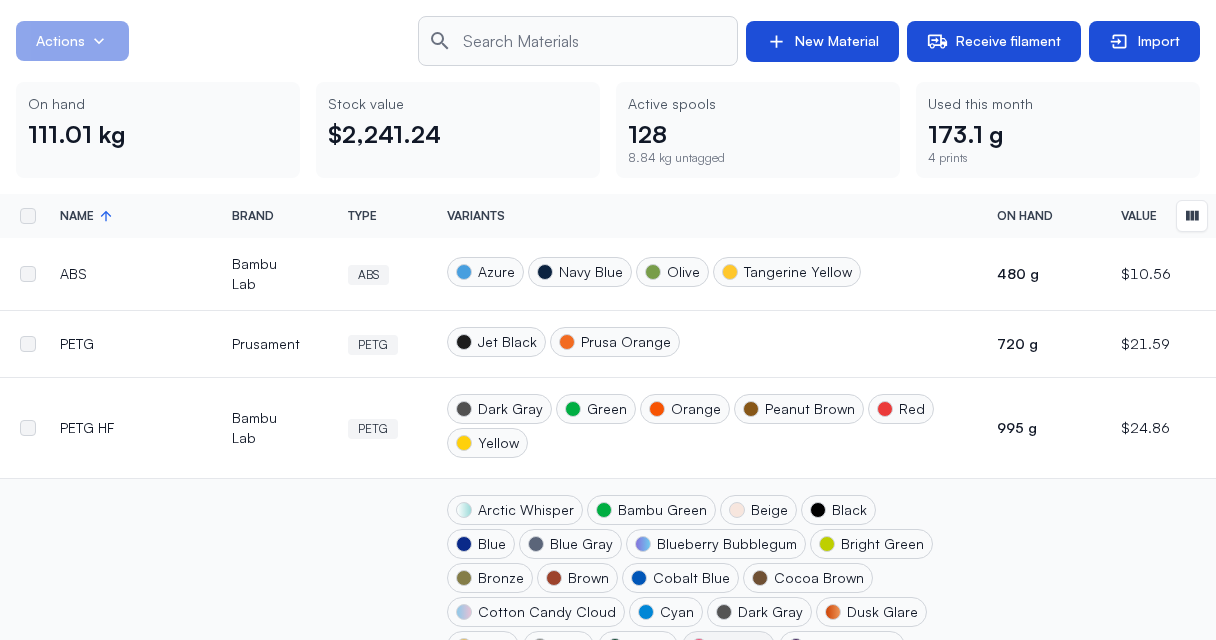
With Filament Inventory, the list also shows your stock:
- On hand: everything you have, across every material.
- Stock value: what that stock is worth: each tracked spool at what it cost, and the rest at its color's price per kilogram. Colors you have never priced aren't counted, and the tile says how many there are.
- Active spools, with spool tracking: how many spools still hold filament, and the untagged weight beside them.
- Used this month: what your prints used since the start of the month, and how many prints that was.
Each material gets an On hand column, and a Value column on wide screens. Receive filament records a delivery from here (see Receiving filament).
The material page with stock
With Filament Inventory, the material page gains the Pricing and Activity tabs, and with spool tracking the Spools tab. The ⋮ menu adds Export stock CSV (one line per color with its stock) and, with QR Workflows, Print tags for all colors and Print blank labels.
The Colors tab with stock
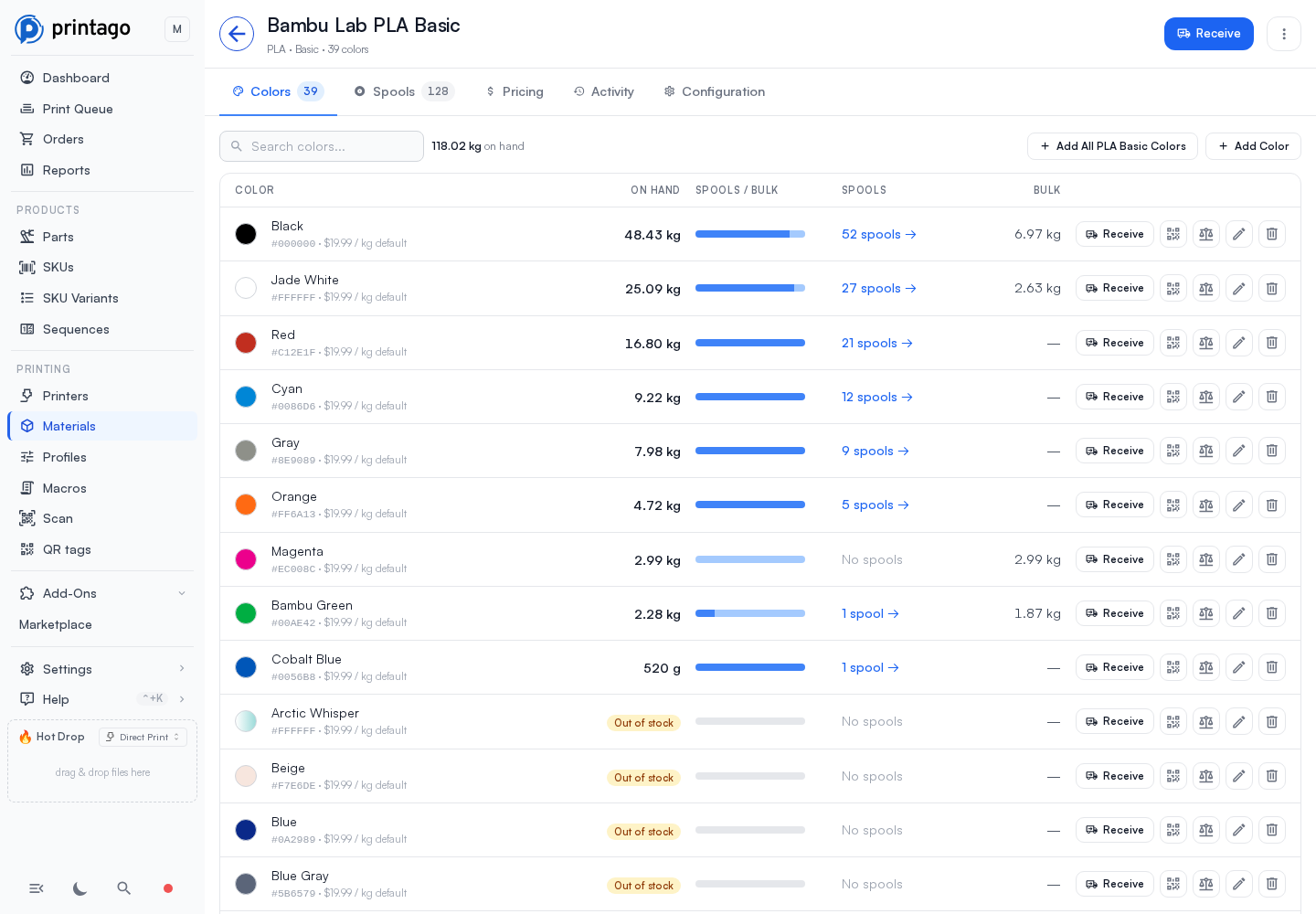
Every color of the material, with what you have of it:
- On hand: everything you have of that color. A color with nothing left says Out of stock.
- Tracked / bulk: a bar showing how much is on spools (dark) and how much is loose, untagged weight (light).
- Spools: how many spools hold that color. Click it to open the Spools tab on that color.
- Bulk: the untagged weight.
Next to the search, the material's total on hand. Under each color's name, its hex code and what it costs per kilogram: the color's own price, or the material's default price marked default. Each row has Receive, already set to that color, then buttons for Print tag, Adjust bulk weight, Edit and Delete. On a phone, a row keeps the color and what is on hand, and every action moves into its ⋮.
A color's price
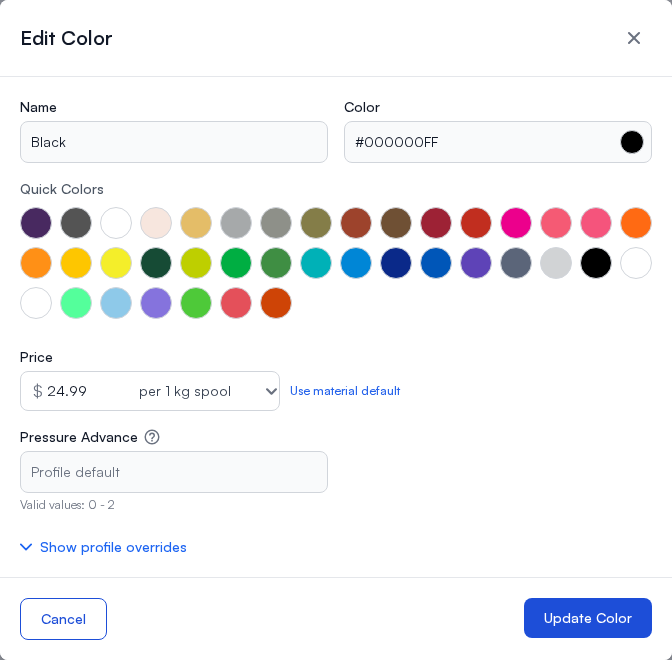
Edit on a color has a Price field: enter what a spool of that color costs and pick its size (per 1 kg spool, or 0.5, 2, 3 or 5 kg). Left blank, the color uses the material's default price, which the field shows as its placeholder. Once the color has a price of its own, Use material default clears it again. A color's price fills in Price each when you receive it; spools already on the shelf keep what they cost. Changing it adds a row to the Pricing tab's history.
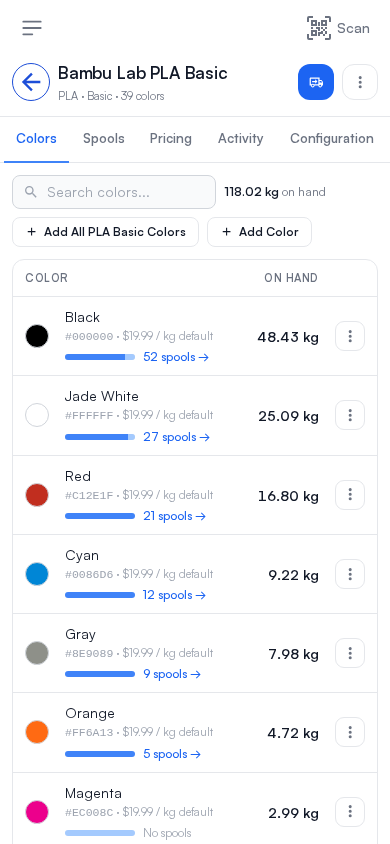
Without Filament Inventory the tab lists the colors with Edit and Delete only, and Edit has no Price. Without spool tracking, all of a color's stock is bulk, so the tab shows what is on hand and no spools.
Spools
With spool tracking, the material's spools, most recently received first: each one's label code or serial, its color, what is left out of what it held full, the printer slot it is loaded in, and the day it came in: the day its delivery was received, or, for a spool converted from bulk or registered by a scan, the day it was added. Every spool has a label code, such as K7QA-1M04, from the moment it is created, and its label prints that code. Above the list, the totals: what is on hand, how many active spools there are, the untagged bulk, and its value.
The chips narrow the tab to one color. The colors that hold stock come first; type in the last chip (N more colors) to reach the rest.
Spool balances and print deductions keep tenths of a gram, so small prints count toward what is left. When a delivery is entered on the day it arrives, its spools sort by the time you entered it in your store's timezone. Backdated deliveries sort by their received day.
Untagged bulk, under the chips, is the loose weight each color has besides its spools, with its total (for example 14.46 kg in 4 colors). It lists the three colors holding the most, and Show N more colors lists the rest. Each has Adjust weight and Convert to spools. With a color picked, it lists just that color, and a color with no bulk leaves it out.
Active and Finished switch between the spools you are using and the ones you have finished, each with how many there are. Spools added, weighed or finished anywhere (on another screen, or by scanning a tag in the Printago app) move without reloading the page. A long shelf lists its first 100 spools, and Show all lists the rest.
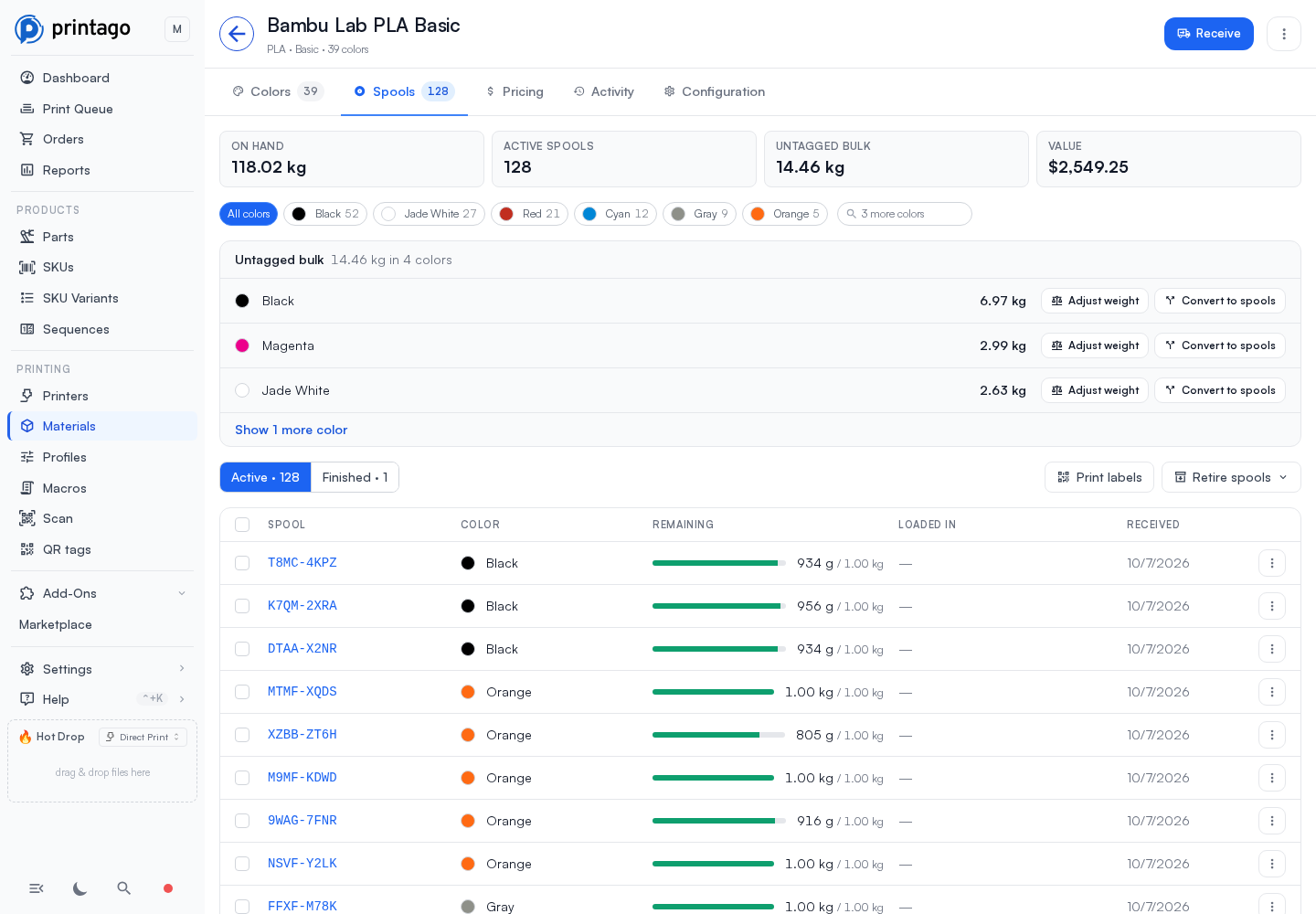
Click a spool's code to open its page. Its ⋮ holds Open spool page, Print label, Adjust weight and Mark used up / archive….
For anyone who can print labels (see Printing spool labels), each active spool has a box to tick. Print labels prints a label for every spool listed, or Print N labels for the ones you ticked; the box in the header ticks them all, including any past Show all. Labels open the print page grouped by color.
Finishing a spool
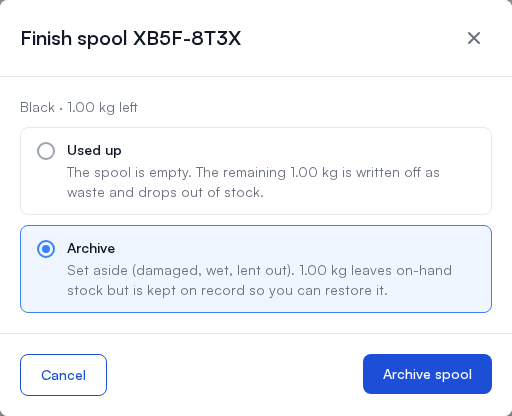
Mark used up / archive… asks how the spool was finished:
- Used up: the spool is empty. Whatever it still had on record is written off as waste and leaves your stock.
- Archive: the spool is set aside (damaged, wet, lent out). Its weight leaves on-hand stock but stays on its record, so you can bring it back.
Either way the activity records a Retire row taking that weight off, and on hand drops by exactly that much. A spool that was loaded in a printer slot comes out of it, and the slot keeps the spool's material and color. Finished spools move to Finished, where they show Used up, or Archived with the weight they kept.
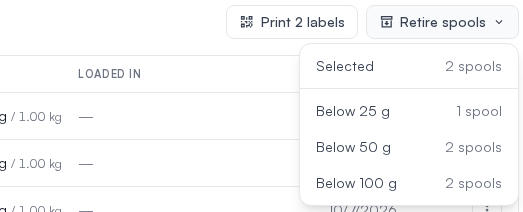
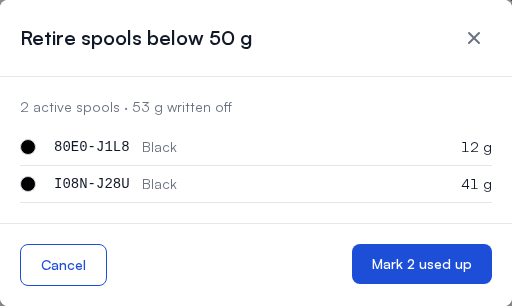
A spool a print ran down to 0 g stays active until you finish it, so it can still be found. Retire spools finishes several at once:
- Selected finishes the spools you ticked in the list. It is greyed out until you tick one.
- Below 25 g, Below 50 g and Below 100 g finish every active spool of the material (or of the color you picked) holding less than that.
Each option says how many spools it covers. Check the list of spools it would finish and what they hold, and confirm. They move to Finished as used up. With none below the weight, it says so.
Restore to active, in a finished spool's ⋮, brings it back with the weight its Retire row took off, and records a Restore row. It isn't put back into a printer slot.
The spool page
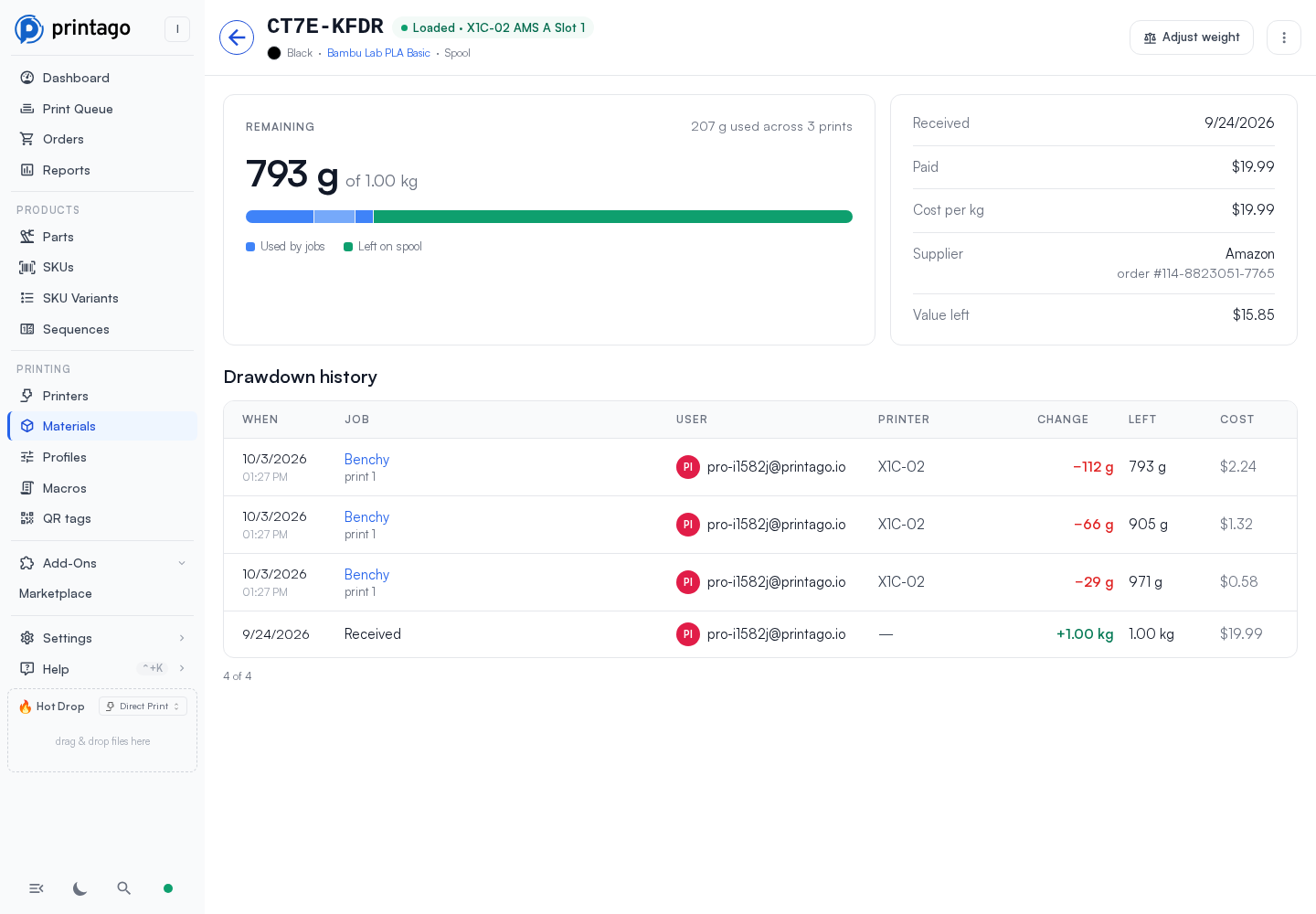
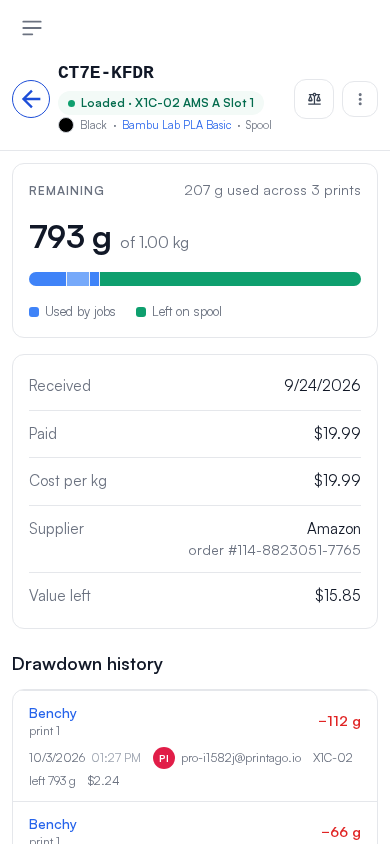
Each spool has its own page. It opens from the spool's code on the Spools tab, from a print's draw line on a job page, and from a spool named in the Activity tab. It shows:
- The spool's code, where it is loaded (or Used up or Archived), and its color and material.
- Remaining: what is left out of what it held full, with one segment of the bar for each print that drew from it, and how much its prints used in all. Weight that left the spool another way, weighed off by hand or written off as used up, is its own gray part of the bar, Adjusted or written off.
- What it was bought for: when it was received, what it cost and its cost per kilogram, the supplier and order number, and the value of what's left. A spool converted from bulk shows when it was added.
- Drawdown history: every change to the spool, newest first: when, the job and print, who queued it, the printer, the change, what was left and what it cost. Receiving, weighing, finishing and restoring it are listed too. Archiving and restoring only set the weight aside and bring it back, so those rows have no cost. Show more loads earlier rows.
Adjust weight and the ⋮ (Mark used up / archive…, or Restore to active on a finished spool) work as they do on the Spools tab. Print label prints the spool's label; on a phone it is the QR icon beside Adjust weight.
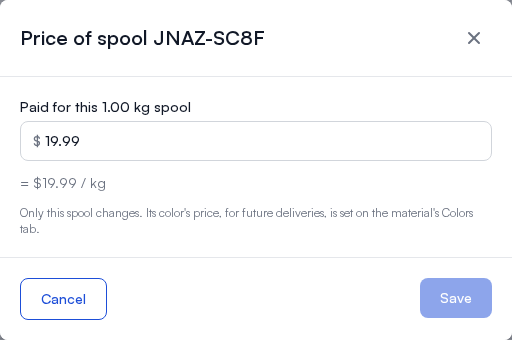
To correct what one spool cost, click the pencil beside Paid, or Edit price in the ⋮, and enter what was paid for that spool (Printago shows it per kilogram too). Left blank, the spool has no price. Only that spool changes: its color's price, for future deliveries, is set with Edit on the Colors tab.
A link to a spool that has been deleted, for example with its material, or that isn't in your store, says Spool not found.
Pricing
What the material costs:
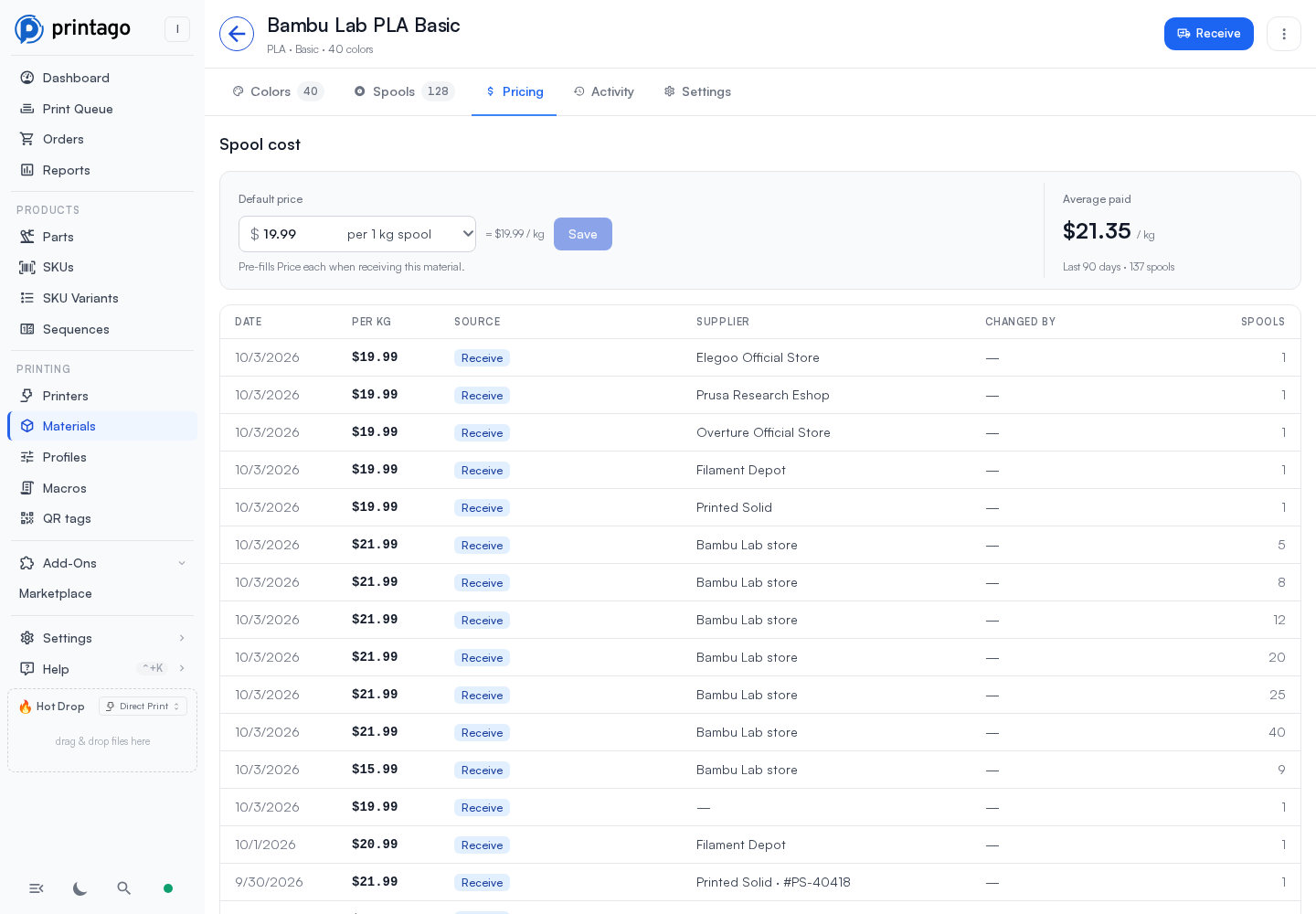
- Default price: enter what a spool costs and pick its size (0.5, 1, 2, 3 or 5 kg); Printago shows it per kilogram. Save keeps it. It fills in Price each when you receive this material, for colors without a price of their own. Colors that have their own price (set with Edit on the Colors tab) are listed under it with what they cost per kilogram.
- Average paid: what priced deliveries of this material cost per kilogram over the last 90 days, weighted by weight, and over how many spools. With no priced deliveries in that time, it says so.
- The history: every delivery (Receive, with its supplier and how many spools) and every change to a default price (Default, with who made it under Changed by; a color's own price, set with Edit on the color or by Save as base price, reads Default · Black), newest first. Save as base price adds a row only when it changes the price the color was using, its own or the material's. A roll's price is kept to the cent, so a delivery priced at the default reads back at the default: a 750 g roll at $18.50 per kilogram is $13.88, and its row reads $18.50. A delivery keeps the price it was received at, so changing a price later doesn't move past deliveries or the average. A delivery received without a price reads Unpriced, and a default that was cleared reads Cleared.
Billable rate
A billable rate is what you charge people per gram of this material when you bill filament back to them, as schools and makerspaces do. It is separate from what the filament cost you, and it prices prints in the Usage by user report.
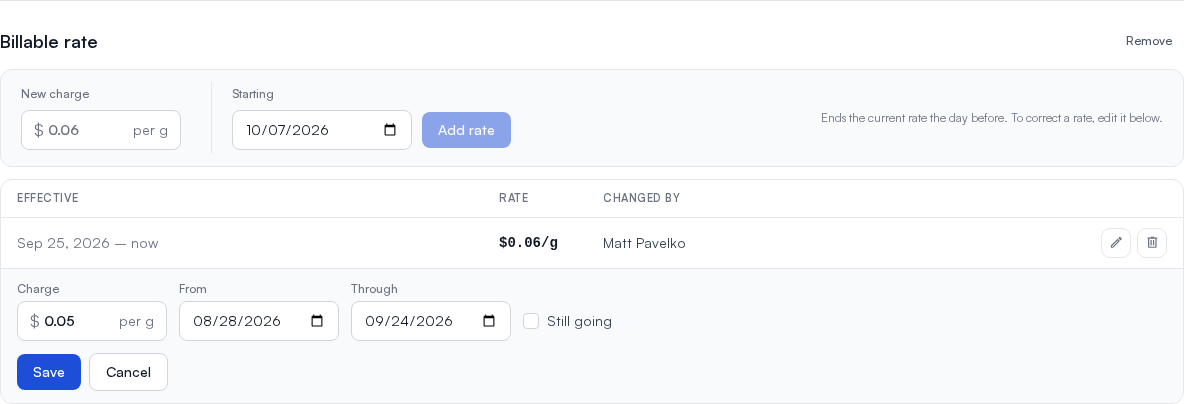
- Add billable rate opens the rate. Enter a Charge in dollars per gram (Printago shows it per kilogram too), pick the Starting day, and Save. The day can be in the past, to bill a term that has already started. Cancel closes it without setting a rate.
- To change the rate, enter a New charge and click Add rate. It starts today unless you pick another Starting day, and the rate before it ends the day before. A new rate can't start before the material's latest one. The form only adds rates; to correct one, edit it in the history.
- Remove stops the current rate now, and cancels one set to start later. Prints after that show no rate in Usage by user until you add one again.
- The history lists every rate, when it applied, and who set it under Changed by. A removed or replaced rate stays in the history; one that never took effect reads replaced or removed.
- Every rate in the history has a pencil and a trash can. The pencil opens its Charge, From and Through days, and Still going for a rate with no last day; Save corrects it in place. An edit that would run into another rate is refused with the rate it runs into ("That runs into the rate …. Change or delete that rate first.") rather than shortening that rate for you. The trash can deletes the rate, and prints it priced show no rate in Usage by user.
Rates for several materials at once can be set through the API, which can also edit and delete them (PATCH and DELETE /v1/materials/billing-rates/:rateId).
Activity
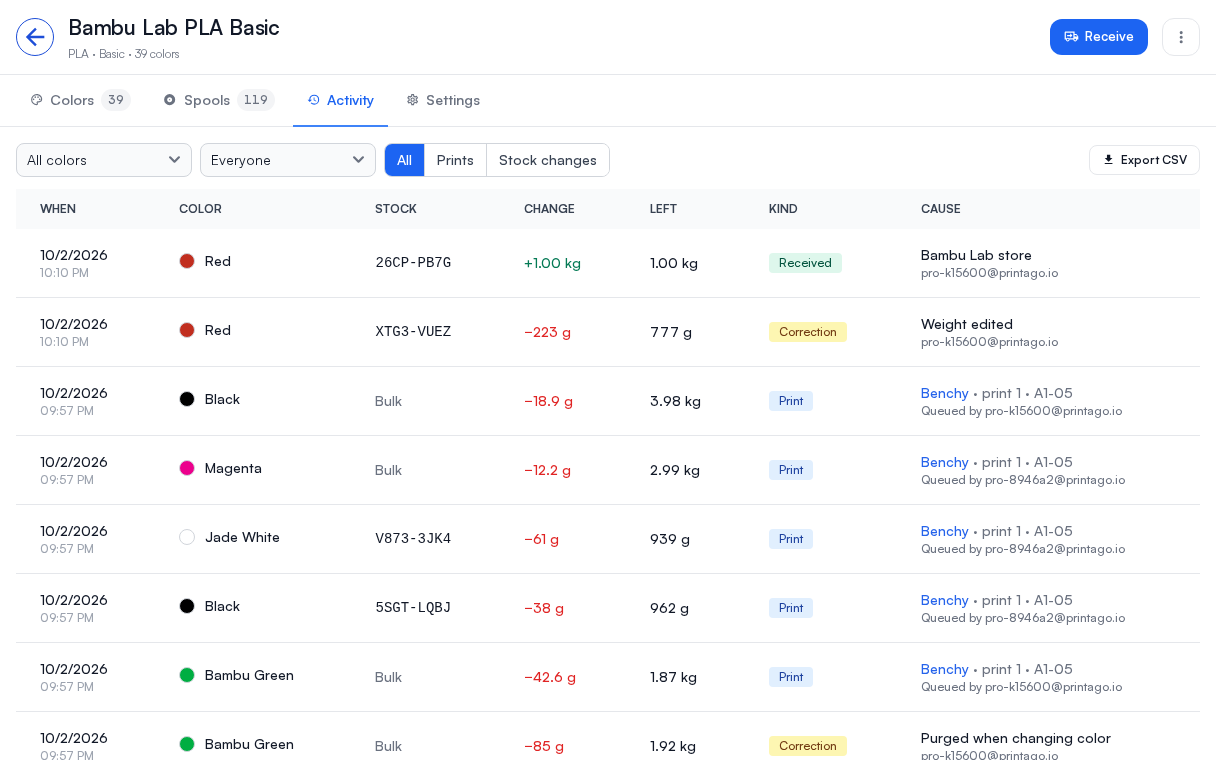
Every gram in and out of the material's stock, newest first: when it moved, which color, which spool or bulk, the change, what was left, and why. A delivery is dated by the day it was received, as on its spool's page. Narrow it by color, by person, and to Prints or Stock changes. A print names its part, the print and the printer, and who queued it. Export CSV downloads every row the filters match.
Filament stock
Stock is how much filament you have, color by color. Most shops buy by the box and never label a roll, so stock is kept as a weight per color rather than as a list of spools: receive six kilograms of Bone White and its row says six kilograms, with no spool records to manage.
Every print is recorded. When a print finishes, the filament it used comes off that color's stock, and the Activity tab names the part and the print that caused it, so any drop can be traced back to the job.
Stock never goes below 0 g. If a print uses more than the stock holds, the stock goes to 0 g and its activity row shows both figures: what the print used and what it drew. A color you print with before ever receiving it is out of stock, with its prints listed, so you can see what it has been used for and correct it once you know what is on the shelf.
A print draws nothing when Printago cannot tell which filament it used: a slot set to a material type with no color, or a print whose weight could not be measured. The print still shows its grams on the job page, or "weight unknown".
Value is what's left on each tracked spool at the price it was bought for, plus untagged bulk (and any spool with no price of its own) at the color's price per kilogram: the variant's price, or the material's if the variant has none. Filament you have never priced reads Unpriced rather than $0.00. On the Spools tab, when only some colors are priced, Value counts those and says how many colors are unpriced.
Receiving filament
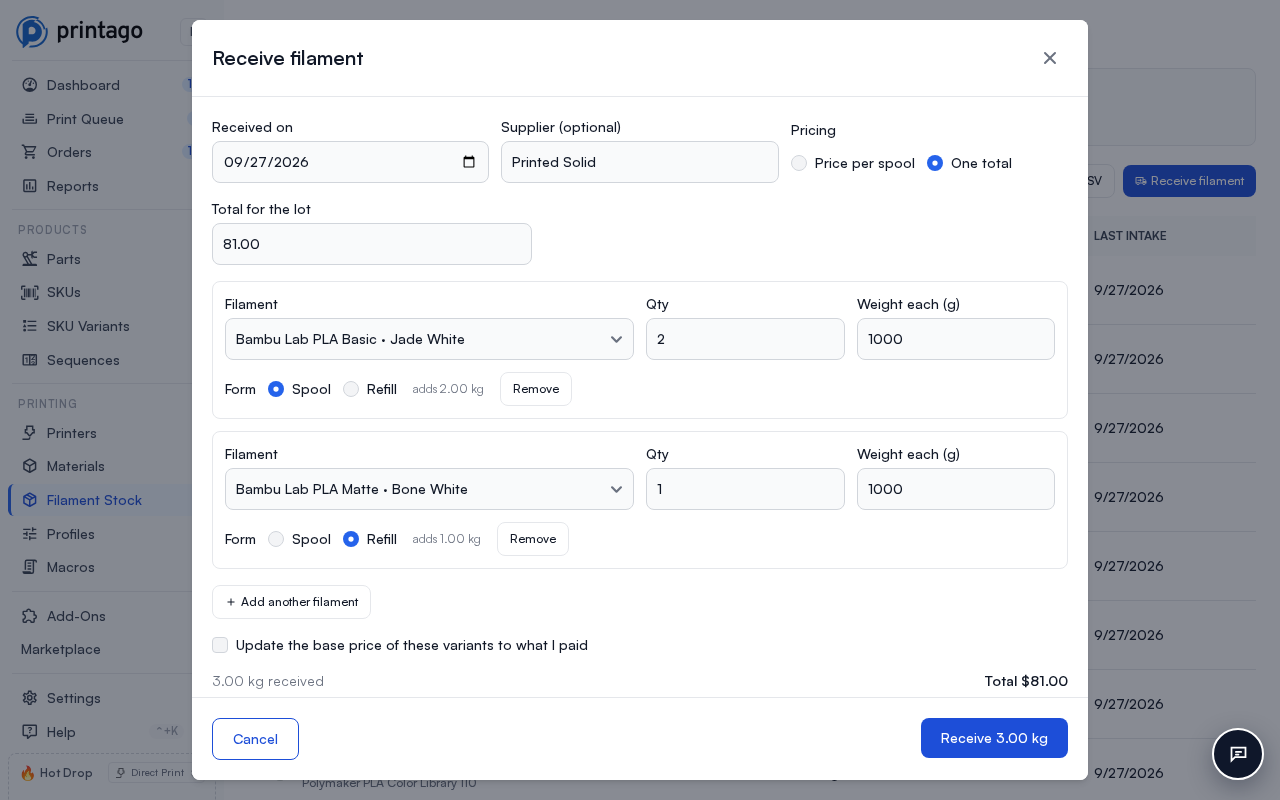
Receive on the Materials list records one delivery, however many filaments it contained. A color's own Receive starts with that color and the size it was last received in.
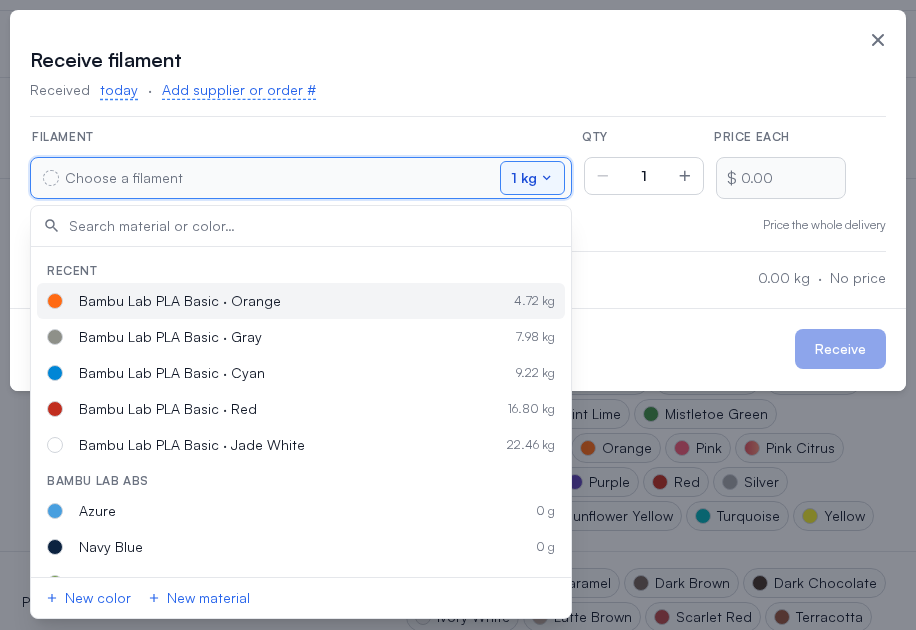
- Pick each filament. The picker lists the filaments you received most recently first, then every color by material, with what you have of each. Type to search. New color and New material add one without leaving the dialog.
- Click the roll size on a line to change it: 0.5, 1, 2, 3 or 5 kg, or Exact… for a weight in grams (the filament, not counting the spool). Each line starts at the size you last received of that material. Choose Spool or Refill there too.
- Set how many, and the price of each. Price each starts at the color's price, or its material's default price, for that roll size. Leave it empty for filament you don't want priced, or use Price the whole delivery to enter one total that is shared out across the lines by weight.
- Received today opens a calendar to pick another day, and Add supplier or order # takes where you bought it (your recent suppliers are one tap away) and an optional order number. Both are kept with the delivery and shown on each spool's page. The day is your store's, so everyone sees the same received date whatever timezone they are in; set the store's timezone in Settings under Organization.
- Tick Save as base price if what you paid should become each color's price per kilogram. Left unticked, prices are unchanged.
The dialog totals the delivery in kilograms and money as you go. When some lines are left unpriced, the total covers the priced ones and says how many are unpriced. With spool tracking, tick Track as spools to create one spool per roll, each with the price you paid for it and a Received row in the activity naming the delivery. Left unticked, the weight goes into bulk, which is where tagged rolls belong: they become spools when they are loaded. Each new spool gets its label code right away, and its QR label prints that code.
A delivery tracked as spools then lists its new spools by color and offers Print N labels (see Printing spool labels), which opens the print page with a label for each. Skip closes the dialog; you can print them later from the Spools tab.
Correcting stock
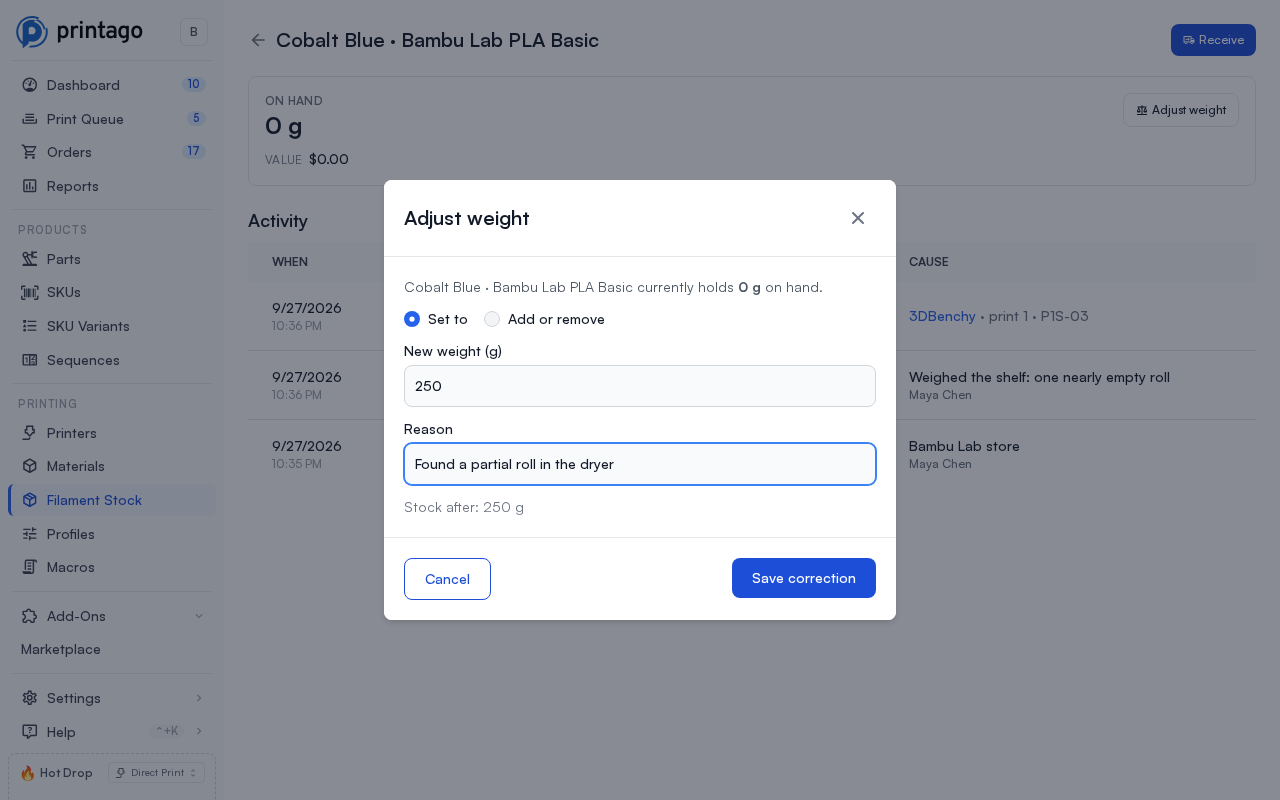
Adjust bulk weight (on a color's row on the Colors tab, or Adjust weight beside its bulk on the Spools tab) sets a color's bulk to what is really on the shelf (Set to), or adds or removes a specific amount (Add or remove). Weights are in kilograms, so a shelf weighed at 3.25 kg is typed as 3.25. The dialog shows the color, and on the right what bulk will hold after the correction and how far that is from what it holds now, for example "−0.469 kg from 6.969 kg". It always asks for a reason, and a correction can't take stock below 0 g. Nothing is overwritten silently: the correction is recorded in the activity with your name against it.
What the activity records
- Received: a delivery, naming the supplier.
- Print: a print drew it down, naming the part, the print, the printer and who queued it. When the stock ran short, the row shows what the print used beside what it drew, for example "used 38 g, drew 12 g".
- Weight adjusted: somebody adjusted it, with their reason and their name.
- Converted: bulk weight turned into spools.
- Retire: a spool was finished as used up or archived, taking its weight off.
- Restore: a finished spool came back, with the weight its Retire row took off.
See Material Usage Tracking for how the weight a print used is measured.
Tracked spools
With the spool-tracking add-on, a roll can have its own record, so you know how much is left on that spool and which prints used it. Every change to a roll's weight is recorded in the activity, the same way bulk is, and the activity's Stock column says which moved: Bulk, or the roll by its serial (or its label code when it has no serial). A roll that reaches 0 g stays on the Spools tab until you finish it; a finished roll no longer counts toward on hand. Seeing spools needs permission to view material instances; without it, the Colors tab still shows how many spools each color has.
A roll's rows add up to the weight it has:
- A print on a slot holding the roll comes off that roll, never below 0 g. When the roll held less than the print used, the row shows both figures. A print that used two rolls, or a roll and bulk, records a row for each.
- Changing a roll's weight through the API records a Weight adjusted row naming who made it.
- Deleting a roll that still has weight, also through the API, records a Deleted row taking that weight off. The roll's rows stay in the activity, still named by its serial or label code and marked "(deleted)".
- A roll made before you had Filament Inventory, or added through the API, starts with an Opening weight row the first time its weight changes, so its history starts from what it held.
Without spool tracking, a print on a slot holding a roll comes out of the color's bulk stock like any other print.
Converting bulk into spools
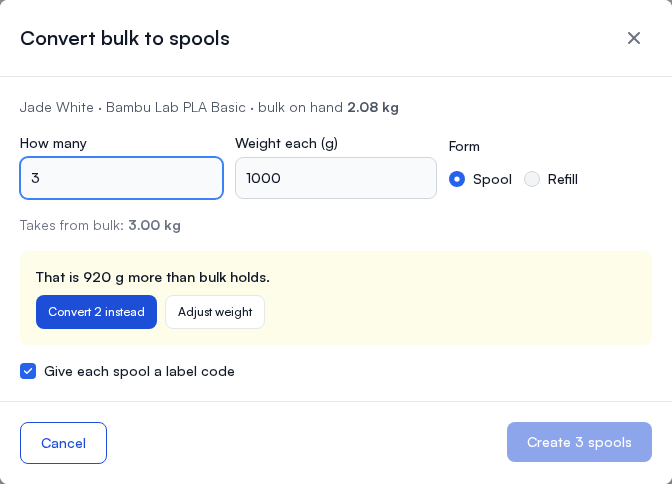
Convert to spools, under Untagged bulk on the Spools tab, takes weight out of a color's bulk and turns it into individual spools. Choose how many, spool or refill, and the roll size (the same sizes as Receive, starting at the size last received). The bar shows what they take of the bulk and what stays as bulk. You can't take more than bulk holds: the dialog says how much is available and won't convert until it fits, and nothing is converted in part. If someone else used that bulk while the dialog was open, it says bulk changed and shows what is left. The activity records the weight leaving bulk and each new spool arriving. The dialog then offers Print N labels for the new spools, or Skip.
To put a tracked roll into a printer slot, open the printer's Materials dialog and use the Inventory spools tab. See Loading a tracked spool.
Spools in printer slots
A spool is one physical roll of a filament. It belongs to one color of a material and has its own weight, its label code, and the printer slot it is loaded in, if any. Two rolls of Jade White are two spools of the same color.
Spools are registered from the Printago app: stick a blank QR tag on the roll and scan it with the filament's tag, then enter the roll's weight. Or open the blank's link with your phone's camera and pick the material, color and roll size on the web (see Setting up a blank tag). The tag is then the spool's tag, so scanning it later shows how much is left and where it is, and lets you weigh it, load it into a slot, move it, or mark it empty. See Spools in QR Workflows. Rolls received with Track as spools (see Receiving filament) are spools too, and a material's Spools tab lists them.
Loading a tracked spool
A slot can hold more than a color. If you keep tracked spools, the Printer Materials dialog lets you say which physical roll is in the slot, and prints on that slot then draw that roll down instead of the color's bulk bucket.
Open a printer, click its slot (or the label above it), and the right-hand panel has two tabs:
- Material & color picks what kind of filament the slot holds: a material type, a material, or a color. This is the tab described under Assigning materials to printers, and it is all most stores ever need.
- Inventory spools lists every individually tracked roll you own, with its color, its serial or label code, how much is left on it, what it is worth, and where it is right now.
The Inventory spools tab appears when you are configuring one printer. With several printers selected it is hidden, because a roll can only be in one slot. It also needs permission to view tracked spools.
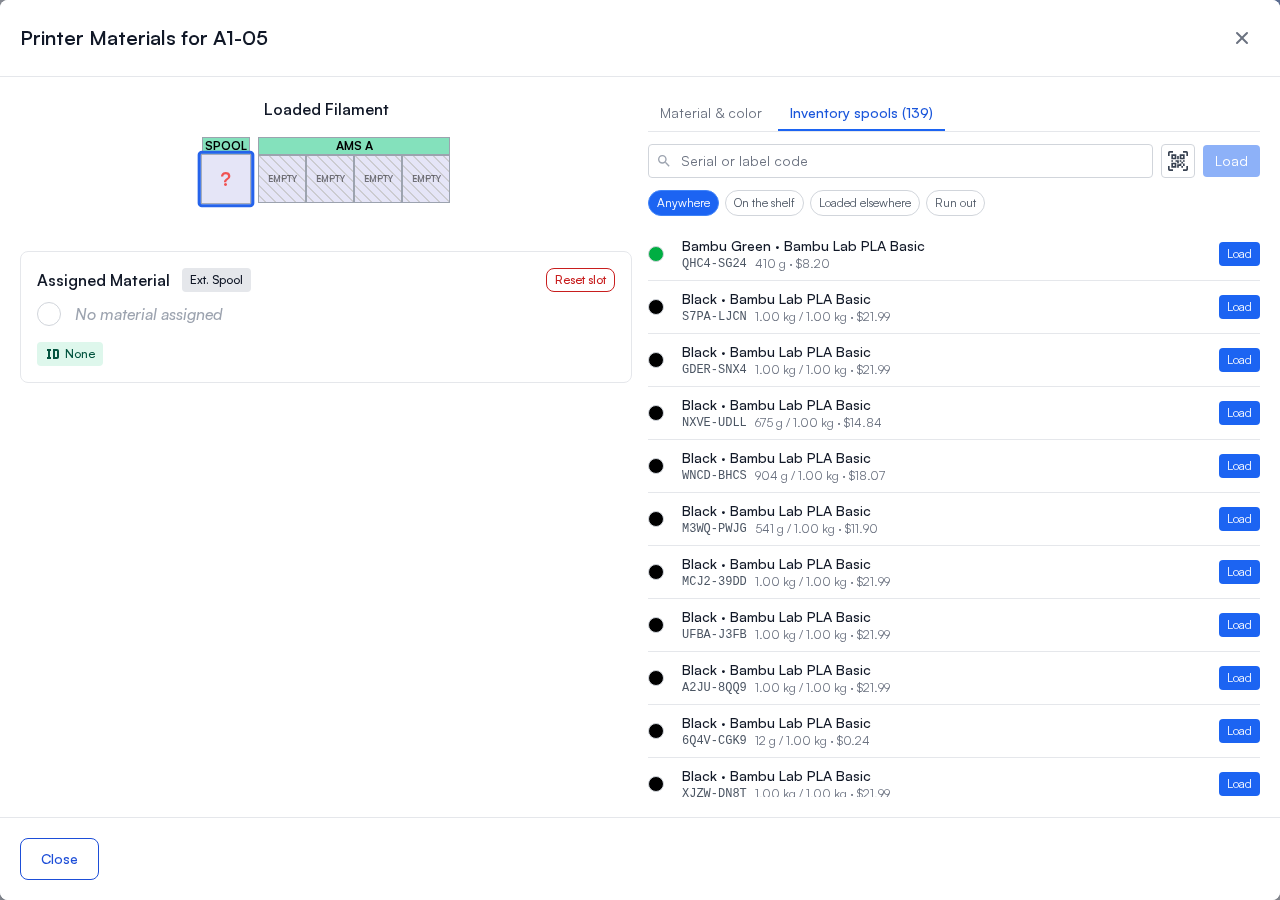
To load a roll, find it in the list and click Load, or look it up in the Serial or label code box at the top of the tab:
- Type its serial or label code and press Enter.
- Scan its QR label with a USB or Bluetooth barcode scanner. The scanner types the label's link into the box, and Printago loads the roll the label is for, whatever the chips are set to. It doesn't need Enter: a complete link is looked up on its own once it stops changing, so pasting a label's link works too.
- Use the camera. The QR button beside the box opens the camera in the panel
and reads the first QR code it sees, then turns the camera off. It is there
when the browser offers a camera (a secure
httpspage), and says so if the camera is blocked, missing or in use. Cancel, or the button again, turns the camera off.
A label for a different kind of tag, or one that was revoked, is for a finished or deleted roll, or isn't one of your store's tags, says so and loads nothing. A blank label that hasn't been set up links to its setup page.
However you load it, the color and material come from the roll itself, so there is nothing else to pick, and the printer is sent that color. Loading a roll changes no weights: grams are only taken off a roll when a print on it finishes.
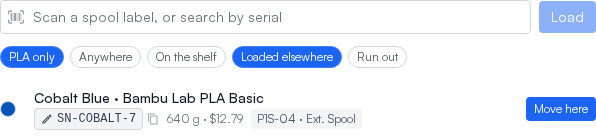
The chips under the box narrow the list: to the slot's own material type (PLA only, for example), to rolls Anywhere, On the shelf or Loaded elsewhere (in another printer), and to rolls that have Run out. A roll loaded somewhere else is not hidden, because taking it out of one printer and putting it in another is a normal thing to do: its row says where it is and the button reads Move here.
A code that is not in your inventory loads nothing. Printago says the roll is not in inventory and links to Receive filament, where you can add it. If a code is on more than one roll, nothing is loaded either: the list shows just those rolls, whatever the chips are set to, so you can pick the right one.

Once a roll is loaded, the slot card shows how much is left on it.
A roll the printer knows by its RFID tag keeps itself up to date, so its card shows only that: Tracked automatically from the printer, the grams left of the full roll, and a bar with the percent. There is nothing to press. The info button opens the spool's page, which has its serial, label code, price and history. The printer's own percent chip isn't shown beside it, since the card already says the same thing.

A roll you track by hand (a QR label, a typed serial, or none) shows an In inventory panel instead: the roll's serial, the grams left of the full roll, what that filament is worth, its label code, and a bar for how full it is. Click the serial to open the spool's page. The serial on the card is the roll's own. Loading a roll always replaces the serial the slot was carrying for the roll before it, so a print is never traced back to the wrong spool.

Unlink roll frees the roll and keeps the slot's color and material, so the slot still matches jobs and prints go back to drawing the bulk bucket. That is different from Reset slot, which empties the slot entirely. If the slot has nothing recorded besides the roll, there is no color to keep, and the panel says to use Reset slot instead.
A roll with a serial offers no Unlink roll: a tagged or labelled roll is linked again the next time a printer reads its tag or someone scans its label. To free its slot, take the roll out of the printer or load another roll.
Loading a roll into a slot is also how you take it out of the last one. If the
roll was loaded in another printer, that slot is cleared in the same step, so two
printers can never both claim the same spool. The same happens when you load a
roll through the API with PATCH /v1/materials/printer-slots/assign and an
instanceId.
Spool serials
A spool serial is the identifier of the physical roll sitting in a slot, not the material it is made of. Two identical rolls of Bone White have the same material and different serials, which is what makes it possible to ask later which prints came off one of them.
The Printer Materials dialog shows it in one place. On a slot holding a spool from your inventory, the serial is on its In inventory panel. On any other slot, it is the tag badge among the slot's material badges, the id the printer read off the roll's RFID tag; with spool tracking, click the badge to see every print that used that roll.
A slot's serial comes from one of two places, and nobody types it onto the slot:
- The roll's tag. When the printer reads an RFID tag in a bay, Printago records the tag's id as that slot's serial. Swapping in another roll records the new roll's tag, even when it is the same filament in the same colour.
- The tracked roll loaded in the slot. A tracked spool carries its own serial, and loading it puts that serial on the slot in place of whatever was there.
The chip says where a serial came from:
- Green, with a tag icon: the printer read it off the spool's RFID tag.
- Grey, with a pencil: it is the serial saved on the tracked roll's record.
- Blue, with a link icon: it is the serial on the tracked roll's record, and it was written there through the Printago API by another app.
- A dash: no serial is recorded for this roll.
An unreadable tag, or one that reads as all zeros, leaves the recorded serial alone. Taking the roll out of the bay clears it, and so does Reset slot, because an empty slot holds no roll. A serial can be up to 64 characters.
Every finished print records the serial of the roll in each slot it used. Click a serial anywhere it appears (the Printer Materials dialog, the Material used list on a print's page, or the spool list on the Materials report) to open its page: the spool's page when a spool in your inventory carries that serial, or the roll's page when none does.
Print history is a permanent record and is never rewritten, so prints finished before a roll's serial was known do not gain one. The trace starts from the first print after the serial was recorded.
Spools your printers read
When a printer reads a roll's tag, Printago checks the tag against your inventory:
- A spool in inventory carries that serial. That spool is loaded in the slot. A tagged roll you move from one printer to another follows itself, and the slot it left is cleared.
- The spool loaded in the slot has no serial yet. The tag becomes its serial, so you don't have to type it.
- The spool loaded in the slot carries a different tag. It isn't the roll in the bay anymore, so it comes out of the slot. The slot keeps its color.
- A finished spool carries that serial. A tag belongs to one roll, so the roll was finished by mistake. With spools being added (below), it is restored at what the printer reads and loaded, instead of a second spool being added. If the printer reads it as empty, it stays finished.
A serial someone typed on a spool is left as it is.
A roll that no spool in inventory carries is up to the Spools your printers read setting under Settings > Materials tab > Spools:
- Keep them out of inventory. The roll isn't counted in stock, but it has its own page and every print on it records its serial.
- Add them, taken from bulk first (the default). Printago adds a spool for the roll and loads it. Its weight comes out of that color's bulk when bulk holds it, so a roll you received as bulk isn't counted twice. When bulk is short, it is added as new stock.
- Add them as new stock. Printago adds a spool for the roll on top of what stock holds.
An added spool starts at what the printer says is left: its remaining percent of the roll's full weight. Bambu Lab printers report both. When a printer doesn't report the roll's weight, Printago uses the size this material last came in, then the default spool size from your QR Workflows settings, then 1 kg. When a printer doesn't measure what is left (on a Bambu Lab AMS, Update remaining capacity is off), the spool starts as a full roll and its weight shows as assumed full until a printer measures it or you adjust it. Two printers reading the same new roll at once add one spool, not two.
Printago waits for the printer to finish reading a roll before adding it. An AMS reports the roll as unmeasured for its first few seconds in the bay, and a spool added then would start full whatever was left on it.
Correcting spools from what printers read
Filament used where Printago can't see it, for a print sent from the slicer or with the roll on another machine, never reaches the spool's count. With Correct spools from what printers read on (under Settings > Materials tab > Spools, off by default), Printago compares a tagged spool with its printer's reading each time a printer reads the roll and after each print Printago didn't send. When the printer reads it more than a tenth of the roll's full weight lighter than inventory, the spool comes down to the reading, and its activity shows a Printer reading row naming the printer and the percent.
A printer's percent is an estimate, so smaller gaps are left alone, and a reading higher than inventory is ignored: what prints drew is the better count. A spool whose weight was only assumed takes the reading either way. Nothing is corrected while a Printago job is printing on that printer, since that print's draw is recorded when it finishes.
A roll's page
A roll known only by its tag has a page of its own, marked Not in inventory. It shows where the roll is loaded, its color and material, about how much is left by the printer's reading, when it was first used, and how many prints and grams it went into. Below that, every print that came off the roll, newest first, with the printer, the slot, the outcome and the grams it used. Export CSV downloads the same rows for a recall spreadsheet.
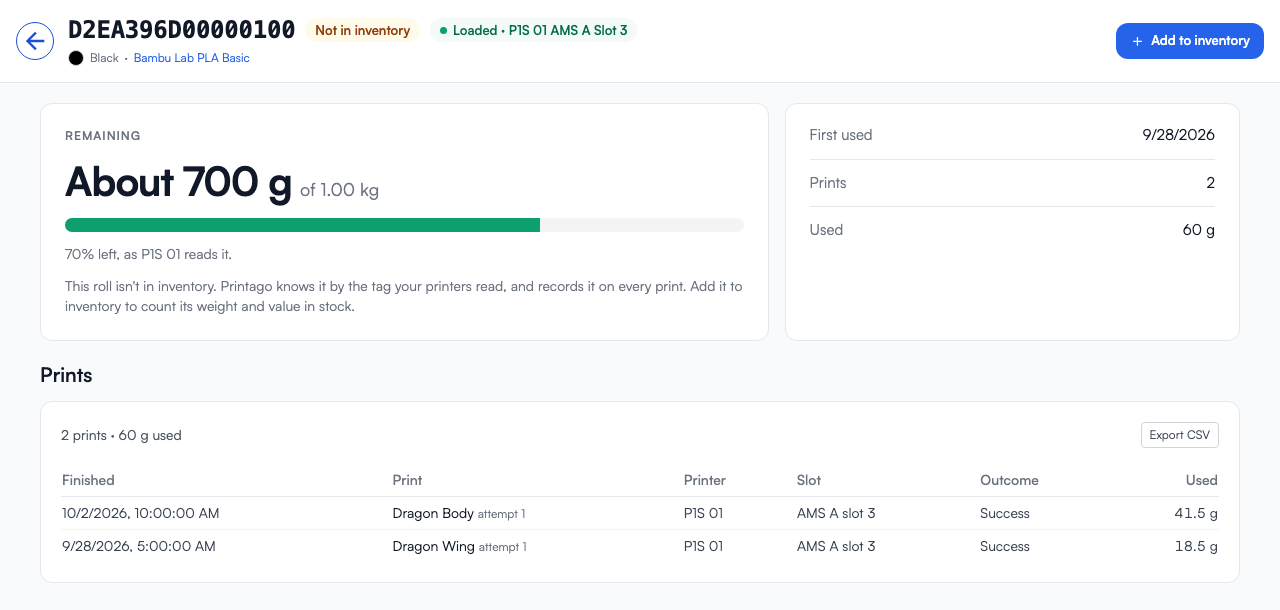
The page lists the newest 200 prints. When a roll has been in more, the totals still count every one of them and the page says how many are not listed. Prints whose grams were never measured are counted and called out rather than added as zero.
Add to inventory makes the roll a spool. Pick its color (it starts at the slot's), what it holds now (it starts at the printer's reading), the full roll's weight, and whether it comes From bulk or is New stock. The new spool is loaded in the slot that read it, and from then on prints draw it down.