Maintenance Tracker
Key Concepts
Maintenance Tracker is Printago's add-on for tracking recurring maintenance tasks across an entire 3D printer fleet. It replaces ad-hoc spreadsheets and "I think we lubed that one last month" with a structured schedule that follows each printer's actual usage. Tasks are triggered by print hours, calendar days, or completed jobs, and assigned to one or many printers. Each printer keeps its own counters and starting offset, so a brand-new machine and a printer with 1,500 hours on it can run the same schedule and still surface the right alerts at the right time. Printago ships with pre-built recommended profiles for every supported Bambu Lab model, so most farms can go from zero to fully tracked in under a minute. The tracker is informational by design: it raises warnings, flags overdue tasks, and feeds into your existing notifications, but never blocks a printer from running. To take a printer out of rotation for service, use Maintenance Mode instead.
Bambu Lab printers have their own HMS-based maintenance reminders in firmware. Maintenance Tracker is independent and does not read from or sync with the printer's internal counters. Print hours and job counts are tracked in Printago using your fleet's activity in Printago.
Enabling the Add-On
Maintenance Tracker is free during beta. To enable it:
- Go to Settings → Add-Ons
- Find Maintenance Tracker in the list
- Click Activate
After activation, the Maintenance menu item appears in the main navigation, and the add-on offers a recommended setup flow that walks you through enrolling your existing printers.
The Maintenance Page
Navigate to Maintenance from the main menu. The page is organized into four tabs:
- Overview - Summary of overdue, due-soon, and OK counts plus printers that need attention now
- Fleet Status - Detailed table of every enrollment, with filtering and bulk actions
- Timeline - Chronological completion history per printer or task
- Configuration - Custom maintenance items and recommended profiles
Overview Tab
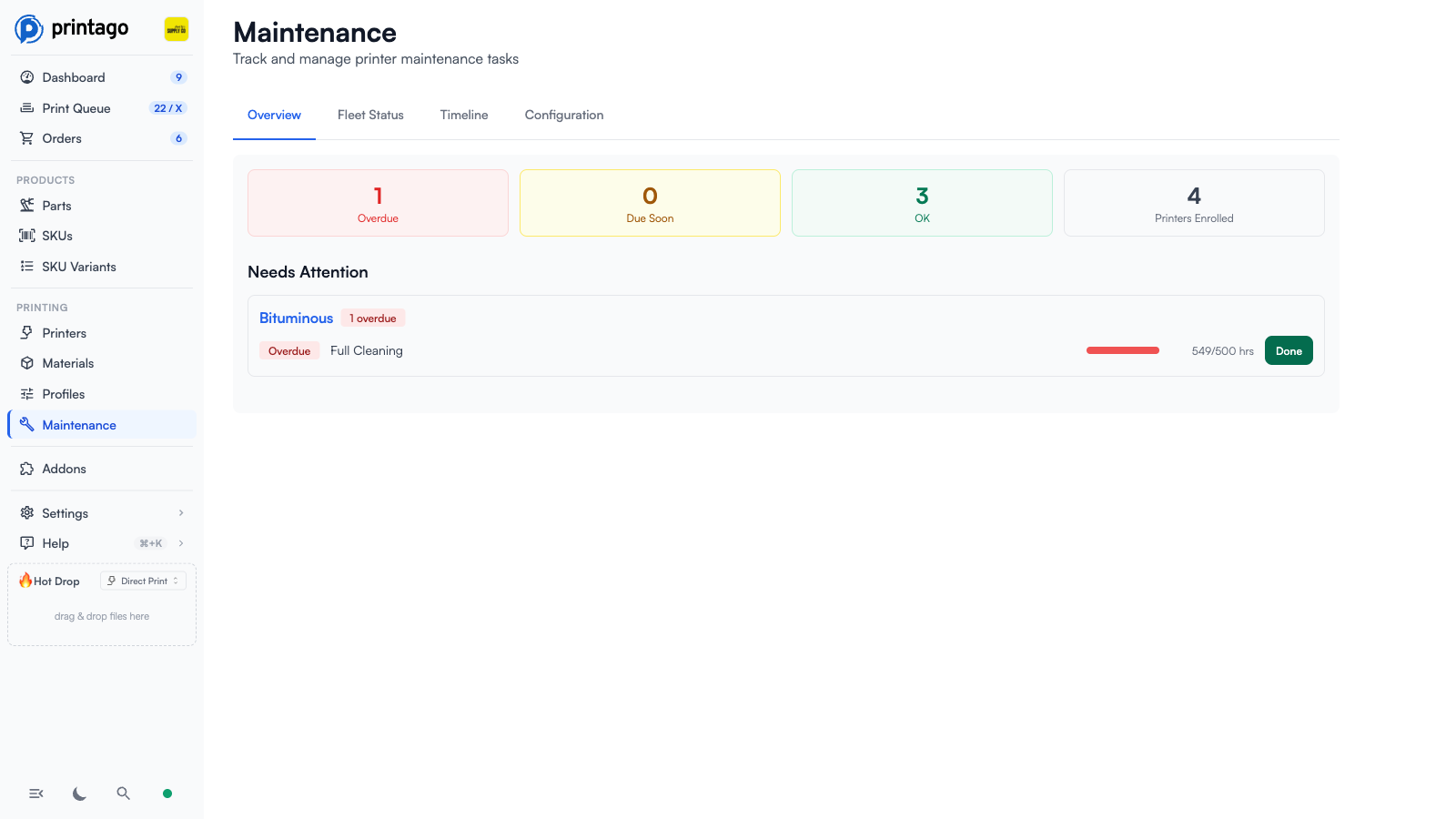
The Overview tab is your daily dashboard:
- Summary cards at the top show counts of Overdue, Due Soon, OK, and total Printers Enrolled
- Needs Attention groups every overdue and due-soon task by printer, sorted with overdue printers first
- Each row has a Done button so an operator can mark a single task complete without leaving the page
- Recent Completions shows the last five completed maintenance tasks with timestamps and operator name (when available)
Fleet Status Tab
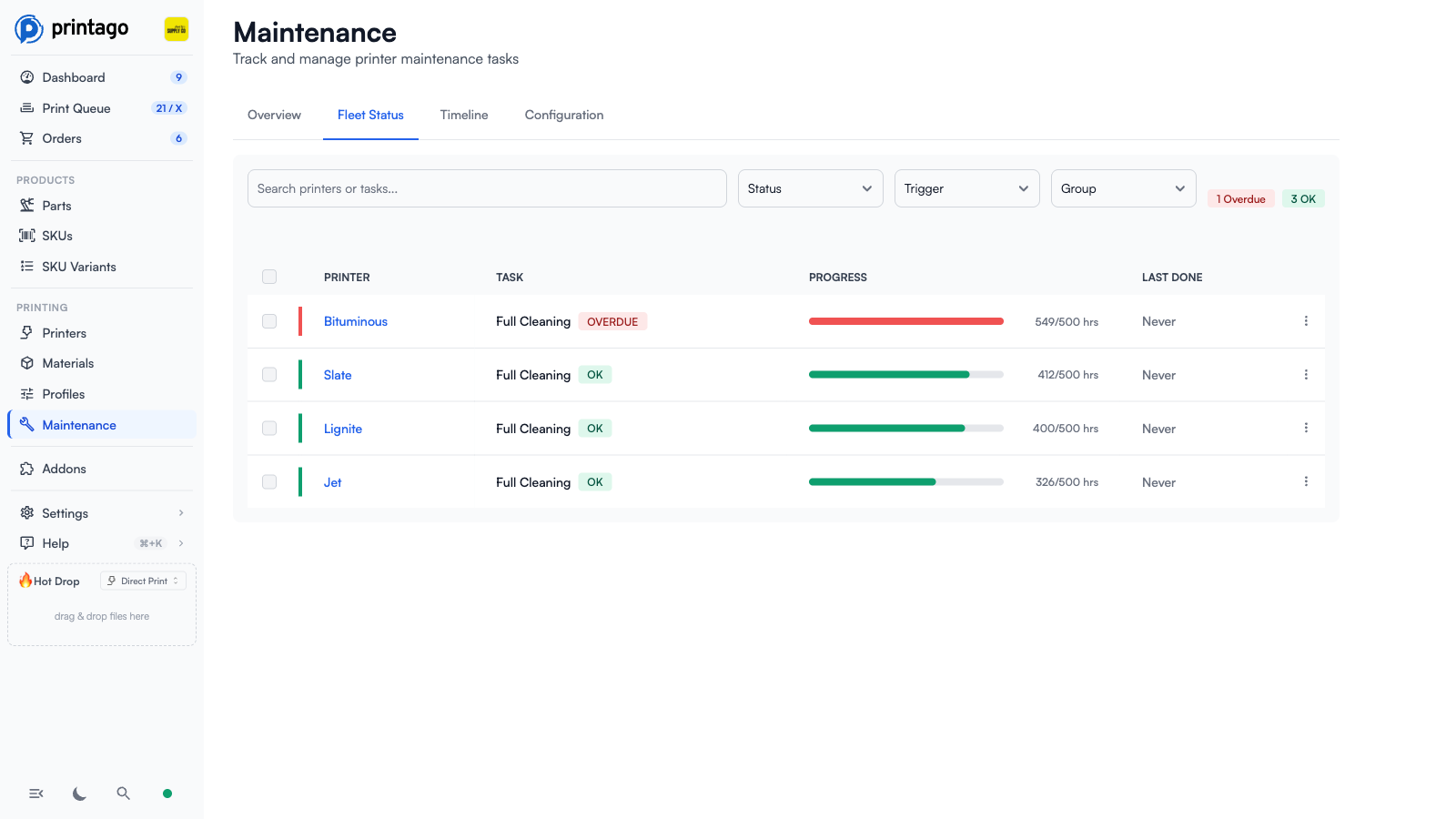
The Fleet Status tab is the full table of every printer / task pairing in your fleet:
- Search by printer name or task name
- Filter by status (Overdue, Due Soon, OK) or by trigger type (Print Hours, Calendar Days, Job Count)
- Group by printer or task to see patterns across the fleet
- Each row shows a progress bar (current elapsed / interval) and color-coded status
- Selecting one or more rows reveals bulk actions: Mark Done, Unassign, or Clear the selection
- Per-row dropdown menu provides Mark Done and Unenroll actions
Timeline Tab
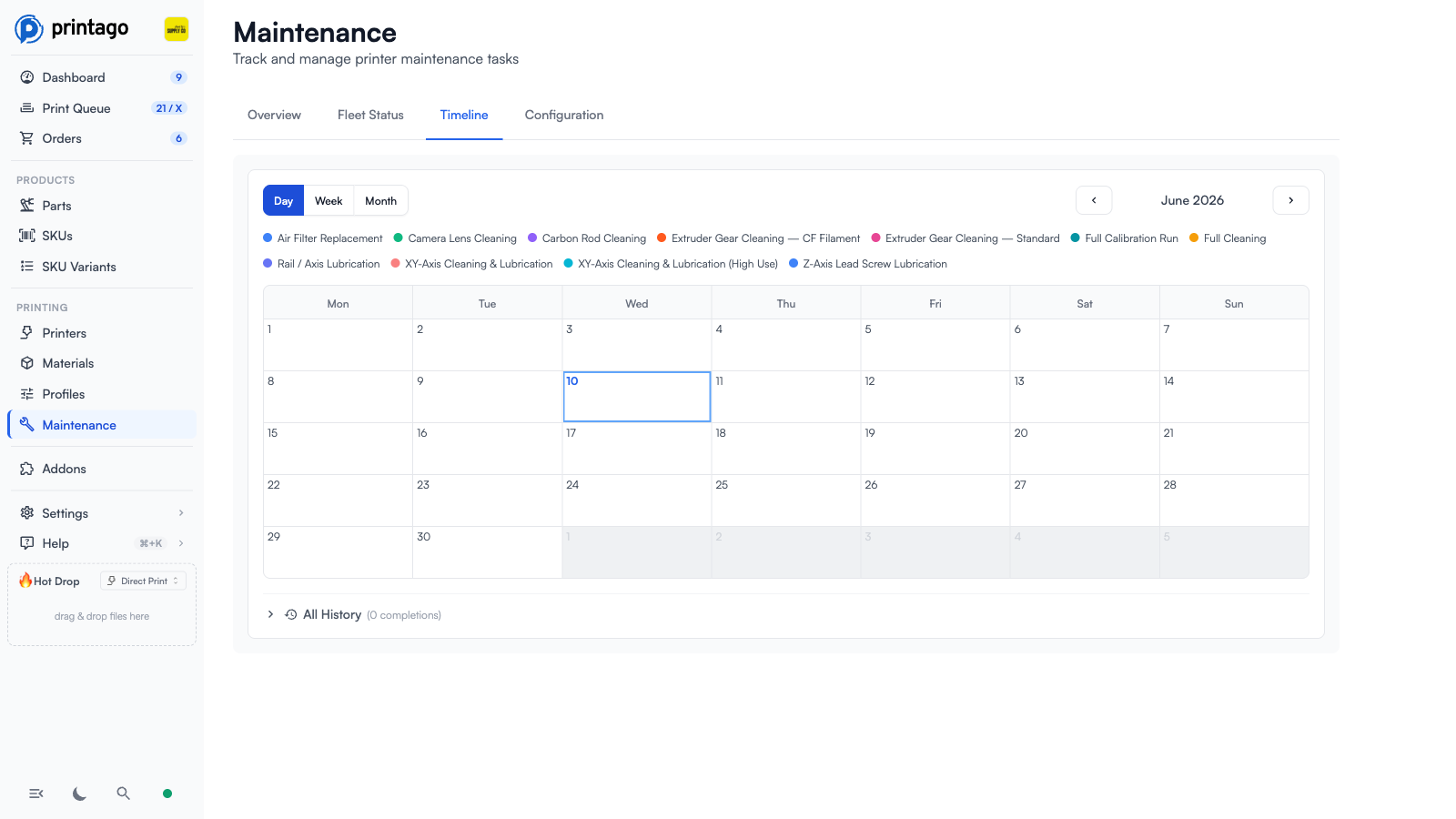
The Timeline tab is a calendar of maintenance activity across the fleet, with Day, Week, and Month views and a color-coded legend for each maintenance item. An All History list below the calendar collects past completions. This is useful for answering questions like "when did we last lubricate the X1Cs?" or "is one operator drifting more than others?"
Configuration Tab
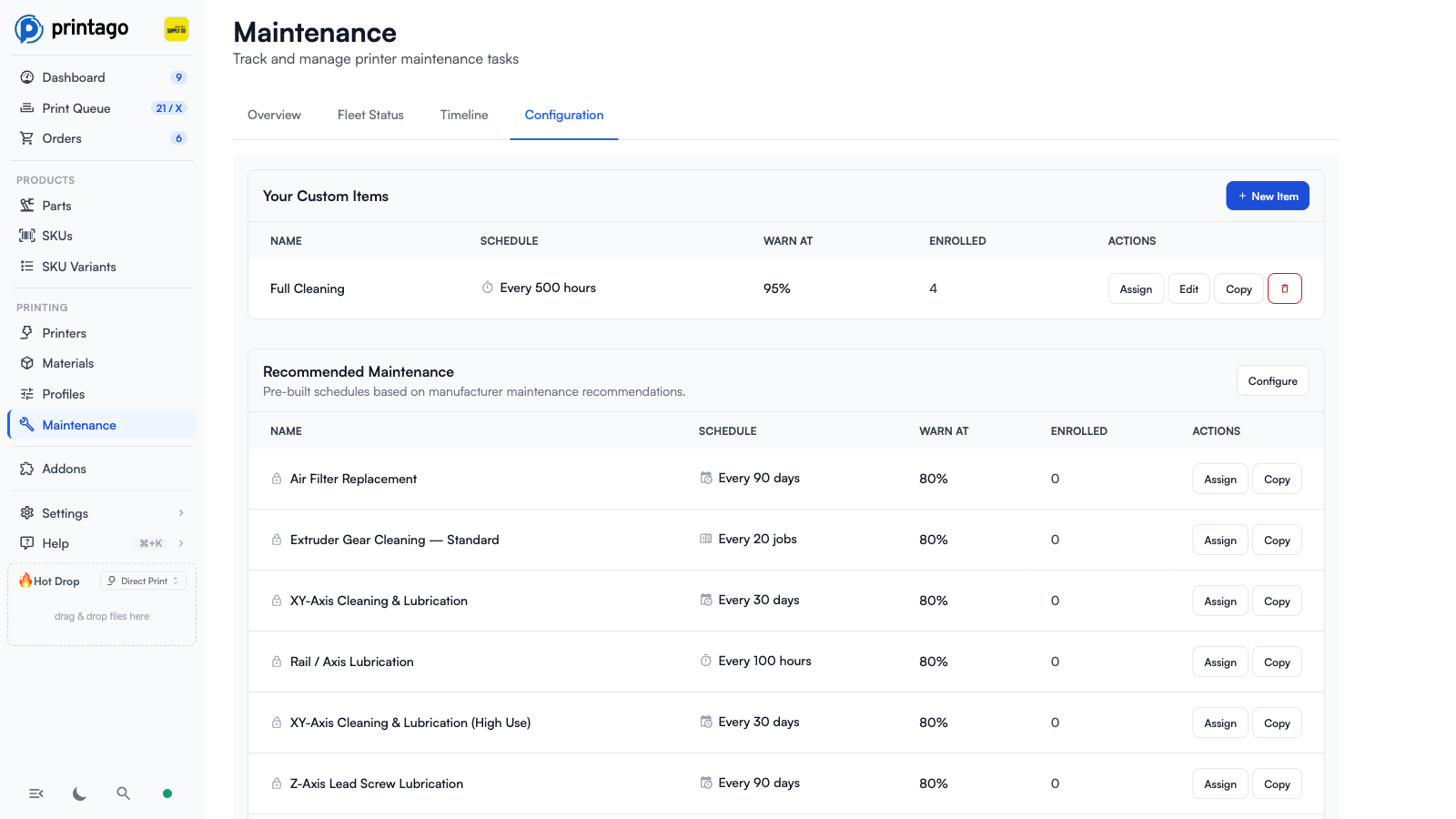
The Configuration tab is where you define what to track. It has two sections:
Your Custom Items - Maintenance items you've created. You have full edit and delete control over these.
Recommended Maintenance - Pre-built items based on manufacturer guidelines. You can Assign them to printers or Copy them to make a custom variant, but the templates themselves cannot be edited or deleted (they're system defaults).
Each row shows the item's schedule (e.g., "Every 500 hours", "Every 20 jobs"), its Warn At threshold, and how many printers are enrolled.
Maintenance Items
A maintenance item is a reusable definition of a task. It defines:
| Field | Description |
|---|---|
| Name | What the task is called (e.g. "Rail / Axis Lubrication") |
| Trigger Type | Print Hours, Calendar Days, or Job Count |
| Interval | The number of units between completions (e.g. 100 hours, 30 days, 20 jobs) |
| Warn At | Percent of the interval at which the status flips to Due Soon (default 80%) |
| Notes | Free-form text shown to operators when they perform the task |
Trigger Types Explained
- Print Hours - Counts actual time the printer was running prints, not wall-clock time. Best for wear-and-tear tasks like rail lubrication or full calibration runs.
- Calendar Days - Counts wall-clock time since the last completion. Best for environmental tasks like air filter replacement.
- Job Count - Counts completed prints. Best for tasks that wear something with each cycle, like extruder gear cleaning under abrasive carbon-fiber filaments.
Creating a Custom Item
- Go to Maintenance → Configuration
- Click New Item in the Your Custom Items section
- Set name, trigger type, interval, warning threshold, and optional notes
- Save
Editing or Copying
- Custom items can be edited in place or deleted
- Recommended items cannot be edited directly. Use Copy to create a custom variant you can then modify
Recommended Maintenance Profiles
Maintenance Tracker ships with a curated set of maintenance items based on Bambu Lab's published recommendations. Profiles are defined for the A1, A1 Mini, X1C, P1S, P1P, P2S, and H2D.
Examples of Default Items
| Item | Trigger | Default Interval |
|---|---|---|
| Rail / Axis Lubrication | Print Hours | 100 hours |
| Carbon Rod Cleaning | Calendar Days | 30 days |
| Z-Axis Lead Screw Lubrication | Calendar Days | 90 days |
| Extruder Gear Cleaning (Standard) | Job Count | 20 jobs |
| Extruder Gear Cleaning (CF Filament) | Job Count | 8 jobs |
| Air Filter Replacement | Calendar Days | 90 days |
| Full Calibration Run | Print Hours | 100 hours |
| XY-Axis Cleaning & Lubrication | Calendar Days | 30 days |
| Camera Lens Cleaning | Calendar Days | 30 days |
Each item has guidance notes describing what to do, so a new operator can perform the task correctly without separate documentation.
Applying Recommended Maintenance
The fastest way to get started is to use the Add Recommended Maintenance flow:
- Go to Maintenance → Configuration
- Click Configure in the Recommended Maintenance section, or
- From an empty Fleet Status tab, click Add Recommended Maintenance
- Step 1: Select which printers to enroll. The dialog automatically maps each printer to its model's recommended profile.
- Step 2: Set starting offsets for printers that have already been in service. Example: a printer with 1,200 print hours can start its 100-hour lubrication cycle at offset 1,150 so it shows as nearly due rather than freshly serviced.
- Click Apply Recommended Maintenance
Offsets are critical when onboarding existing printers. Without them, every enrolled printer would briefly look like it had just been serviced from scratch. With them, your fleet's real maintenance state is reflected from the moment you enroll.
Enrollments
An enrollment is the link between one printer and one maintenance item. The same printer can have many enrollments (one per task it's tracking), and the same task can be assigned to many printers.
Enrolling Printers in a Task
- Maintenance → Configuration
- Find the item (in Your Custom Items or Recommended Maintenance)
- Click Assign
- Pick the printers to enroll
- Optionally set per-printer starting offsets
- Save
Adding a Task to a Specific Printer
When grouping the Fleet Status view by printer, each printer row has an Add Task button that lists all available maintenance items not yet assigned to that printer.
Unassigning
You can unassign individual enrollments from the per-row menu in Fleet Status, or select multiple rows and use the Unassign bulk action.
Marking Tasks Done
When you (or an operator) physically performs the maintenance, mark the task done in Printago to reset the cycle.
From the Overview Tab
Click the green Done button next to any printer that needs attention.
From the Fleet Status Tab
- Single task: Open the per-row menu and click Mark Done
- Multiple tasks: Select rows with checkboxes, then click Mark Done in the bulk action bar
Mark Done Dialog
The dialog captures:
- Notes (optional) - free-form, written to the completion log
- Performed by (optional) - who did the work
When confirmed, Printago records a completion log entry and resets the cycle's elapsed counter for each enrollment. The next iteration starts immediately.
Maintenance Mode
Maintenance Mode is a per-printer toggle that takes a printer out of the queue immediately so you can service it without queued jobs starting on the wrong machine.
Enabling Maintenance Mode
There are two ways to enable Maintenance Mode:
On a single printer:
- Go to the printer's page
- Use the Maintenance Mode toggle
On multiple printers (bulk):
- Go to Printing → Printers
- Select printers with the checkboxes
- Use Actions → Maintenance Mode → Enable
What Happens When Enabled
- The printer is removed from the queue immediately
- It's marked not ready (clear-and-ready is reset)
- FabMatic continuous printing is disabled on that printer
- A yellow MAINT badge appears on the printer's dashboard card and in the Printers list
- A notification fires to your configured channels
Bringing a Printer Back
When the service work is finished, the printer does not automatically rejoin the queue. This is intentional: you've done the maintenance, so you decide when it's ready.
- Disable Maintenance Mode (single or bulk)
- The printer transitions back to a not-ready state
- Mark it ready (single click on the Printers list, or press
R) to add it back to the queue
Even if your subscription's Maintenance Tracker entitlement is cancelled, you can always disable Maintenance Mode so a printer can come back online. The entitlement is only required to enable it.
Notifications
Maintenance events flow through Printago's existing notification system. If you've already configured Discord, Slack, Pushover, Telegram, or generic webhooks, no additional setup is required.
| Event | When It Fires |
|---|---|
| Maintenance Due Soon | A task crosses its Warn At threshold |
| Maintenance Overdue | A task passes its full interval without being marked done |
| Maintenance Mode On | A printer enters Maintenance Mode |
| Maintenance Mode Off | A printer exits Maintenance Mode |
Each notification includes the printer name, the task name, and (where applicable) progress information.
Permissions
Maintenance Tracker has its own permission scope, plugged into Printago's role-based permissions:
| Permission | What It Allows |
|---|---|
maintenance.view | View the Maintenance page, fleet status, and timeline |
maintenance.create | Create new maintenance items, copy recommended items |
maintenance.edit | Enroll/unenroll printers, edit custom items, set Maintenance Mode |
maintenance.delete | Delete custom maintenance items |
maintenance.complete | Mark tasks done |
A common production setup is to give floor operators view + complete so they can mark tasks done as they perform them, while restricting create / edit / delete to admins who shape the schedule.
Tips and Best Practices
Setting Realistic Intervals
Start with the recommended profiles. They're a sensible default. After a month or two, review the Timeline tab to see if certain items are consistently being completed early (interval too short) or consistently overdue (interval too long), and adjust.
Using Notes Effectively
Add operator-friendly notes on each custom item explaining what to do and what tools / supplies to grab. The notes show up when an operator opens the item, turning each task into a self-contained mini-runbook.
Per-Printer Offsets at Enrollment
When onboarding a printer that's been in service for a while, always set starting offsets at enrollment time. Otherwise the entire fleet will briefly look like it was freshly serviced, which makes the dashboard misleading until enough time passes for the real state to reappear.
Bulk Maintenance Sessions
When pulling multiple printers for a service session:
- From the Printers list, select the machines and use Actions → Maintenance Mode → Enable
- Service the machines
- From the Maintenance page, select the relevant fleet-status rows and Mark Done in bulk
- Disable Maintenance Mode (bulk action) and mark the printers ready
Differentiating Materials with Custom Items
If part of your fleet runs primarily abrasive filaments, copy the Extruder Gear Cleaning recommended item, rename it (e.g. "Extruder Gears - CF Heavy"), shorten the interval, and assign it only to those specific printers. The original item can stay assigned to the rest of the fleet at the standard interval.
Troubleshooting
A printer shows wildly out-of-date elapsed counters
Verify the printer's starting offset when it was enrolled. If it was enrolled at offset zero on a machine with significant prior runtime, the elapsed counter will appear lower than reality. Unenroll and re-enroll with a correct offset, or contact support to adjust.
A task is marked done but still shows as overdue
Refresh the Maintenance page. If the issue persists, verify the operator clicked Confirm in the Mark Done dialog. The Recent Completions list on the Overview tab is the fastest way to confirm a completion was recorded.
Notifications aren't firing for maintenance events
- Verify the notification channel is enabled in Settings → Notifications
- Verify the maintenance event types are subscribed for that channel
- Confirm the task actually crossed its threshold (a task at 79% won't notify if your Warn At is 80%)
Frequently Asked Questions
How is print hour usage counted?
Print hours are computed from completed prints attributed to that printer in Printago. Maintenance Tracker uses the same telemetry that drives the dashboard, so as long as a printer is connected to Printago, its print hours roll up automatically.
Can two printers of the same model have different schedules?
Yes. Enrollments are per-printer, so two X1Cs can be on the same recommended profile but with different starting offsets, or one of them can carry an extra custom task that the others don't.
Will overdue maintenance stop a printer from accepting jobs?
No. The tracker is informational, not enforcing. Use Maintenance Mode if you want to actively remove a printer from the queue.
Are there pre-built profiles for non-Bambu printers?
Currently the recommended profiles cover Bambu Lab models only (A1, A1 Mini, X1C, P1S, P1P, P2S, H2D). The tracker itself works with any printer connected to Printago, so you can build custom items for any printer model in your fleet.
How much does Maintenance Tracker cost?
Free while in beta. Pricing after beta will be listed at printago.io/pricing.
Where can I give feedback?
Drop your feedback in the Printago Discord or email support@printago.io.