Assets
Your store's assets live under Products → Assets. For now, assets are fonts: add the typefaces your designs use, and Printago prints text placeholders in the exact font you designed with. Other file types (such as shared OpenSCAD libraries) will join them later.
Why add a font?
A 3MF project stores only the name of the font a text object was written in, never the font itself. Printago's servers include a set of freely licensed fonts (Noto, DejaVu, and Liberation families), and common system fonts print as close equivalents (Courier New prints as Liberation Mono, Arial as Liberation Sans). Any other font, including the brand font your store designs with, needs to be added once. After that, every part that asks for it prints with it.
Fonts on the part page
When a 3MF part contains text placeholders, a Library files section appears under the part's parameters. Each font the part uses is listed with its status:
- In your library: the font is in your library, and text prints with it.
- Included: the font ships with Printago, or prints as a close equivalent (the substitute is named).
- Not available: Printago does not have this font. An Add font button lets you add it on the spot.
The same check runs while you are creating a part, as soon as you pick the file, so you find out before the first print.
Adding a font
Choose Add font on the Assets page, or on a font marked Not available on a part. The dialog has two tabs.
From Google Fonts
- Search for the family, or browse by category. Each family is shown in its own typeface.
- Pick the family, then the styles you need: Regular, Italic, Bold, or Bold Italic.
- Choose Add.
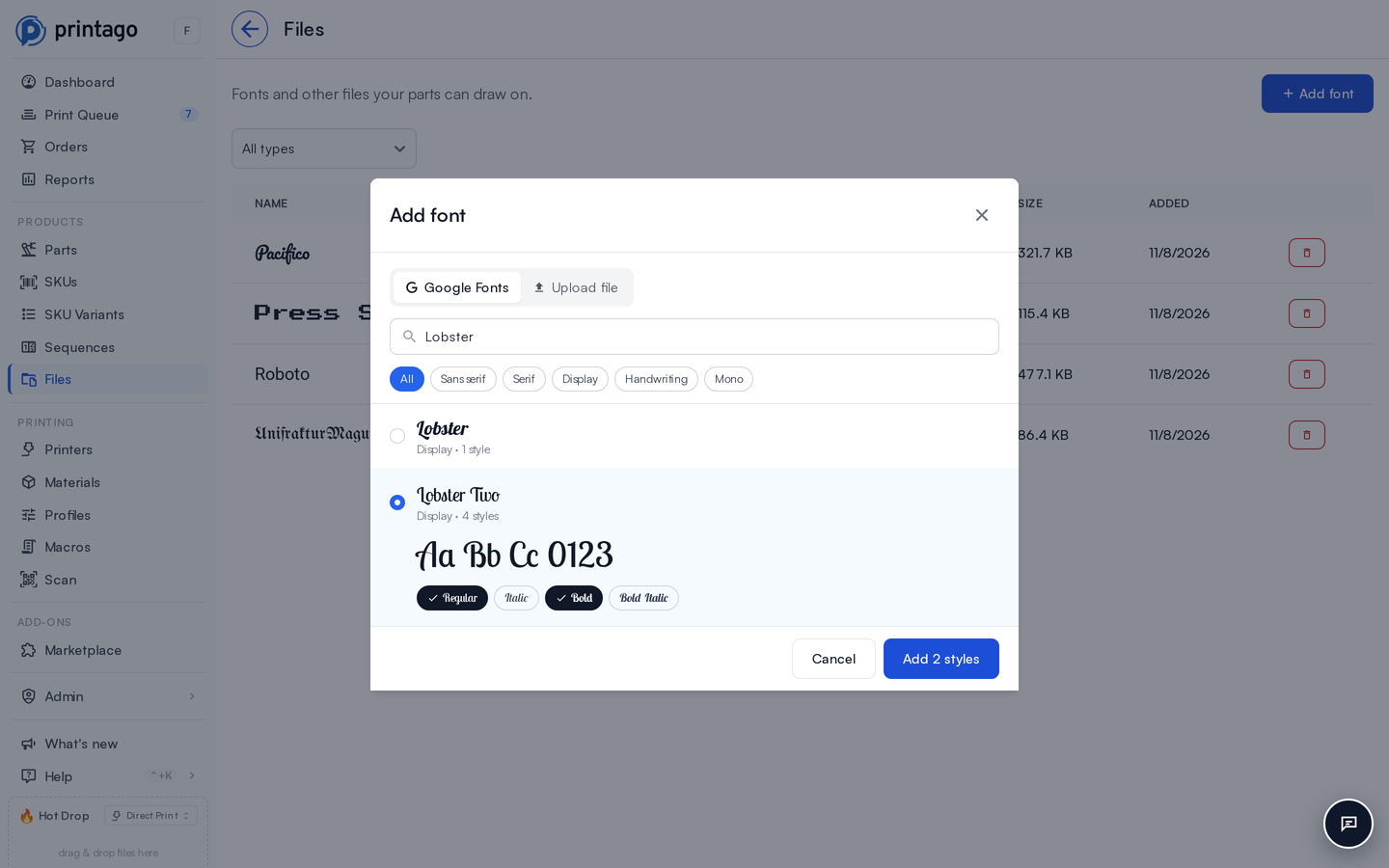
Printago downloads the styles you picked and keeps its own copy in your library, so your prints never depend on Google being reachable. When you open the dialog from a part, the family the part asks for is already selected, along with the styles its placeholders use, and the preview shows your placeholder's own text.
From Printago Studio
Saving a project from Printago Studio adds any Google font its text uses that isn't in the library yet. Studio's font list shows your library first.
Uploading a file
- Pick a
.ttfor.otffile. Font collections (.ttc) and web formats (.woff,.woff2) are not accepted; export the single face you need as.ttfor.otf. - Confirm you have the rights to use the font. Printago renders text with your font on your behalf and never redistributes the file.
Printago reads the font's real name from the file itself, so it does not matter what the file is called. Add the styles you use: a bold text object prints best when a bold style is in the library. Adding the same file twice keeps the single existing copy.
Variable fonts
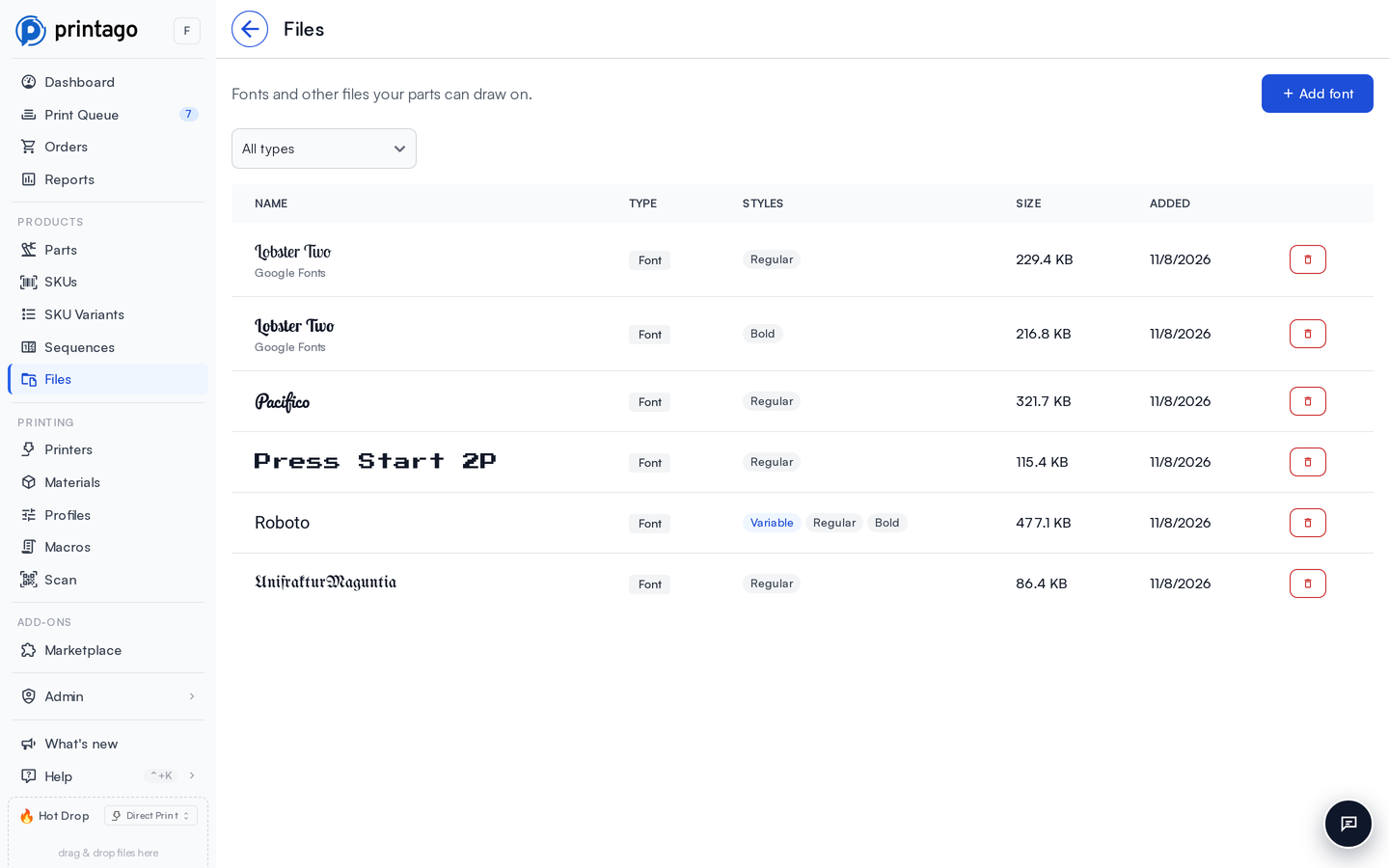
A variable font is one file that covers a range of weights, such as Roboto[wght].ttf. Printago draws each style the file's weight range includes: a file that spans regular and bold weights prints both Regular and Bold placeholders. The Assets page marks these files Variable and lists the styles they provide.
Checking a build
Open a print's Build Details and expand the text step to see which font each placeholder was drawn in. When Printago had to use a stand-in, the line shows both names, for example Pacifico → Noto Sans, marked Substituted. Add the font and the next print uses it.
Managing the library
The Assets page lists everything in the library. Each font is named by its family, shown in its own typeface, with its type, the styles it provides, its size, and when it was added. Fonts added from Google Fonts say so under their name. The filter above the table narrows the list to one file type. Deleting a font removes it from every part that uses it; those parts fall back to the closest included font on their next print.
Viewing the library requires the file.download permission; adding and deleting fonts require file.manage. See Permissions.