Deleting Your Account
Deleting your account removes your organization and everything in it: printers, parts, SKUs, print jobs, orders, materials, profiles, integrations, API keys, and every file you have ever uploaded. Printago keeps no copy, there is no export afterwards, and once it runs there is no undo.
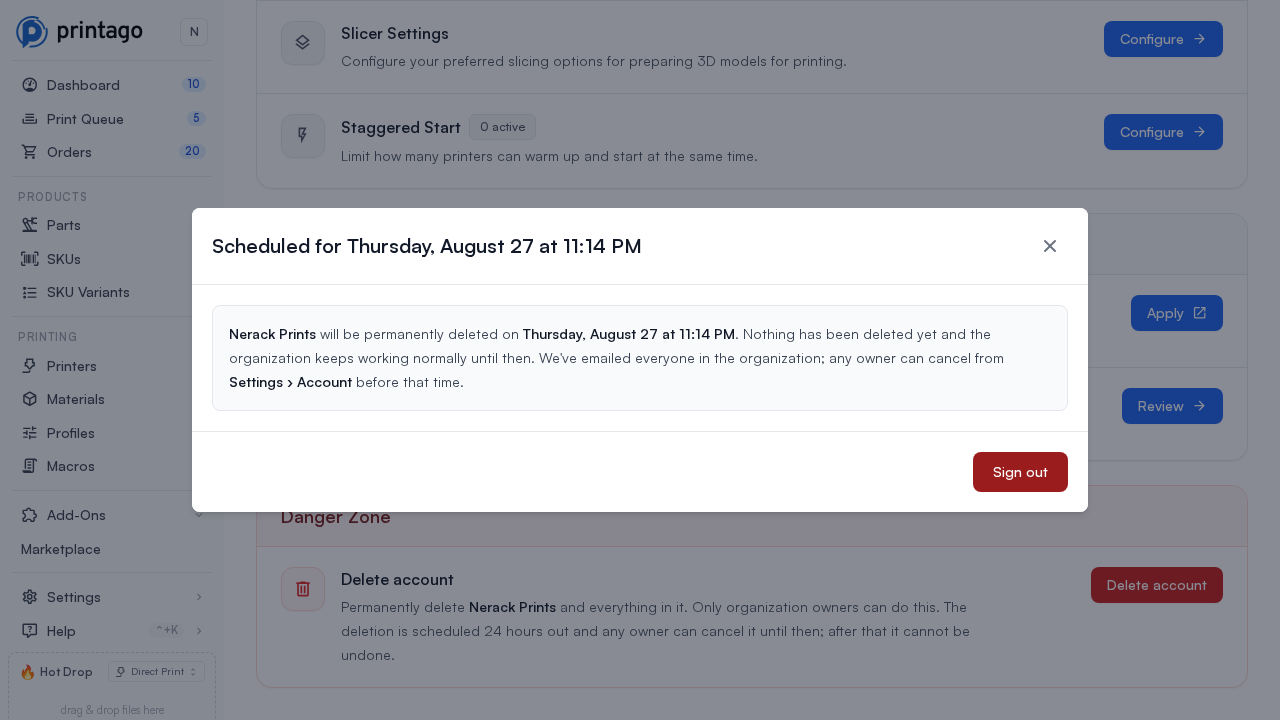
It does not run straight away. Confirming schedules the deletion for 24 hours later and nothing is touched in between: everyone keeps working normally, and any owner can call it off at any point during that day.
Only organization owners can start or cancel a deletion, and only while signed in to the web app. The API cannot do either, no matter what permissions an API key holds.
During the window nothing has been deleted and cancelling puts everything back exactly as it was. Once the 24 hours are up, your data is destroyed and cannot be recovered.
Before you start
Cancel your subscription first. An organization with an active Core subscription cannot be deleted, because deleting it would not stop Stripe charging your card. Cancel under Settings → Subscription, then come back. Free, personal, and trial accounts have nothing to cancel.
This also applies when a payment has failed. A subscription whose payment bounced loses its features but stays open at Stripe and keeps retrying the charge, so it still blocks the deletion until it is properly cancelled.
The subscription is checked twice: once when you schedule the deletion, and again when the 24 hours are up. Starting a subscription during the window stops the deletion at that second check.
Cancel paid add-ons too. Add-ons are billed separately from the plan, so one can still be charging your card on an organization with no plan at all. A paid add-on blocks the deletion the same way a subscription does; cancel it under Settings → Subscription first.
Stop anything you still care about. Printers keep printing for the whole 24 hours. Anything still running when the deletion starts is abandoned on the machine: it is not stopped or paused, it simply stops being managed.
Warn your team. Every member of the organization loses access, not just you. Owners and admins are emailed the moment you schedule it, with the date and time it will run, and again once it has finished. The email gives that time in UTC, since an email has no way to show it in your own timezone. Every member sees a banner in the app for the whole day, whatever their role, so nobody finds out only after the fact.
Fuse stops too. Any Printago Fuse you have paired with this organization is unpaired as part of the deletion. It stops relaying printers and has to be paired again from scratch if you later use it with a different organization.
Scheduling the deletion
Go to Settings → Account and scroll to the Danger Zone at the bottom of the page. If you do not see it, you are not an owner of this organization.
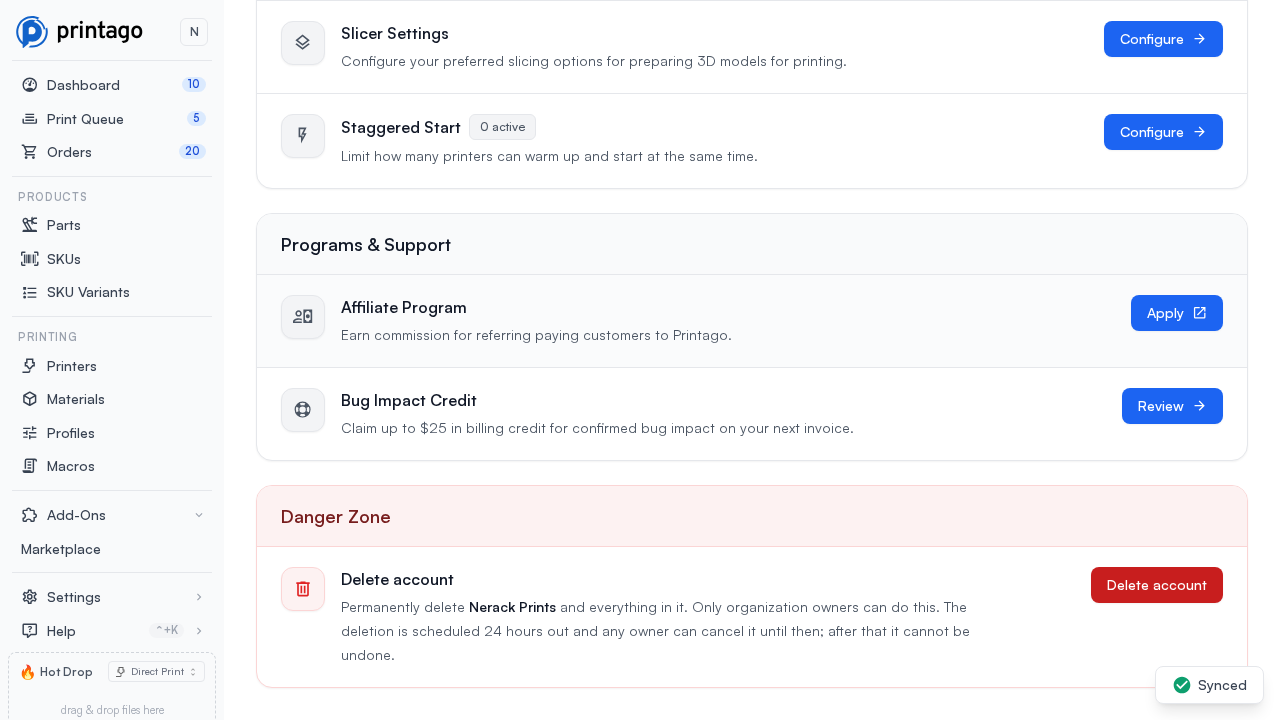
Click Delete account. The first step shows what this organization actually holds, so you can see the size of what you are about to destroy before you commit to it.
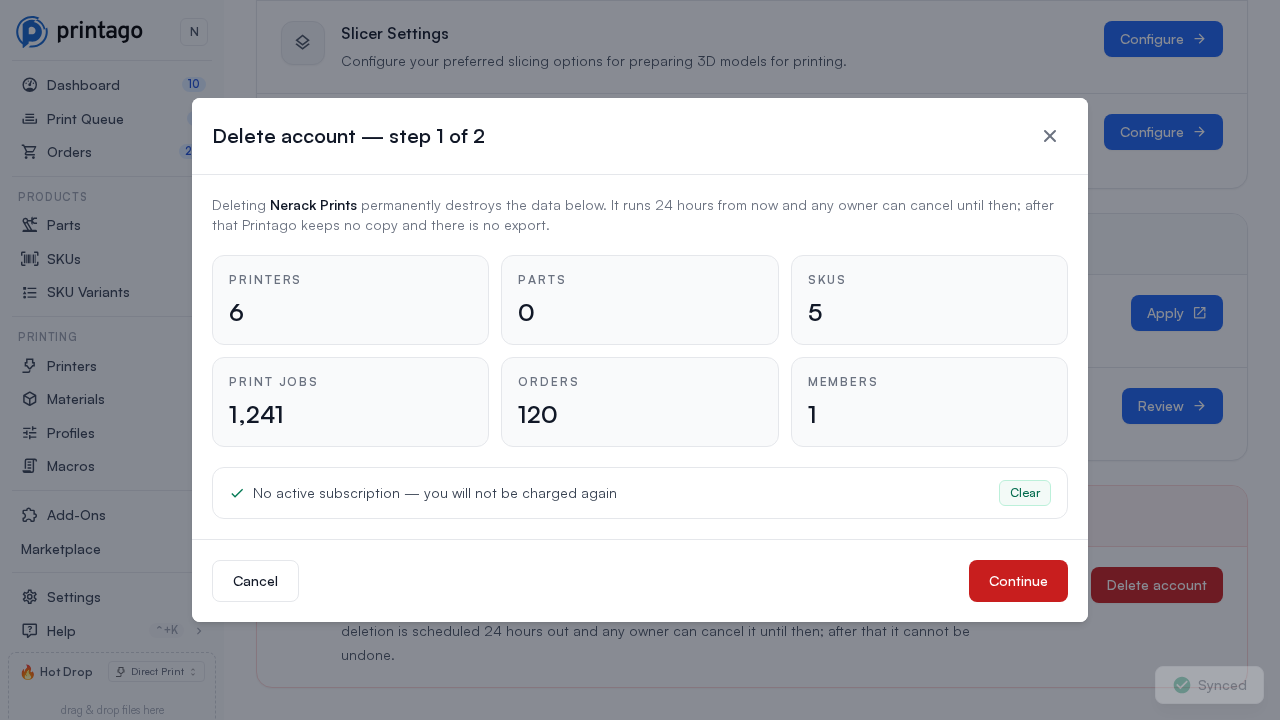
The same screen runs the checks. A live subscription blocks the flow here, with a link straight to billing:
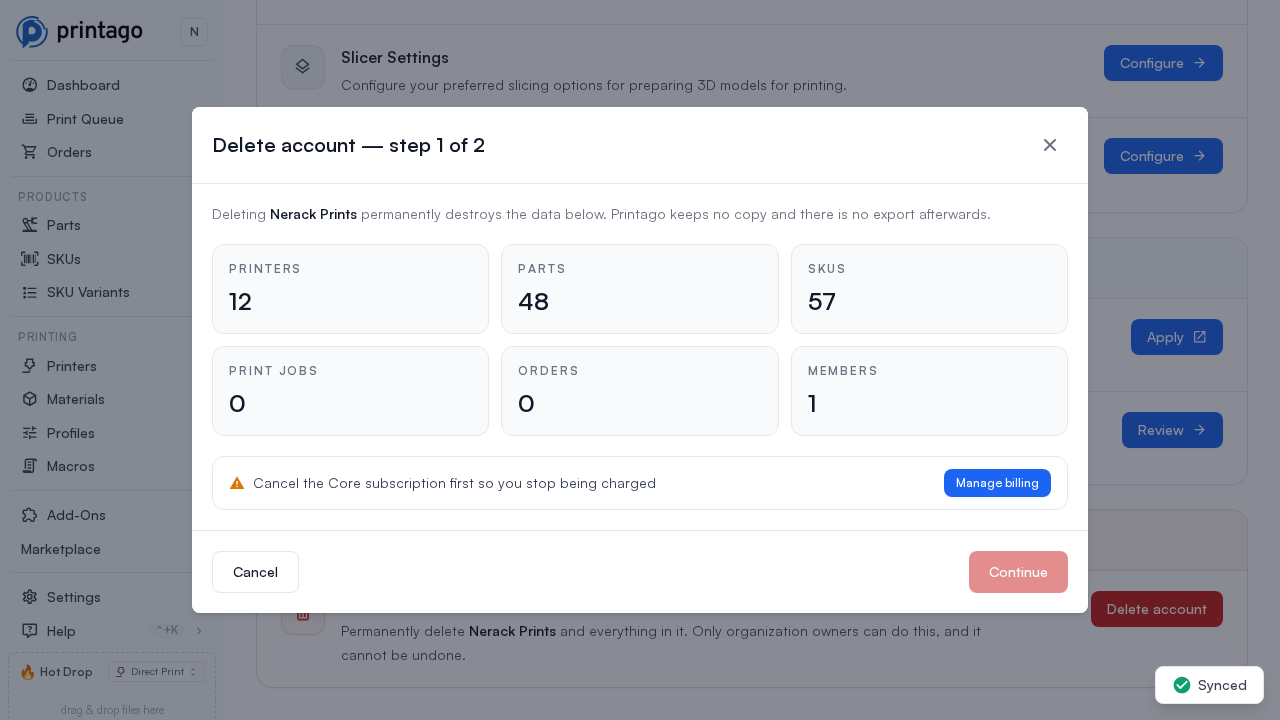
Printers that are currently printing show as a warning rather than a block, because abandoning a print is your call to make. They keep printing until the deletion runs.
The second step asks you to type GOODBYE PRINTAGO. It has to match exactly, capitals included; Schedule deletion stays disabled until it does.
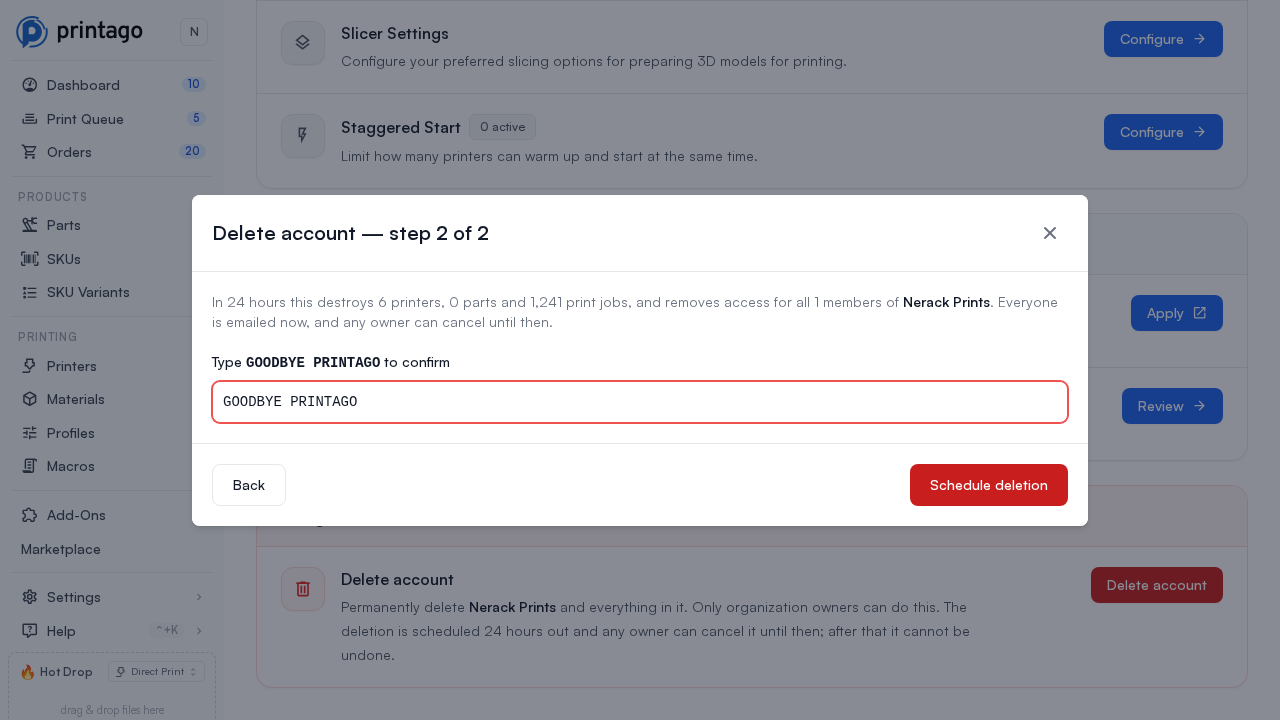
Confirming schedules the deletion and tells you the exact date and time it will run. Nothing has been deleted, and you can carry on using Printago as normal until then.
During the 24 hours
Everything works exactly as it did. Nobody is signed out, no page is hidden, printers keep printing and orders keep coming in.
The one difference is a red banner across the top of every page, for every member, naming the date:
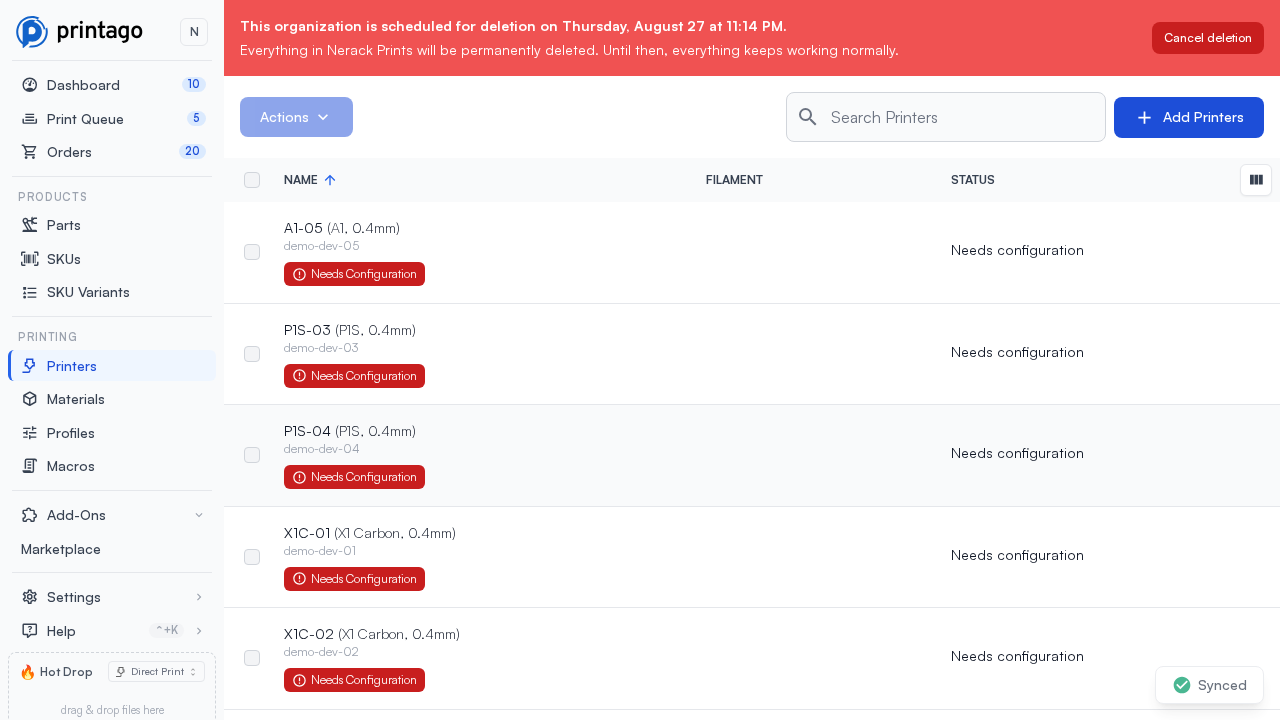
Owners get a Cancel deletion button on the banner. Everyone else is told to contact an owner.
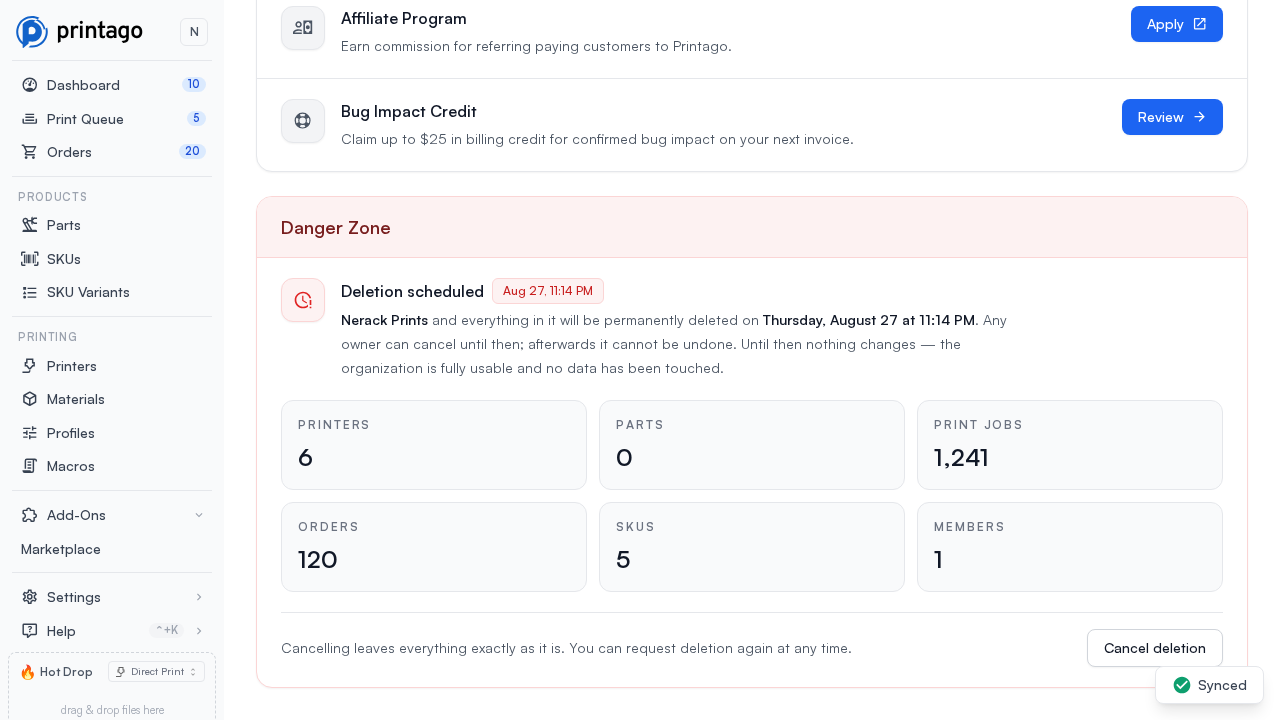
Settings → Account also changes for the day: the Danger Zone's Delete account row is replaced by a Deletion scheduled row, naming the date and carrying its own Cancel deletion button.
Cancelling
Any owner can cancel, from either the banner or Settings → Account. Both ask you to confirm first, so a stray click cannot un-schedule a deletion the organization meant to go through with.
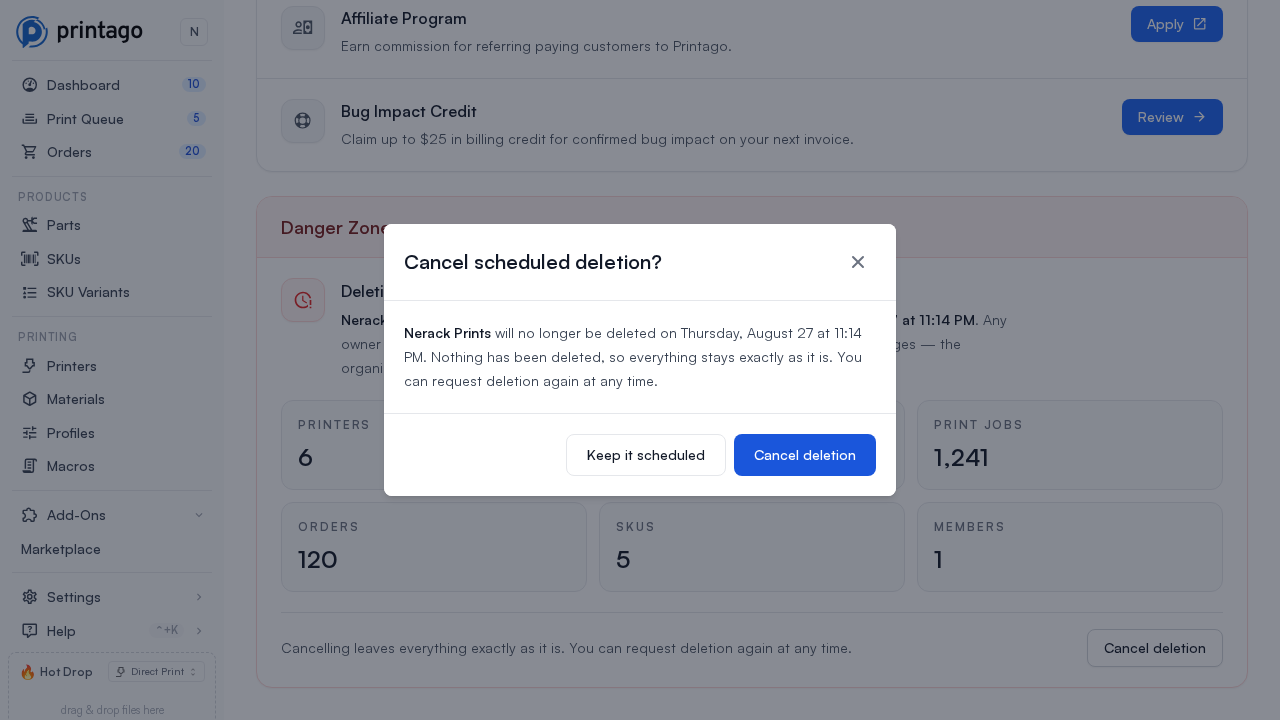
Cancelling leaves the organization completely intact: nothing has been deleted at this point, so there is nothing to restore. The banner disappears, the Danger Zone goes back to normal, and you can schedule a deletion again whenever you want.
We keep a record that the deletion was requested and then cancelled, including who cancelled it and when.
Cancel any time up to the moment the deletion starts. Once it has begun there is nothing to cancel — the first thing it does is revoke access — and the button says so rather than pretending it worked.
What happens after the 24 hours
The deletion runs as a durable background job, so it finishes even if something restarts partway through. In order:
- Your subscription is checked one last time. If one has been started during the window, the deletion stops here and nothing is destroyed.
- All access is revoked: member access, API keys, integration credentials, and any paired Printago Fuse devices, which are unpaired and disconnected at this point rather than when the organization's records go.
- Every file the organization owns is deleted, including uploads, camera snapshots, timelapses, and print telemetry.
- The organization and all its records are deleted.
- If this was your last organization, your Printago login is deleted too, along with any passkeys registered to it. Other members keep their logins, since they may belong to other organizations.
- Owners and admins get a final email confirming the deletion finished.
Most organizations finish in seconds once they start. A very large one with many files takes longer, and the email is how you know it is done.
What is kept
Printago keeps a small record that the deletion happened: the organization name, who requested it, when, whether it was cancelled, and how much was deleted. It holds no organization data, and exists so support can confirm your data really was destroyed if you ever ask.
Your Stripe billing history is also kept. Invoices are financial records and are not part of the organization's data.
If you belong to more than one organization
Deleting an account deletes one organization, the one you are signed in to. Switch organizations first if you are not in the one you mean to delete. If you belong to others, your login survives and you land in the next one; if this was your only one, your login is removed with it.
Troubleshooting
The Danger Zone is not on the page. Only owners see it. Ask an owner of the organization to do it, or have one transfer ownership to you under Settings → Users.
Schedule deletion stays greyed out. The phrase has to match GOODBYE PRINTAGO exactly: uppercase, one space, no leading or trailing space.
There is a deletion banner and I do not know who started it. Any owner can cancel it from the banner or from Settings → Account, and cancelling costs nothing: nothing has been deleted yet, and a deletion that should go ahead can simply be scheduled again.
"Cancel the Core subscription before deleting this organization." The organization still has a live Core subscription. Cancel it under Settings → Subscription, then reopen the dialog. If this appears a day later, on the record of a deletion that did not run, a subscription was started during the window: cancel it and schedule the deletion again.
"This organization still has a Stripe subscription attached." The plan's features are off, usually after a failed payment, but the subscription itself is still open at Stripe and can charge you again. Cancel it under Settings → Subscription, then reopen the dialog. If the page shows nothing to cancel, contact support: deleting while Stripe still has the subscription would leave you being billed with no organization to cancel from.
"Cancel the … add-on subscription before deleting this organization." A paid add-on is still open at Stripe. Add-ons bill on their own, independently of your plan, so this can appear even when the plan says Free. Cancel the named add-on under Settings → Subscription, then reopen the dialog.
"This deletion has already started and can no longer be cancelled." The 24 hours are up and the deletion is running. The window for cancelling has closed; contact support if this was not meant to happen, but the data is being destroyed and cannot be recovered.
"Account deletion is temporarily unavailable." This appears after you confirm, as a message in the dialog and a notification in the corner: the service that runs deletions could not take the request. Nothing has been scheduled and nothing has been deleted. Try again later, or contact support and we will delete the organization for you.