Using the Mobile App
This page walks through the app on a phone. The iPad layout shows the same features in a wider, two-pane form, covered in Using on a Tablet.
The dashboard
The Printers tab is your home base. At the top, a row of counters summarizes the fleet at a glance: how many printers are Running, Errored, Waiting, and Ready. Below that, each printer appears as a card with its live camera snapshot, current part, status, and print progress.
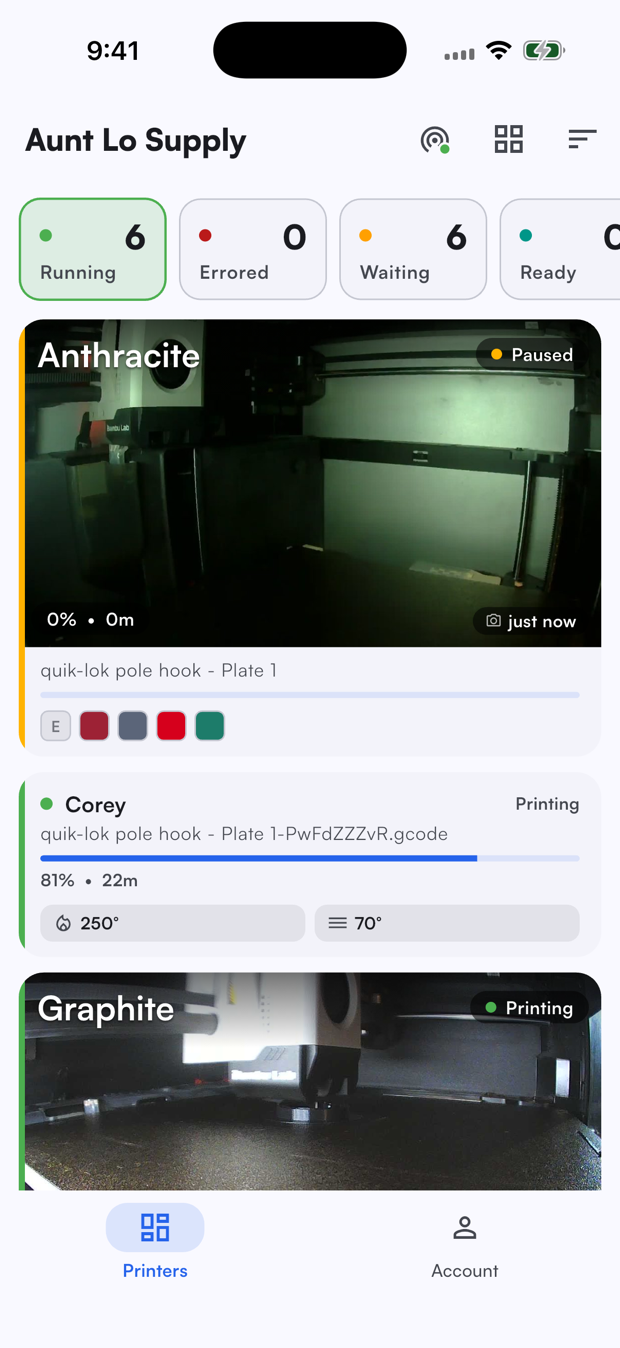
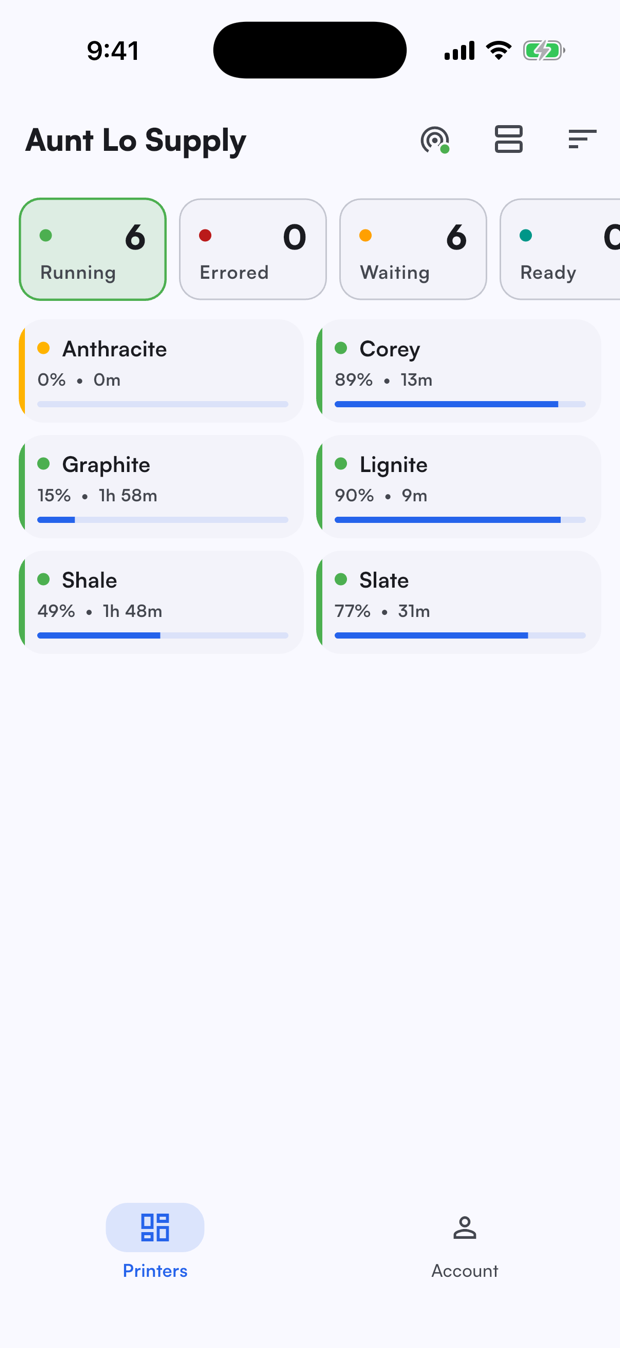
Camera snapshots refresh automatically, with a badge showing how recently each frame was captured. Printer cards also show loaded filament swatches and a live progress bar for active prints.
The icons in the top right let you:
- Realtime status - confirm the app is connected and receiving live updates.
- Compact view - switch to a condensed, two-column list (shown above right) that fits the whole fleet on one screen without cameras. Tap it again to return to the camera grid.
- Sort - change the order printers appear in.
Cameras require the printer.camera permission. See Camera Streaming for how camera support works.
Printer details
Tap any printer card to open its detail screen. This is where you watch and control a single printer.
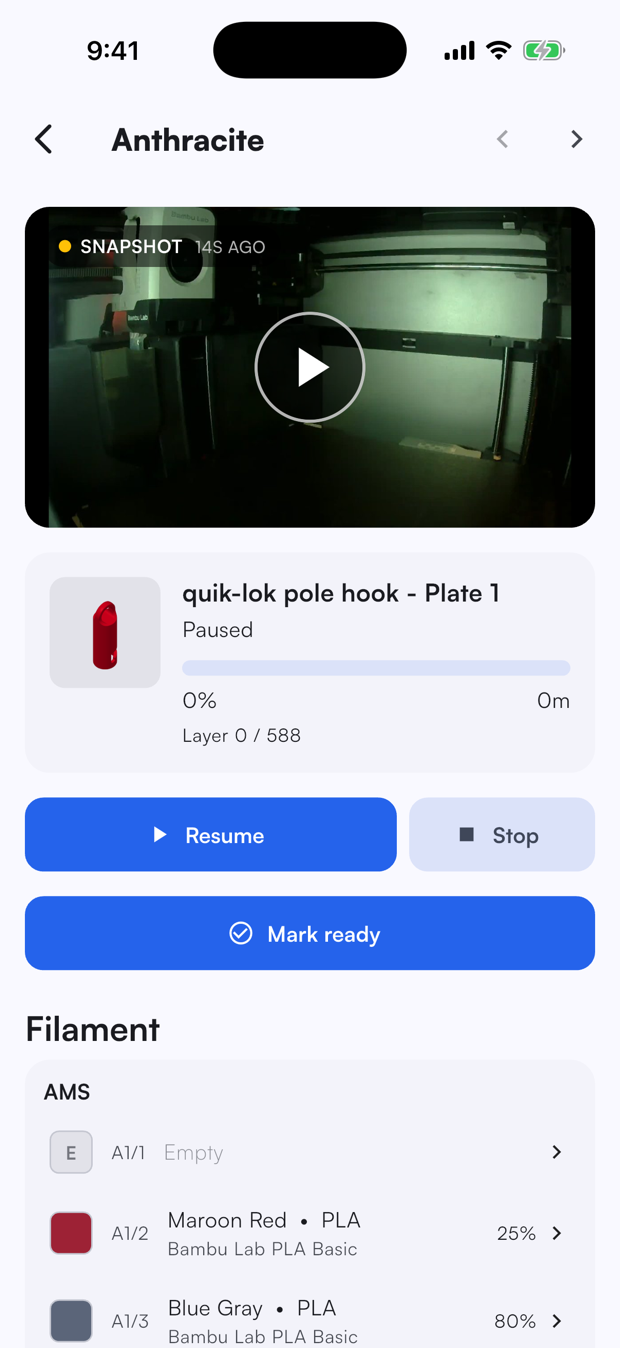
At the top, the camera shows the most recent snapshot. Tap the play button to start a live video stream of the printer. Below the camera you will see the current part, status, layer, and progress.
Use the arrows at the top of the screen to step to the next or previous printer without returning to the dashboard.
Print controls
When a print is active, the detail screen shows:
- Pause / Resume - hold or continue the current print.
- Stop - cancel the print on the printer.
- Mark ready - clear the printer so it can pick up the next job in the queue.
These mirror the actions in the web Printer Control Panel, and respect the same permissions.
Controls
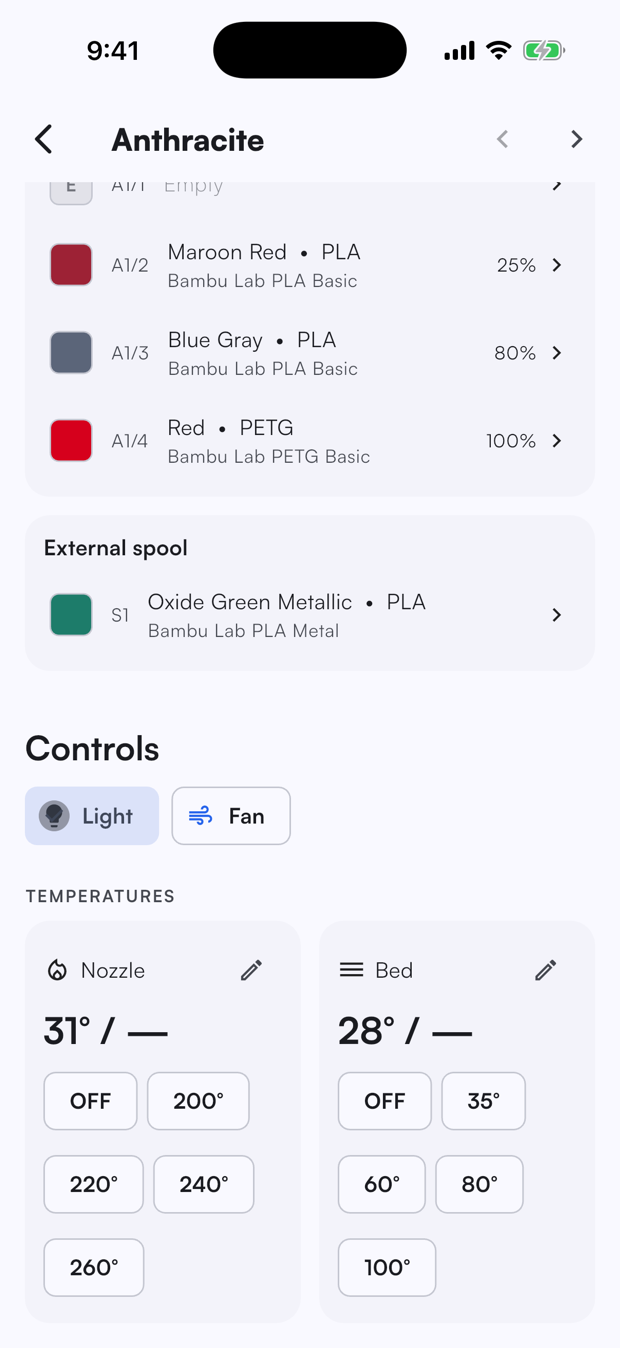
Scroll down to the Controls section to adjust the printer directly:
- Light and Fan toggles for the printer's chamber light and part-cooling or auxiliary fan, where supported.
- Temperatures for the Nozzle and Bed, showing the current and target values. Tap a preset (for example
220°or60°), use the pencil to set a custom target, or tap OFF to turn heating off.
Available controls depend on what the connected printer reports, so the exact toggles and presets vary by model.
Filament
The Filament section lists every slot the printer exposes. For an AMS or multi-material unit, each lane shows its assigned material, color, and remaining amount. External spools appear in their own group.
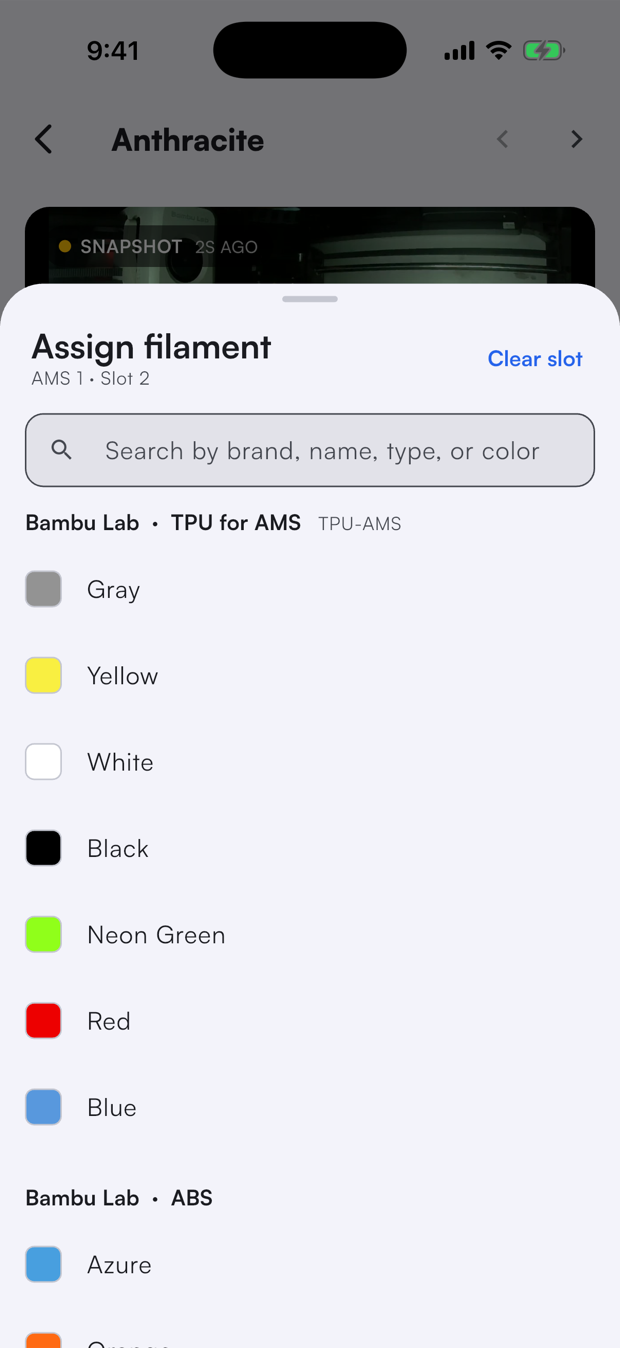
Tap any slot to open the Assign filament sheet. Search by brand, name, type, or color, then pick a filament to assign it to that slot. Use Clear slot to empty a lane. This keeps the printer's loaded materials in sync with material matching so the queue routes the right jobs to the right printer.
Scanning QR tags
The app has a Scan tab between Printers and Account for scanning QR tags. It appears when you have the qr.scan permission.
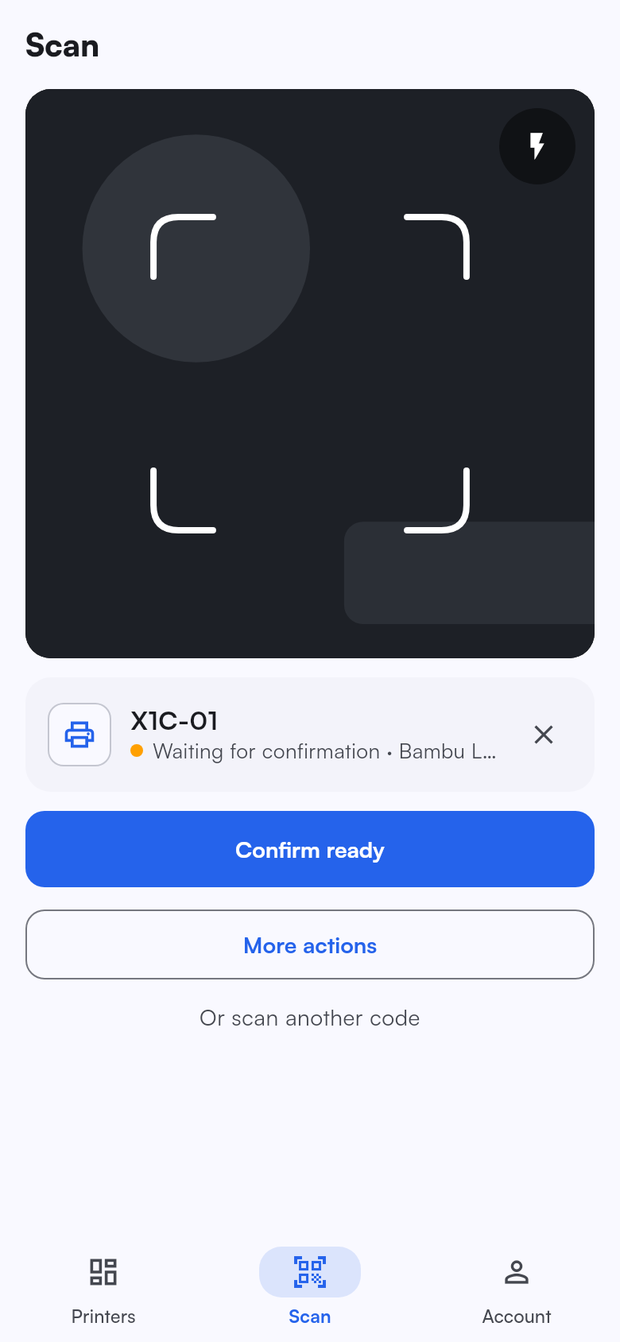
The first time you open the tab, the app asks for camera access. If you said no, the tab shows Open settings so you can allow the camera for Printago in your phone's settings.
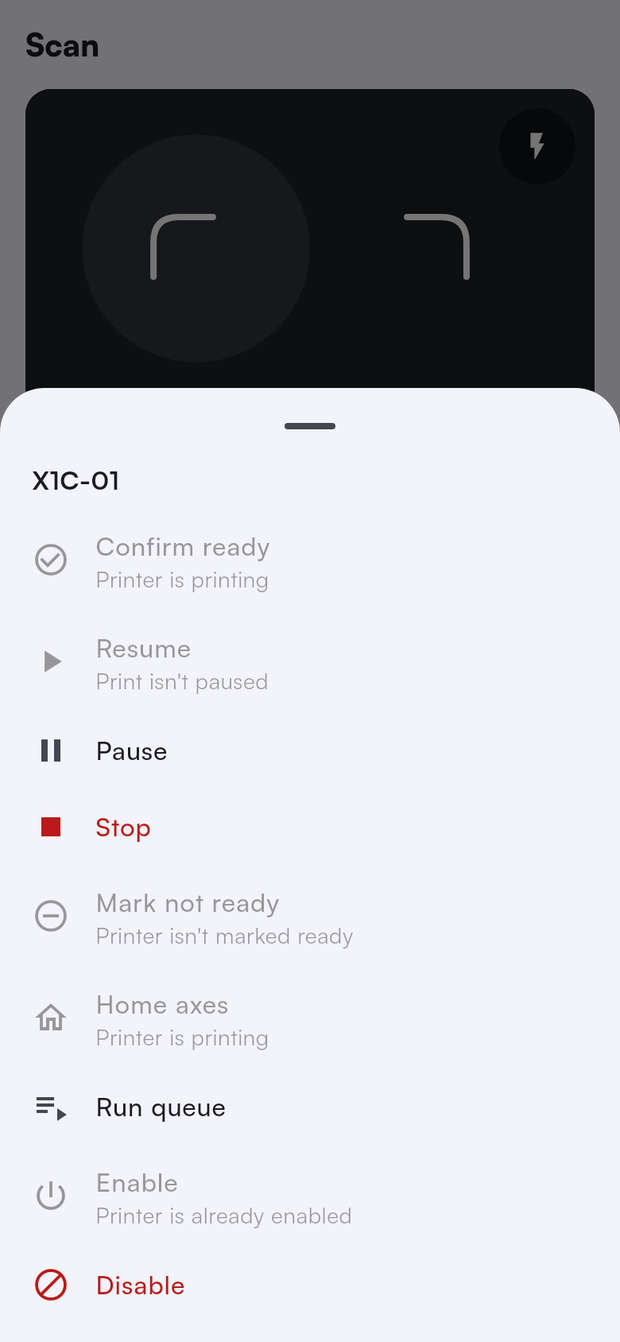
Point the camera at a printer's tag. The printer appears under the camera with its live status and one large button for the action it most likely needs: Confirm ready when it is waiting for you, Resume when its print is paused, and Open printer otherwise. Tap More actions for everything else. Actions that can't run right now are greyed out with the reason, such as Printer is offline or You don't have permission. Stop and Disable ask you to confirm first.
The camera keeps running, so you can walk to the next printer and scan its tag. Tap the X on the printer card to clear it.
Slot and filament tags work the same way. Scan a filament tag and then a printer or a slot to assign the filament, or scan two slots to move or swap their filament. See QR Workflows for every combination. Spool tags show how much is left and where the spool is, and a blank tag is set up by scanning it with what it's for: scan one with a filament tag to register a new spool. See Spools.
If a scan can't be used, the app says why:
| Message | What to do |
|---|---|
| This tag was revoked. Print a new tag for it from Printago on the web. | The tag was revoked and no longer works. Print a new one. |
| The printer this tag was for has been deleted. | If you add the same printer back, the tag works again on its own. Otherwise tap Unbind tag to reuse the sticker for something else, or remove it. See Reusing a tag. |
| The printer this slot tag was for has been deleted. | If you add the same printer back, the tag works again on its own. Otherwise tap Unbind tag to reuse the sticker for something else, or remove it. See Reusing a tag. |
| The filament variant this tag was for has been deleted. | Tap Unbind tag to reuse the sticker for something else, or remove it. See Reusing a tag. |
| This Printago tag isn't one of this store's tags. | The tag doesn't exist, or belongs to another store. If you belong to several stores, switch stores from the Account tab and scan again. Otherwise print a new tag. |
| This tag was made by a newer version of Printago. Update Printago to scan it. | Update the app from the App Store or Google Play. |
| This QR code isn't a Printago tag. | Scan a tag printed from Printago. |
Switching between phone and tablet
The app uses the same account and live data everywhere. Sign in on your iPad to get a roomier, two-pane layout. See Using on a Tablet.