Using the App on a Tablet
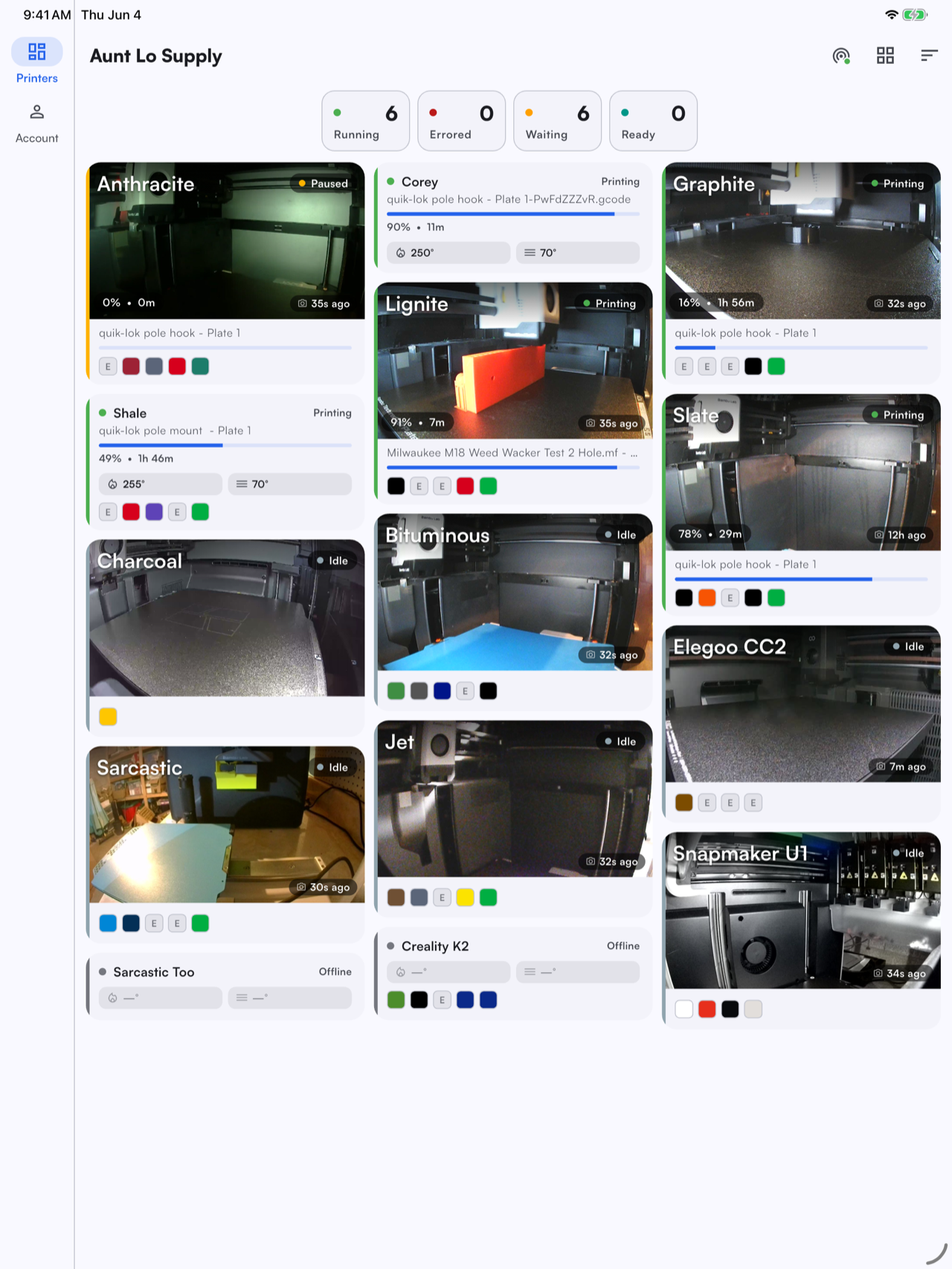
The Printago app adapts to larger screens. On a tablet such as an iPad, it uses the extra space to show more at once: a navigation rail along the side, a multi-column camera grid, and a two-pane printer view that keeps the camera and controls side by side.
Everything works the same as on the phone, so this page focuses on what is different about the tablet layout.
Dashboard
The tablet dashboard shows the same fleet counters and printer cards, arranged across multiple columns so you can see far more printers at a glance. Navigation moves to a rail on the left edge (Printers and Account) instead of a bottom bar.
Printer details
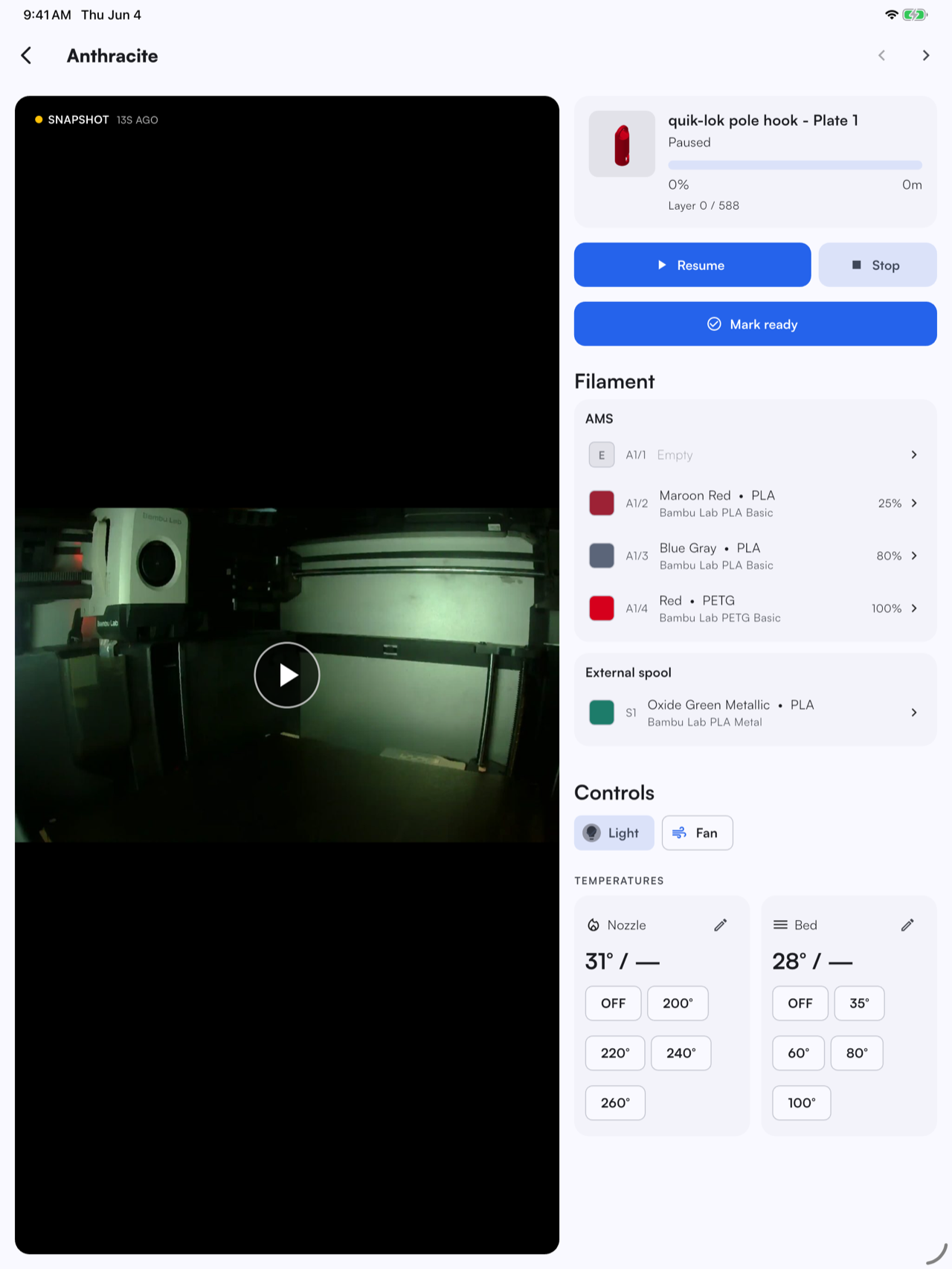
Tapping a printer opens a two-pane view. The live camera fills the left side while the print details, controls, filament, and temperatures stay on the right, so you can watch the print and make adjustments without switching screens.
Dialogs
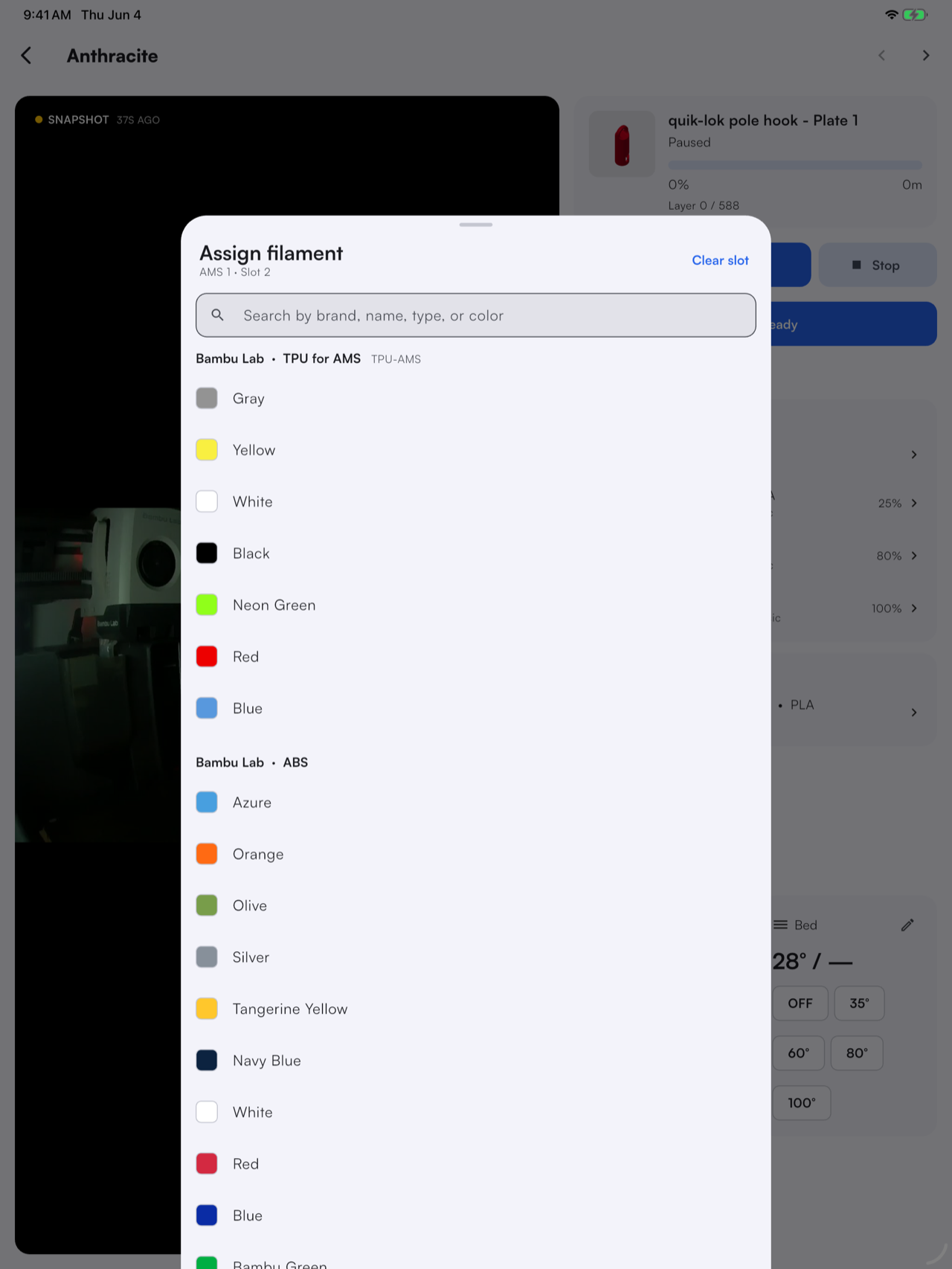
Actions like assigning filament open as a centered dialog over the printer view, keeping the rest of your context in place.
The tablet layout makes the app a handy wall-mounted or bench-side display for a print farm, giving you a live view of every printer with controls one tap away.