Wix Integration
Integrations require a Commercial subscription. Learn more
Key Concepts
The Wix integration connects your Wix site to Printago so store orders turn into print jobs without retyping anything. When a customer checks out, Wix tells Printago right away. Printago imports the order, matches each product's SKU to your Printago SKUs, and (if you turn on auto-print) queues the jobs for your printers.
Connecting installs the Printago app on your Wix site, the same way you would install any app from Wix. You approve it in a Wix window, Printago never sees your Wix password, and you can connect several Wix sites to one Printago store.
What You Get
- Orders import within about a minute of being placed, with a backup check every 3 hours in case a notification is missed
- Automatic SKU matching, including product options (Color, Size and so on) and custom text fields
- Automatic queueing (optional) for newly imported orders
- Cancellations and refunds in Wix cancel the order in Printago
- Fulfilling the order in Wix marks it shipped in Printago and (optionally) closes it
- Tracking numbers can be pushed back to Wix through the API, marking the order fulfilled there
- Multiple Wix sites in one Printago store
- On-demand Sync now whenever you want to check for new orders right now
Before You Start
- Your Wix site has Wix Stores installed. Sites without it cannot connect
- You sign in with a Wix account that is allowed to install apps on the site: the site owner, or a collaborator with app permissions
- Your Wix product and variant SKUs match SKUs in Printago (see SKU Matching)
Connect Wix to Printago
1. Activate the add-on
In Printago, open Marketplace, find Wix, and click More info, then Activate. Activation is free. Once it's on, the card shows Manage, which opens the add-on.
2. Start the connect
Click Connect Wix Site. A short walkthrough explains what is about to happen: a Wix window opens, you approve the Printago app, and orders start importing. Check the two prerequisites it lists, then click Continue to Wix.
3. Approve the Printago app on Wix
A Wix window opens. Sign in if asked, pick the site you want to connect, review what the app can do (read your store's orders and mark them fulfilled), and approve it.
4. Done
You land back in Printago with the site connected, showing its name. The last 30 days of orders import on their own; there is nothing to kick off manually.
Connection Tab
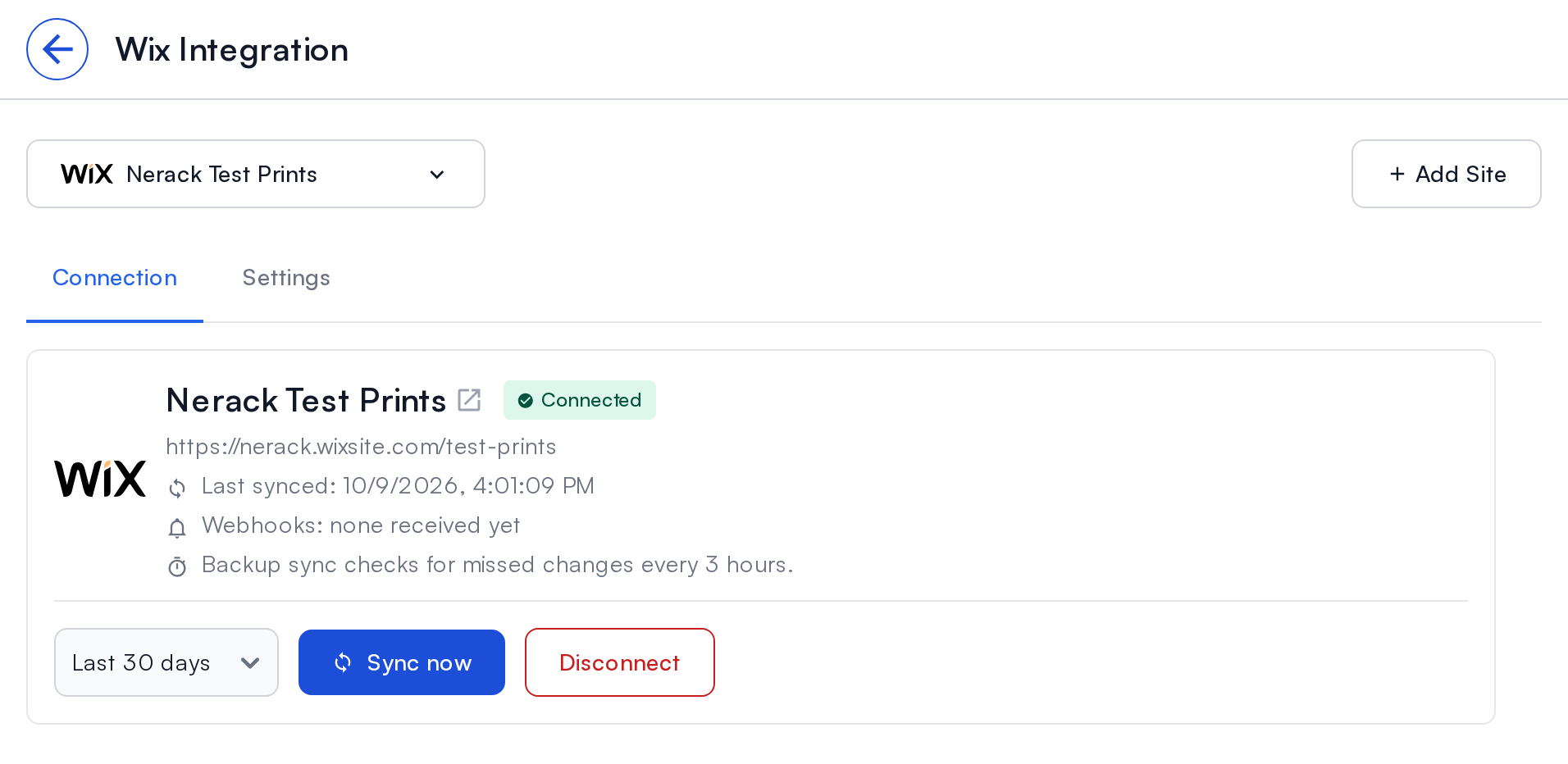
After connecting, the Connection tab shows the health of your site's link to Printago.
- Site name and URL, with a link to your live site once it is published
- Last synced: when Printago last checked your site for new and changed orders
- Webhooks: when Wix last notified Printago about an order
- Backup sync: how often Printago checks your site on its own
Actions
- Sync now: check your site for new and changed orders right now, with a choice of how far back to look (7, 30 or 90 days)
- Disconnect: remove the site from Printago (see Disconnecting)
Multiple sites
Click Add Site to connect another Wix site. Use the site picker at the top left to switch between them; each site has its own Connection and Settings tabs.
The reconnect banner
If the Printago app is removed from your Wix site, or Wix stops accepting Printago's access, a red banner appears on this page and syncing stops. Click Reconnect to run the connect again. Your settings are kept, and orders missed in between import on the next sync.
Settings
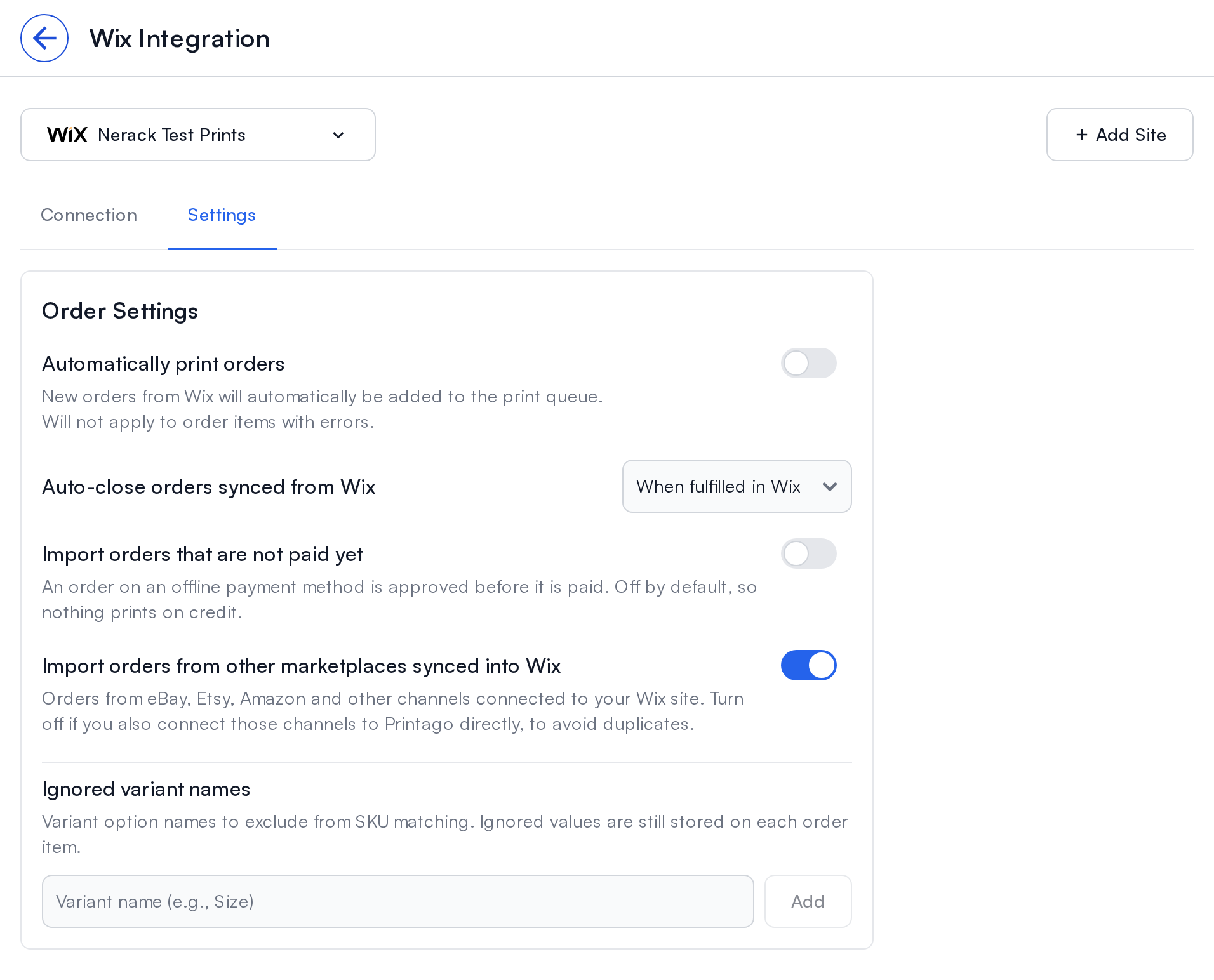
Open the Settings tab to control what happens when orders arrive. Settings apply to the site selected in the site picker.
Automatically print orders
When on, every newly imported order is added to the print queue right away. Items that have a problem (for example, a SKU Printago doesn't recognize) are skipped until you fix them.
Auto-close orders synced from Wix
- When fulfilled in Wix (the default): Printago closes the order when you mark it fulfilled in Wix
- Never: orders stay open in Printago until you close them
Either way, fulfilling the order in Wix records its shipped date in Printago.
Import orders that are not paid yet
Wix approves an order placed with an offline payment method (cash on pickup, bank transfer) before the money arrives. By default Printago waits until the order is paid, so nothing prints on credit. Turn this on to import approved orders right away, paid or not.
Import orders from other marketplaces synced into Wix
Wix can collect orders from channels like eBay, Etsy, Amazon and TikTok into your site. Those orders import into Printago by default. If you also connect one of those channels to Printago directly, turn this off so the same order doesn't arrive twice.
Ignored variant names
Some options on your Wix products may not affect your 3D printed part, such as gift wrapping. The Ignored variant names setting leaves those option names out of SKU matching so they don't interfere with order resolution.
Ignored options are still stored on each order item for reference; they just aren't used when Printago works out which SKU variant to print.
- Type the option name in the input field and press Enter or click Add
- Remove a name by clicking the × on its tag
- Names match the Wix option name (the one your customers see) ignoring capitalization and extra spaces
This applies to orders imported after you change it.
How Orders Sync
Which orders import
Printago imports orders once Wix marks them Approved and they are paid (or free). Specifically:
- Orders on an offline payment method wait until they are paid, unless you turn on Import orders that are not paid yet
- Only physical items import. Digital downloads, gift cards, services and bookings are skipped, and an order with nothing physical in it is not imported at all
- Orders canceled or fully refunded before import are skipped
After import, Printago keeps following the order:
| When the Wix order becomes | Printago |
|---|---|
| Fulfilled | Records the shipped date, and closes the order if auto-close is on |
| Canceled or Fully refunded | Cancels the order and its items |
| Partially fulfilled | Leaves the order as it is, so the rest isn't stranded |
An order is never imported twice, however many times Wix reports it, and an order you closed by hand in Printago is never reopened.
Real time, with a backup
Wix notifies Printago the moment an order is placed or changes, so orders usually appear within about a minute. Printago also checks your site for new and changed orders every 3 hours in case a notification is missed. Click Sync now on the Connection tab to check immediately.
Orders in Printago
Wix orders appear on your Orders page alongside your other channels, with the Wix logo and your site's name. Turn on the Source and Shop columns (column settings, top right of the table) to see which orders came from Wix and which site they came from.
Open an order to see its items, each matched to a Printago SKU. From here it works like any other order: queue it with Print Order, track its jobs, and close it when it ships. See Orders.
SKU Matching
Printago matches each item using the SKU set on the product (or on the variant, for products with options) in Wix:
- Exact match: a Printago SKU with the same code, for example
DRGN-EGG. - Suffix match: if there's no exact match, Printago reads the code as a base SKU plus option suffixes, for example
WIDGET-001-RED-LGforWIDGET-001in Red, Large. See SKU Suffixes.
The options the customer picked (such as "Color: Silk Gold") come across by the name your customers see and match your Printago variants by name or alias; see Name Matching.
Custom text fields (personalization text the buyer typed) come through on the order item alongside the options, so engraving and name fields reach your print workflow. If a field doesn't correspond to a variant in Printago, add its name to Ignored variant names.
A product with no SKU in Wix still imports, but its items need a SKU assigned in Printago before they can print. If you add the matching SKU in Printago later, waiting items pick it up automatically.
Marking Orders Shipped
When you fulfill an order in Wix (from the Wix dashboard, or through a shipping app connected to Wix), Printago records the shipped date and, with the default setting, closes the order.
You can also push tracking from your own tools through the Printago API: POST /v1/integrations/wix/{integrationId}/fulfillments marks up to 50 orders fulfilled in Wix with their tracking numbers. Wix may email the buyer its usual shipping notice, controlled by your site's own notification settings. See the API reference at developers.printago.io for details. There is no button for this in the Printago app yet.
Disconnecting
Click Disconnect on the Connection tab and confirm. Printago deletes its access to the site. Orders already imported stay in Printago.
Printago cannot uninstall its app from your Wix site. To remove it there too, open your site's Wix dashboard and remove Printago under Manage Apps. If you reconnect the same site later, your existing orders link back up to the new connection.
Troubleshooting
"Wix Stores is not installed on this site"
The site you picked doesn't have Wix Stores. Add it from the Wix App Market on that site, create your products, then connect again.
Orders aren't importing
- Check the order in Wix: unpaid offline-payment orders wait by default (see Import orders that are not paid yet)
- An order with only digital or service items is skipped on purpose
- Click Sync now on the Connection tab
- If a red reconnect banner is showing, reconnect first
"This Wix site is connected to another Printago account"
Each Wix site can be connected to one Printago store. Disconnect it from the other account first, or use a different site.
The red reconnect banner is showing
The Printago app was removed from your Wix site, or Wix revoked Printago's access. Click Reconnect and approve the app again. Your settings and orders are kept.
An order arrived twice
If you connect a marketplace (eBay, Etsy and so on) to Printago directly and that marketplace also syncs into your Wix site, both connections deliver the same sale. Turn off Import orders from other marketplaces synced into Wix, or stop syncing that channel into Wix.
Technical Details
Authentication
Connecting installs the Printago app on your Wix site; Printago then talks to Wix with short-lived tokens minted for that installation. It never sees your Wix password, and there is no long-lived key to leak. Removing the app in Wix cuts off access immediately.
Notifications from Wix are cryptographically signed, and Printago rejects any it can't verify. It treats each one only as a prompt: it reads the order back from Wix before acting on it.
Data Privacy
Printago keeps the buyer's name and their state and country, which is enough to identify orders on your dashboard. Email addresses, phone numbers, street addresses and postal codes are not stored; you fulfill shipping from Wix as usual.
Sync Frequency
- Real time: order notifications from Wix, usually within about a minute
- Backup: an automatic check every 3 hours for anything a notification missed
- Manual: Sync now on the Connection tab
Need Help?
Wix is a registered trademark of Wix.com Ltd. This application uses the Wix APIs but is not endorsed or certified by Wix.