Shippo Integration
Key Concepts
The Shippo integration imports the orders your Shippo account already collects. Shippo gathers orders from the stores you sell on, so one connection brings in orders from Amazon, Squarespace, BigCommerce, Etsy, Shopify, and any other store you ship through Shippo, including the ones Printago does not connect to directly.
Each imported order is matched to your Printago SKUs and, if you turn on auto-print, queued for your printers. When you buy the label in Shippo, or the order is cancelled there, Printago follows.
The integration reads from Shippo only. Printago does not buy labels, send tracking numbers, or change orders in Shippo. You keep shipping in Shippo exactly as you do today.
What You Get
- Every store at once: one connection covers every store connected to your Shippo account, instead of a separate integration per channel.
- Per-channel control: choose which channels Printago imports from, and change your mind at any time. A store you connect in Shippo later imports automatically.
- Duplicate warnings: if a channel in Shippo is one you already connect to Printago directly, such as an Etsy shop, Printago flags it so the same order does not arrive twice.
- SKU matching: item SKUs link to your Printago SKUs, and SKU suffixes pick the variant values.
- Auto-print (optional): new Shippo orders go straight into the print queue.
- Shipping and cancellations follow: when you buy the label in Shippo, Printago records the ship date and, by default, closes the order. An order cancelled or refunded in Shippo is cancelled in Printago.
- The real channel on the order: an order reads "Shippo - Etsy" rather than just "Shippo".
- Multiple accounts: connect more than one Shippo account to a single Printago store.
Before You Start
You need a Shippo live API key:
- Log in to Shippo.
- Open Settings → Advanced → API.
- Generate a live key and copy it. It starts with
shippo_live_.
A test key (starting with shippo_test_) only sees orders made in Shippo's test mode, not your real orders. Printago accepts one and marks the account Test mode, which is useful for trying the integration out, but use a live key to import what you sell.
Your item SKUs in Shippo should match SKUs in Printago (see SKU Matching).
Activate the Shippo add-on
Shippo is a free add-on. In Printago, open Add-Ons → Marketplace, find Shippo, click More info, then click Activate. The add-on turns on straight away and the button changes to Go to Addon. Activating an add-on needs the subscription.manage permission, which by default only the store owner has.
After that, the Shippo card in Marketplace shows Manage, which opens the integration page.
Connect Shippo to Printago
1. Enter your API key
On the integration page, paste your API key, then click Test connection. Printago checks the key and reads your orders from the last 30 days to see which channels they come from.
2. Choose channels
Every channel starts switched on. Each row shows the channel and how many orders it sent in the last 30 days. Orders you made in Shippo itself, by hand or through its API, are listed as Created in Shippo.
If a channel is one you already connect to Printago directly, the row says so ("Also connected to Printago directly as …"), and a banner at the top counts the overlapping channels. Printago leaves the choice to you; switch the toggle off for any channel you don't want imported.
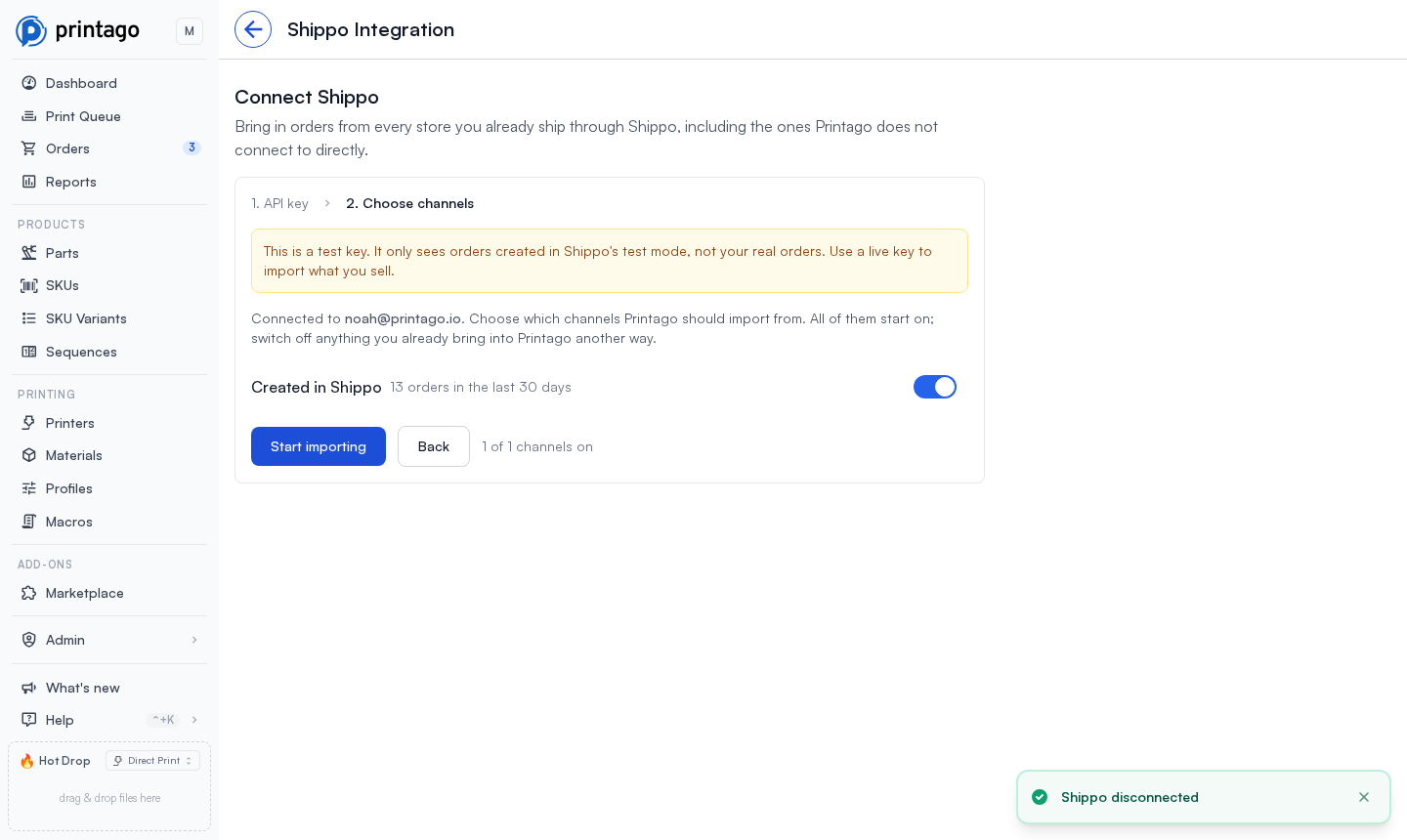
Shippo has no list of connected stores, so a channel shows up here once it has sent an order. A brand new account with no recent orders shows an empty list: every channel imports, and you can switch one off later.
3. Start importing
Click Start importing. Nothing is imported until you do. Printago then imports orders from the last 30 days and keeps checking for new ones.
About duplicate orders
If you connect both Shippo and, for example, Etsy or Shopify to Printago, an order from that channel arrives twice: once from each connection. The usual answer is to switch off that channel in Shippo's list for any store you already connect directly, and leave the rest on.
Connection Tab
The Connection tab shows the account (the email you log in to Shippo with), a Connected or Reconnect needed badge, a Test mode badge for a test key, and when Printago last synced.
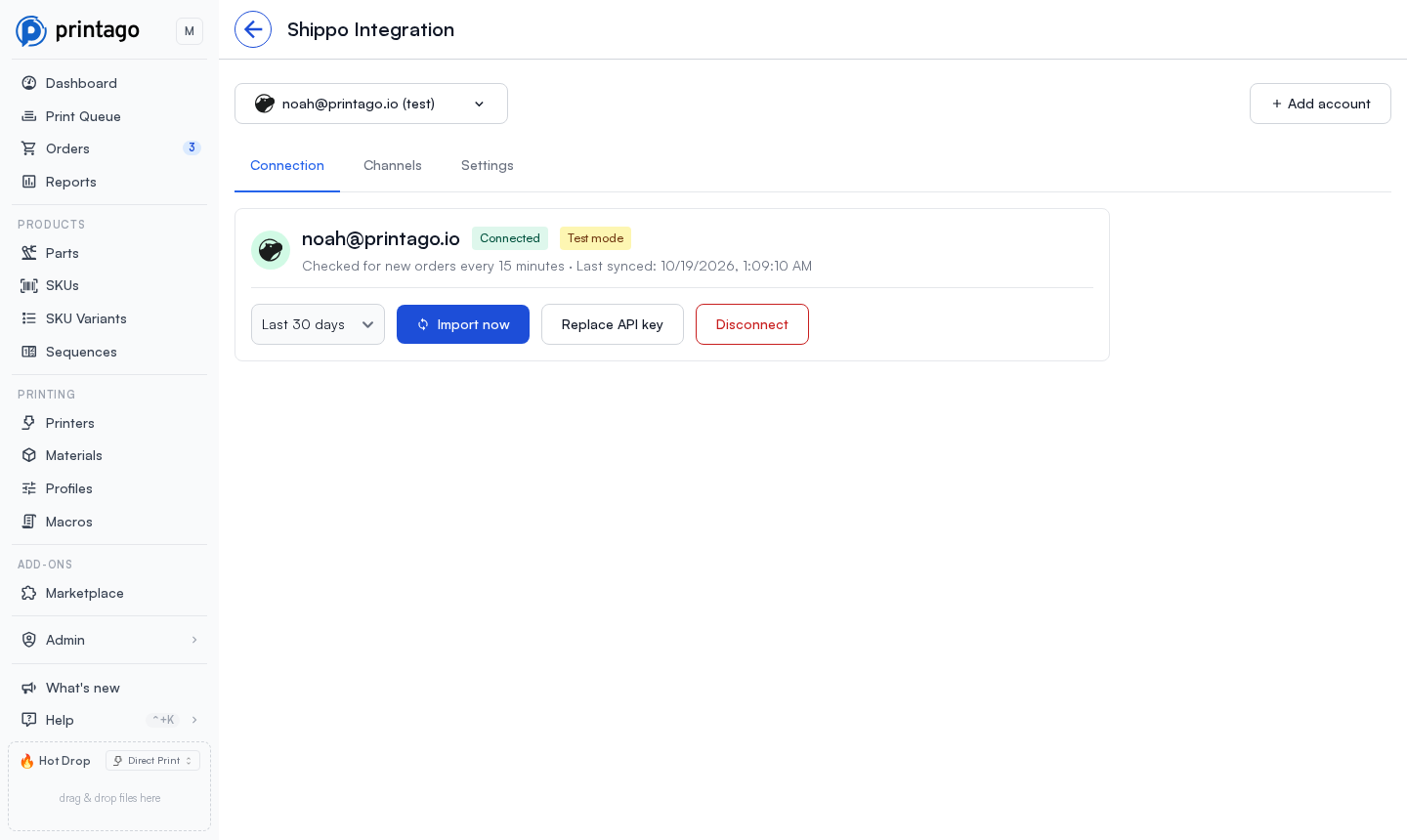
- Import now: pick how far back to look (Last 7 days, Last 30 days, or Last 90 days) and click Import now to check for orders right away.
- Replace API key: swap in a new key from the same Shippo account, for example after you regenerate it in Shippo. Settings and import history are kept.
- Disconnect: stop importing from this account. Orders already imported stay in Printago. If you connect the same Shippo account again later, its orders are linked back to it as Printago next sees them, but orders from the last 30 days that you deleted in Printago import again. To change the key, use Replace API key instead.
Multiple accounts
Click Add account to connect another Shippo account. Use the account menu at the top of the page to switch between them; each has its own channels and settings.
Channels Tab
Each channel has a toggle. Switch off any channel whose orders you don't want in Printago, then click Save channels.
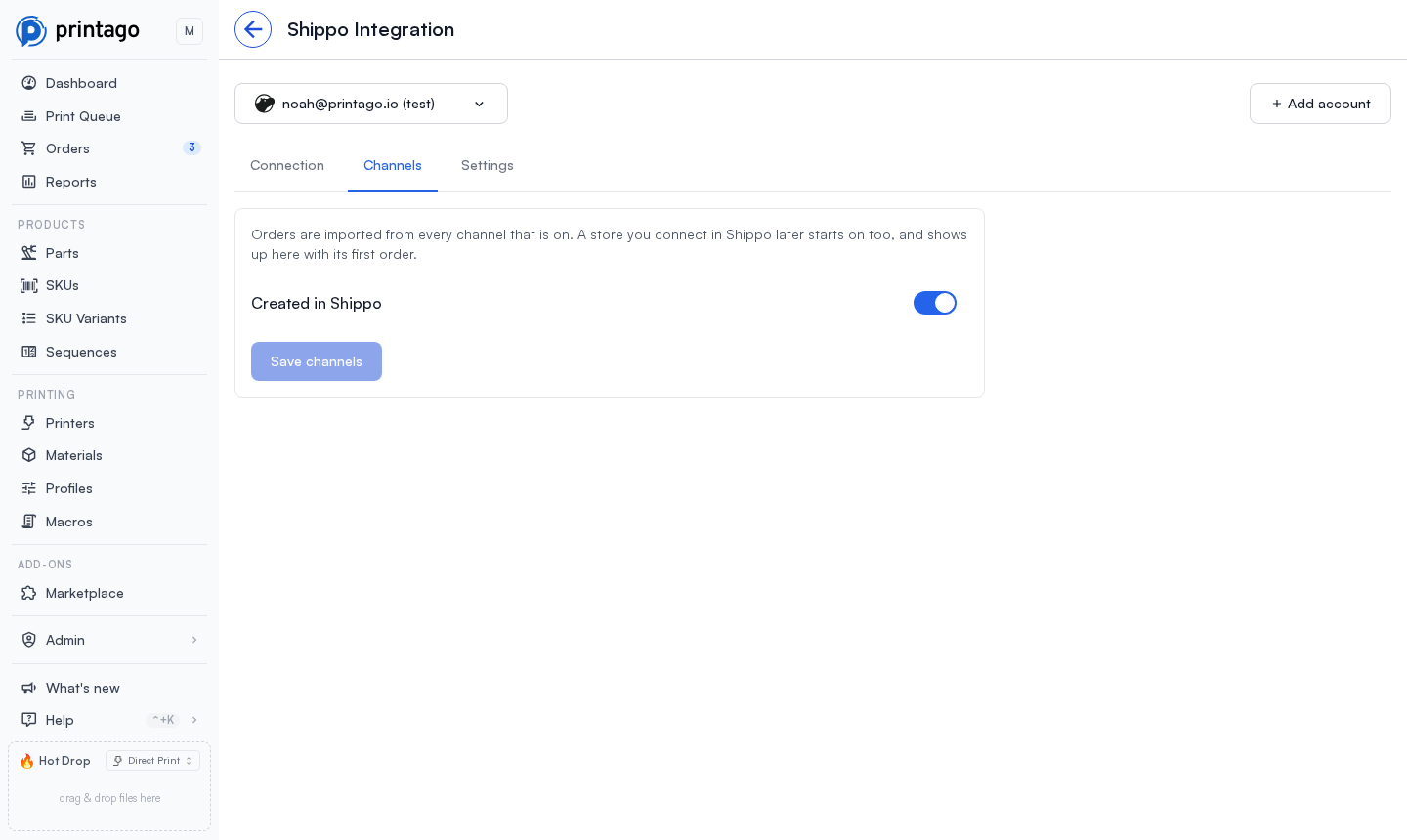
Printago remembers the channels you switched off, not the ones you switched on. A store you connect in Shippo later starts switched on, so a new channel imports without you coming back here.
Settings
Open the Settings tab.
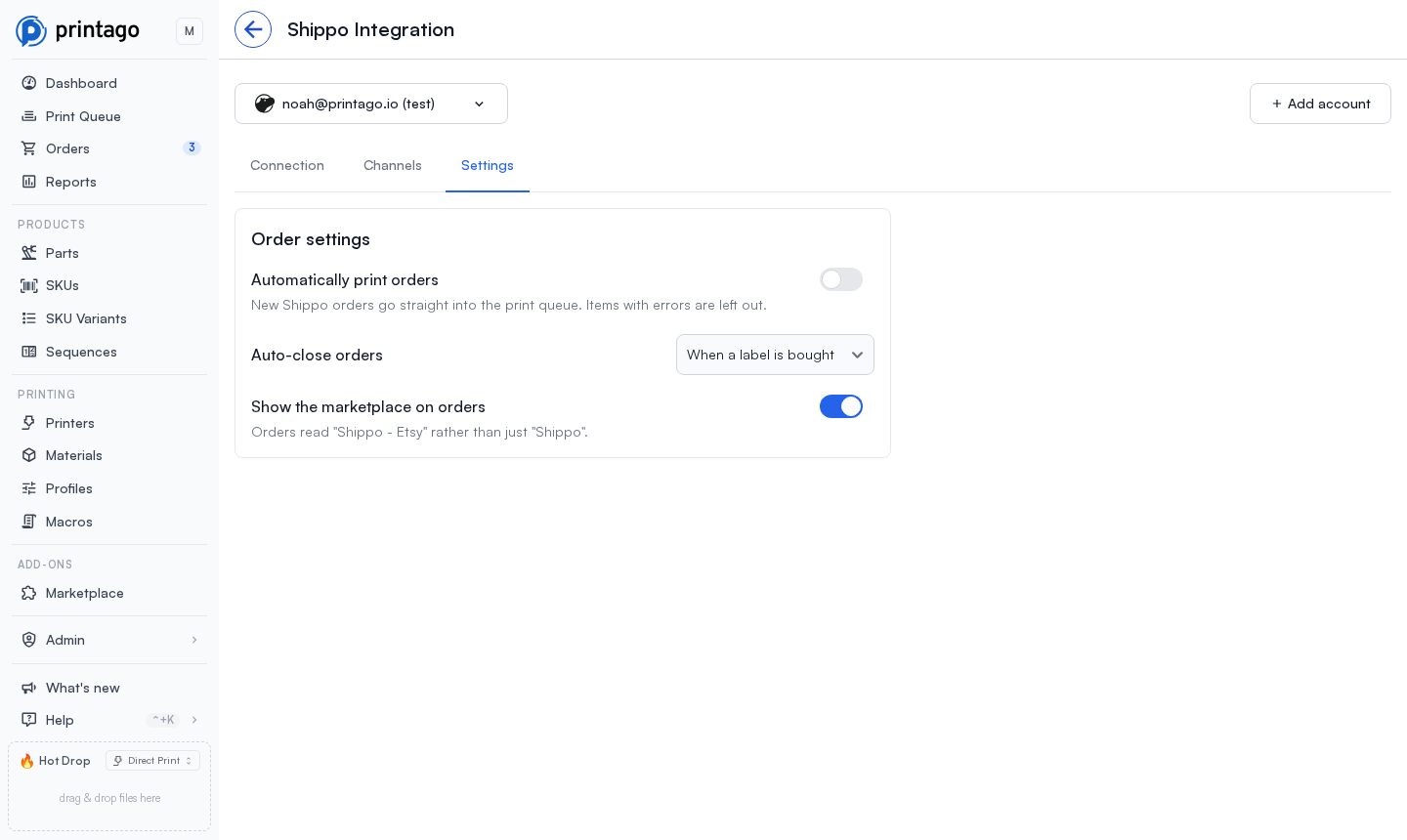
Automatically print orders
When on, every newly imported order is queued for printing. Items with errors are left out, as are orders that already had a label before Printago first saw them. Off by default.
Auto-close orders
Choose when Printago marks an order closed:
- When a label is bought (the default): close the order once it has a label in Shippo. Shippo is where your shipping happens, so a label is first-hand evidence the order is done.
- Never: leave orders open until you close them yourself.
Either way, Printago records the ship date on the order.
Show the marketplace on orders
When on (the default), an order reads "Shippo - Etsy" instead of just "Shippo".
How Orders Sync
Which orders import
- Orders from every channel that is switched on.
- Orders awaiting payment in Shippo wait. They import once they are paid.
- Orders cancelled or refunded in Shippo before Printago saw them are skipped.
- Orders that already had a label (for example, during the first 30-day import) import as history: they get their ship date and close if Auto-close orders is set to When a label is bought, and auto-print never queues them.
- An order you delete in Printago is not imported again by the regular checks.
Every 15 minutes
Shippo does not notify other apps about new orders, so Printago checks your account every 15 minutes, and Import now on the Connection tab checks straight away. Each check reads the orders placed in the last 30 days, which is how Printago picks up an order a store passed to Shippo late, and a label or cancellation that came days after the order.
After an order imports
- Label bought in Shippo: Printago records the ship date and, with When a label is bought selected, closes the order. An order Shippo marks partially fulfilled stays open until the rest ships.
- Cancelled or refunded in Shippo: the order is cancelled in Printago if it is still open.
Changes to orders placed more than 30 days ago are not picked up by the regular checks. Use Import now with Last 90 days to bring those in.
Each check reads up to 10,000 orders. A Shippo account that takes more orders than that in 30 days imports the first 10,000; tell us on Discord if that's you.
If you reopen an imported order in Printago, Shippo no longer closes or cancels it. The ship date is still recorded.
Nothing flows the other way. Closing, cancelling, or printing an order in Printago does not change it in Shippo.
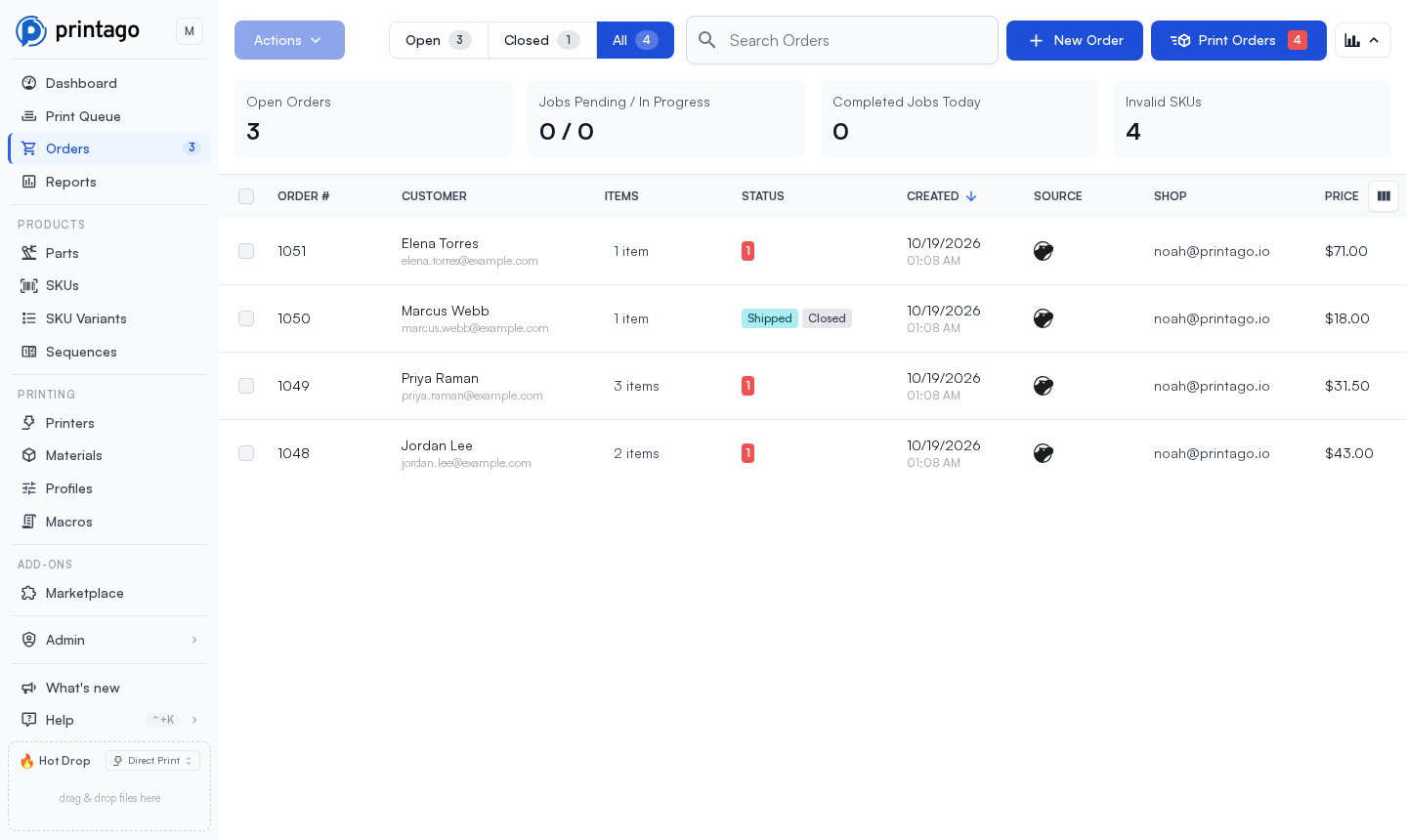
Imported orders show the Shippo mark in the orders list's Source column (turn the column on with the column picker at the right of the table header). An order whose label was bought in Shippo reads Shipped and Closed.
SKU Matching
Each Shippo item's SKU is matched to your Printago SKUs, the same way as other channels. Shippo passes the variant as a single line of text (for example "Red / White") without naming the options, so Printago can't match it to your variants by name. Use SKU suffixes instead: a code like SIGN-RW resolves to the SIGN SKU in Red and White. The variant text still shows on the order item for reference.
Items with no SKU, or a SKU Printago does not know, show Missing SKU on the order until you fix the mapping. An item with no SKU keeps its title on the order so you can tell what was bought.
Troubleshooting
Orders aren't importing
Check the Channels tab first: the channel the orders come from may be switched off. Orders awaiting payment don't import until they are paid. Make sure the key is a live key: a Test mode badge on the Connection tab means Printago only sees Shippo's test orders. Then use Import now on the Connection tab to check right away.
"Reconnect needed"
Shippo rejected the stored API key, which usually means it was revoked or regenerated in Shippo. Syncing pauses until you fix it. Generate a fresh key in the same Shippo account, paste it under New API key on the Connection tab, and click Replace key.
The same order appears twice
The channel is connected to Printago both directly and through Shippo. Switch that channel off on the Channels tab, or disconnect the direct integration, depending on which you want to keep.
Need Help?
Join our Discord or contact support.
Shippo is a trademark of Popout, Inc. Printago uses the Shippo API but is not endorsed or certified by Shippo.