Etsy Integration
Key Concepts
The Etsy integration connects your Etsy shop to Printago for automated order processing and print-on-demand fulfillment. New orders arrive in Printago within seconds of payment (Etsy notifies Printago the moment an order is paid), and Printago matches each order's SKU to your product definitions to generate the correct print jobs automatically. Like the Shopify integration, this bridges e-commerce and production so you don't have to manually translate customer orders into print queue entries. The Etsy addon supports SKU variant mapping, so a single Etsy listing with multiple options (color, size, personalization) can automatically produce the right parts with the right materials and parameters.
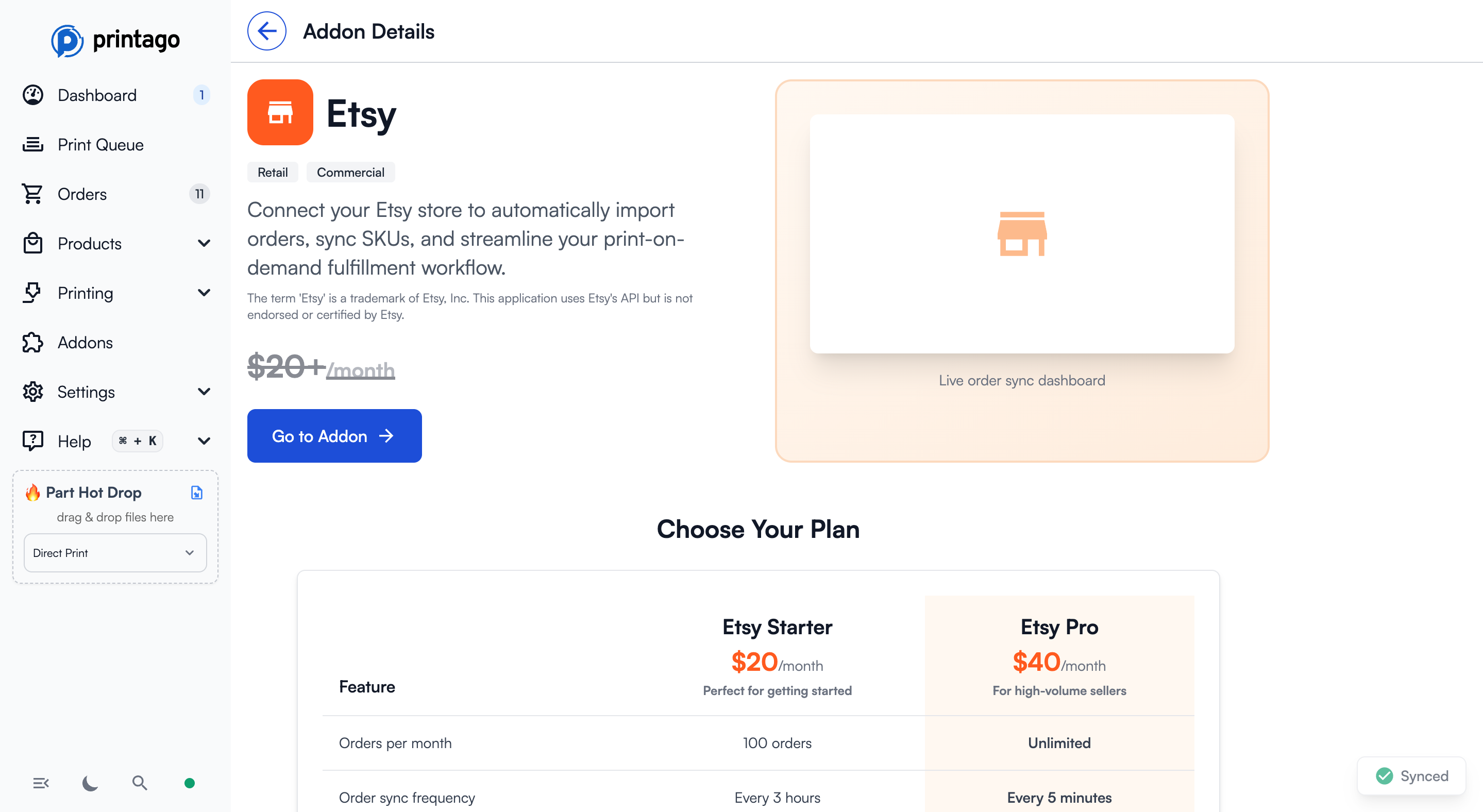
Overview
The Etsy addon automatically syncs your Etsy orders to Printago, enabling streamlined fulfillment for print-on-demand products. Orders arrive in real time, keeping your queue up to date the moment customers pay.
The Etsy addon is currently free during the public beta period.
Getting Started
1. Activate the Addon
Navigate to Addons → Etsy and click "Activate Free During Beta" (or "Go to Addon" if already activated).
2. Connect Your Etsy Shop
Click the connect button to authenticate with Etsy using secure OAuth 2.0. You'll be redirected to Etsy to authorize Printago to access your shop.
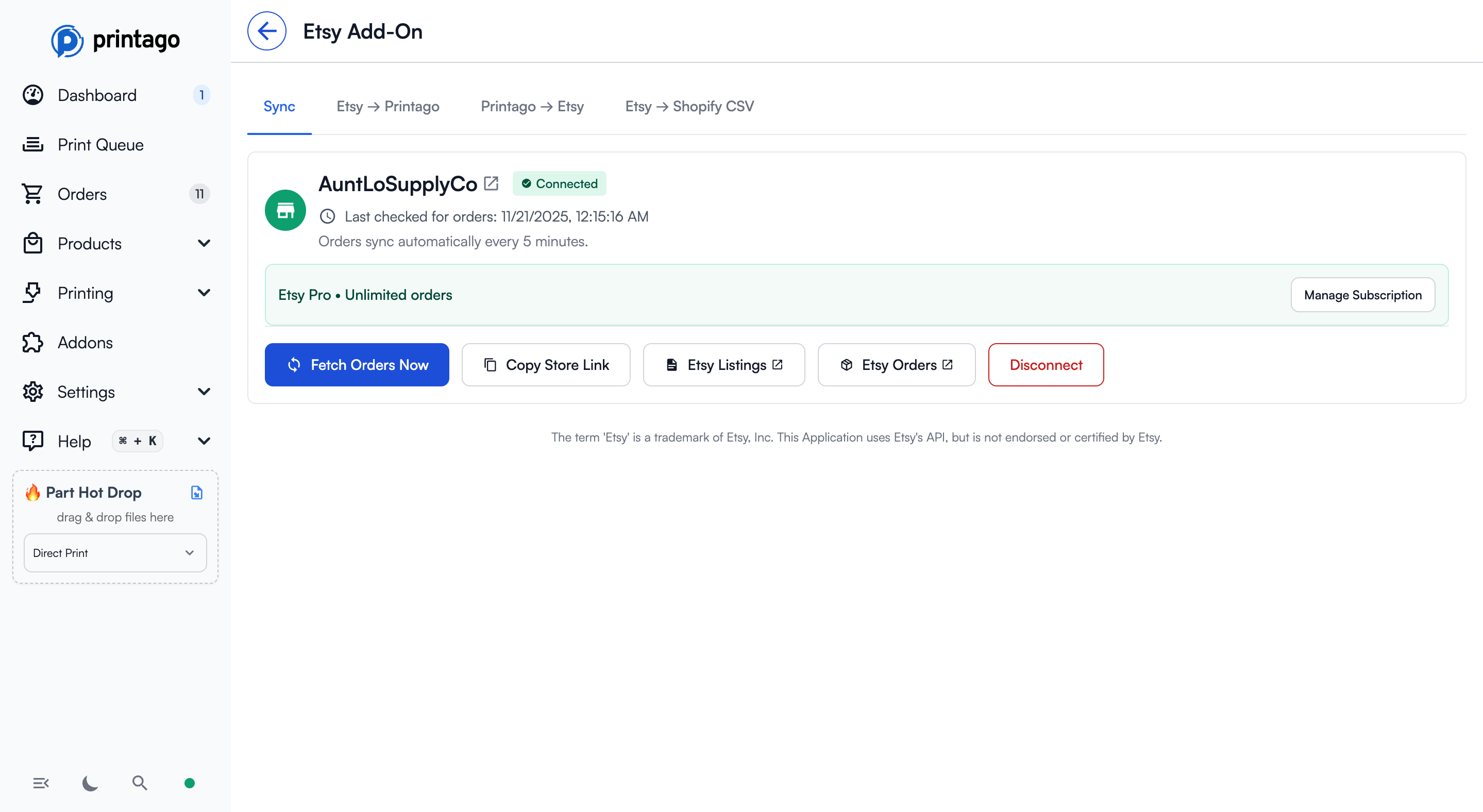
3. Verify Connection
Once connected, you'll see:
- Your Etsy shop name
- Connection status (green checkmark)
- Last order sync time
Features
Real-Time Order Sync
Etsy notifies Printago the moment an order is paid, shipped, delivered, or canceled, so orders from your Etsy shop appear in Printago within seconds with no polling delay. Status changes flow through automatically too: orders close when shipped or delivered (based on your auto-close setting) and cancel when the sale is canceled on Etsy.
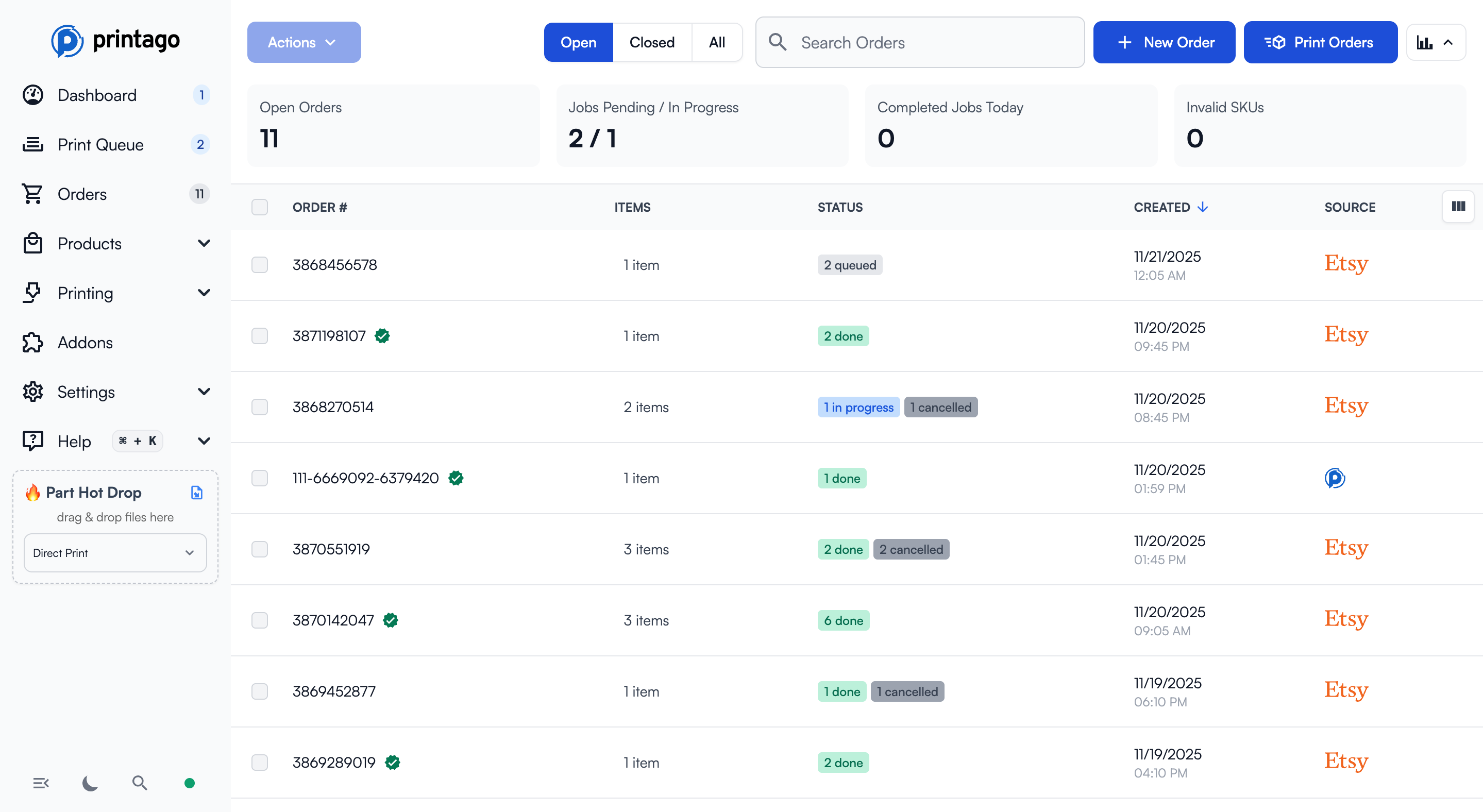
Synced orders appear in your Orders page with the Etsy logo in the Source column:
Manual Sync
Click "Fetch Orders Now" to manually trigger a full order sync at any time. This is useful as a catch-up if your shop was connected after orders came in, and it also re-checks the status of existing open orders.
Sync Behavior
- Only open orders (not yet shipped) are synced by default
- Orders are matched to your Printago SKUs based on Etsy product variations
- Each order item creates a job in your print queue
- Order status updates automatically as jobs are completed
Personalization
Etsy listings can ask buyers up to five personalization questions (text answers, dropdown choices, and file uploads). Printago understands all of them:
- Text answers are stored on the order item under the question's text. When you import a listing's SKUs, each text question becomes a personalization variant named after the question, ready to map to a part parameter (for example, an engraving text input).
- Dropdown ("list of options") questions import as personalization variants that carry every choice you offer on Etsy as a value. You can map each value exactly like a regular variant value: give it a text value for a part parameter, or assign a filament so a buyer choosing "Black" prints in the material you pick. The buyer's selection resolves through those mappings automatically at build time, and any value you haven't mapped falls back to passing the choice's text straight to the part.
- File uploads from buyers (images, PDFs, and any other type your listing accepts) are downloaded into Printago automatically when the order arrives and attached to the order item. A part whose file slot name matches the question text picks the file up at build time.
- Listings still using Etsy's older single "Personalization" field keep working exactly as before.
Etsy → Printago: SKU Mapping
The Etsy → Printago tab shows all your Etsy listings and helps you map Etsy product variations to Printago SKUs.
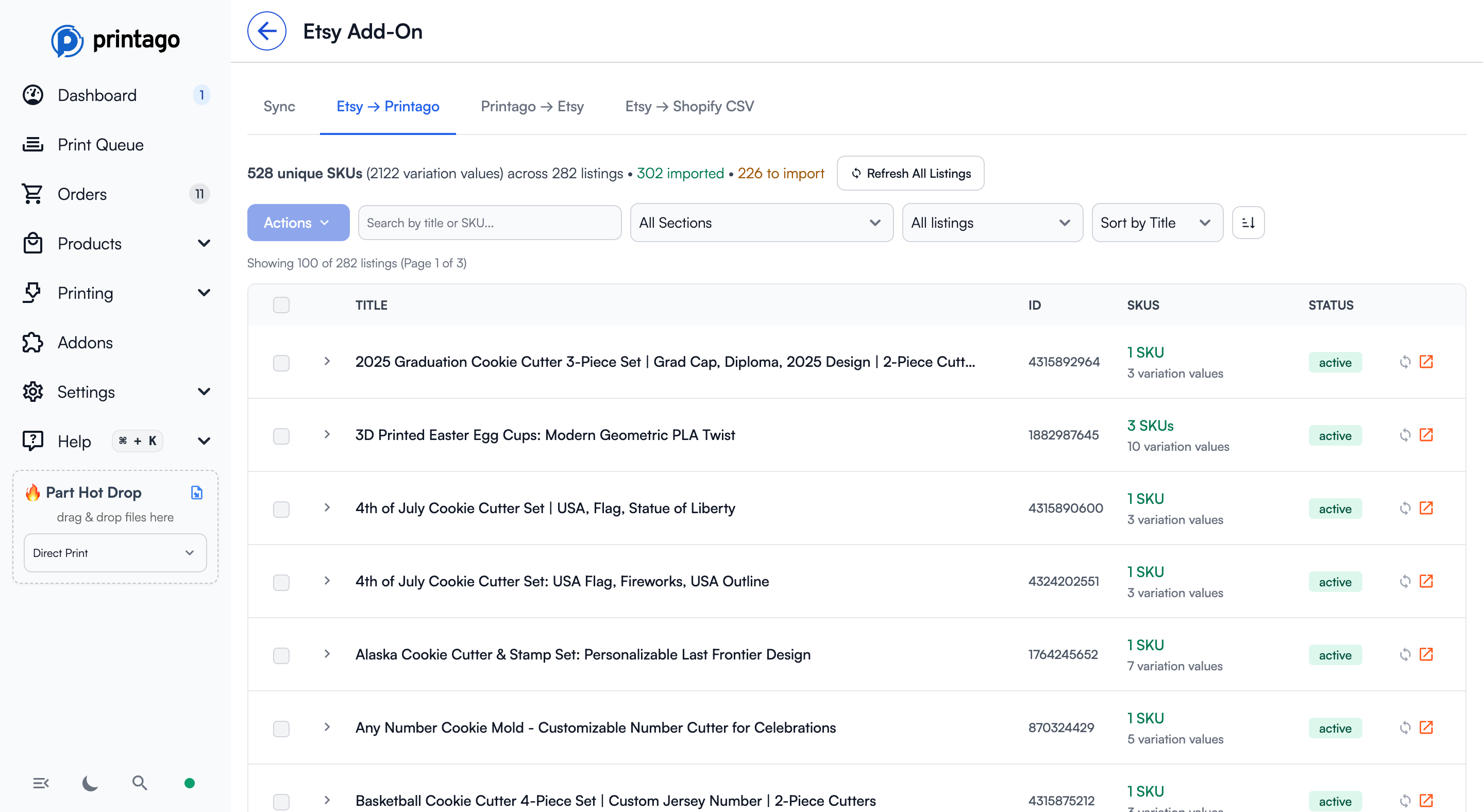
Key Information:
- Total unique SKUs across all listings
- Number of variation values (e.g., size/color options)
- How many SKUs are already imported vs. need to be imported
- Filter by shop section or SKU status
- Sort by title, ID, or number of SKUs
Actions:
- Click "Refresh All Listings" to fetch the latest listings from Etsy
- Select listings to batch import SKUs
- Use the search bar to find specific products
- Filter by section to focus on specific product categories
- Click individual listings to expand and see variation and personalization details
Listings that ask personalization questions are flagged in the list. Expanding one shows each question, its type, whether it is required, and the exact choices you offer on Etsy for dropdown questions.
Before the import runs, the confirmation window previews everything it will create: the variations pulled from your listing options, a personalization variant for each text or dropdown question (dropdown choices come across as that variant's values), and the file slot names that upload questions need. Give a part a file slot with the same name as the upload question and buyer files attach themselves at build time.
Printago → Etsy: Create Draft Listings
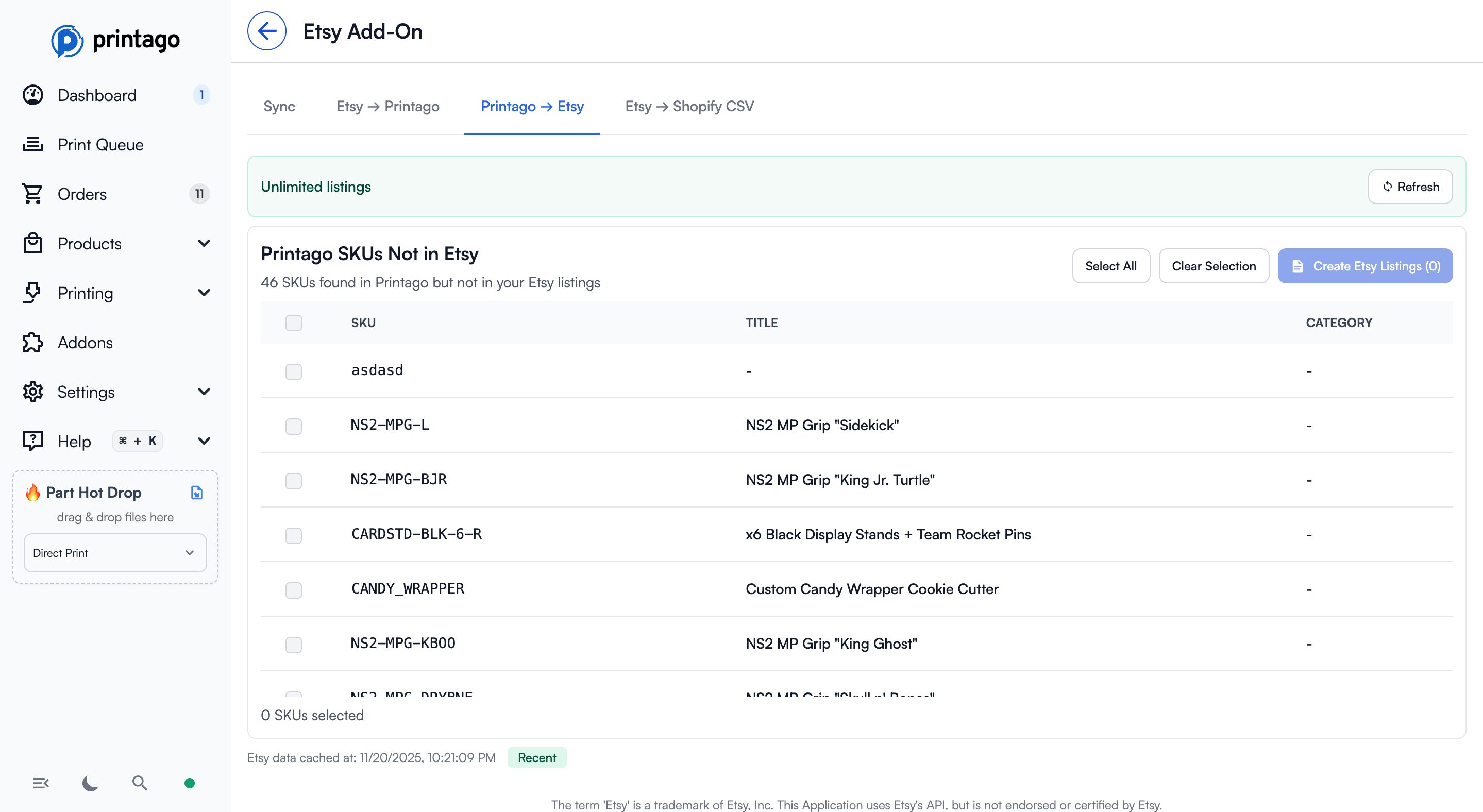
The Printago → Etsy tab shows Printago SKUs that don't exist in your Etsy shop yet.
Features:
- View all SKUs that exist in Printago but not in Etsy
- Select SKUs to create draft Etsy listings
- "Create Etsy Listings" button generates draft listings on Etsy
- Listings are created as drafts, giving you a chance to review and customize before publishing
Etsy → Shopify CSV: Store Migration
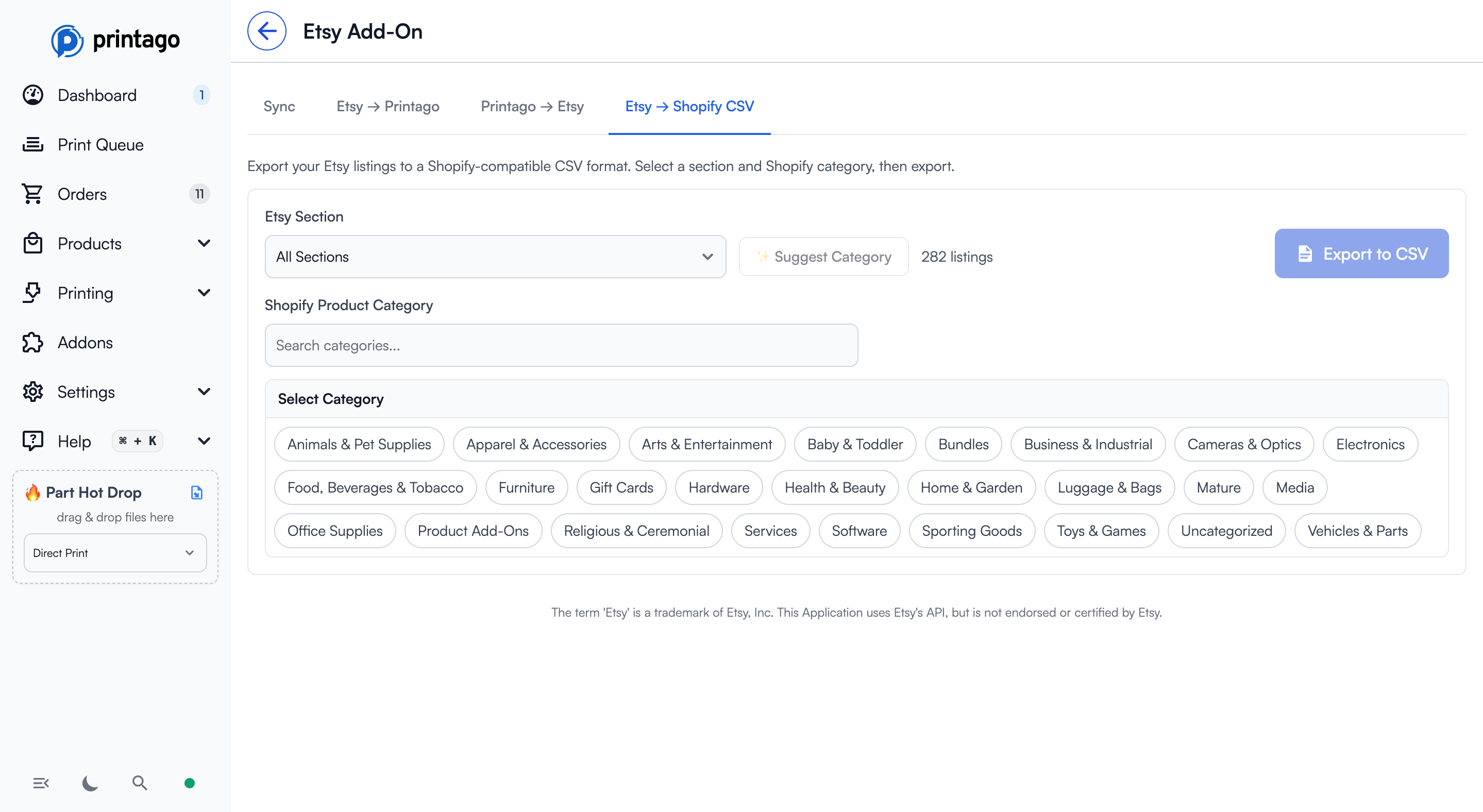
The Etsy → Shopify CSV tab helps you migrate your Etsy products to Shopify.
How it works:
- Select an Etsy section (or "All Sections")
- Choose a Shopify product category from the taxonomy
- Click "Export to CSV" to download a Shopify-compatible CSV file
- Import the CSV into Shopify to migrate your products
Features:
- Search categories to quickly find the right classification
- Navigate through nested category hierarchies
- Optional "Suggest Category" button to auto-suggest based on your products
Order Management
Viewing Etsy Orders
Etsy orders appear in your main Orders page with:
- Etsy order number
- Customer information (can be hidden for privacy)
- Number of items
- Job status (queued, in progress, done, cancelled)
- Creation timestamp
- Etsy logo in the Source column
Order Workflow
- Order synced from Etsy → Appears in Orders page
- Jobs created → Each order item becomes a job in your queue
- Jobs printed → Mark jobs as complete as you fulfill them
- Order completed → All jobs done, ready to ship
- Shipped → When Etsy reports the shipment (usually when the label is created), the order shows a Shipped pill on the Orders page. Until then, open Etsy orders read Unshipped.
- Delivered → When Etsy reports delivery, the order closes automatically (based on your auto-close setting).
Settings & Management
Ignored Variant Names
Some Etsy variation options may not affect your 3D printed product. The Ignored variant names setting lets you exclude specific variation option names from SKU matching so they don't interfere with order resolution.
Ignored variants are still stored on each order item for reference — they just aren't used when Printago resolves which SKU variant to print.
- Type the variation option name in the input field and click Add
- Remove a name by clicking the × on its tag
- Names must match exactly (case-sensitive) with the Etsy variation option name
Example: If your product incorporates wood parts and your Etsy listing has Color and Wood Type variations, but the Wood Type doesn't affect your 3D printed parts, add Wood Type to the ignored list. Printago will match orders using only the Color variation.
Subscription Management
Click "Manage Subscription" to:
- View usage statistics (orders synced this month)
- Update billing information
- Manage your subscription
Quick Actions
- Copy Store Link - Copy your Etsy shop URL to clipboard
- Etsy Listings - Quick link to view your listings on Etsy
- Etsy Orders - Quick link to view orders on Etsy
- Disconnect - Remove the Etsy integration
Tips & Best Practices
SKU Management
- Import all your Etsy listing SKUs before your first order sync
- Keep SKU names consistent between Etsy and Printago
- Use the filter options to identify missing SKUs
- Regularly refresh listings to catch new products
Order Processing
- Enable the Source column in Orders to easily identify Etsy orders
- Check order sync status before printing to ensure you have latest updates
- Use bulk actions to process multiple Etsy orders at once
Migration to Shopify
- Export one section at a time for better organization
- Review and test CSV imports on a development Shopify store first
- Use accurate category mappings to improve product discoverability
Troubleshooting
Orders Not Syncing
- Check your connection status in the Sync tab
- Verify your subscription is active
- Try manual sync with "Fetch Orders Now"
- Check that orders are marked as "Open" in Etsy
SKU Mismatches
- Go to Etsy → Printago tab
- Search for the product listing
- Verify the SKU exists in both systems
- Check that variation names match exactly
- Re-import the listing if needed
Connection Issues
If you see "Disconnected":
- Click the connect button to re-authenticate
- Ensure you're logged into the correct Etsy account
- Check that you've granted all necessary permissions
- Contact support if issues persist
Support
Need help with your Etsy integration?
- Join our Discord community
- Email support for setup consultation (included in your plan)
- Check the support page for additional resources
Technical Details
OAuth 2.0 Authentication
Printago uses industry-standard OAuth 2.0 to securely connect to your Etsy shop. We never store your Etsy password.
Sync Frequency
- Real time: Etsy webhooks deliver paid, shipped, delivered, and canceled order events within seconds
- Backstop: A full sync also runs automatically every 3 hours to catch anything a webhook missed (orders are never imported twice)
- Manual: On-demand full sync via "Fetch Orders Now"
Data Privacy
Customer information is handled according to Etsy's API terms of service and Printago's privacy policy. You can hide the customer column in the Orders view for additional privacy.
The term 'Etsy' is a trademark of Etsy, Inc. This application uses Etsy's API but is not endorsed or certified by Etsy.