Matching Orders to Variants
Before Printago can print an order line, it needs two things: the SKU, and a value for each of that SKU's variants. The SKU comes from the SKU code on the order. The values come from one of two places, never both:
- The SKU code itself, when the code is one of your SKUs followed by SKU suffixes:
MUG-BLK-LisMUGin Black, Large. - The selections the sales channel sends with the line, when the code is exactly one of your SKUs:
MUGarriving with "Color: Black" and "Size: Large" from Shopify, Etsy, WooCommerce, eBay, or ShipStation.
How an Order Finds Its SKU and Values
What the chart means in practice:
- An exact match wins. Printago only reads suffixes when the code isn't exactly one of your SKUs. The exact comparison is case-sensitive; the name and alias comparisons below are not.
- Suffixes replace the channel's selections. When a code matches through suffixes, the variant values the channel sent are ignored, even when they disagree with the code. The one exception is personalization: free text can't be written into a SKU code, so the buyer's answer still comes from the channel. A regular variant marked Optional on the SKU is not an exception: on a suffix match its value is dropped.
- Aliases only matter on the channel path. A suffix match already knows which value it picked. Variant aliases and value aliases are how Printago reads the names a channel sends.
- The Enable SKU Suffixes checkbox doesn't change any of this. It shows or hides the suffix column on a variant's page. A value's suffixes are used whenever it has any, and turning the checkbox off clears them.
"The buyer's selections" means the variant options the channel sends for the line, minus any Ignored variant names you've set on the integration (Shopify, Etsy, WooCommerce), plus any Shopify line item properties you've whitelisted. Etsy listings without a SKU use the listing ID as the code.
Where the Values Come From
| Code on the order | SKU | Variant values come from |
|---|---|---|
Exactly one of your SKUs (MUG) | That SKU | The channel's selections, matched by name or alias |
One of your SKUs plus a suffix for every variant (MUG-BLK-L) | That SKU | The suffixes. The channel's variant selections are ignored; personalization text is kept |
| Neither | None: SKU not found | Nothing yet. The channel's selections stay on the order item but aren't used |
Name Matching
When the values come from the channel, each selection is matched to one of the SKU's variants by name, and its value to one of that variant's values by name. Both comparisons ignore capitalization and extra spaces, and both consult aliases:
Shopify example:
- If your listing calls the option "Mug Color", name your Printago variant "Mug Color", or keep it named "Color" and add "Mug Color" as an alias
- If a value is "Matte Black", name your value "Matte Black" (not "MatteBlack"), or add "Matte Black" as one of the value's aliases
Etsy example:
- Etsy's dropdown values must match your Printago variant values (or their aliases)
- Etsy's Personalization field maps to Personalization variants automatically
Variant Aliases
A variant can carry aliases: alternate names that match it wherever an order or listing refers to a variant by name. Your canonical "Color" variant can answer to "Color 1", "Top Color", or "Mug Color" without renaming the variant or your listings.
Aliases solve a common multi-listing problem. The same design sold across Shopify and Etsy ends up calling the same option different things ("Color", "Color 1", "Mug Color"). Without aliases, each mismatched name shows up as an unknown variant and the order lands in review.
To add aliases:
- Navigate to
Products → SKU Variant Setupand open the variant - Below the variant name, type the alternate name in the Aliases field and press Enter (or click Add); it appears as a chip
- Remove an alias by clicking the × on its chip
A few rules keep aliases unambiguous:
- Matching ignores capitalization and extra spaces, for aliases and variant names alike
- An alias cannot repeat the variant's own name
- Across your store, no two variants can share a name or alias. Printago rejects the conflicting entry and tells you which variant already uses it
If a marketplace import already created a separate variant for a name that should have been an alias (a "Front Color" with its own copy of the values next to your "Color"), open that variant and click This variant is an alias of another one. It is offered while the variant has no properties. Pick the variant it stands for: its name becomes an alias there, any of its values the other variant lacks are added (a listing may offer a color you never mapped before, so map that value's properties afterwards), any SKUs using it switch over, and the imported variant is deleted.
When an order matched a variant through an alias, the order page shows the option name exactly as the order used it (dotted underline); hover over it to see which variant that alias stands for.
An alias is for a listing that names the option differently, not for a second picker on the same listing. If one listing has two color pickers (a "Main Color" and an "Accent Color") that should print different parts, create two variants, one per picker, and map each to its own material slot. Aliasing both names to one variant gives Printago two answers for the same variant: it prints with one of them, ignores the other, and doesn't flag the order.
Value Aliases
Variant values can carry aliases too. Your "Navy" value can answer to "Navy Blue" or "Dark Blue", so an order selecting "Color: Navy Blue" resolves to Navy, picks up Navy's properties and materials, and processes without landing in review, even though the listing names the color differently.
To add value aliases:
- Navigate to
Products → SKU Variant Setupand open the variant - In the value's row, click the + Alias chip next to the value name (it appears when you hover the row) and type the alternate name, then press Enter. Each alias appears as a chip next to the name; Enter keeps the field open so you can add another, Escape closes it
- Remove an alias by clicking the × on its chip
The rules mirror variant aliases, scoped to one variant:
- Matching ignores capitalization and extra spaces, for aliases and value names alike
- An alias cannot repeat the value's own name
- Within one variant, no two values can share a name or alias. Printago rejects the conflicting entry and tells you which value already uses it
- Different variants can reuse the same alias ("Natural" can be an alias under both "Color" and "Finish")
Value aliases are separate from SKU suffixes: a suffix matches a piece of the SKU code, while an alias matches the value name a marketplace sends.
The order page shows the canonical value name once it's matched; hover it (dotted underline) to see which alias it matched through. On a SKU's variant value lists, aliases show as read-only chips so you can see at a glance why an order matched. And when a stuck order carries a value Printago doesn't recognize, the option troubleshooter offers to add that name as an alias of one of the variant's values right there.
SKU Suffixes
SKU suffixes let the SKU code carry the variant values. A code like TSHIRT-RD-M matches the SKU TSHIRT with Color = Red and Size = Medium, with no help from the channel's selections.
When to Use
Use SKU suffixes when your e-commerce platform or workflow gives each variant combination its own SKU code:
- Amazon: requires a unique SKU per variant for inventory tracking
- Multi-channel selling: some platforms need distinct SKU codes for each variation
- Inventory systems: external systems that track variants by full SKU string
Most Shopify and Etsy sellers don't need SKU suffixes: these platforms send the buyer's selections with the order, and Printago matches them by name. If you give each Shopify variant its own SKU code, though, suffixes take over from those selections, as the chart above shows.
How It Works
Basic Concept
To use suffixes on a variant:
- Base SKU: your product's SKU code (e.g.,
TSHIRT) - Suffix values: each variant value gets one or more suffix strings (e.g.,
-RD,-RED) - Variant order: variants are read in the order they're attached to the SKU
- Full SKU: the base plus one suffix per variant (e.g.,
TSHIRT-RD-M= Red, Medium)
Parsing Rules
Order Enforcement: Variants must appear in the exact order they're attached to the SKU:
- ✅
TSHIRT-RD-M(Color first, then Size): valid - ❌
TSHIRT-M-RD(Size first, then Color): invalid
Greedy Matching: For each variant position, Printago tries the longest suffix first.
Filtered Values: A suffix only resolves to a value this SKU allows. If the variant is filtered for this SKU, a suffix belonging to a value the filter leaves out does not match, even though the same suffix works on another SKU that allows the value.
One Value Per Suffix: Give each value its own suffix. When two values a SKU allows carry the same one, only the first of them (the one higher up the variant's value list) can be ordered by SKU code. Printago flags it at the top of the variant's page, as an Overlapping SKU suffixes label on that variant in the SKU's variant list, and in the Check SKU Suffix panel, each naming the suffix and the value that wins. A shared suffix is harmless when the SKU's filter allows only one of the values, so the warnings account for the filter.
Personalization and Optional Variants: Personalization variants and variants marked Optional on the SKU aren't encoded in the SKU code, so suffix parsing skips them. A personalization value still reaches the part: it comes from the buyer's personalization input rather than the suffix. A suffix-matched SKU such as TSHIRT-RD-M still receives its personalization text. An optional variant that isn't personalization gets no value on a suffix match, even when the channel sends one, so give every variant that affects the print a suffix, or sell that listing with a single SKU code.
Example Configuration
Base SKU: TSHIRT

Variant 1 (first position): Color
  - Red: "-RD", "-RED"
  - Blue: "-BL", "-BLUE"
  - Black: "-BK", "-BLACK"

Variant 2 (second position): Size
  - Small: "-S", "-SMALL"
  - Medium: "-M", "-MEDIUM"
  - Large: "-L", "-LARGE"

Valid SKUs:
  - TSHIRT-RD-M → Red, Medium
  - TSHIRT-RED-SMALL → Red, Small
  - TSHIRT-BL-L → Blue, Large
Configuring SKU Suffixes
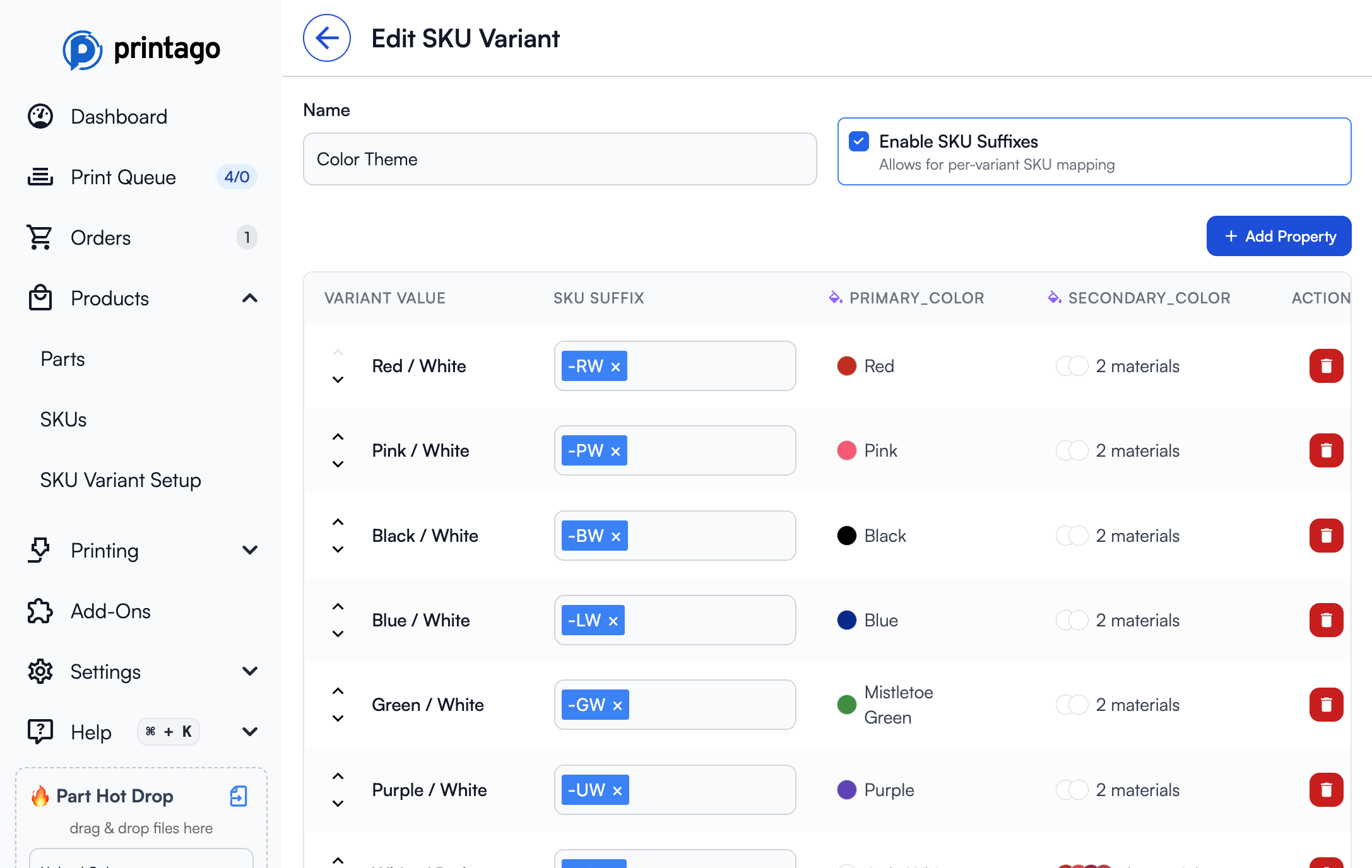
- Navigate to
Products → SKU Variant Setup - Click on your variant to edit it
- Check Enable SKU Suffixes to show the SKU Suffix column
- For each variant value, enter one or more suffix strings in the SKU Suffix column
- Suffixes can be entered as tags: press Enter or comma to add multiple options
Multiple Suffixes: You can give each value several suffixes (like -RD and -RED). Printago matches whichever one appears in the incoming SKU.
Unchecking Enable SKU Suffixes clears every suffix on the variant's values, after a confirmation.
Partial Matches
A suffix match is all or nothing for each SKU. If any variant is missing its suffix, or anything is left over, that SKU fails as a whole and Printago moves on to the next SKU the code starts with. It never keeps the variants it did match, and it never fills a missing variant from the channel's selections.
Worked Examples
Setup: a SKU MUG with two variants, attached in this order:
MUG
  1. Color:  Black = -BLK   White = -WHT
  2. Size:   Small = -S     Large = -L
| Incoming code | Channel also sends | Result | Why |
|---|---|---|---|
MUG-BLK-L | Color: White | ✅ MUG, Black, Large | Both suffixes match in order. The suffixes win, so the channel's "Color: White" is ignored. |
MUG-BLK | Size: Large | ❌ SKU not found | Color matches, but nothing is left for Size. The whole SKU fails; the channel's "Size: Large" is not used to fill the gap. |
MUG-L-BLK | ❌ SKU not found | Out of order. Color comes first, and -L-BLK doesn't start with -BLK or -WHT. | |
MUG-BLK-L-GIFT | ❌ SKU not found | Every variant matched, but -GIFT is left over. | |
MUG-RED-L | ❌ SKU not found | -RED isn't a suffix of any Color value. | |
MUG-BLK-S | ❌ SKU not found | Only when MUG's variant filter allows Large alone: -S belongs to a value this SKU rules out. | |
MUG | Color: Black, Size: Large | ✅ MUG, Black, Large | Not a suffix match at all. MUG is exactly a SKU, so the values come from the channel. |
A code that fails stays on the order as SKU not found and is retried automatically when you create a SKU, change a SKU's code, add a suffix to a value, or add a variant to a SKU.
Testing Your Configuration
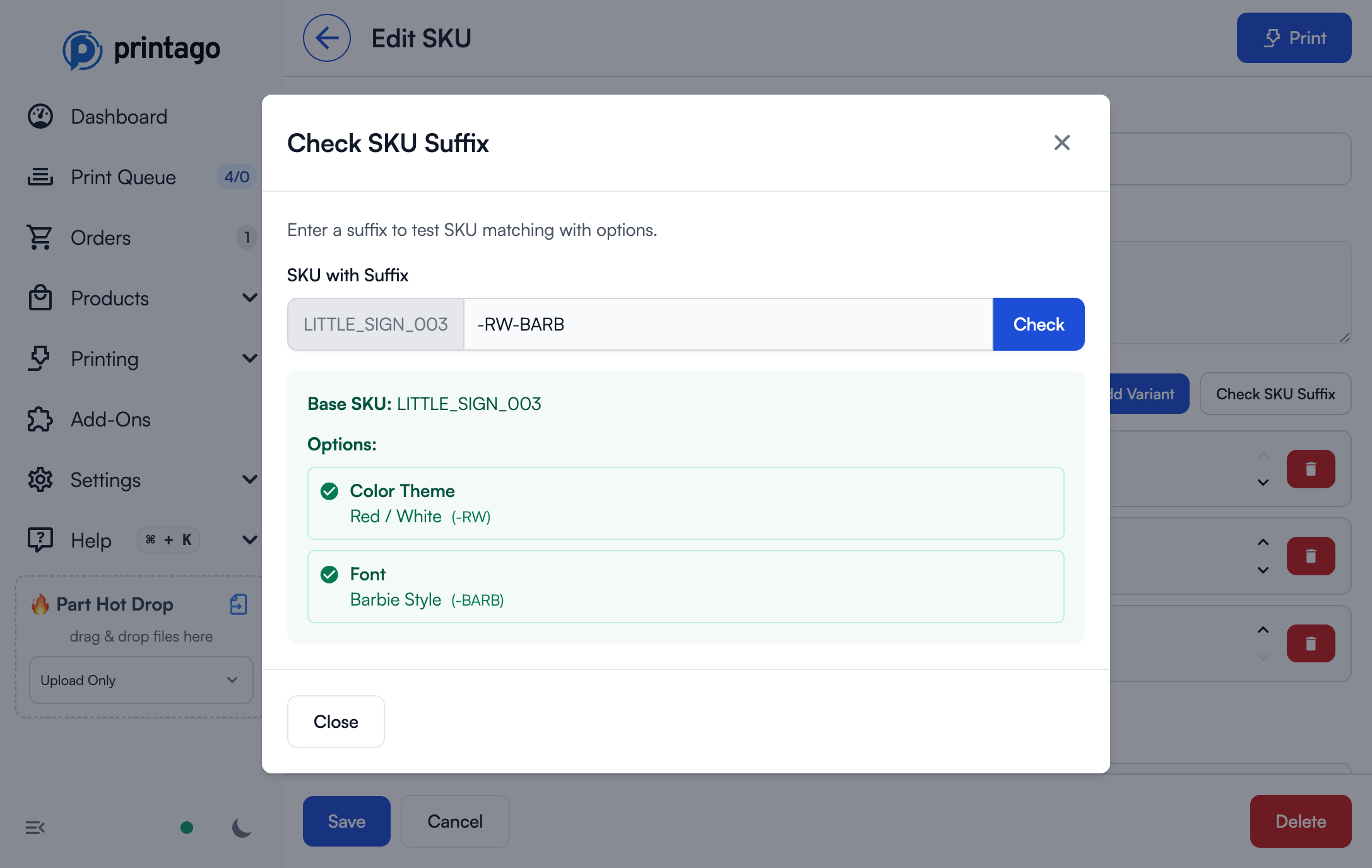
Use the Check SKU Suffix button on the SKU edit page to test suffix matching:
- Open your SKU for editing
- Click Check SKU Suffix
- Enter a suffix combination (e.g.,
-RW-BARB) - Click Check
Success shows the parsed base SKU and matched variant values:
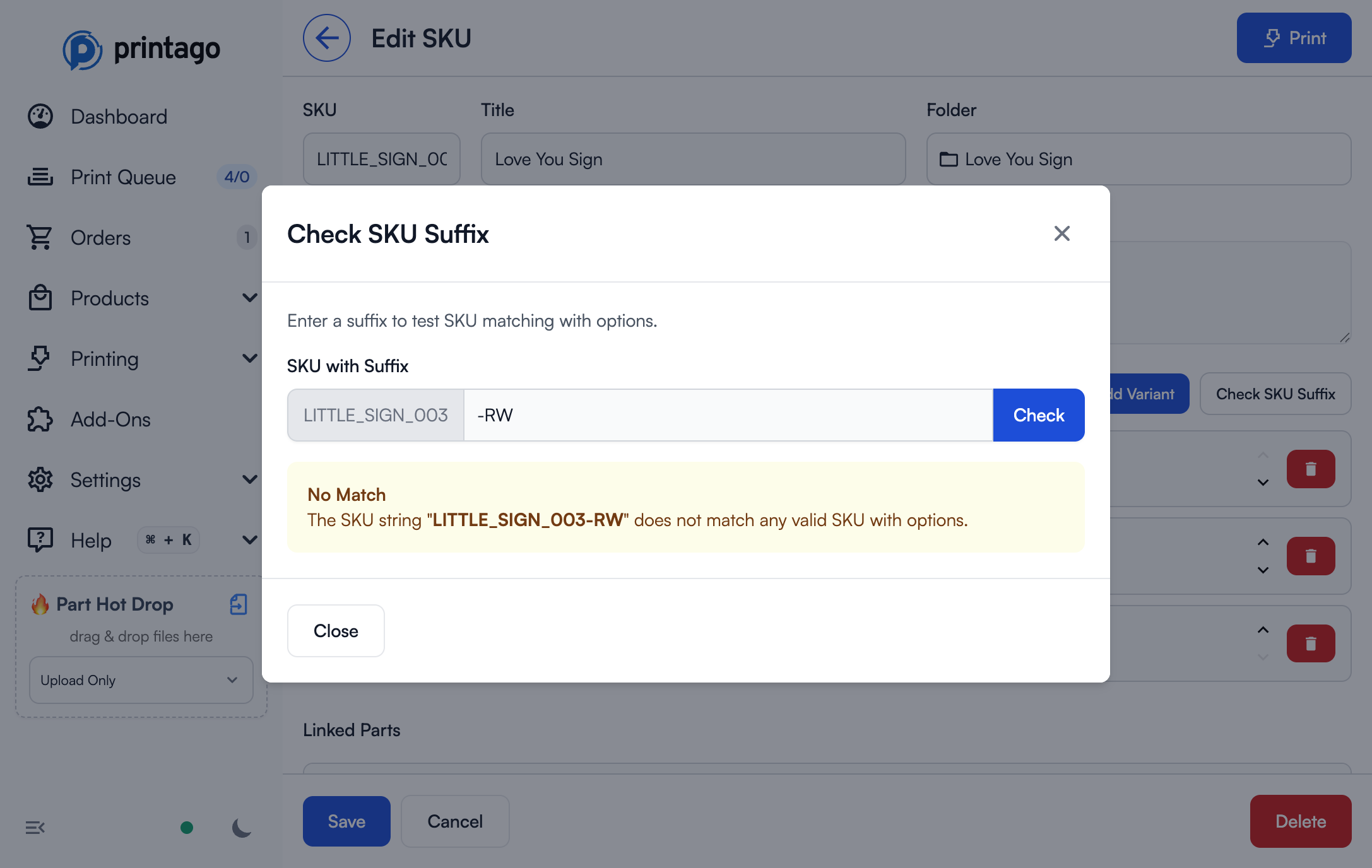
Error shows which SKU string failed to match:
Validation
Printago rejects a SKU suffix match when:
- The code doesn't start with any of your SKUs
- Not every required variant has a suffix
- Characters are left over after the last variant
- Suffixes appear in the wrong order
- A suffix isn't one of the variant's suffixes
- A suffix belongs to a value this SKU's variant filter leaves out
When a match fails, the order is held for review as SKU not found.
Where a variant filter is why a code didn't match, the panel names it (Package Options: -2PK is filtered out. Allowed: -5PK), or, when a filter has left a required variant with no value carrying a suffix, says that instead. It stays quiet when the filters aren't the reason.
When an Order Doesn't Match
An Order Item Says an Option Is Missing or Invalid
Problem: An order item shows its Selected Options in red, and its parts show
a quantity of ×? instead of a number.
Each option in trouble is a red chip tagged with what is wrong with it:
(missing), (unknown), (filtered out) or (not on this SKU). A required
option the marketplace never sent reads (missing), so an option with no value
is as visible as one with a wrong value.
Solutions:
- Click Troubleshoot in the corner of the Selected Options box (or the
{ }button on the item) to open the option troubleshooter. - The Option resolution tab lists every option the SKU expects, the value
this item carried, the line item property it came from, and its status:
- Missing: the store never sent a value for this option. Use Configure Line Item to pick one.
- Unknown value: the value that arrived is not one of the option's values. Check that the value names match your store, add the store's name as a value alias, or set the value on the item.
- Filtered out for this SKU: the value exists, but this SKU's filter excludes it. Open the SKU and allow the value, or set a different one.
- Not bound to this SKU: the store sent an option this SKU does not use. Bind the option to the SKU, or ignore the variant on the integration.
- Option doesn't exist: the item carries an option name that matches no variant, or an option that has since been deleted. Add the name as a variant alias, add it to the integration's ignored variant names, or re-configure the item to drop it.
- The Raw line item properties tab shows everything the store sent for the item, with the option each property resolved to. A property with nothing beside it matched no option, which is where a mis-named option shows up.
Quantities of ×? resolve as soon as every option has a valid value.
Orders Stuck in Review
Problem: Orders aren't processing automatically
Solutions:
- If the item says SKU not found, check the code against your SKUs and their suffixes; the Check SKU Suffix panel shows why a code didn't match
- Check the variant name (or one of its aliases) matches the option name your e-commerce listing uses, and each value name (or one of its value aliases) matches the listing's value
- Verify all variant values are mapped to properties
- Ensure properties are assigned to parts in the SKU
- Check that mapped materials exist in your Material library
Handling New Options
When you add a new color or size to your e-commerce listing:
- The order arrives in Printago
- Printago can't find the new value on the variant
- The order is flagged for review with the unknown value named
- Navigate to
Products → SKU Variant Setupand open the variant - Add the new value with its property mappings, or add the listing's name as an alias of an existing value
- Return to the order and reprocess it
When adding new options to your store, add them to Printago first to avoid order processing delays.
Related Topics
- SKU Variants: setting up variants, values, and properties
- Variant Examples: complete setups for common products
- Orders: processing e-commerce orders
- Shopify, Etsy, WooCommerce: what each channel sends