Sequences (Serial Numbers)
Sequences stamp a unique, consecutive serial number into every unit you print. Attach a sequence to a text parameter on a SKU's linked part, and each queued print consumes the next number and embeds it in the part geometry. A number, once consumed, is never issued again: not on a re-print, not on a retry, not after a cancellation.
Use sequences for serialized product runs: numbered collectibles, asset tags, warranty-tracked parts, or anything where each physical item needs its own permanent identity.
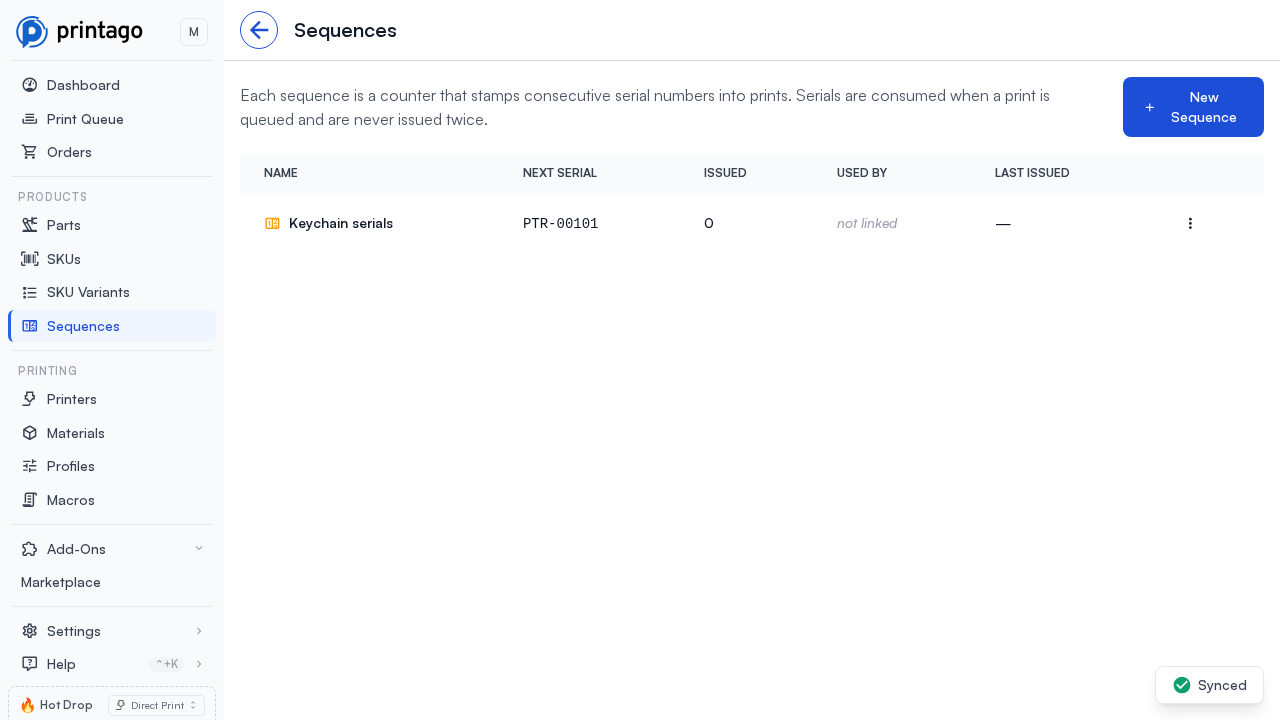
Chips above the list show all sequences, the ones on a SKU, the ones not linked to any SKU, and the ones that have never issued a serial. Filters narrows by SKU or by when the last serial was issued. Search matches the name, prefix and suffix, the last serial issued, and the SKU codes using a sequence, so you can paste a serial from a part to find its sequence. Click Name, Issued or Last issued to sort.
How a sequence works
A sequence is a named counter that belongs to your store. It has:
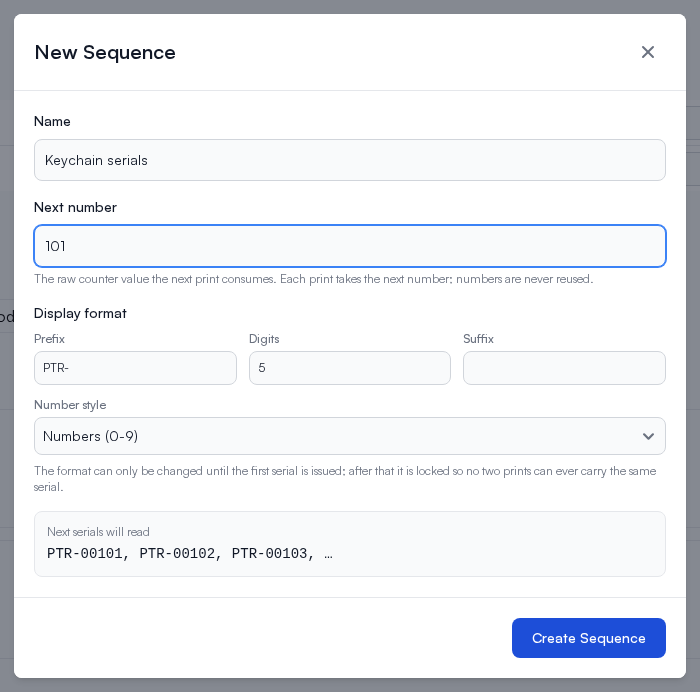
- A next number: the raw counter value the next print will consume. Every print takes the next number and moves the counter forward. This is the only source of uniqueness.
- A display format: an optional prefix, suffix, zero-padded width, and number style (plain numbers, or base 32 letters and numbers, which leave out
I,L,OandUso a printed serial is never misread). The format only changes how serials read, for examplePTR-01024. The format can be changed freely until the sequence issues its first serial; after that it is locked, because a reformatted sequence could eventually produce a serial that reads the same as one already printed. To change the look of your serials after issuing, create a new sequence.
You manage sequences on the Sequences page, in the Products section of the sidebar. It lists each sequence with its next serial, how many serials it has issued, which SKUs use it, and the last serial issued. Clicking a row opens its issue history, which records every serial along with the print job that consumed it. The history loads a hundred serials at a time, newest first, with Load more for the rest, so a long-running sequence's whole ledger stays reachable. Edit and Delete are in the row menu.
A sequence's scope is simply how you use it. Point one SKU at it and it numbers that product. Point several SKUs at the same sequence and they share one numbering pool across the product line.
Uniqueness is guaranteed within a sequence, by its counter. Nothing coordinates serials between sequences, and Printago does not reject a format because another sequence could render the same string. Two different display formats can land on the same text:
| Sequence | Format | Value | Serial |
|---|---|---|---|
| A | prefix PTR, 4 digits | 1 | PTR0001 |
| B | prefix PTR0, 3 digits | 1 | PTR0001 |
The same happens through suffixes. For example, PTR + 3 digits + suffix 0 and PTR + 4 digits both reach PTR0010.
This is deliberate: forbidding it would rule out perfectly reasonable serial layouts. It does mean that if your serials must be unique across your whole catalogue, you have to design them that way. Give each sequence its own prefix, or keep the digit counts and affixes from overlapping. When you create or edit a sequence, the dialog warns you if its format could collide with an existing one, but it will not stop you.
Attaching a sequence to a SKU
Sequences attach to text parameters on a SKU's linked part, using the same link button you use to map a parameter to a SKU variant property:
- Open the SKU and configure the linked part (the part must have a text parameter, for example an OpenSCAD or CadQuery model with a
serial_textparameter that renders the text into the geometry). - Click the link button next to the text parameter. Below the variant properties, the dropdown offers "Or use a sequence (auto serial numbers)" with each sequence's live next serial. New sequence creates one without leaving the dialog.
- Pick the sequence. The parameter shows an amber chip with the sequence name, and the parameter's value is now supplied automatically on every print. (The next serial the sequence will hand out is on the Sequences page.)
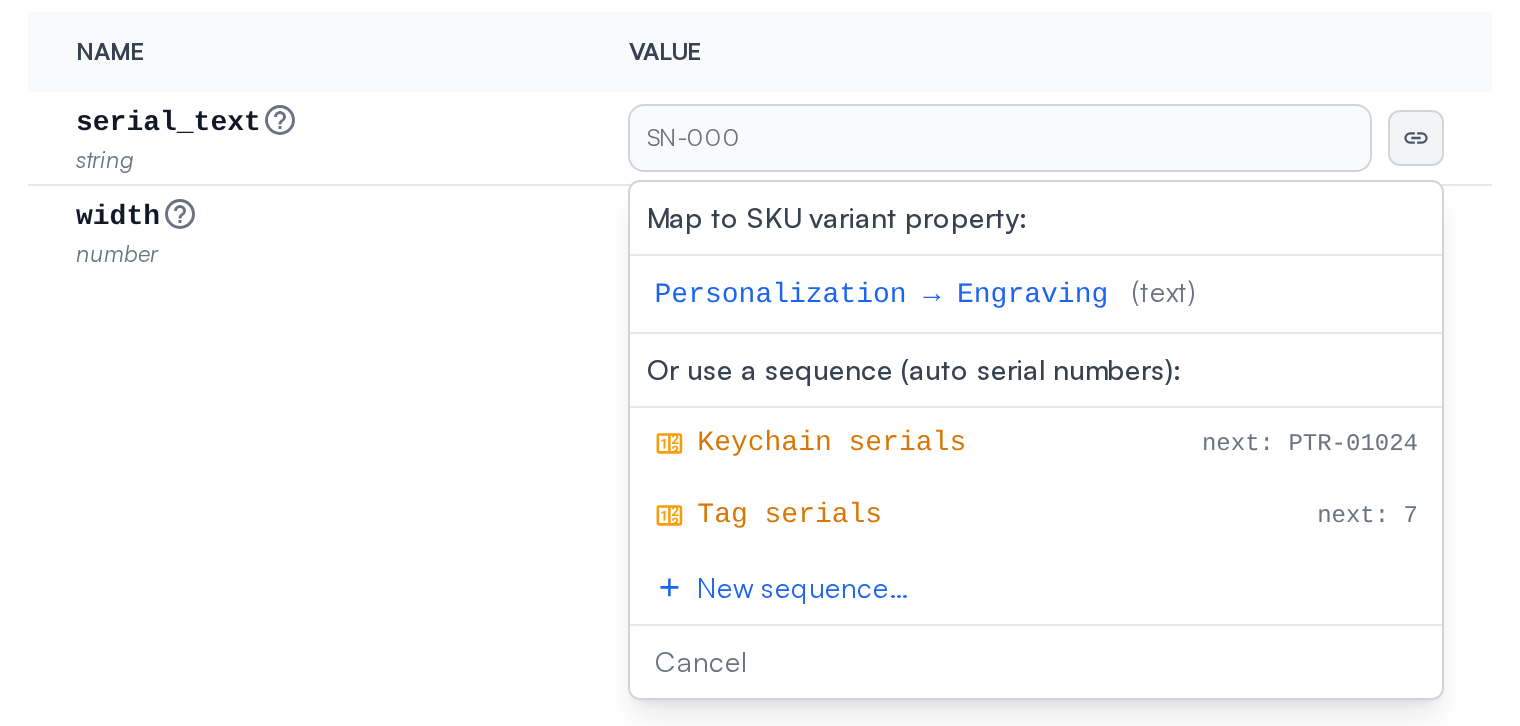

A text parameter binds to either a variant property or a sequence, not both. Selecting one replaces the other.
Text parameters come from two kinds of parts: parametric models (OpenSCAD, CadQuery, Build123d) that render the text into their geometry, and 3MF files with text placeholders (text objects named PrintagoParam... in Bambu Studio, which Printago detects automatically when you upload the file).
Serial reuse on a plate (3MF text placeholders)
A 3MF plate can carry the same text placeholder on more than one object: think of a plate of twelve keychains that all have a Serial text field. When you bind that placeholder to a sequence, Printago needs to know whether those twelve fields are one serial or twelve.
When a bound placeholder appears on more than one object of some plate, the Configure Linked Part dialog shows a serial reuse choice under the sequence chip, as a pair of buttons:
- Share across plate (the default): each print of the plate consumes one serial, and every matching object on the plate renders that same value. Twelve keychains, one number, printed twelve times.
- Increment per object: each print of the plate consumes one serial per matching object, in the order the objects appear in the file, so every physical item comes off the plate with its own consecutive number. Twelve keychains, twelve numbers.
The choice is saved on the part, and it survives replacing the part's file as long as the placeholder still exists in the new file.
Either way, consumption is counted per plate, using what is actually on each plate:
- A plate where the placeholder appears once consumes one serial per print in both modes.
- A plate that does not carry the placeholder consumes nothing. Printing only that plate allocates no serial at all, and the dialog greys the parameter out to say so.
- Objects marked not printable in the file never consume a serial.
A badge on the choice keeps a running count as you pick plates and quantities, for example Uses 7 serials per queued set, so you always see how many numbers a queue click will burn before you click it. Everywhere the binding is shown but cannot be changed (the SKU's parameter list, the print dialog) the same figures read as two small pills next to the sequence name: which mode is in force, and how many serials the set uses. Queue rows and the issue history then record which plate, and in increment mode which specific object, received each serial.
What happens when you print
When you queue a serialized SKU, Printago creates one print job per unit, each with its own serial:
- Printing a quantity of 25 produces 25 jobs, stamped with 25 consecutive serials, and each unit renders and slices with its own serial embedded in the geometry.
- The serials are consumed the moment the prints are queued. Whatever happens afterwards, those numbers are used.
- The whole run stays together in the queue as one group, in serial order, and reordering moves it as a unit.
- Queue rows show an amber serial chip. A row that covers several serials (a folded run, or a merged plate) shows a count that opens the full list.
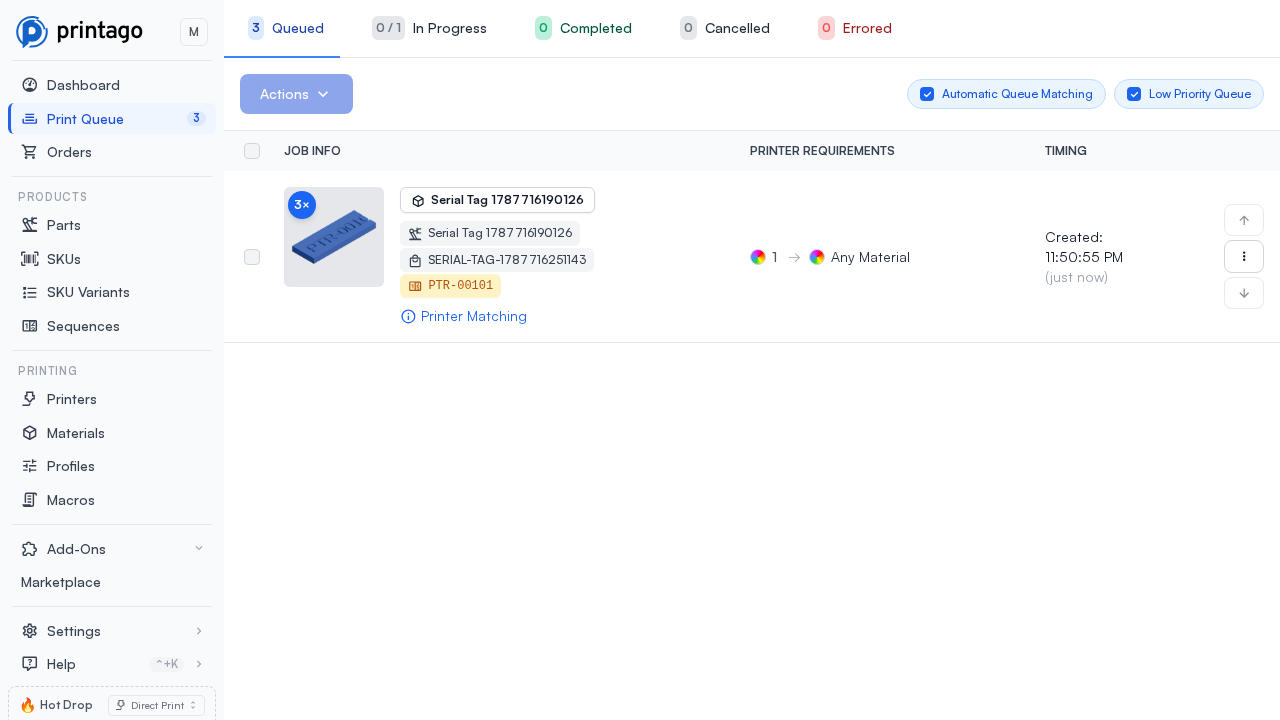
Serialized prints work with order fulfillment (each unit keeps its SKU instance number) and with plate consolidation and merging: units packed onto a shared plate each keep their own serial, and the merged plate's queue row lists all of them.
Identical copies of a part normally share one slice. Serialized units have unique geometry by definition, so each unit slices on its own. Expect a serialized run to spend more slicing time than the same quantity of an unserialized part.
Retrying, cancelling, and the never-reissue guarantee
Serials are burned at queue time and never returned to the pool:
- Cancelled or failed prints keep their serials. The numbers do not go back.
- Retrying a job prints the same serial again. Because the physical item may already exist, the retry confirmation warns you and lists the exact serials that are about to be printed a second time.
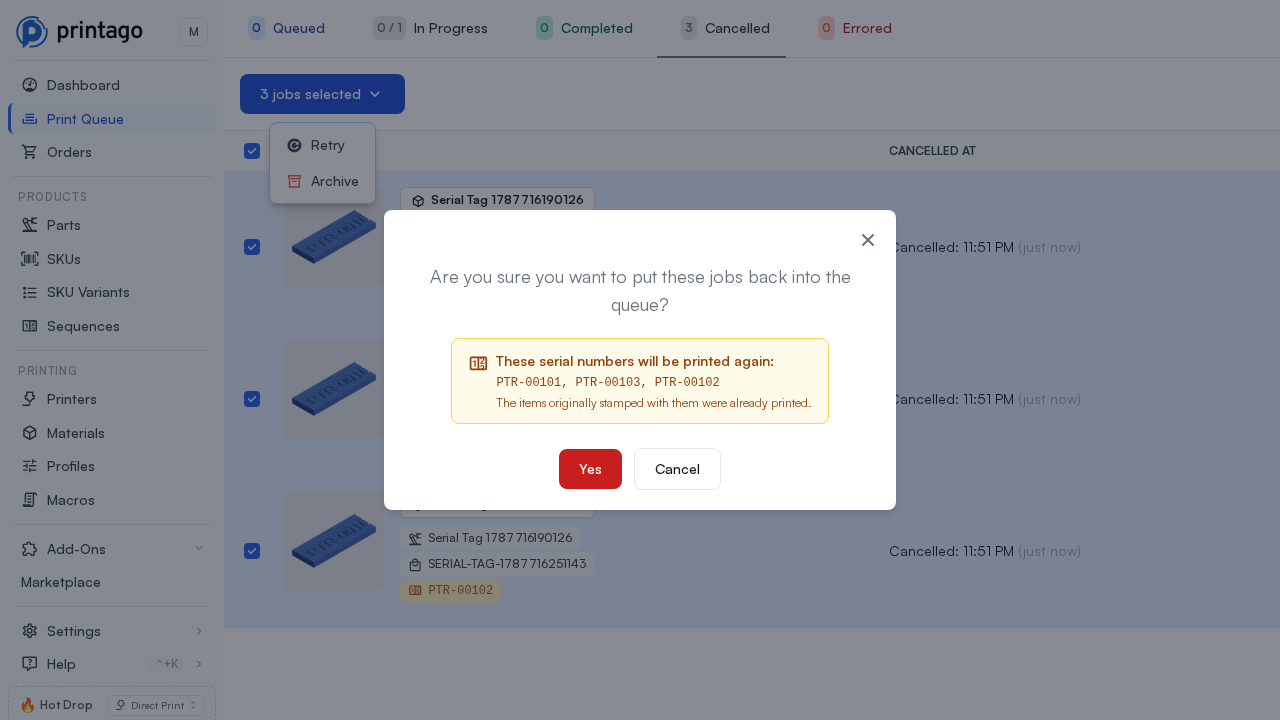
The only way numbers come back is editing the sequence:
- Fast-forward (raising the next number) is always allowed. The skipped numbers are simply never issued.
- Rewind (lowering the next number past serials that were already issued) is an explicit opt-in. The dialog requires you to acknowledge that those serials will be printed again before it saves.
Deleting a sequence
A sequence cannot be deleted while any SKU still links a parameter to it; unlink it first. Deleting a sequence removes its issue history. Serials already embedded in printed parts and recorded on past jobs are unaffected.
Permissions and availability
Sequences are available on commercial plans. Viewing sequences requires the sequence.view permission and managing them (create, edit, delete) requires sequence.edit. Admins and Part Managers can manage sequences; Operators and Viewers can see them.
Current limits
- Sequences bind to text parameters only: a parametric part (OpenSCAD, CadQuery, or Build123d) with the serial text modeled into the geometry, or a 3MF with
PrintagoParamtext placeholders. - A single request can queue at most 500 serialized units (counting all linked-part copies and plate copies), matching the queue's normal per-build limit.
- 3MF parts uploaded before placeholder location detection need their metadata reprocessed once (or the file re-uploaded) before a plate print can allocate serials; the queue tells you if that is the case.
- Queueing is refused, before any number is issued, if a bound placeholder could not actually be printed with its serial: the text renderer is off, the placeholder parameter was removed from the part, or the text volume is no longer in the file. Nothing ever prints with the authored placeholder text still in it.
- The API's build endpoints resolve sequence bindings automatically; there is no way to hand-pick a specific serial for a specific unit.