Addons
Addons extend Printago with powerful features and integrations. Open Add-Ons > Marketplace from the sidebar to browse everything available to your store. Use the search box at the top of the Marketplace to quickly find an addon by name.
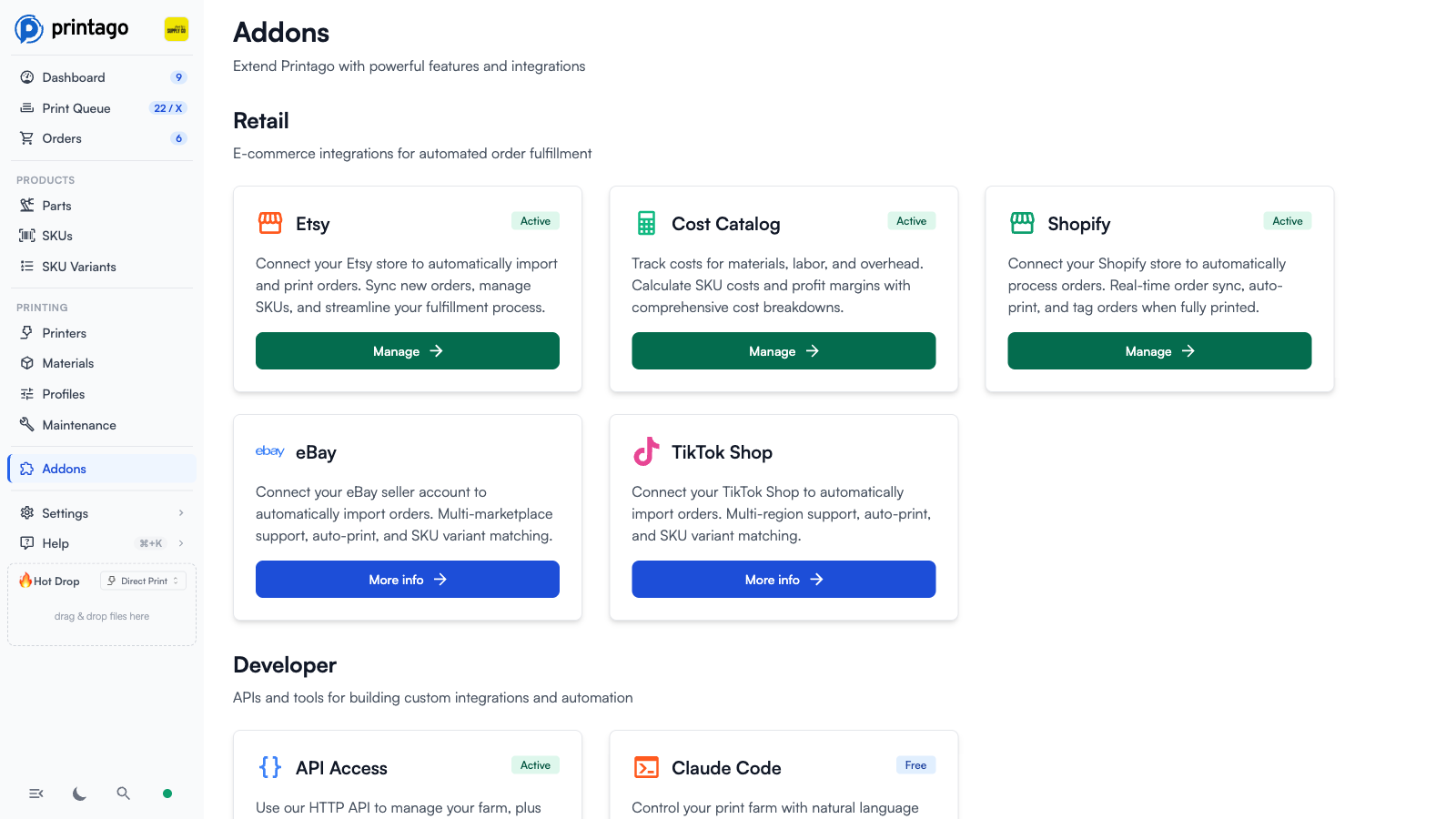
How Addons Work
Addons are enabled per store. Each addon appears as a card with a short description and a button:
- Active addons are already enabled for your store, and their card shows a
Managebutton. - Other addons show a
More infobutton so you can learn about them and get started. - Some addons are free, some require a subscription, and some are waitlisted until they roll out to more stores. See Add-ons for how activation and waitlists work.
The Marketplace is part of a Commercial account. On other accounts, the page shows what upgrading unlocks instead.
Pinning Addons to the Sidebar
Active addons in the Retail and File Sync sections show a pin icon in the top corner of their card. Pin an addon to add it to the Add-Ons menu in the sidebar as a shortcut: clicking the shortcut takes you straight to the same place as the card's Manage button. Click the pin again to remove the shortcut. Other addons already have a home elsewhere in the app, so they can't be pinned.
Pins are saved in your browser, per store. If an addon is deactivated, it is automatically unpinned.
Categories
The Marketplace groups addons into categories:
- Retail: e-commerce integrations for automated order fulfillment.
- Etsy, Shopify, eBay, TikTok Shop, and WooCommerce import orders from your sales channels
- ShipStation, a free addon that imports orders from every channel you run through ShipStation
- Shippo, a free addon that imports orders from every store you ship through Shippo
- Wix, a free addon that imports and syncs orders from your Wix site
- Cost Catalog tracks material, labor, and overhead costs to calculate SKU costs and margins
- Developer: APIs and tools for building custom integrations and automation.
- API Access for the HTTP API and realtime MQTT updates
- Claude Code, a free skill for managing your farm in plain language
- Organization Management: tools for managing your team.
- Users to invite team members and assign roles
- Audit Logs to see who changed what, and when
- Education: Classwork, a free addon for creating lessons and assigning them to students.
- Farm Management: tools for running your printer fleet.
- Maintenance Tracker for recurring maintenance by print hours, calendar days, or job count
- Filament Inventory, a free preview that keeps filament stock by color and, with spool tracking, a record per roll
- FarmLoop by 3D Farmers, shown as Coming Soon
- File Sync: OneDrive watches a cloud folder and imports new and updated files as Parts.
- Production & Services: Partner Fulfillment sends parts or SKUs to Printago's network of vetted partner print farms when you need more capacity. Click More info on its card to get in touch.
Maintenance Tracker and Classwork can be switched off again from their Marketplace cards; your data is kept.
Need help with an addon? Join our Discord community for the latest info and support!